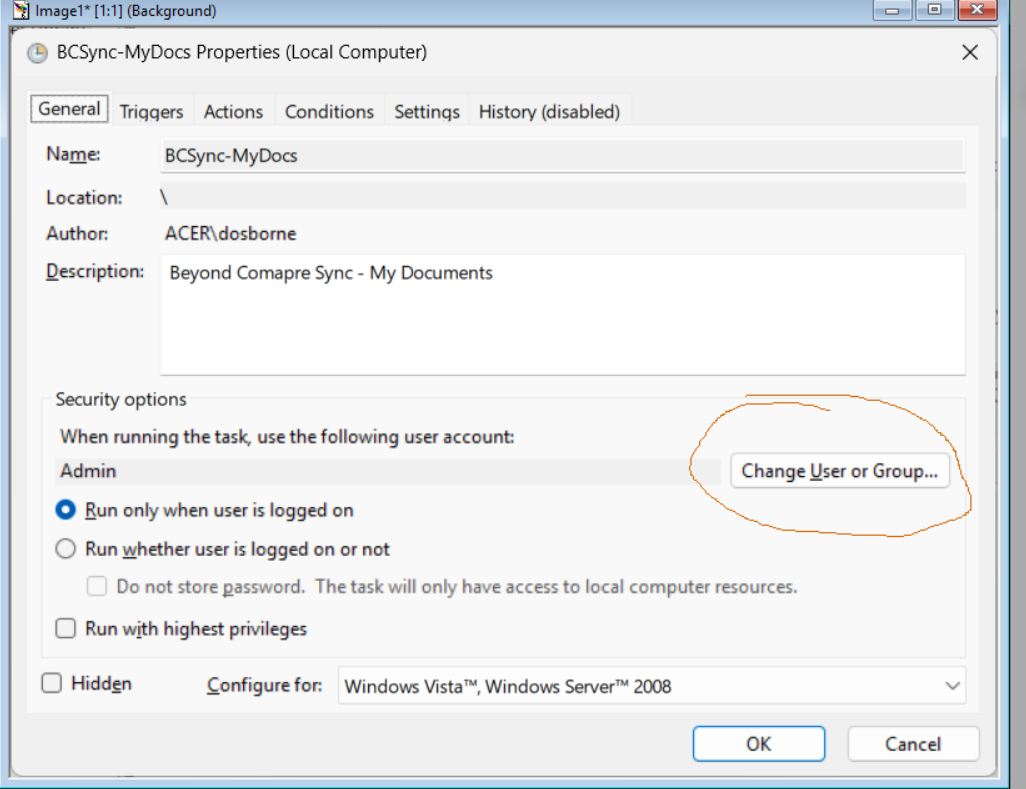
I tried this procedure of removing and adding a new Windows credential for the NAS, but no luck. In doing this I saw that no Windows credential pre-existed. I had added the user on the NAS using the same user name and password used to boot-up each machine, and that worked fine to permit online NAS access. Somehow the Windows Scheduler alters how the credentials are presented, or the NAS responds differently when accessed via the console/offline. And, I tried every variation for user name on a credential and as well trying to force Scheduler to use the account I entered on the NAS. It’s frustrating.
That said, the Qsync approach should serve my needs with some configuration and testing.
Right. I’ve experimented with this. I have a single user added to the NAS with access privileges. I’ve set it to the user name and password that are used to boot-up the PC using the corresponding account. With Windows Scheduler, this of course is not working. With my previous, older QNAP NAS, the script worked fine with Scheduler, provided I used the IP address and the folder I was trying to access, e.g., \\192.168.12.150\folder. With the new QNAP, this no longer works.
So, I’ve experimented in Scheduler setting the User Account as you’ve highlighted here. I’ve tried the account user name (the one both on the PC and as a user defined to the NAS; I’ve tried adding it with the NAS name, e.g., NAS93494949\name; I’ve tried it with the PC location, e.g., User-PC12\name; and I’ve tried it with the IP address, e.g., 192.168.12.150\name. But none of these have worked.
One question … I’ve explored the logs on the QNAP. I could see some attempts to log in that failed (i.e., when I attempted to login but mis-keyed the password); but I can’t see anyway to log the attempts where Scheduler attempts to access and fails. I was thinking that if the log showed me what credentials were presented and denied, I could then figure this out. Am I missing anything?
I can turn history on and see what it shows. In the off chance it shows how the credentials are being presented, that might be helpful.
I’m not sure there’s a way (I certainly don’t know) to redirect the script output. This is a vbs script, so it’s run by the “wscript” interpreter. I wrote is so that it writes updates to a text file. Since it runs offline, that of course is the only way to see what it did and what happened. For errors, I trap them and write out that an error occurred and the code and text description. For this particular NAS access problem all I see is that the script couldn’t find/access the target folder.
One other idea has occured to me. The newer QNAP perhaps prevents double network logins. I’m testing the script running via Scheduler, but I’m doing it as I’m already logged in online using the same account. I guess I could try setting up a second user on the NAS, and configuring Scheduler to use that separate account. That way it wouldn’t be the same user trying to establish a second connection. Just a theory … but worth a test …
I would assume that you can modify the command run in task scheduler to add the mentioned redirects to a file, then review the file. I’ve never really looked at the history option, but I would hope it has some useful functionality.
There is an example here
In particular
Add “command.cmd > file.txt" if you have spaces. The 2>&1 from Ivan’s answer also goes inside the quotes.