AI Service Center 1.0.0 Beta Is Here: One Portal to Manage Local and Cloud AI on NAS

We’re excited to announce that AI Service Center 1.0.0 Beta is now available in App Center. Try it out and tell us what you think!

With more and more AI apps on NAS, each one used to need its own models and keep its own API keys. That made it hard for administrators to see which models are running, where data is going, and how much is being spent. AI Service Center was built to solve this: it’s the AI control hub on your NAS. Set up models and keys once, and every AI app can share them.

New Features Overview

1. Local Model Library: Deploy in Two Steps, No Command Line Needed

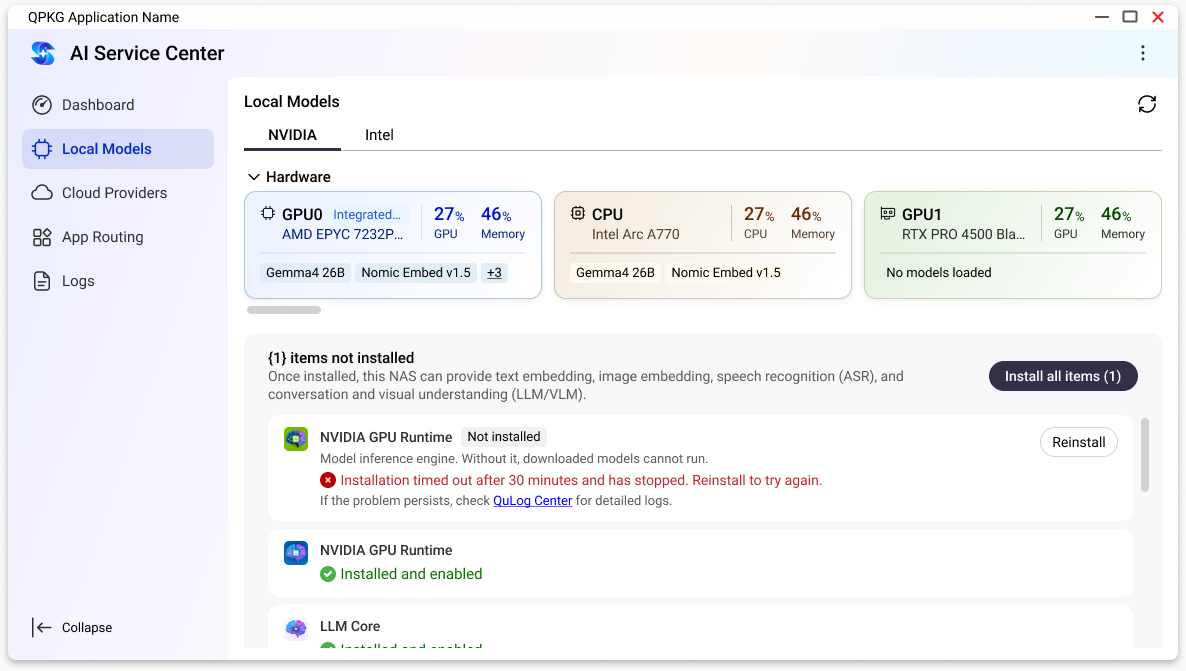
Choose a model from the QNAP-verified list and select CPU, GPU, integrated graphics, or NPU. The system downloads and loads it automatically in the background. Each model shows its size, memory requirements, and supported capabilities, and both NVIDIA and Intel runtime environments are supported.
2. Cloud Providers: Set Your Own Cloud Budget

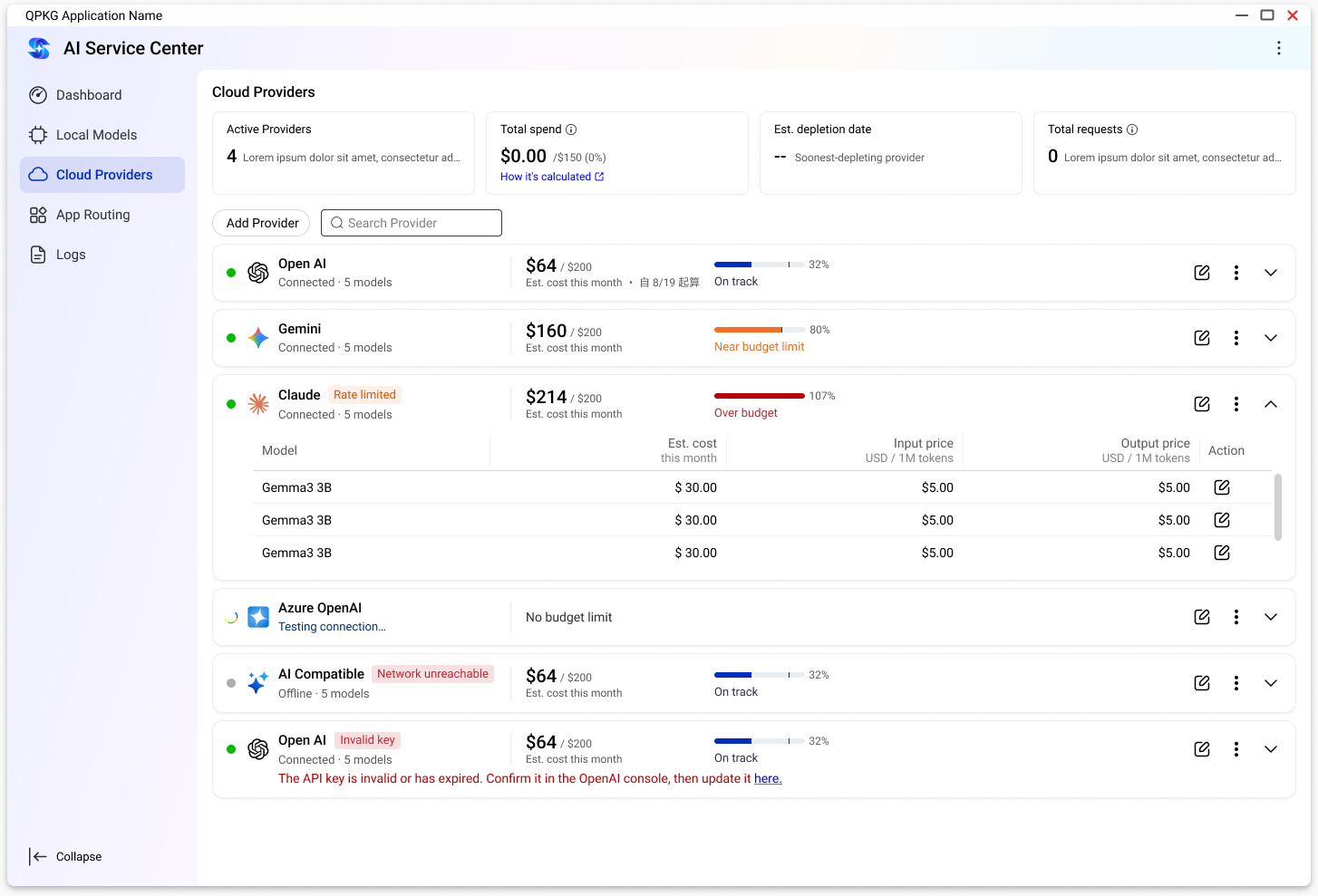
Connect your own OpenAI, Azure OpenAI, Gemini, Claude, or OpenAI-compatible endpoint. Set a monthly spending cap when you add a provider, and see status and spend on a single page. Apps can’t call any model you haven’t explicitly enabled.
3. App Integration: One Change Applies to All

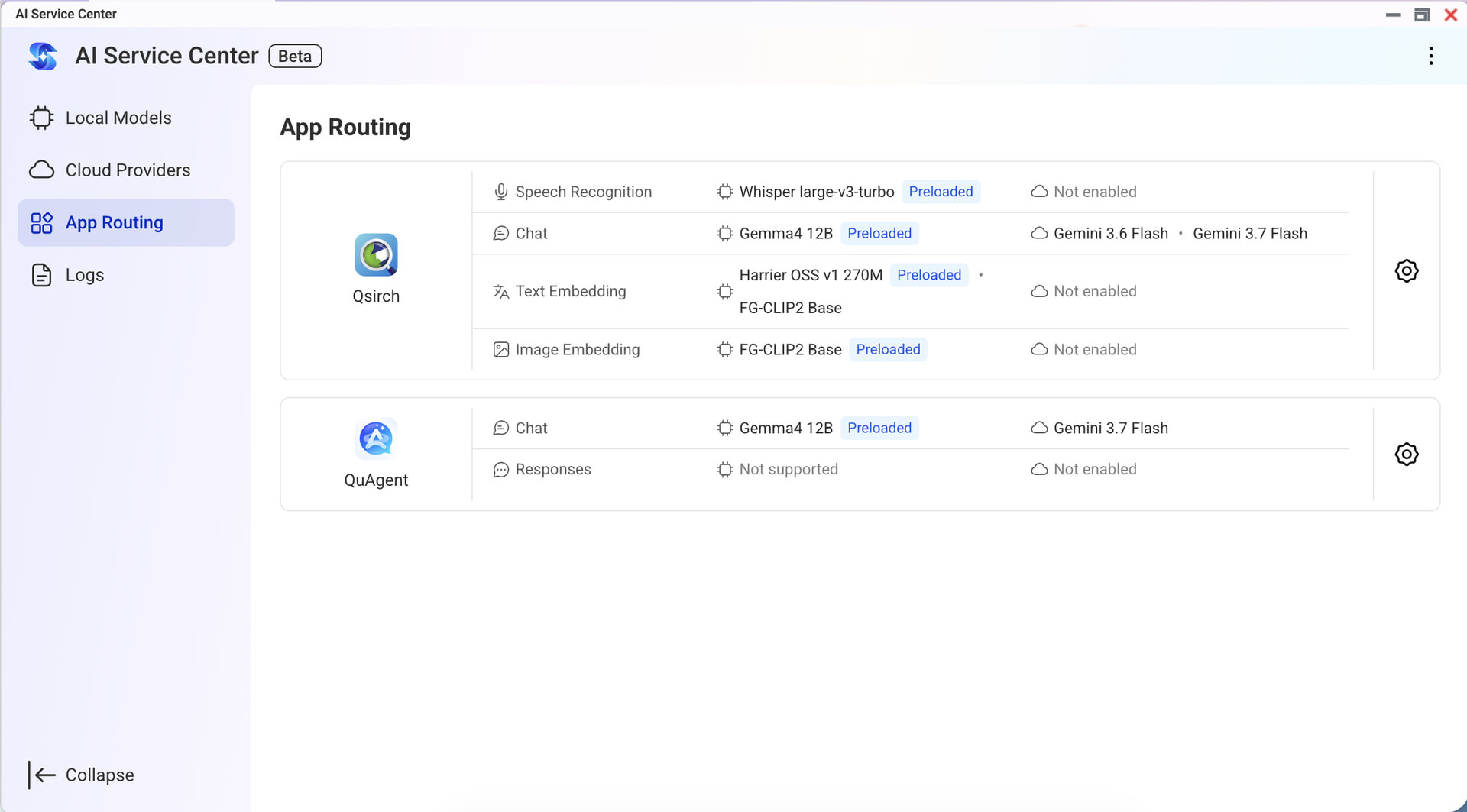
Apps register automatically when installed. All you need to do is designate which local model or cloud option each capability should use. Qsirch and QuAgent are currently supported.
4. Activity Log: Trace Every Call

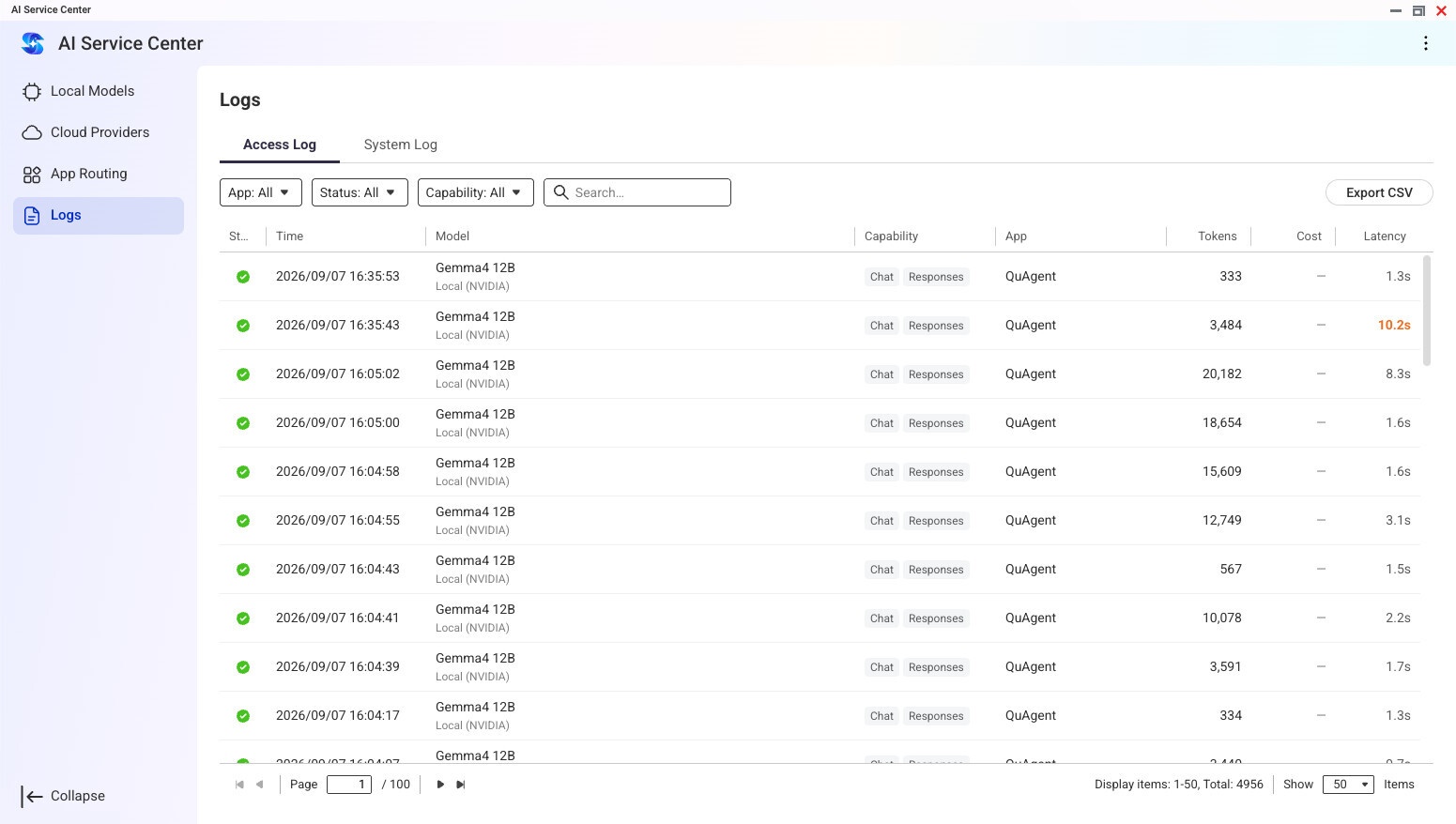
Every call is logged with time, app, model, tokens, cost, and latency. Filter and export to CSV, and view related system events in the same interface.
Download Now

AI Service Center 1.0 Beta is available in App Center, and there is no license fee for the app itself. If you use a cloud provider, you pay the provider directly based on your usage. This is a Beta release, so features and the interface may change before the official release.

System Requirements

  • QTS 6.1.0 or later, or QuTS hero h6.1.0 or later
  • Cloud providers: supported on both x86 and ARM64 models, no GPU required
  • Local model library: x86 models only, with a compatibility-certified GPU, and the relevant runtime and model packages must be installed

We’d Love to Hear From You

Thank you for your ongoing support of the QNAP community. We built AI Service Center to make AI on NAS easier to adopt and easier to trust, and your feedback during the Beta will directly shape the official release. Tell us how it works for you in the replies.

Learn more: Product Page | Release Notes
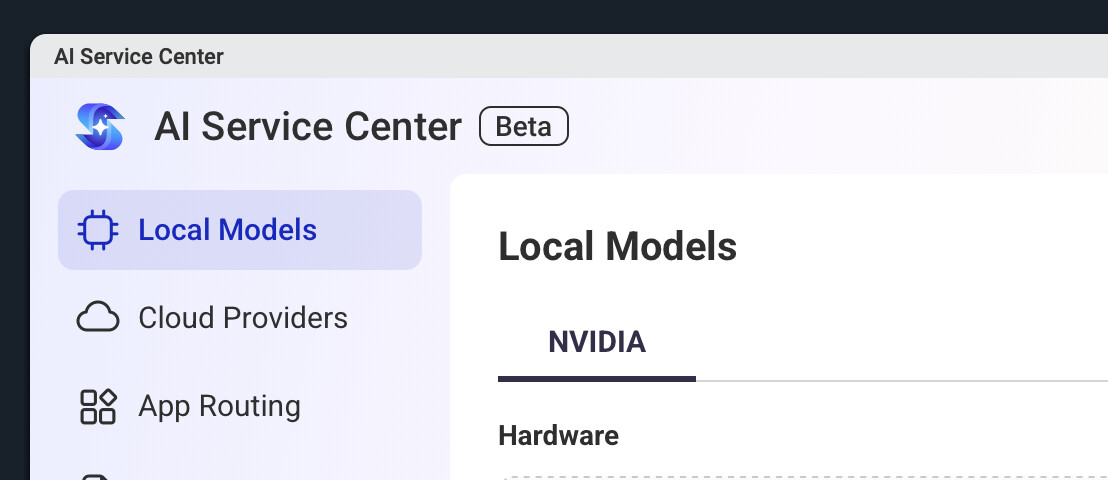
“both NVIDIA and Intel runtime environments are supported” - Any idea why I don’t see an “Intel” tab in the NAS TVS-AIh1688ATX? This NAS has an iGPU, so the “Intel” tab should be visible too.

Hi @antik,

Thanks for catching this, and sorry for the confusion. That sentence in the post was our mistake: the Intel tab isn’t included in this 1.0.0 Beta yet. It will arrive in our next version, around the end-of-November release.

One more thing to set expectations for your TVS-AIh1688ATX: the compute of the built-in Intel iGPU is enough for AI tasks like face and object recognition, but it isn’t enough to run LLMs. So even once the Intel tab is available, local LLMs on this model would still need an NVIDIA GPU, or you can use the Cloud Providers feature to connect a cloud model in the meantime.

Hi, and thank you for the info. Next question: Will the Intel iGPU be powerful enough to handle commands in QuAgent, such as checking the status of the NAS or will a GPU need to be assigned for this as well?

Hi @antik ,
The TVS-AIh1688ATX does support AI features, but if you rely only on the Intel iGPU or NPU, you’ll be limited to smaller models such as Qwen 2.5 7B or Qwen3.5 9B. At that size, response speed and accuracy are often not very satisfying.

For a better QuAgent experience, you have two options:

  • Use a larger local model by adding a compatible NVIDIA GPU.
  • Connect a cloud model through Cloud Providers in AI Service Center, and set a monthly spending cap to keep costs under control.

I’m curious about trying this on my TVS-h1688x. I usually do not install the betas but the AI Service Center is intriguing since I have been using my 1688x more for AI in recent months. I am also curious about using OpenAI endpoints for both ChatGPT itself and my Mac Studio running LM Studio. Since Qsirch now needs a 16 GB GPU, I’m curious does that mean it must be a local GPU or can it offload those tasks to an OpenAI endpoint?

Hi @Sevenfeet,

Thanks for your interest, and for giving the Beta a try!

For now, the 16 GB VRAM requirement in Qsirch 7.1.0 means a local GPU. In the current AI Service Center Beta, the capabilities of Qsirch AI Mode can’t be routed to the cloud, so they can’t be offloaded to an OpenAI endpoint. Without a GPU, Qsirch keyword search still works as usual.

AI Service Center can still be useful for your setup. In Cloud Providers you can connect OpenAI or any OpenAI-compatible endpoint, including LM Studio on your Mac Studio. These cloud large language models are used by QuAgent and by Qsirch RAG Search. You can also set a monthly spending cap for each provider.

Thank you!

OK, against better judgement I decided to wade into the QuTS Hero 6.1 beta pool with my TVS-h1688x. Upgrade was successful although I have a couple of issues and observations.

I cannot find the AI Service Center, which is the main thing I wanted to play with. While the 1688x doesn’t have an AI capable GPU by default, I do have a RTX 3060 (12 GB) installed which is capable of many things (yes, I know Qsirch isn’t one of them). The system still recognizes that the card is there for container station purposes. Any ideas on why it’s not showing up? [EDIT: OK, I figured out I have to download it separately. I’ll play with it now and give more thoughts in the coming days).

LLM Core and Q’Center Agent took a very long time to update versus other apps (20+ minutes). I’m not sure why. Things do seem to be stable now with that.

ARC memory now allows for memory percentages to be below 40% which I’ve wanted for years since I didn’t think that ZFS really needed 40% of the RAM on a 96 GB RAM machine. That being said, I have no idea what value I should use from a best practices standpoint to give ZFS enough room to work with while clawing some of that precious RAM back for other stuff. The system warns going under 40%. Any idea what I should do here?

The UI tweaks are nice. It’s not Synology but it’s welcome.

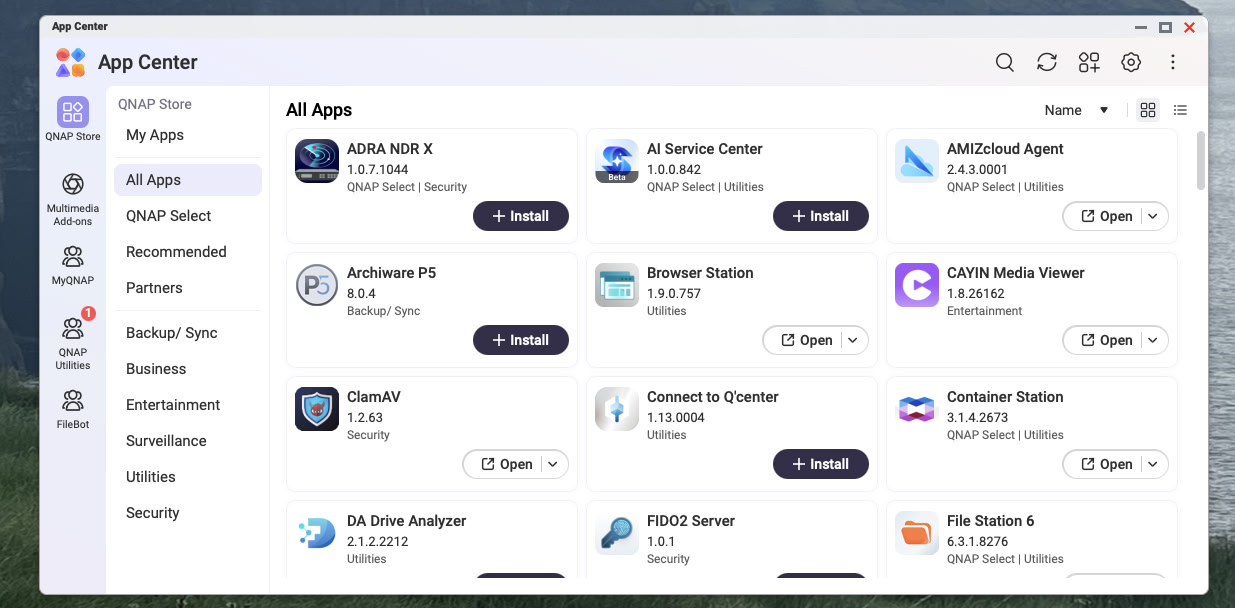
AI Service Center should be there in the App Store. Make sure you are looking under All Apps and not My Apps. I have a TS-873A with no GPU and it shows up.

Shows up on my TVS-672XT which has no AI Accelerator either…