I figured a pic would be worth a thousand works:
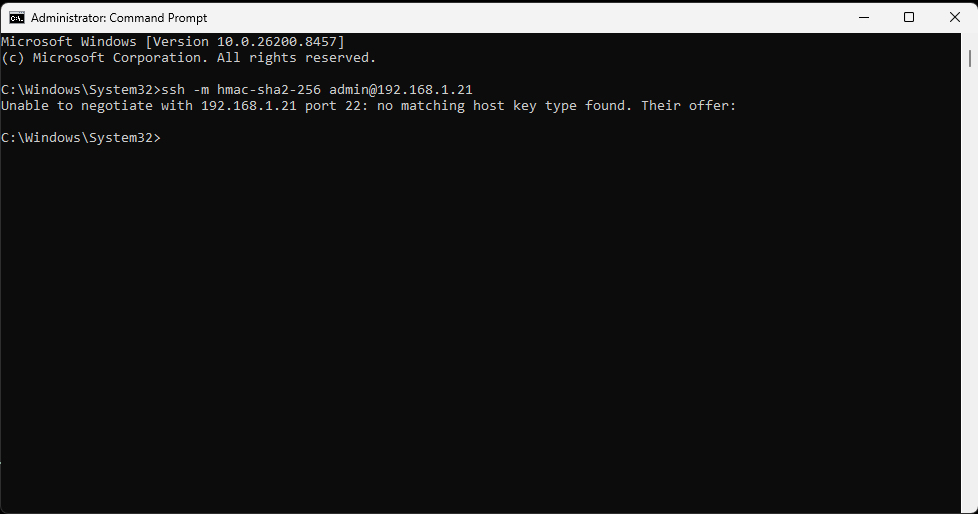
Only thing I can think of is that you had a connection to that NAS before but something changed on the NAS and the keys might not match (error message is normally different though)
and elevated command prompt (cmd “run as administrator”)on your machine could regen the keys
ssh-keygen -A
Hello,
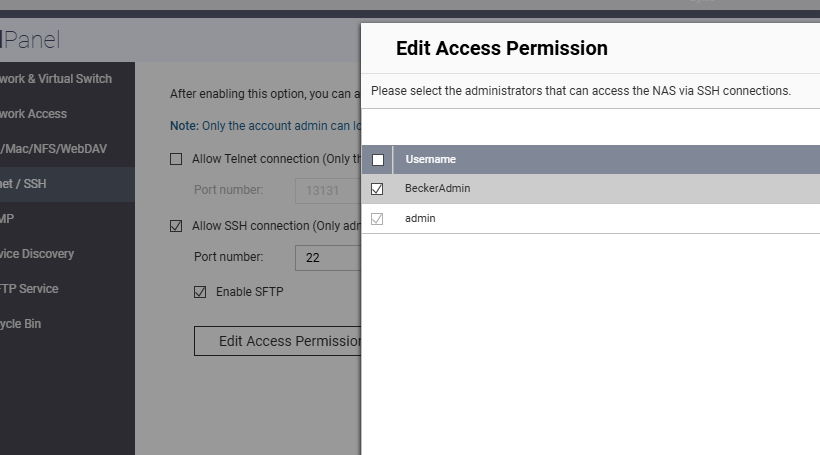
do you have enable SSH on your NAS ?
Yes: Allow SSH connections is checked, port 22, and SFTP is checked.
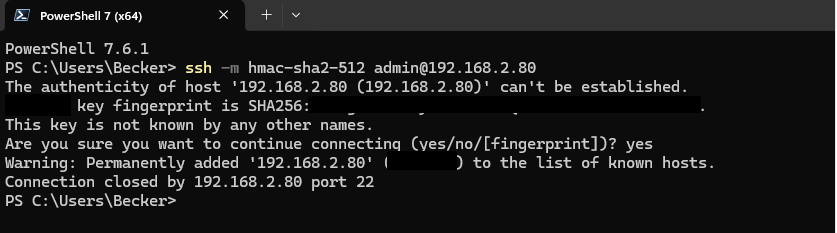
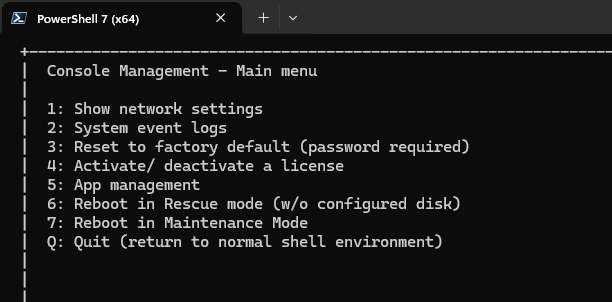
Thanks for that. I don’t have that version of PowerShell and will go out to get it at the “aka.ms” website.
I found and installed PowerShell 7.6.2 and was still hit with the “unable to negotiate…” message as before. I will do what Dolbyman recommended and try the “ssh-keygen -A” thing a bit later.
Yes, “admin” is enabled as a user.
It’s odd we’re not seeing the NAS’s key type offer. Something should be shown there. Without that, an SSH connection will not be possible. 
Try reinstalling the current NAS firmware version.
This is a good idea @dm. The problem is it needs to be run on the NAS. User would require some other way to access a “local” console (like WebSSH) to run the command. 
I had it before that I played with a raspi and after a quick reinstall the IP was the same (due to DHCP) but the SSH keys were different, so my client refused to connect, as it suspected fraud, regenerating local SSH keys did the trick.
I wonder if OP could also just do an in place firmware upgrade, just in case the SSH server has a hiccup.
That works, as long as the NAS has its own key to offer.
In this case, the NAS appears to be missing its keys. I agree: a firmware reinstall should regenerate them as part of the installation process.
I reinstalled the firmware I just downloaded, version TS-459_20240618-4.2.6., via the device’s webpage manual firmware update method, with no change in the status of the SSH keys or lack thereof.
Is the method I used the same as an “in place” firmware install?
Because Win10 machines don’t have any issue, I still can’t help but think that it’s a Win11 issue. Incidentally, the SSH failure occurs on both Win10 and Win11 machines.
Just to let you know you are not alone! having same problem with my TBS-464. I did find I can access it via browser using ip address followed by port 8080 which was not required in Win10. But Qfinder finds it but will not open it.
Damn.
Edit: silly me, I completely forgot about telnet. Ensure the telnet server is enabled in your QTS control panel, and you’ve installed the MS telnet client in your Win10/11.
To connect:
telnet 192.168.1.21 13131
Login using your NAS admin account details. Then run the command to regenerate the NAS SSH keys.
If the above doesn’t work, your NAS has a VGA port on the rear. You could try connecting a monitor and keyboard. This will allow you to login locally and run the command to regenerate the NAS SSH keys.
Yes. 
The steps above are only addressing the inability to login via SSH. Once the login issue is fixed, you’ll then be able to change your SMB version. For QTS 4.2.6, this has to be done at the command-line as QNAP hadn’t included UI support for it back then. 
Hi Paul and welcome to the forum. 
Your issue has a different cause. Can you please create a new topic for it?
Just for the sake of completeness I’ll add some history and context.
I first came across the W11 hitch with a new laptop which wouldn’t access USB flash drives (used for multimedia) plugged into my main and satellite routers. I set up SMB1 in W11 but that didn’t solve it. I kept the SMB1 setting and eventually found the tweak I put in post 10, which solved the access problem.
It was only AFTER I applied the tweak that I accessed my two NAS, so I never saw that problem in windows explorer with my NAS.
One of the NAS is a venerable Qnap TS-112P which is used solely for multimedia storage/playback (using Twonky) Although it wasn’t really necessary, I later enabled SMB 2 on it from W11 with “ssh admin@NAS-IP” and “smb2enable”. It did seem to hang a bit when issuing the commands, but I let it do it’s thing.
I then disabled SMB1.0 in W11 and all’s well. Every network device is still available. The hitch is definitely a W11 issue for some older devices that were built before W11 was conceived.
Just as an aside, network discovery on W10/11 isn’t perfect, so, in Explorer, I “Pin to Quick Access” any network devices, rather than map network drives. Note that if, under “Folder Options”, in “Privacy” your clear the history and untick the “Show…” options, you can drag/drop items under “Quick Access” to make a custom ordered list.
OneCD, I’ll try telnet later and see if that works. As I currently don’t have a monitor that has a VGA input, I’d have to buy an HDMI to VGA adapter possibly in the future but not now.
I am quickly coming to the realization that this may be beyond my capabilities or desires to correct and may just have to live with in and use the Win10 machines for Windows file access until those machines with WIn10 on them die.
If you put in a ticket I think QNAP can fix remotely.
Yes, I’ve had pretty good luck with that approach in the past.
Ticket submitted. I am wondering if I may have to do a complete rebuild of the NAS from the ground up?
I received a response to my support ticket and appreciated the support specialist taking the time to respond to me.
In a nutshell I was told that this NAS has gone EOL a long time ago and I should consider getting a newer NAS and I can’t argue with that suggestion.