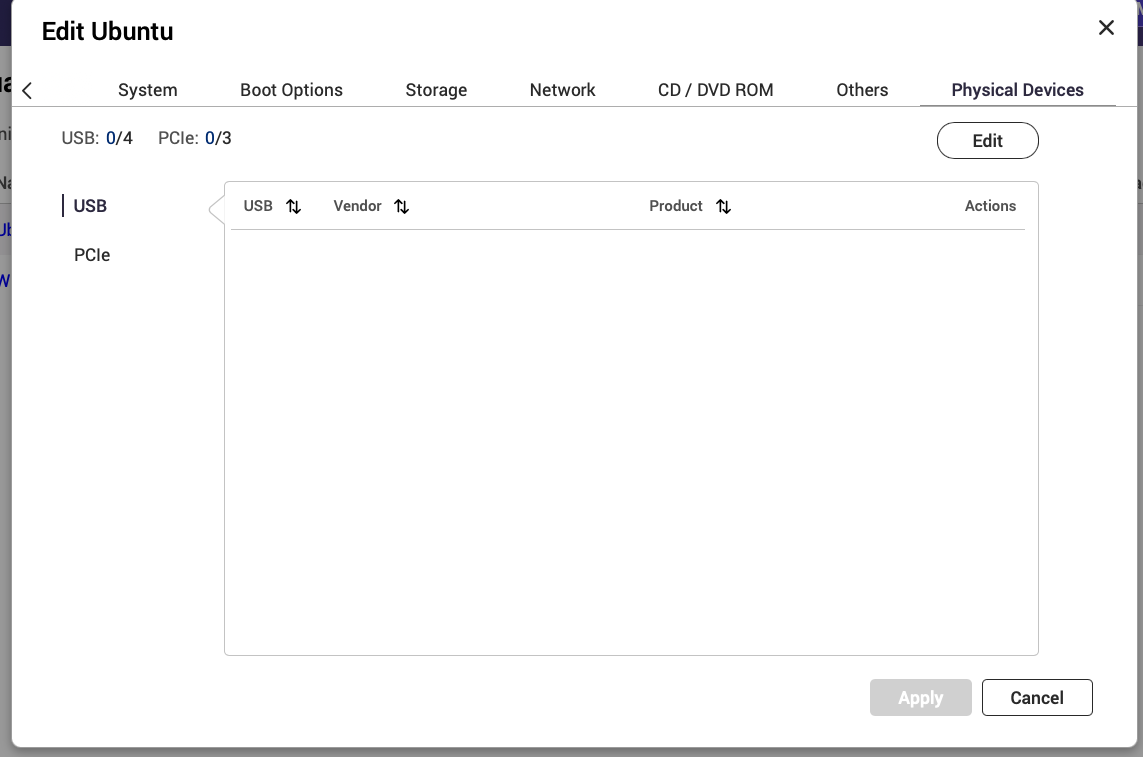
I have a specific USB-Device which I need to attach to a VM every time the VM starts.
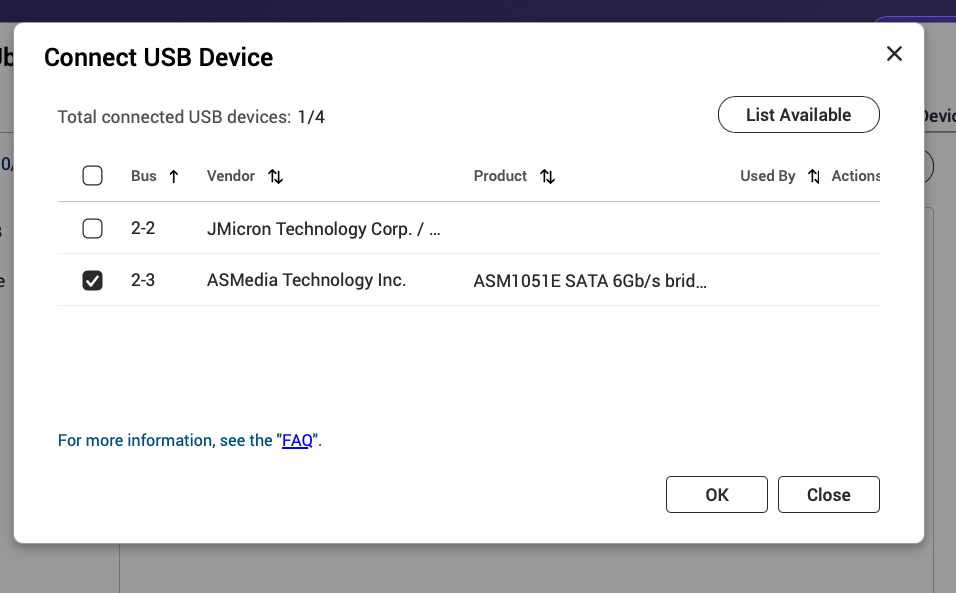
The device is connected to the NAS and stays in the same port all the time - hence it doesn’t really matter if I attach the device by serial number or attach a specific port.
But I haven’t found a configuration option to auto-attach a USB port or device.
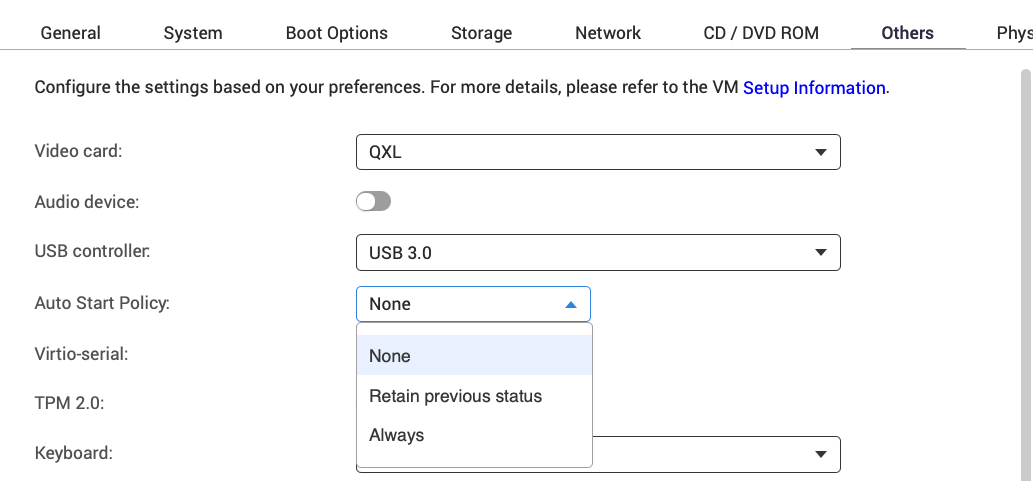
I have not done this but here’s what I think you will need to do. Edit the VM. Then in the Others Tab make sure to set the type of USB Controller and the Auto Start Policy is set to Always (I’m not 100% sure this setting is tied to USB though).
I have seen USB devices auto detected and useable through file station but not being available to the VM on start despite selecting and applying in VS4. The problem was just flakey. You are limited to 4 USB devices anyway for a VM. I used a work around in the end (Virtual here).
I will confirm with the internal team whether this feature currently exists, and if not, I will ask the team to evaluate relevant optimizations. Thanks!
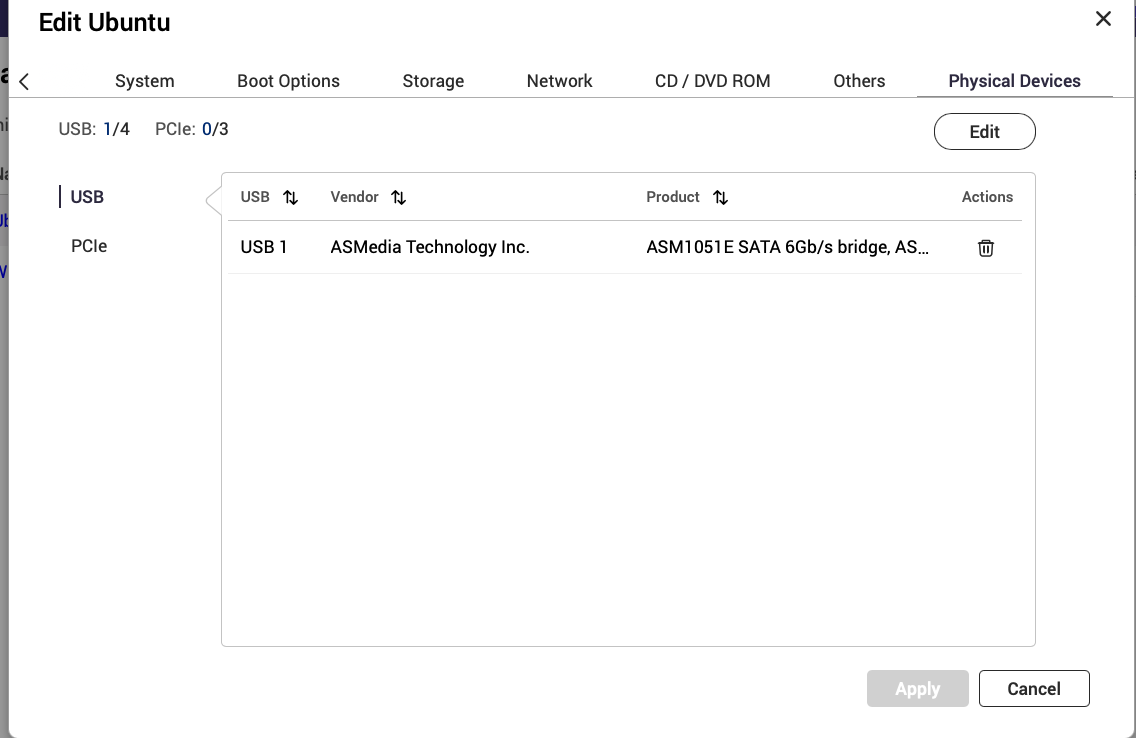
I’m not entirely certain of your settings or what you are doing, but I just tried attaching a USB hard drive to my Ubuntu VM in Virtualization Station.
The drive is there when I start the VM. All good.
I reboot the VM from within the VM - when it boots back up the drive is there.
I shut down the VM from within Linux. When I start the VM, the drive is there.
I think it is working the way you want it to work. Are you physically disconnecting the USB drive in between your VM usage?
edit: I also forced a shutdown from Virtualization Station and when I restarted the VM, guess what - the drive was still there.
I have demonstrated that automatic connection is possible. There’s no need to install a USB card in the PCIe slot. If you follow my steps, the drive automatically connects. I have verified this. If it is not, then there is some other error being made.
hmm - probably I need to revisit my initial request. It might only be when I reboot the NAS.
Due to another issue (which is currently under investigation with QNAP support) I had to reboot the NAS extremely frequently (about every 2 weeks or so). Probably I have mixed up things - sorry for that.
@SteveKo I too have the same thing. I can attach the USB device to the VM and reboot it as much as I want, its only when the NAS fully reboots that it just looses it.
Really annoying as I use my NAS for my home assistant server and have a USB zigbee antenna. If we get a power outage and the nas shuts off, once everything comes back I cant turn on any of my lights because the VM didn’t reconnect the antenna automatically.