I want to backup my NAS to USB hard drive when I connect it. I set Auto Backup in schedule but nothing happens after I plug USB. Am I misunderstanding this function. Drive is correctly mounted and I can use time schedule just fine.
QNAP TS-230
I want to backup my NAS to USB hard drive when I connect it. I set Auto Backup in schedule but nothing happens after I plug USB. Am I misunderstanding this function. Drive is correctly mounted and I can use time schedule just fine.
QNAP TS-230
Hi,
Thanks for reporting this. To help us take a closer look, could you open a support ticket with the reports so our team can check the logs directly?
For how to collect the report, please refer to this article: How do I collect the debug logs from HBS3 and all the necessary information to send for analysis? | QNAP
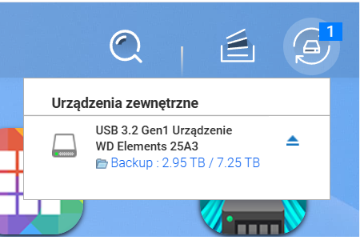
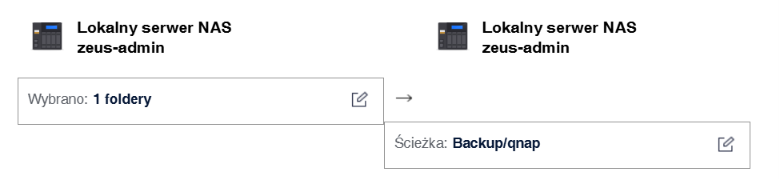
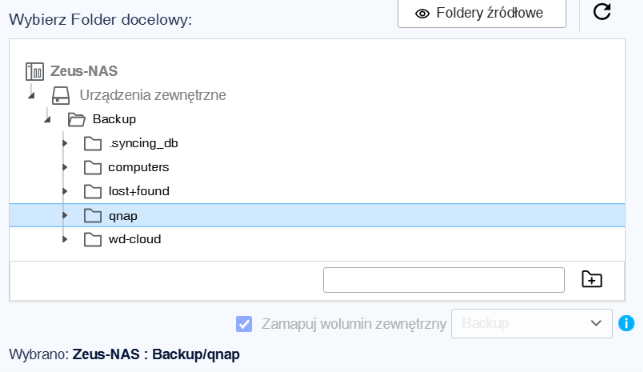
Could you let us know the operating system and file system you are using, as well as the USB model? Also, could you provide screenshots of the relevant screens and the USB mount status? Thanks!
It looks like the USB device has been successfully mounted. In that case, please open a support ticket so our Support Team can assist you further. Thanks!
In most cases, this issue is not related to USB detection itself, but rather how HBS3 handles external backup triggers.
Even if the USB device is mounted correctly, the backup job may still not start if:
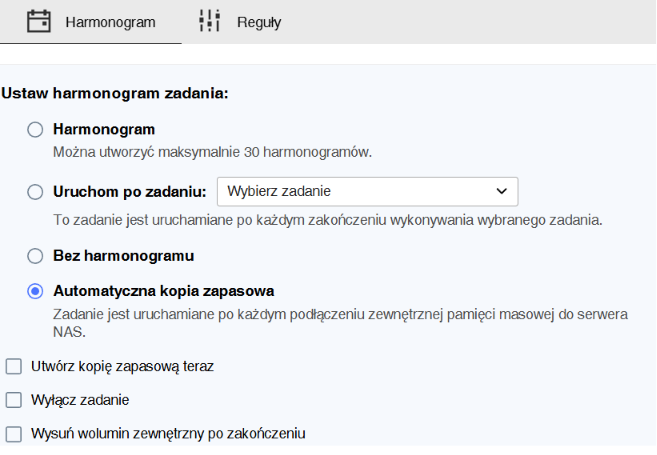
The job is not correctly linked to the USB plug-in event trigger
The destination permissions in Storage & Snapshots are not properly configured
Another active backup task is temporarily locking HBS services
I would suggest checking the following:
HBS3 job settings and ensuring the trigger is set to “USB device connected” rather than only scheduled execution
Permissions and access rights for the external USB storage inside Storage & Snapshots
HBS background service status and reviewing logs for any execution errors
In many cases, simply recreating the backup job and explicitly selecting “Run backup when device is connected” resolves the issue.