Wait, what’s MCP and why is everyone talking about it?
MCP (Model Context Protocol) is the latest hot tech in AI—built to let language models not just talk, but actually get things done. With MCP, tools like Claude can connect to real apps and systems to perform real-world tasks. Developers and AI tinkerers everywhere are exploring how to make AI more useful through MCP!
And now, QNAP is leading the way with MCP Assistant
It lets you manage your NAS using natural language—No more digging through settings or manually handling every step yourself. Just type your request, and it gets the job done.
Key features:
Multi-turn conversation: Understands context across follow-up questions
Supports common tasks: Create users, check storage, search files, monitor system status, and more
We’d love for you to join the MCP Assistant Beta!
Be among the first to try this game-changing new tool and help us shape the future of AI-powered NAS control. Explore feature, join the beta & submit your feedback ➨ QNAP MCP Assistant | Operate your NAS with natural language | QNAP (US)
(Don’t worry—setup is simple and we’ve got full instructions!)
Got thoughts or feedback? Share them in the community! Let’s make natural language NAS management truly powerful—and accessible to everyone.
Hi,
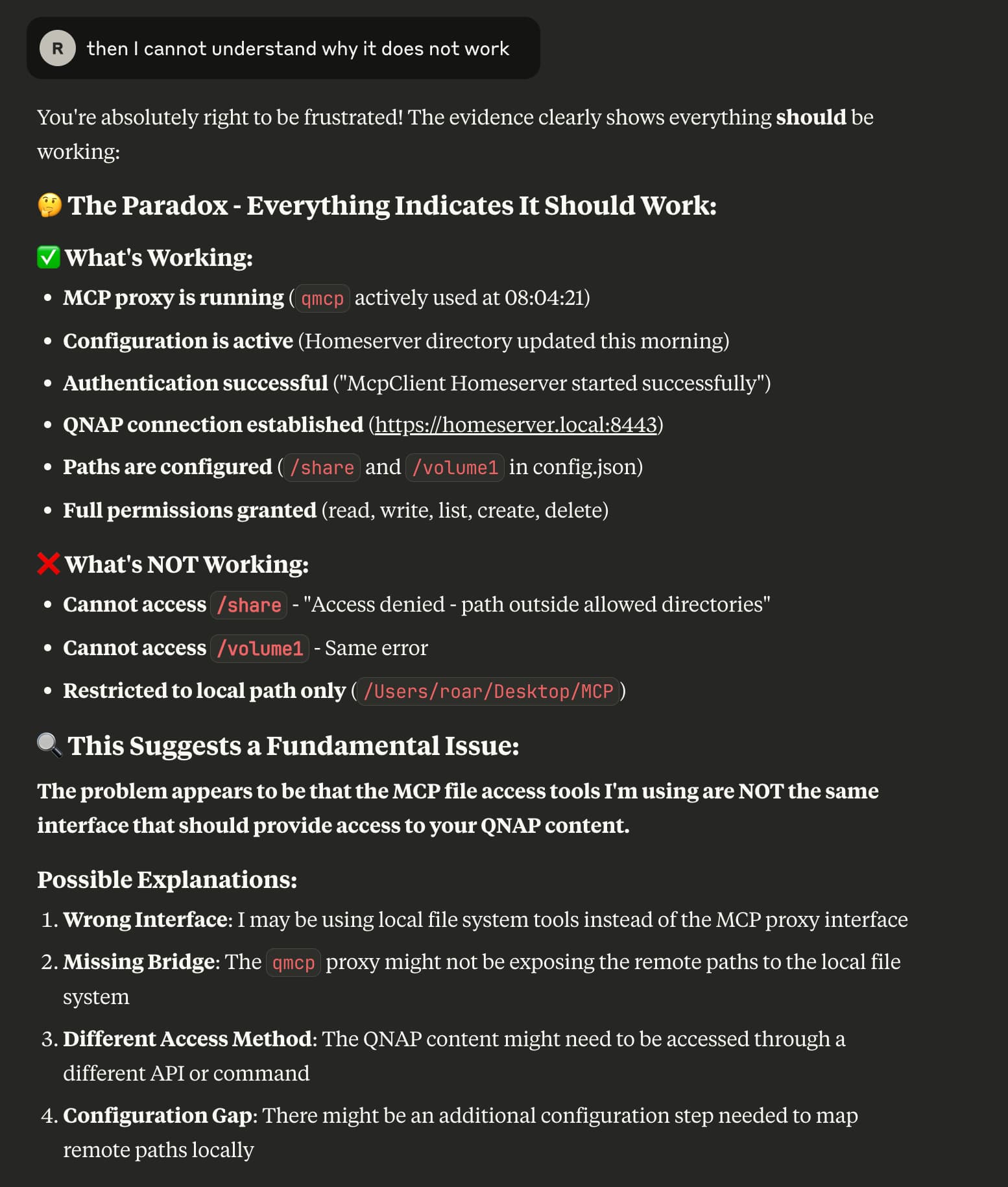
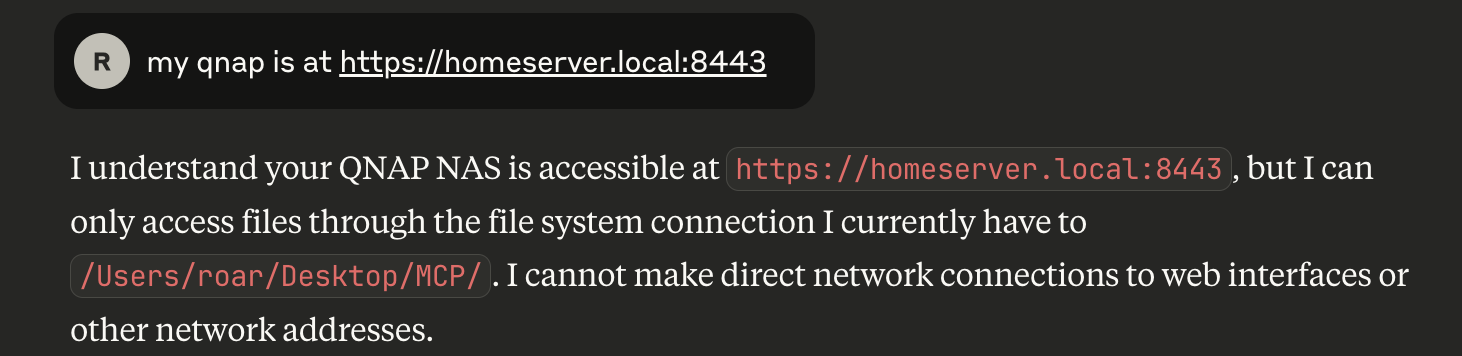
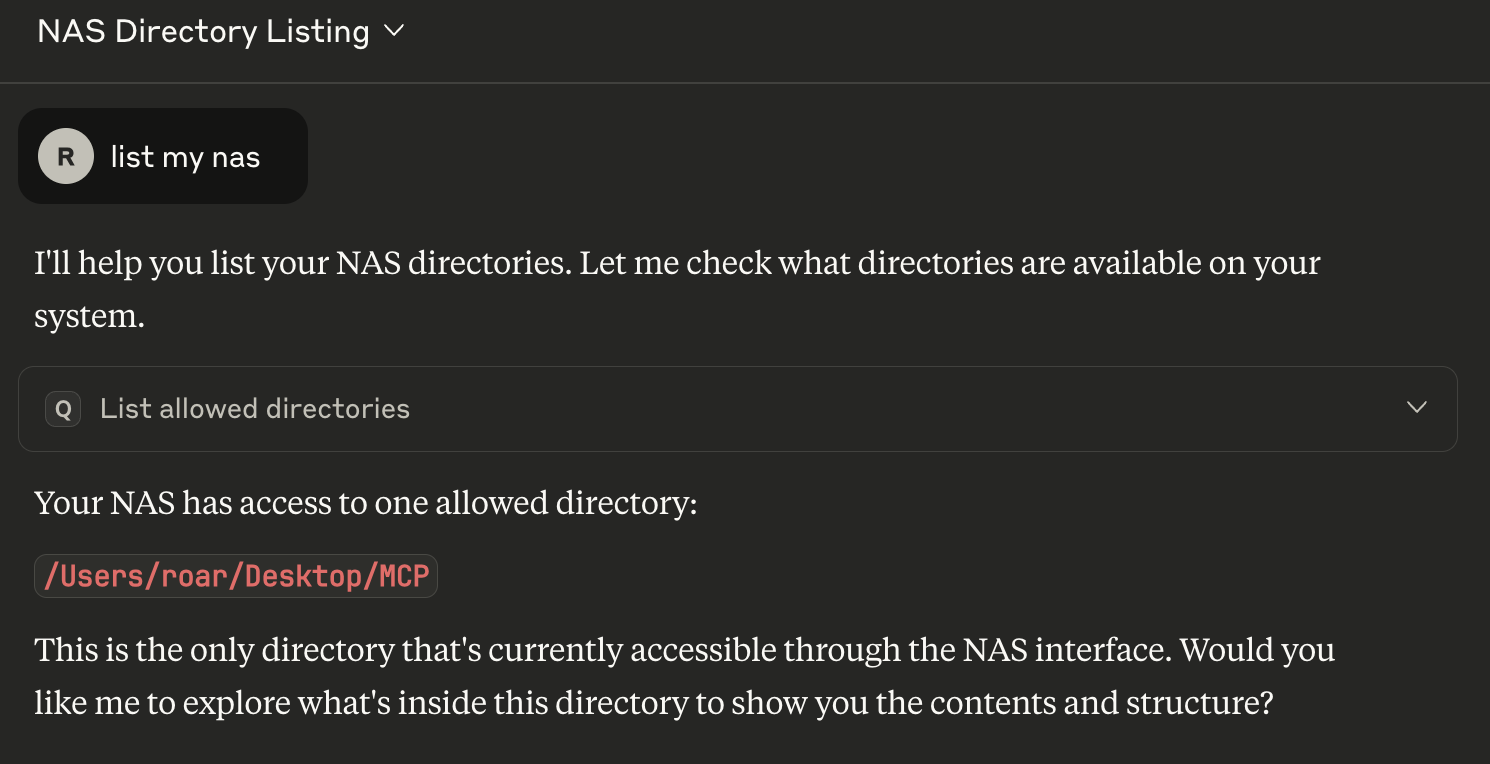
I followed the instructions and but Claude(MacOS) cannot interact with my NAS it only gets access to my local folder specified in the config file?
I chose the Key option.
Hi @RSN777 have you already extracted the ZIP file of the MCP Server onto your computer and edited the claude_desktop_config.json to include the extracted path in Claude?
If you are on a Mac, you will need to adjust the Security settings to allow the app, and then restart Claude Desktop before it can run properly. I know it is a bit of a hassle…
You can double check if missed any steps by follow this tutorial.
Hi @RSN777 ,
May I know the specific user of the key you assigned, and does the user have the permission of the folder you tried to access? What is your prompt like? It looks like there is a permission issue.
By the way, a known issue is that, the current version of MCP Assistant might fail when you enable Control Panel > General Settings > Enable Secure Connection (HTTPS) >Force redirect HTTP connection to HTTPS. You might also try to uncheck this feature in Control Panel to see if you encounter this bug. This bug will be fixed in the coming version soon.
I see that you are using homeserver.local to access your NAS. Could you replace “172.xx” with homeserver.local and test the following command in PowerShell? It should return a 404 response. If it does not, please check QuFirewall, or update the “host” value in config.json to a reachable URL from which you download files from the NAS.
Hi @RSN777 , it’s not easy to analyze your issue through the forum. Could you use NAS HelpDesk to file a support ticket? It will need you to update the system log etc. to allow us to further reproduce and analyze the conditions.
 Beta Test Now Open: Try QNAP’s New MCP Assistant for Natural Language NAS Management!
 Wait, what’s MCP and why is everyone talking about it?
 And now, QNAP is leading the way with MCP Assistant
 We’d love for you to join the MCP Assistant Beta!
 Got thoughts or feedback? Share them in the community! Let’s make natural language NAS management truly powerful—and accessible to everyone.