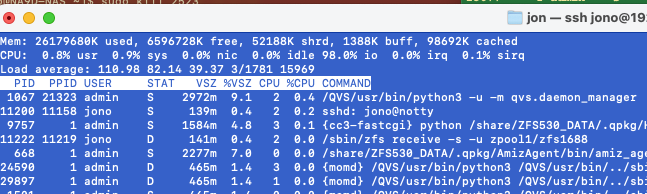
I’ve been working with QNAP support on an issue on my TVS-672XT. The load average on the NAS will start to spike. Most of it is being consumed in I/O tasks. Last night it was up at like 110 to 150 and nothing was going on that should cause that. I managed to reboot the unit over SSH but it took hours.
A couple days ago, QNAP support told me the escalation team noticed that /dev/md13 was nearly full and a nearly full drive can cause problems like this. They told me to delete data from it.
Well, this was surprising as I have six 8 TB drives in RAID5 and maybe I have a total of 12 or 13TB of backup data. Nothing is close to being full.
If I go into the SSH shell and attempt to “cd” into /dev/md13 it says it’s not a directory - makes sense. It’s a “device.” But I don’t know what it is. A Google search says that a device with “md” in /dev/ is a RAID array (md = multi-disc). But my RAID is nowhere near full.
So what could this be? How can I find what drive/volume/etc in QTS is related to this specific device in Linux?
Now QNAP support is telling me that “dev/md13” is system related and that I should delete unused apps. Funny thing is that except for maybe 3 or 4 QNAP apps, everything else is just basic stuff that’s required for use.
So is there a way to access that in SSH and see what is there that is taking up space?
Not much. How do I see the total space and the total space available on the volume? I’m assuming that lost+found is the culprit but I can’t access it. Says permission denied. Sudo doesn’t seem to work for the “cd” command…
admin should always be enabled…disabling it was a useless panic reaction from QNAP during 2022 ransom attacks (as that user is needed for internal processes anyways, disabling it was smoke and mirrors and ransomware still exploited that ‘disabled’ user after)
We actually suspect this issue isn’t related to md13, and I truly apologize for any confusion that might have caused.
Our Support team’s manager will be reaching out to the team to understand the situation fully and will continue to assist you in resolving the problem.
We’re really sorry for any misunderstanding, and we appreciate your understanding!
Thank you. It would be most helpful if your support teams provided meaningful solutions rather than guesses. This is literally what the support ticket stated:
Escalation team notified that /dev/md13 is almost full, which can cause high load.
Please free up some space in md13.
Also, during the replication or TimeMachine backups, high load is expected.
During idle time, the load should remain normal.
And they also said:
Escalation team advised to delete all unused applications.
/dev/md13 system related partition that can be filled up by unused apps.
Please try deleting all unused apps and let us know if it help.
So they say, “Oh yeah, go and delete files” on a device that the user has no access to. Then they say, “Oh delete your unused apps. That’s the problem.” Uh no. I have hardly any apps installed here on this machine. This is just garbage and this is from the “escalation” team that is supposed to be the support people with actual knowledge of stuff.
And they say, “Oh yeah well Time Machine backups can cause the usage to spike.” Really? Oh and spike this high? Load average of 110?
So a load average of 110 (and I saw as high as 150) is caused by unused apps? I mean that’s just laughable.
I keep pointing out that when this happens my CPU average is actually pretty low for user and system but is exceptionally high for I/O - 98%. When this happens, something is in wait state in I/O and I just want some real help figuring out what that is! But they made me do a memory test (passed) and then suggested this BS answer about md13, etc. Seems like no one really knows what is going on…
On top, apps are installed on the system volume in a hidden .qpkg folder. (Unless they can/were moved to a different volume), So installed apps should not fill md13 (The changes would be marked up in the qpkg.conf file though)
Correct! It’s like the support staff doesn’t even know how their own devices operate! It’s actually freaking scary.
I have open this ticket about excess CPU usage spiking. I’ve submitted logs multiple times. I have another open about how some of my snapshot replicas are failing. There’s even an error message in the logs that no one has been able to tell me what it means.
I get the usual tripe about “do a memory check. You aren’t using OUR overpriced memory.” Yeah, the memory checks always pass.
On top of that, I had support change email settings while testing out another issue and then they didn’t change them back! QNAP on the forums here has apologized to me big time. In the support ticket it’s like, “We can’t find who did this…”
Really makes me question how good support really is.