When I cloned GitLab on my NAS via SSH and tried to push, I got the following error:
ssh: connect to host gitlab.com port XX: Network is unreachable
fatal: Could not read from remote repository.
Please make sure you have the correct access rights
and the repository exists.
This indicates that Git cannot connect to the GitLab server. In the QNAP control panel, the option to allow SSH connections (only administrators can log in remotely) is checked. Is there anything else I need to configure in QNAP to enable SSH connections? Thank you for your help.
Regarding SSH, it seems that the types of encryption allowed by the SSH server may have changed, and I’ve experienced cases where older versions of TeraTerm could no longer connect. If you suspect an SSH connection issue, you might want to look into this area.
Reading your message straightforwardly, it seems the NAS-side port for SSH connection might not be open, so it could be good to check settings like QuFirewall as well.
It also looks like you’re trying to access gitlob.com, but where are you pushing to?
My understanding is that you’ve set up a gitlab git server on the NAS, and while you can clone from the client, you’re unable to push. Is that correct?
It might be worth trying to set the push destination to the NAS’s IP address.
I was not using TeraTerm or QuFirewall.
I tried changing the push destination to the NAS IP address as you suggested, but when cloning, I started getting the following error:
fatal: could not create work tree dir ‘project’: Permission denied
Additional Note
After moving the directory again and trying, I got the following results:
When copying git@XXXX:lab/project.git directly from gitlab’s SSH clone
$ git clone git@XXXX:lab/project.git
Cloning into ‘project’…
ssh: Could not resolve hostname XXXX: Name or service not known
fatal: Could not read from remote repository.
Please make sure you have the correct access rights
and the repository exists.
When changing git@XXXX:lab/project.git to the NAS IP
$ git clone git@XXXX:lab/project.git
Cloning into ‘project’…
git@XXXX’s password:
I wasn’t sure which password was being requested here.
I tried both the gitlab and QNAP passwords.
Looking at QuLog Center, I saw several login failure warnings.
If you are seeing error messages, I think you need to resolve each error one by one.
fatal: could not create work tree dir ‘project’: Permission denied
If you see this message, I think the user accessing the repository with the git command may not have permission to create folders, etc. It would be good to check whether the appropriate permissions are granted to the user trying to access, such as the permissions on the git server side.
ssh: Could not resolve hostname XXXX: Name or service not known
I think this means that name resolution has failed. It would be good to check whether name resolution can be done with the hostname using nslookup, etc. If you are accessing locally, it might also be an option to set it in the hosts file.
$ git clone git@XXXX:lab/project.git
Cloning into ‘project’…
git@XXXX’s password:
Since you are trying to access as the user “git,” I think this refers to the password for the git user on the git repository side.
In any case, it might be easier to get ideas here if you organize the relationship between the git repository and the client once. I don’t think the git command is installed by default on QNAP, but are you using something like docker?
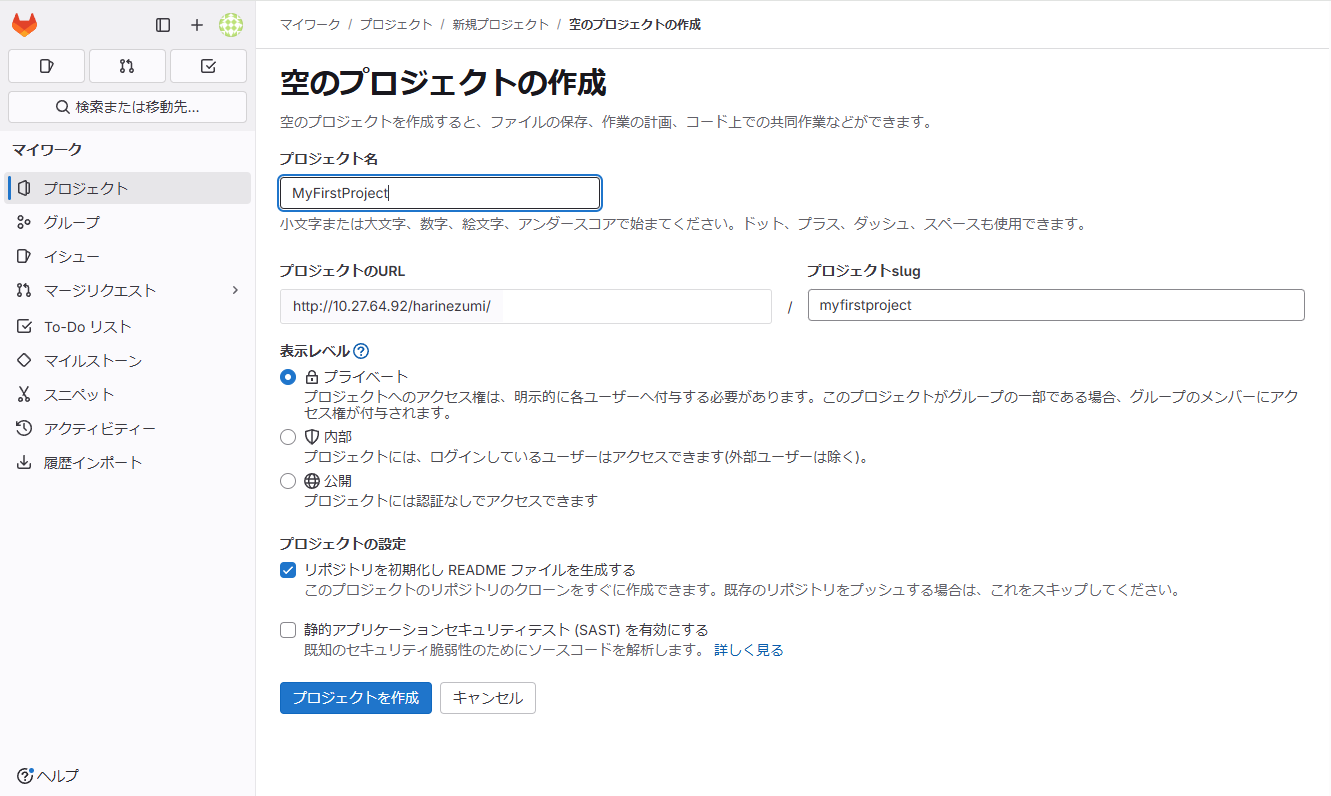
So, you set up a git server on your NAS using Docker. I see.
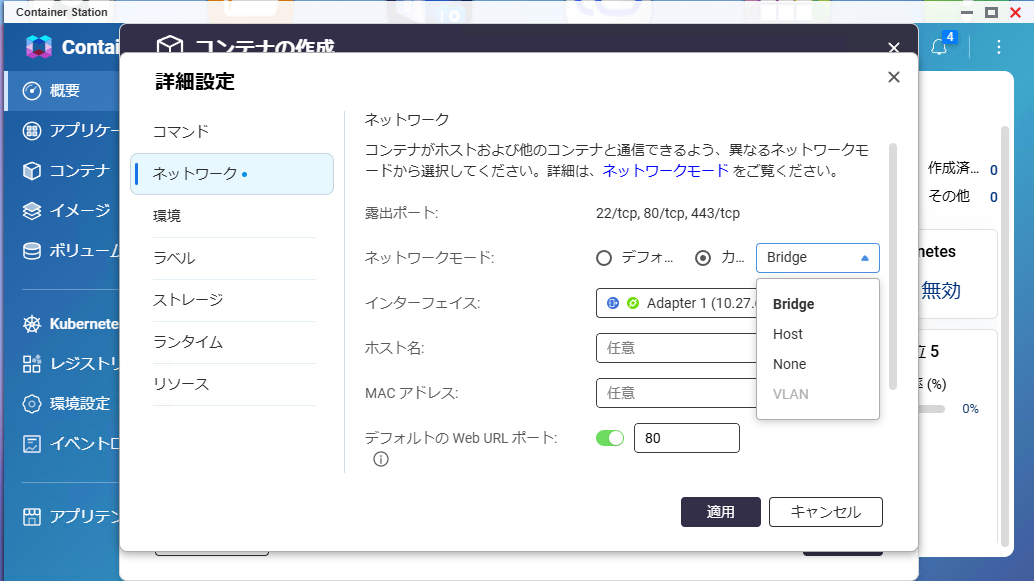
It seems that the URL you sent does not have detailed information, but I think it’s better to configure the git container with a bridge setting rather than NAT, so that it shares the same IP address as the external network.
With NAT settings, you would need to set up port forwarding, and specify ports other than 80 and 443 for http and https, which would make configuring the git client more troublesome.
If you’re operating locally, ssh access isn’t strictly necessary.
Why not start by checking the simple things?
I think if you expose the Docker container via bridge, it should work without any issues.
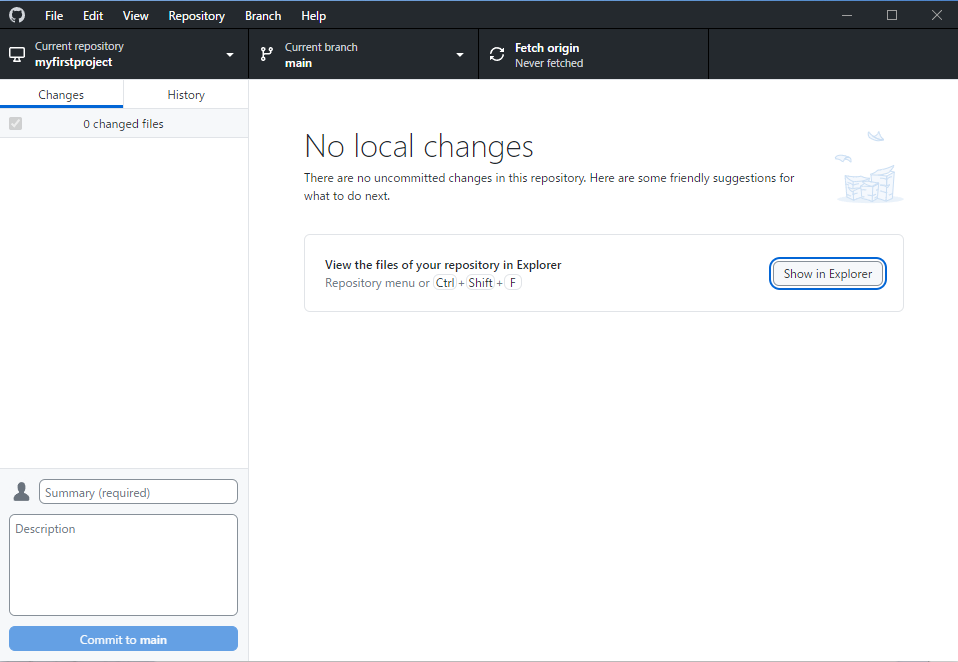
I was able to successfully clone via http using the method you described. Thank you very much.
You mentioned that access via ssh is not essential, but do I need to enter authentication information (username and password) every time? (I was asked for it when cloning.)
I’m glad to hear that it seems to be working for now.
Whether authentication is required each time depends on the client settings and is client-dependent.
(It’s similar to the “Remember me” setting when accessing the NAS settings screen via a browser.)
Please check that on your end.