After Setting Up Backups, Regularly Checking If They Are Working as Expected Is Also Important
The practice of backing up important data to prevent accidental loss has become quite widespread.
However, simply backing up your data and feeling secure is not enough. For example, I’ve recently heard stories like, “A network configuration changed and backup errors started occurring without anyone noticing,” “The backup destination ran out of space and backups failed,” or “Backups were being performed, but when it came time to recover, recovery was not possible.”
Once you’ve set up your backups, it’s necessary to periodically check them. But if you own multiple NAS devices, checking each one by logging into their settings screens can be a hassle.
Therefore
QNAP has launched a new service called HBC (Hybrid Backup Center). With HBC, you can do the following:

【Centralized Management】
You can display a list of backup jobs across multiple NAS devices and check the status of each backup job. It looks like this:
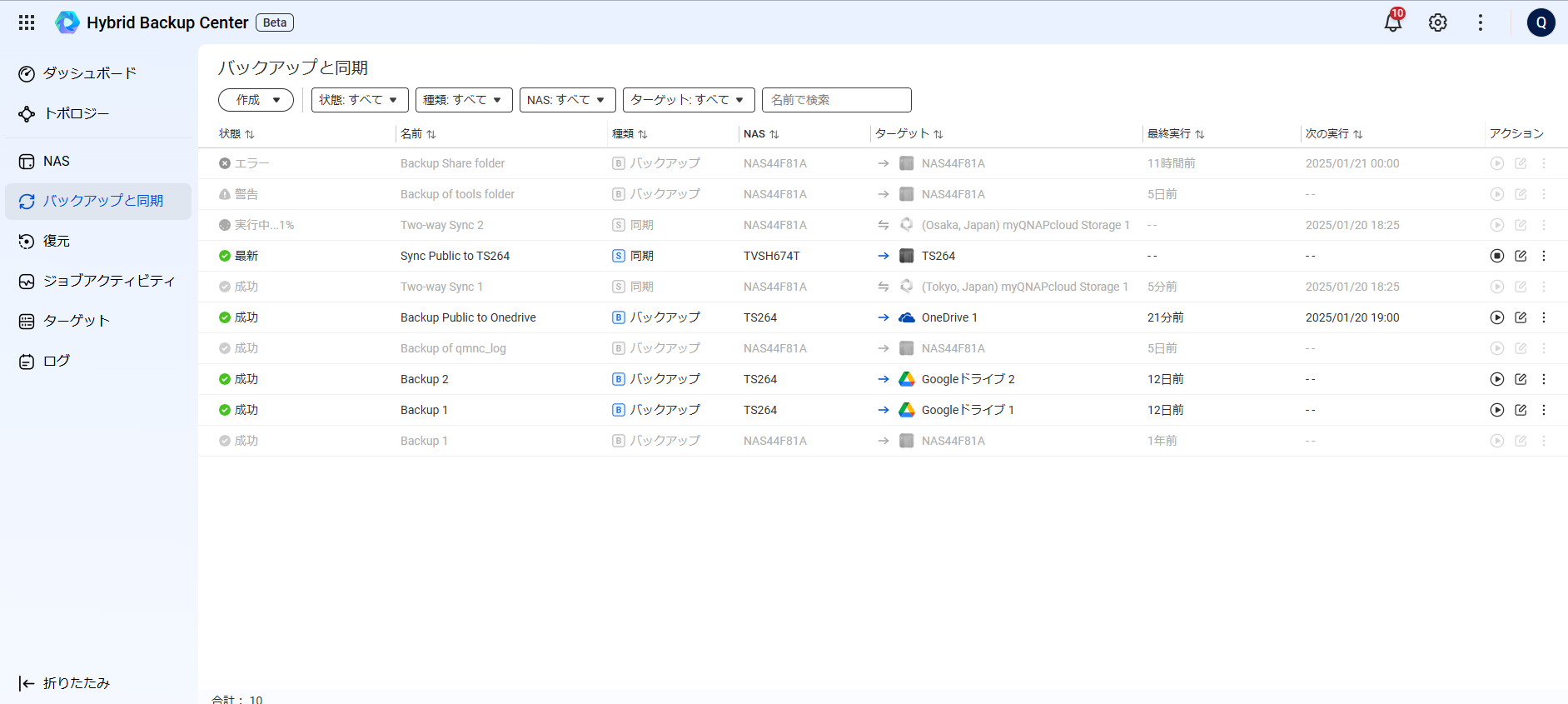
You can see at a glance which jobs have succeeded, which have errors, and which have warnings.
【Real-Time Monitoring and Topology Map】
On the topology map, backup jobs are displayed showing the backup source and destination, and the job status is shown in real time.
Below is the state when no backup jobs are running,
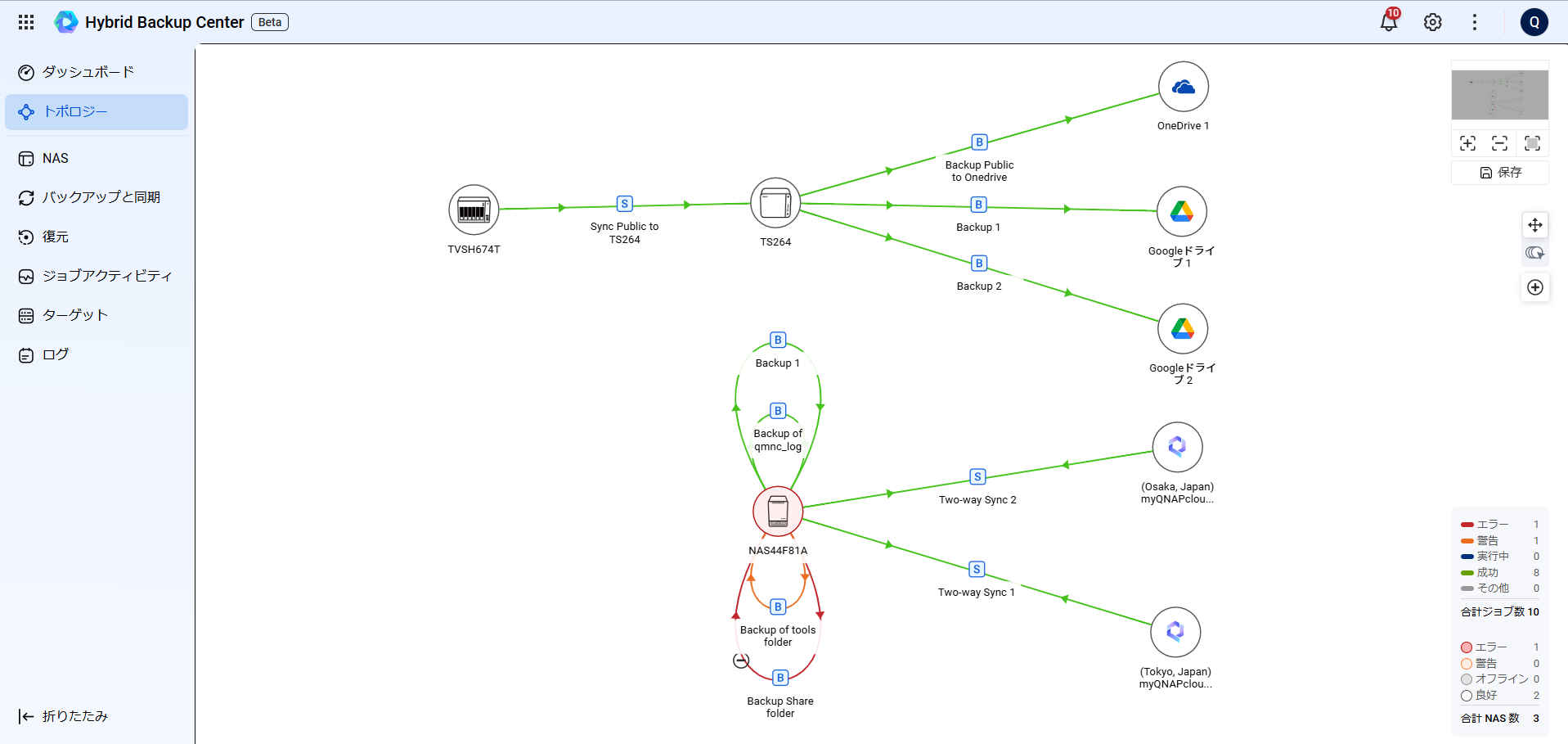
When a backup job is running, you can easily tell by the moving arrows, as shown below.
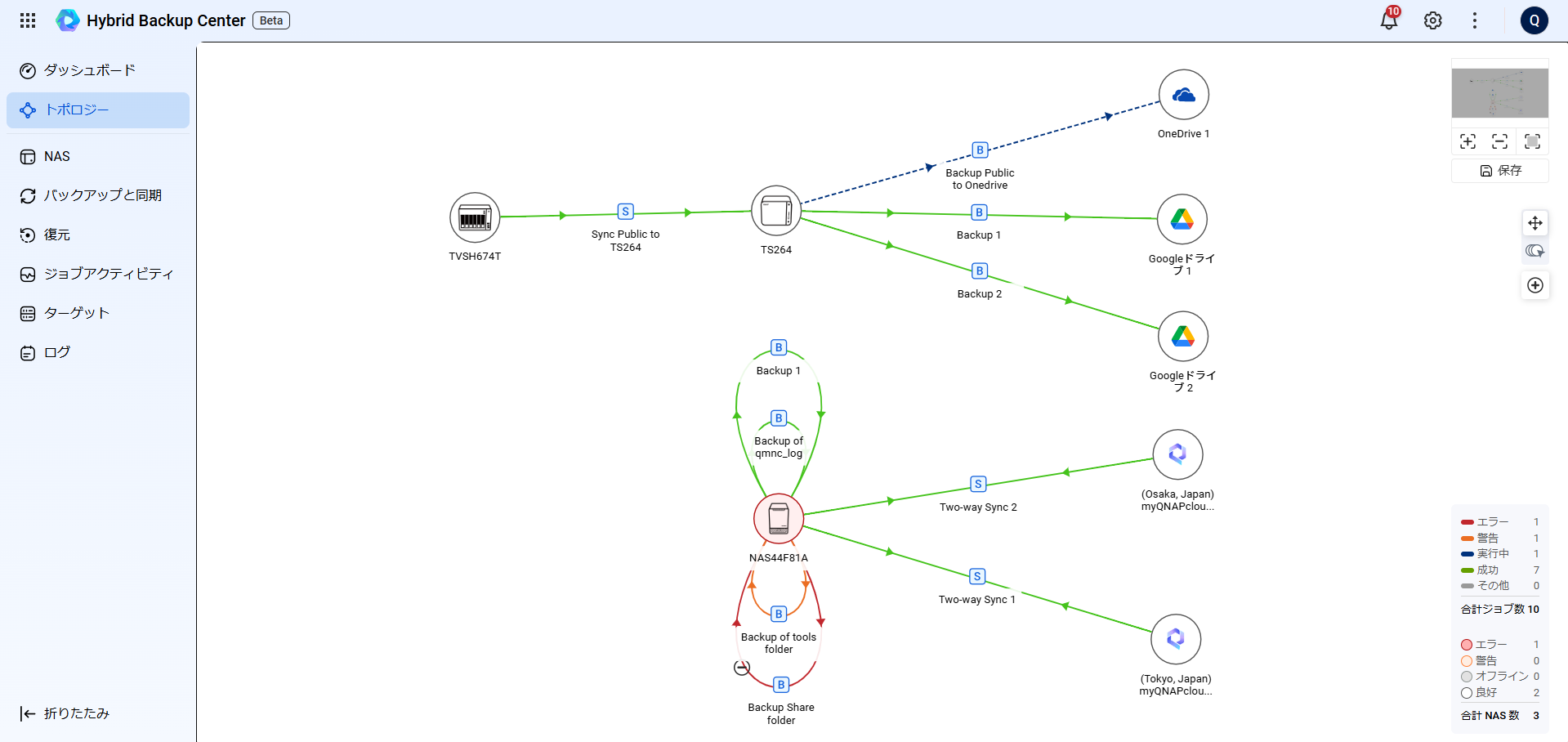
By combining the job list and topology view, you can check whether backups on your managed NAS devices are being performed correctly, without having to log into each NAS’s settings screen.
From the job activity section, you can check the execution history of backup jobs.

If there is an error, you can click to view the job details,
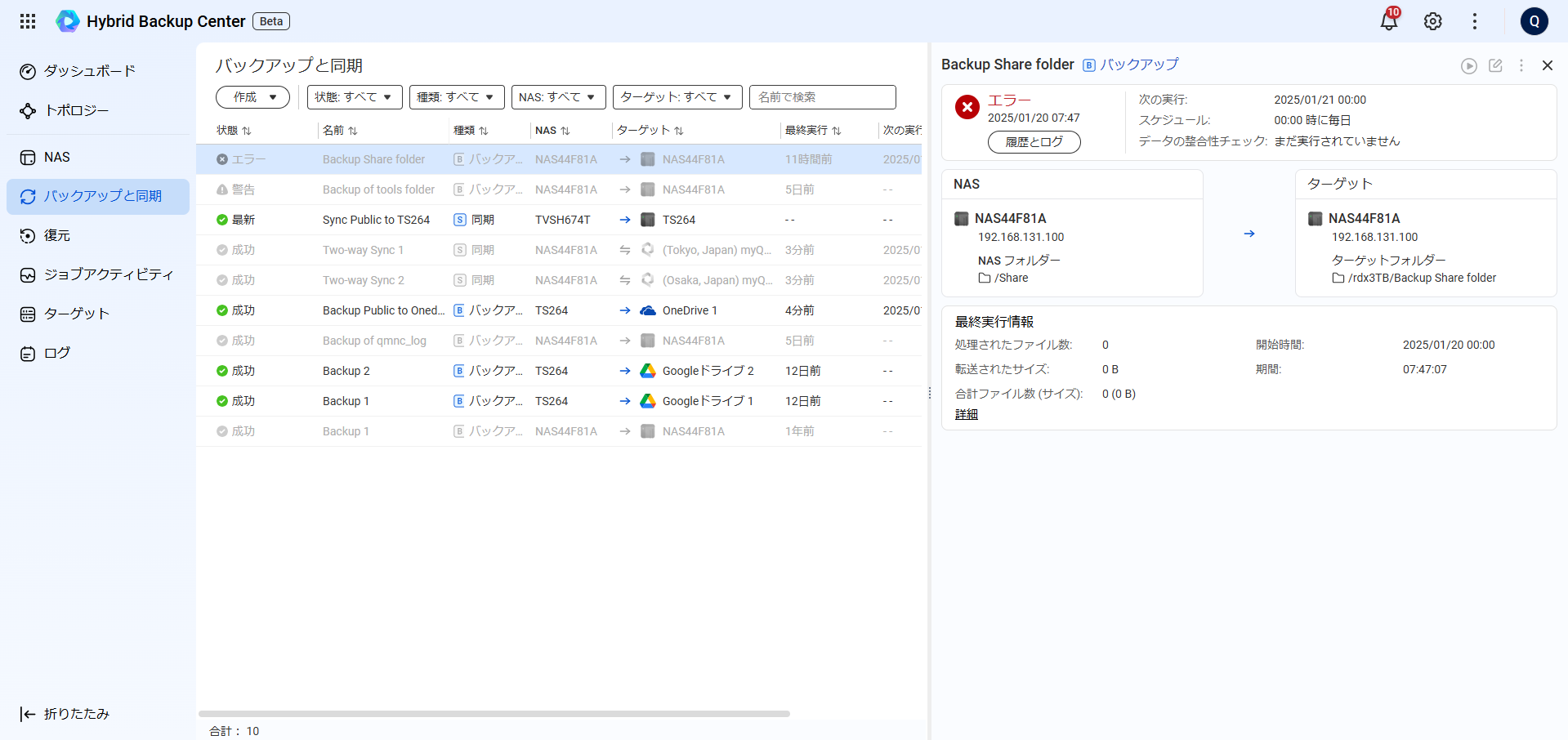
and check from the history and logs why the backup failed.

In this case, it says “source folder was locked,” so I’ll remotely access the NAS from the “NAS” menu to check the cause of the error.

Checking the job details in HBS3,
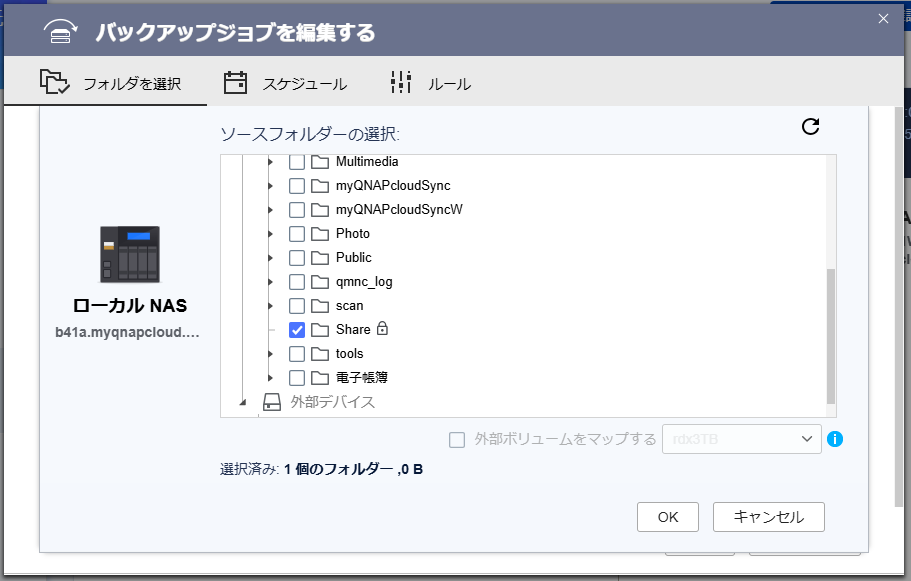
I noticed that the source folder was set to be encrypted, but I forgot to decrypt it after rebooting.
By decrypting it, backups should resume normally.
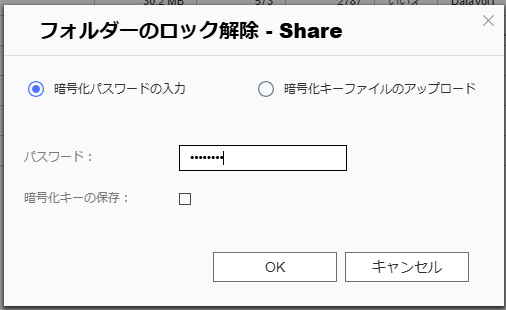
I’ll try running the backup again in HBC.
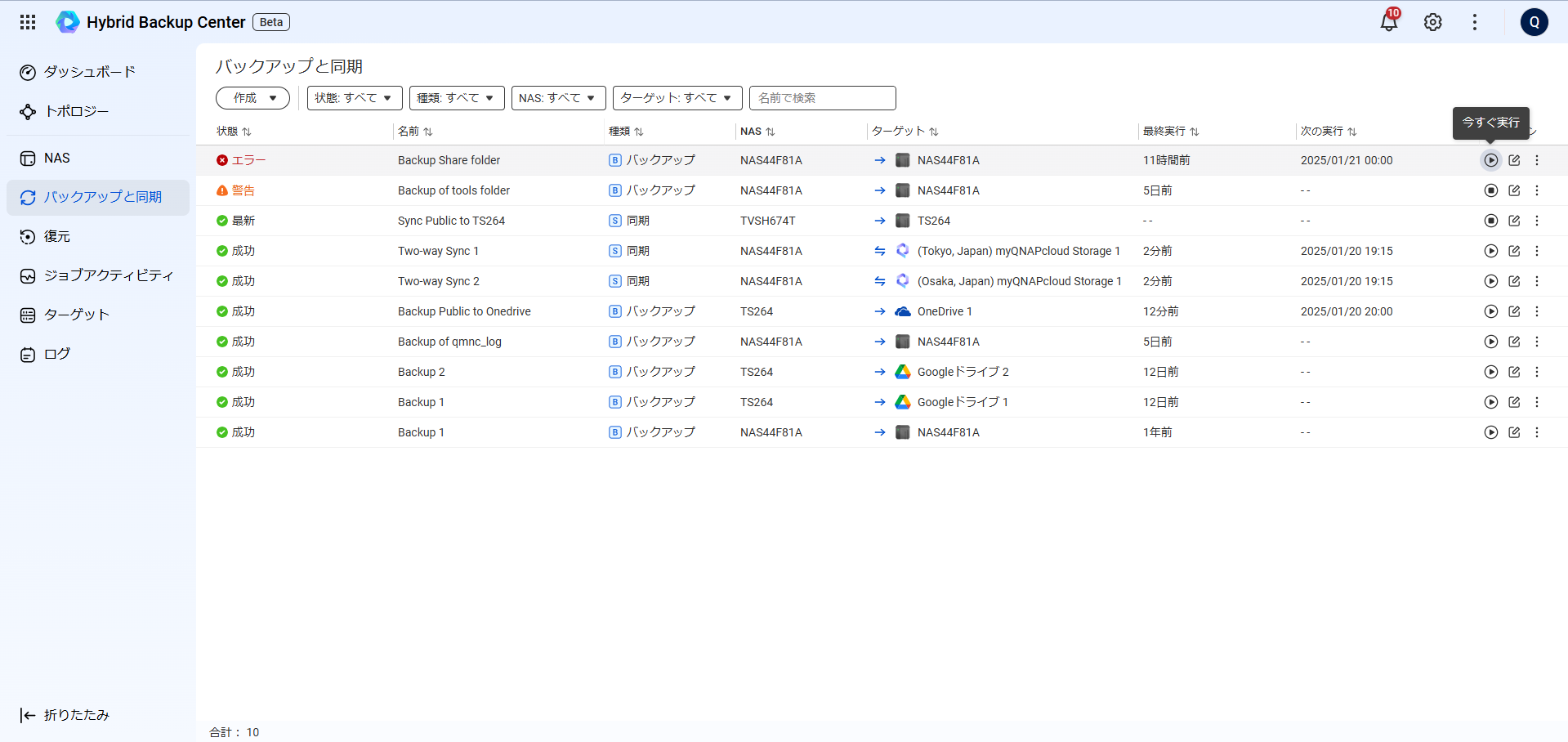
The backup runs,

and now backups can be performed successfully.
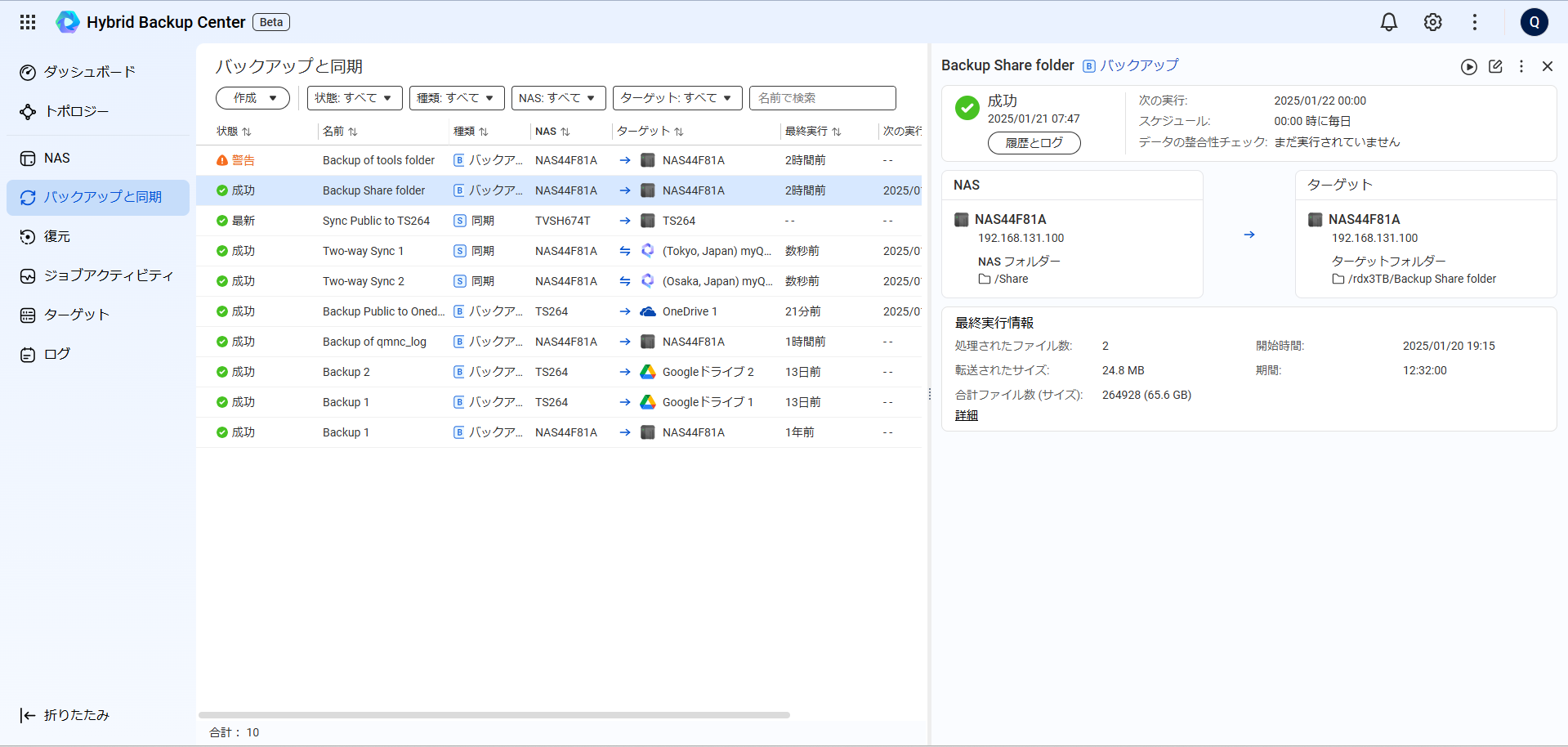
Finally, there is one warning left, but checking the job details shows that it’s a backup to RDX (USB-Disk),
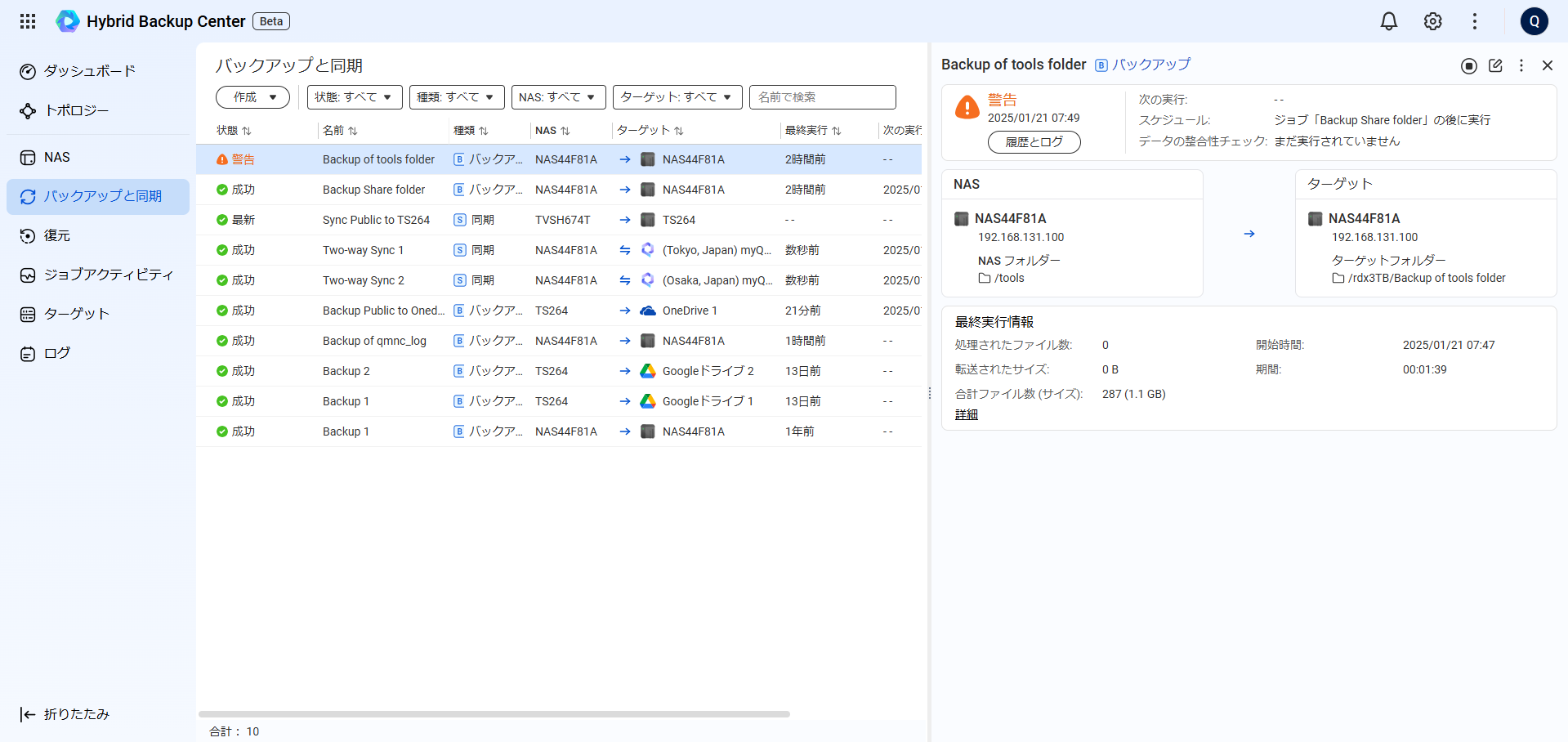
and that copying attributes failed, which is probably due to differences in file systems (such as Ext4 and NTFS), meaning file attributes couldn’t be copied.
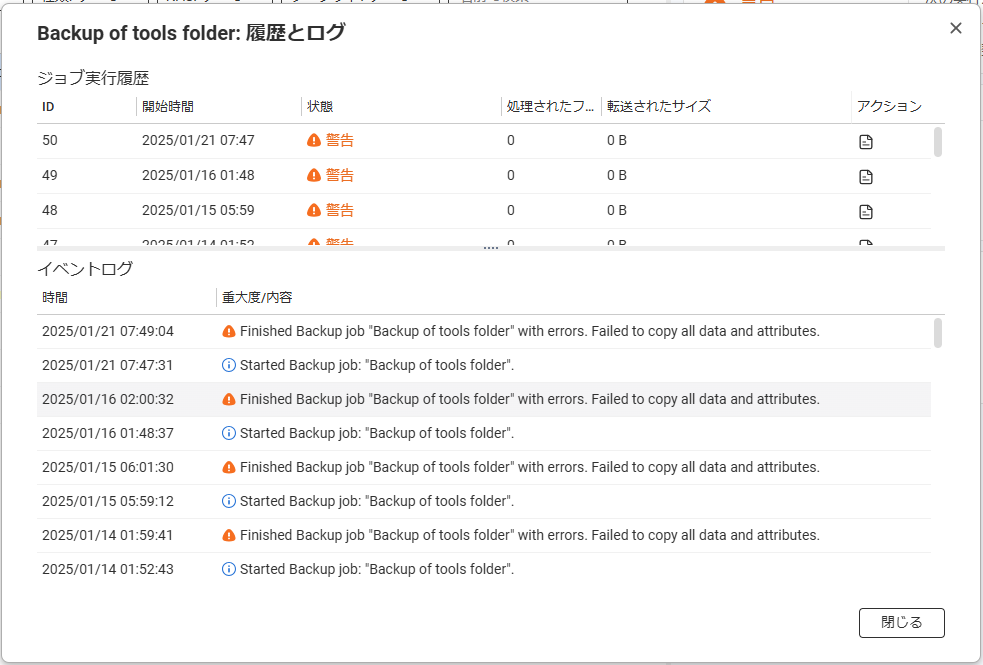
When I checked again via remote access, it was indeed NTFS. This warning can be safely ignored.

Since I figured out the reason for the warning, I recorded in the job description that the warning is not a problem.
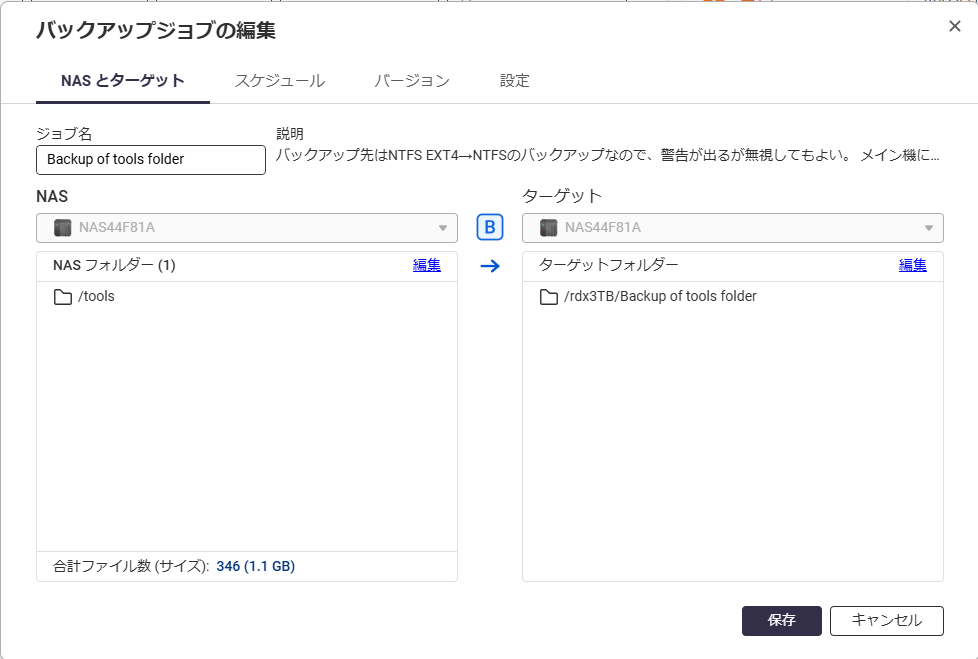
In this way, you can check suspicious areas, confirm whether backups are being performed overall, and quickly fix any issues you notice, making it very convenient to use.
Now, you can efficiently keep track of any missing or incomplete backups!
Summary
This time, I introduced QNAP’s new service, HBC (Hybrid Backup Center).
Backups are important, but checking whether they’re working properly by logging into each NAS is a lot of work. By using such integrated management services, you can ensure backups are performed without omissions, and always confirm that recovery is possible in case of emergency.
I hope this helps reduce the burden of data management and improves accuracy for everyone.