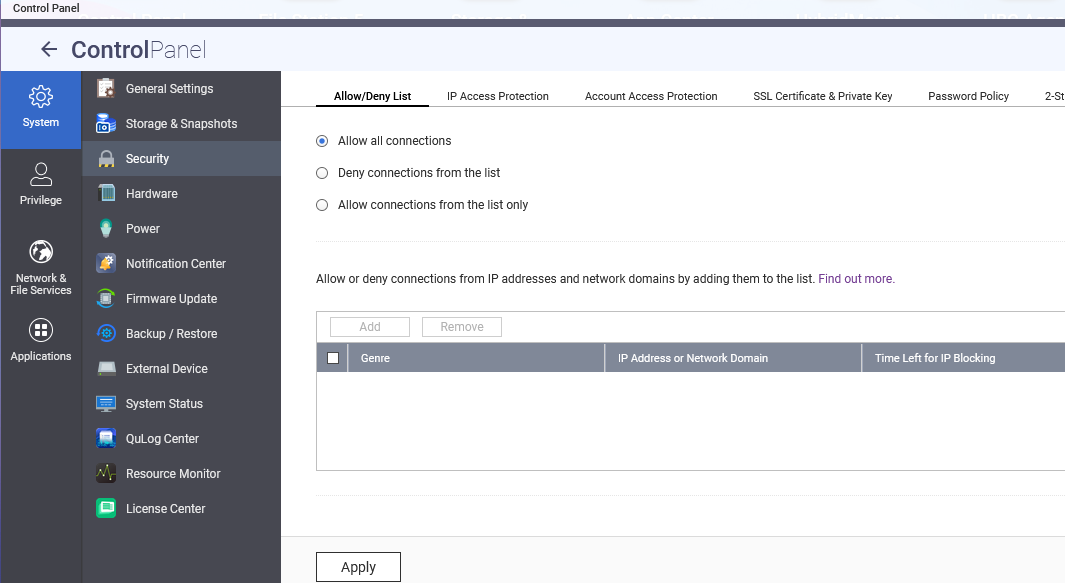
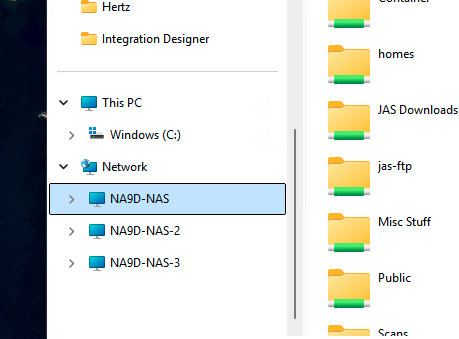
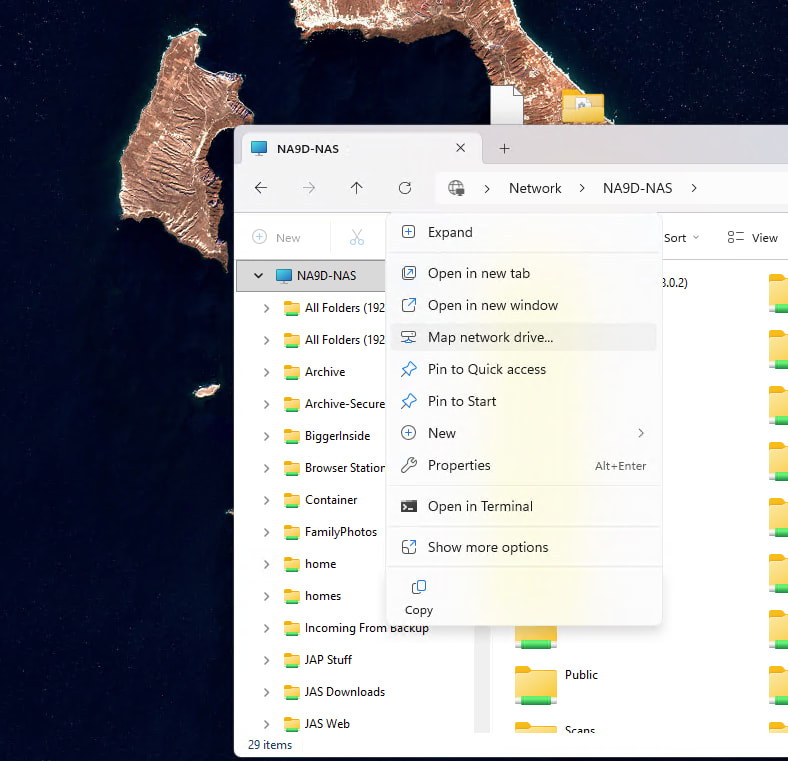
Hello, everything was working fine, but after replacing my router (Google Wi-Fi) with a new one (ZenWiFi BQ16 Pro), I can no longer add a network location in Windows 11 File Explorer. I spoke with ASUS, but they have no idea what the issue is, even after enabling SMB.
So what likely happened was that you had a fixed IP address on your NAS in one IP subnet (ie: 192.168.1.0 let’s say). Now your new router uses a different IP subnet (ie: 10.0.0.0 let’s say). So now you can’t communicate.
Before I even get to “fixes” let’s check a few other things:
Can you see the NAS in QFinder Pro?
Can you access the webpage of the NAS?
Can you open a command prompt and ping the IP address of the NAS?
Check all these before doing anything else. If you can access the NAS via your web browser, then we have a Windows 11 issue and not a network issue.
Now if you can’t access the NAS (all of the answers above a “No”, then we have a network issue.
So here is what you can do (options):
If you know the IP subnet (that is IP address range) used by your old router, change the IP subnet on your new router to the same subnet. Then problems should be solved.
If you don’t know how to adjust the IP subnet in the new router or if you don’t know the old IP subnet then you need to make sure that DHCP is turned on in the router (likely). Then do a 3 second reset of the NAS as explained above. You will also likely want to reboot your PC as well just to make sure your PC is getting a new address from the router also.
So now if you do the reset, let’s not worry about adding the network location quite yet. Let’s now repeat the steps 1, 2 and 3 that I listed above and see where we are.
The default IP address for the gateway (router) on a standard Google Wifi or Nest Wifi network is 192.168.86.1
The default IP address for the ZenWiFi BQ16 Pro is 192.168.1.1
Trying to add network drives in Windows 10 / 11 is hit and miss using the “Map Network Drives” button as devices often don’t show. You’re as well off typing the IP address into the Explorer address bar, then when you have a connection, pinning it to Quick Access temporarily.
First off you’ve got to get your network addresses sorted as @NA9D says.
Hello, thank you for your help. My NAS is a QNAP TS-459 Pro+ (4.2.6). I see my NAS in Qfind Pro, and I also see it in File Explorer under Network, but I’m unable to connect to the network drive when adding a network drive, even if I enter its IP address. I contacted Windows, and they told me to contact QNAP, that the problem is there.
Hello, thanks for the help. My old IP is ..86.** and my new IP is ..50.*. I tried changing the router’s IP to ..86.1, but I can’t change the sub-IPs. For the three questions, the answer is yes to all three.
What do you mean you can’t change the sub IPs? It is fine to list your LAN IP address range as it’s not a publicly routable IP range anyhow. It would be much easier if you would at least give something like 192.168.86.0 and 192.168.50.0. I think that’s what you are saying.
I don’t know what you mean by sub-IP. You talking about the subnet mask? That should be 255.255.255.0. No need to change that.
When are you able to access the NAS from the web browser? After you updated the router IP or before?
Sorry if I’m not using the right terms: the old IP address was 192.168.86.1 (subnet mask 255.255.255.0) and the IP range was 192.168.86.2 to 192.168.86.244; the new one is 192.168.50.1 (subnet mask 255.255.255.0) and the IP range is 192.168.50.2 to 192.168.50.244.