Hello!
I was given TS-459 Pro+ a while back because the original owner manage to break the DOM, ripped the connector from the pads. For some time I have run various OS from the USB and thought to give QTS a shot. I have downloaded the recovery firmware for my model from here and read the tutorial from here. This didn’t work as tutorial suggests to copy an IMG file to unpartitioned drive, or am I missing here something? Nevertheless, I have flashed a USB drive with the recovery IMG using Rufus, QTS loads, I can login to CLI console with admin/admin, NAS gets the IP from the DHCP but, Qfinder PRO can’t find the NAS on the network nor I get anything on ipaddress:8080. Any help here would be greatly appreciated.
Cheers!
Can you get access via SSH ?
Hi @dolbyman ,
unfortunately no. I get the “connection refused” error. Out of the box eth0 and eth1 are bonded in bond0 interface which gets an IP from the DHCP. I don’t know is there a service manager to check the status of sshd service. Removing interfaces from the bonding and adding DHCP to a certain interface in interface file gets reverted after restart. I have also tried to turn off my OS firewall and tried with Qfinder again, unfortunately it didn’t get recognized.
Cheers!
out of the box the eth interfaces are bonded ?
Did you connect both cables or how do you know that without access ?
No, only one physical interface is connected to my switch at the moment. I stated in my first post that I can access the console of the NAS by plugging a monitor and a keyboard to it, and can login with admin/admin credentials. If I enter command “ifconfig” I can see that bond0 interface got an IP from my DHCP and that interface has a MAC address of physical eth0 interface which is connected to a switch, also status of eth0 and eth1 interface is “slaved” since they are part of that bond.
Cheers!
So if you can reach the NAS via a keyboard, can you try to load the latest firmware this way ? (I think you need to insert a disk to actually make this work)
https://www.qnap.com/en/how-to/faq/article/manually-updating-the-firmware
Hello!
I have tried it, didn’t work. Here is a pastebin link with update output.
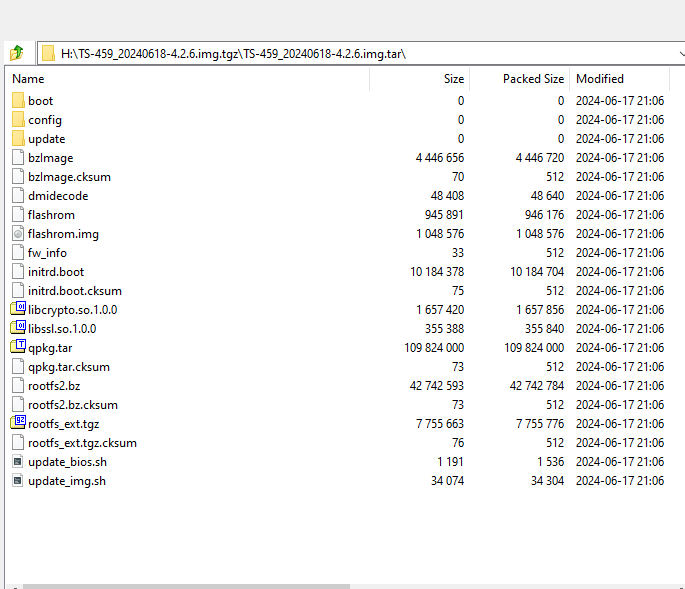
I have extracted the TS-459_20240618-4.2.6.zip, it only contained TS-459_20240618-4.2.6.img file which I have copied to a FAT32 formatted USB drive. I have mounted that USB to a directory /mnt/usb and issued the command /etc/init.d/update.sh /mnt/usb/TS-459_20240618-4.2.6.img. After the process was done my IMG file was renamed to TS-459_20240618-4.2.6.img.tgz in /mnt/usb with the following content:
Regarding the issue you’ve encountered, we recommend that you open a support ticket through our service portal.
This will allow our technical support team to perform a more in-depth analysis of your specific situation and see how we can best assist you.
Thank you for your cooperation! Support Portal: https://service.qnap.com/