How do I stop QTS logging me out every few hours?

The QTS interface logs me out every few hours. When I log in I tick the “keep me logged in” box on the login page and I’ve unticked the Autologout option in personal settings but still I get logged out after about an hour’s inactivity.

Thanks in advance for any help.

TS-453D

QTS 5.2.9.3499

login to web interface

top right> user name>admin>options>misc

Thanks, but I don’t have that. If I click on my Username there’s no “Admin”. I’ve got

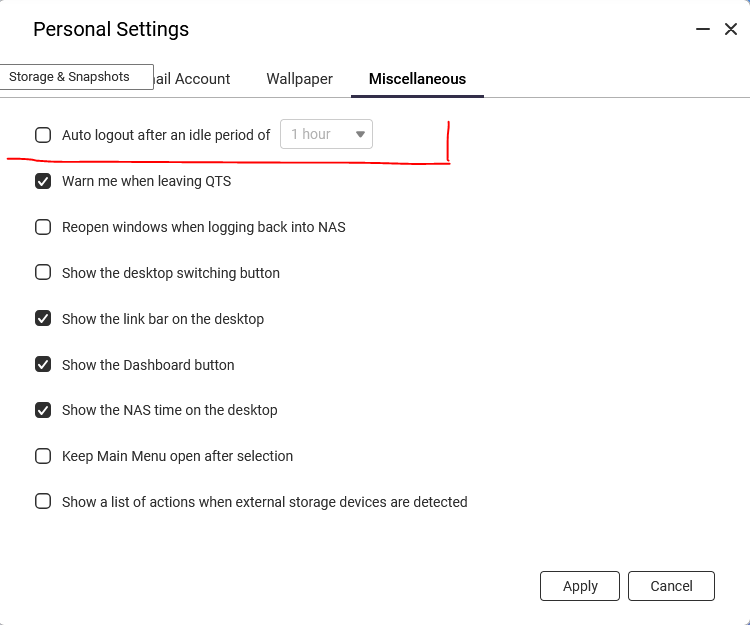
username/personal/Miscellaneous/Auto log out after idle period

I’ve unticked the Auto Log Out option. It makes no difference.

See if that helped

See if what helped? If you mean unticking the auto log out then that’s why I posted here in the first place. I unticked it years ago. As I said in my OP - it makes no difference. Auto log out is unticked and the NAS logs me out after a couple of hours of inactivity. I was logged in when you posted your first reply cos I had to check the name of the box I had unticked. As I write this, I’m logged out.

This option here (now in front of a computer so I can do screenshots) works fine for me, I stay logged in for weeks

Maybe your browser flushes cookies or something

Curious why you would need to stay logged in. Maybe there is another way to get whatever information you are accessing? Personally, I rarely access the GUI, you obviously have a different need.

That’s what I see. The autologout option is unticked. It persists between sessions so I don’t think it’s a cookie thing. It has never worked.

I have to use the web interface because when I move or copy files from my Mac to the NAS the Finder app writes hidden files to the NAS which make the transferred files unuseable. The files are invisible to Finder and so I have to use the web ui to either do the transfers in the first place or to delete the hidden files so that the Finder transfers can complete.

Interesting. I’m not a Mac guy, but it sounds like something I’d want to avoid. Not sure on the Mac side, but can you bypass the utilities altogether and just map a location using samba?
I transfer files between my Mac and my NAS all the time without any issues. “Finder” doesn’t write anything by the way. Finder is simply the MacOS desktop interface. All the writing is done by the underlying Unix kernel.

The only hidden files that a Mac writes are a couple of files beginning with a . The most common one is .DS_Store. It’s meaningless to anything other than a Mac. Those files will get written to the NAS but who cares. They don’t affect any other files. The hidden files you complain about affect nothing. Something else is wrong if you are having problems.

If I use finder to copy a file called file.xxx then on the NAS I get a hidden file called

_.file.xxx

Ditto if I use any Mac app to create or modify a file.

This doesn’t happen if I upload using the web interface and File Manger

I can’t see this file in Finder, even with hidden files turned on on the Mac. If I go to the QTS File Manager and turn on hidden files I can see it there.

If I try to use Finder to move, copy or delete file.xxx then I can’t and I get an error on the Mac “The operation cannot be completed because one or more required items can’t be found”. If I go to the web file manager and delete _.file.xxx then I can.

Screenshot below shows yyy.txt which I just copied to the NAS and the associated _. file.

I believe that the files are created by SMB on the Mac. It’s a problem that started in the last year - it certainly never used to be a problem. I’ve tried various things recommended online but nothing works. I can use dot clean in Terminal to clear the files (mostly) but the dot files are re-created every time a file is accessed by a Mac app. It’s a pain.

I think that file is a marker that the operating system thinks someone has the file open. If you reboot all connected devices it should fix it. This includes any computers, phones, tablets, etc. that are in the loop.

I found this from a few years back and it sounds like the same issue

Sounds like you have tried some of the suggestions here, but maybe there is something of value

May we ask which browser you’re using? We’ve observed that under certain conditions, browser settings can also cause the issue you described.

If you’re using Google Chrome, please disable Memory Saver mode, or make sure the tab with the NAS UI stays as the active tab.

Thanks, Steve. I’m using Safari. The logout doesn’t appear to be a browser autologout. When I come back to the tab with the NAS web UI after a couple of hours and try to do something I get the a QTS logout dialog. The NAS is actively logging me out - it doesn’t look like it’s missing or timing out a token or something like that.

I’ll try it in Firefox for a while and see if it’s better. I don’t use Chrome.

Edit: I’ve tried it in Firefox too. The behaviour is the same.

You should have zero problems copying a file to the NAS using the Finder. I think as someone else stated that this is due to the file being open and OS X storing preview and other information in the file. THAT is not the file you want. Even if that file beginning with a . is copied to the NAS, the original file should be there also. But really you should only copy closed files not open ones.

Again, I copy files back and forth all the time. Never ever have an issue.

Thanks, but it’s nothing to do with the files being open - the files are not open. The ._ files are something to do with SMB and are created by Finder on the NAS. They aren’t created anywhere else - e.g. USB discs, only on SMB shares. I don’t have this problem copying files to USB drives, only my NAS.

We’ve found that in certain cases, browser behaviour can cause the issue you described. Could you help us verify whether that’s what’s happening here?

It’s a simple test — when you step away, leave the QTS UI open in the frontmost window/tab, and check after a while whether it has logged out.

Thanks!

I have never seen those files. Please give me clear step by step instructions so I can attempt to duplicate what you are doing.

SMB does not create any files.

But it really doesn’t matter. IGNORE them. Your actual files have still copied.