Have you read this and tried the suggested resolutions?
Thanks for trying to help.
I can’t ignore them. Finder only completes the copy if I delete the ._ files using the web interface. The files aren’t visible to Finder.
If I access a file on the NAS - e.g. watch an mp4 movie - then the ._ version will be recreated and then I can’t move, copy or delete the file using Finder until I’ve deleted the ._ files.
This isn’t just me. Google it. There’s a Mac Terminal command called “dot clean” designed to bulk clean these files - but it doesn’t clean everything and I don’t have the knowledge to know why. My issue is that it only started for me in the last 12 months and I don’t know why. QNAP’s view is that it’s the Mac’s fault and that these ._ files don’t cause any problems, but I can’t manipulate files if the ._ exits and I’ve got a CCC backup and a Mac Time Machine backup on this drive and my concern is that both backups will prove to be useless should I actually need to restore one of them. Apple support’s view is, of course, that it’s NAS’s fault. I’ve tried all the Mac config suggestions - not writing dot files, disabling streams, enabling streams, but nothing has worked.
The screenshot below shows the results of me copying a single file yyy.txt from my HD to the NAS using Finder. The file ._yyy.txt does not exist on the Mac. if I upload using the web interface then the ._ files aren’t created, but that doesn’t help me with backups such as CCC. Rsynch also creates the ._ files.
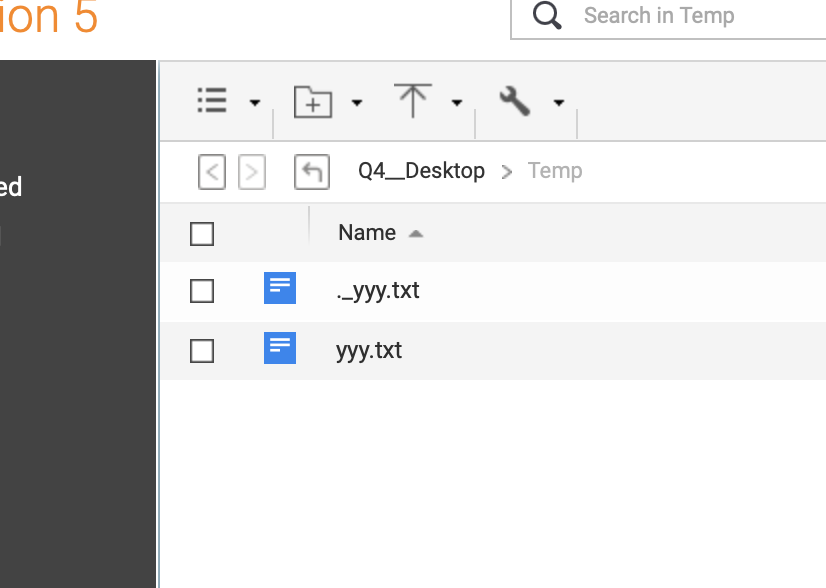
The .ds_store files aren’t a problem - they’ve always been there.. These are not dot files, these are dot-underscore files. They are different. See the screenshot in my earlier post.
I have a similar issue on my systems due to various utilities that I run, and similar to the dot-clean function, I have a script that I run via cron to remove the unwanted files on a nightly basis.
Note sure if it will provide inspiration, but here is a relevant section of my script (it’s a bit cryptic):
# Common Script Header -- Block End

# Cleanup PaperPort files
for _dir in "Private" "Public"; do
  ${ECHO} "`${DATE}` Checking PaperPort files in [${BMNT}/${_dir}]"
  if [ -d "${BMNT}/${_dir}" ]; then
    for _f in "MaxDesk.ini*" "PP11Thumbs.ptn*" ".@__thumb" ".ppinfocache" "AI_RecycleBin"; do
      ${ECHO} "`${DATE}` Checking [${BMNT}/${_dir}] and Clearing [${_f}]"
      ${FBIN}/find ${BMNT}/${_dir} -iname "${_f}" -type f -print -delete
    done
  fi
done

# Common Script Footer -- Block Start
That’s a bit above my pay grade but looks like something I could work with. What system is the script in? it’s not AppleScript (of which I have enough knowledge to do a bit of scripting on the Mac).
What I’m looking for - and it’s off (my own) topic really, is how to stop the Mac wrting the -_ files in the first place. My “research” indicates that it should be possible by modifying the Mac’s SMB config file, but everything I’ve tried (i.e. things I’ve found on the web) so far hasn’t worked.
Thanks.
OK. I asked you for some very specific information and you did not give it to me. I will ask again:
How are you copying files from the Mac to the NAS?
What files do you see on the NAS in the Finder?
Your original files are still copied. I am not quite sure what your issue yes. Yes, you cannot open the ._ files on the NAS.
From Duck.AI:
._ files are resource fork segments created by macOS when files are copied to non-Mac file systems like FAT32 or NTFS. They store metadata about the original files, but are generally unnecessary on those systems and can often be deleted._
 tenforums.com
 Apple
AppleUnderstanding ._ Files Created by macOS
What Are ._ Files?
._ files are known as resource fork segments. They are created by macOS when files are copied from a Mac to non-Mac file systems, such as FAT32 or NTFS. These files contain metadata about the original files, which includes information like the file’s attributes and preferences.
Why Are They Created?
-
File System Compatibility: macOS uses a file system that supports both data and resource forks. When files are transferred to a file system that does not support resource forks, macOS creates a ._ file to store this additional information separately.
-
Metadata Storage: The ._ files hold metadata that is essential for certain applications on macOS, but this information is often unnecessary on other operating systems.
Are They Necessary?
-
Generally Unnecessary: On non-Mac systems, ._ files do not serve a functional purpose and can usually be deleted without affecting the original files.
-
Impact on Storage: These files can accumulate and take up space, especially when many files are copied, leading to clutter on external drives or network shares.
Deleting ._ Files
If you find ._ files on your external drives or network shares, you can safely delete them if you do not use macOS applications that rely on the metadata they contain.
I am making a screen capture video and will post it when done.
I really fail to see your issue as you have said nothing about the original files. You are hung up on this . files.
Here’s the video:
In this video, I show an empty folder on the NAS. I then switch to the Finder. I play a video file on the Finder. You will see that. I then copy that file to the NAS. I play it from the NAS. It all plays fine. I then switch to Safari and show the folder again after it refreshes. The file is there. There are no ._ files. I go back to the Finder and I delete the file. I deletes fine. I prove this by going back to the NAS and after refresh - yes it is gone.
So PLEASE provide me with more insight as to what you are doing. I am really confused here…
I copy the file from the Mac to the NAS using Finder and dragging from a Finder window which has the Mac directory with the File in to a finder window which has the NAS share directory.
When I do this drag the file appears in the Finder window of the NAS directory but it’s greyed out and I get an error message in Finder.
I switch to a browser with the NAS browser UI File Manager open and navigate to the directory in the NAS share which I have just dragged the file into. I make sure that hidden file display is turned on in the NAS UI File Manager. I see two files - the file I’ve dragged and a ._ file with the same name except it has “._” in front of the name. I posted a screen shot to show this.
I delete the ._ file. I
I go back to to the Finder window showing the NAS directory with the greyed out file that I’ve just copied, I refresh Finder (i.e. switch directory and switch back) and the file that I’ve just copied is no longer greyed out. it’s there and I can use it,.
Another scenario. I have an mp4 video file called myVideo.mp4 in a directory on the NAS called “My Vids”. I’ve cleared the ._ copy of it, so I can open it with Mac apps. I watch the video using VLC player. After I’ve watched it I use Finder to move it to a sub-directory of “My Vids” called “Watched Vids”. Finder pops up a message that the file can’t be found. I go to a browser, open the NAS UI, then File Manager and navigate to the “My Vids” directory. I make sure that File Manager is displaying hidden files. There is a new file called “._myVideo.mp4” with a creation time of around the time I opened it with VLC to watch it. I delete “._myVideo.mp4” and now I can successfully move it from the My Vids directory to the Watched directory using Finder on the Mac.
The ._ files NEVER appear in Finder.
Here’s another video. This time copying a .txt file since it was used in your example. As you see - no issues.
What version of MacOS are you using?
Again - you can see in my videos that I copy files and none of what you say is happening. There’s something else going on here…
Can you create a screen capture video using QuickTime Player and post it?
And what version of QTS are you running? And what version of Mac OS?
Given that you have this problem and that based on your other post that you don’t get the prompt for automatically inserting your password when logging into the NAS, I suspect something is messed up in either QTS, your Mac or both…
The fact that you aren’t having issues doesn’t help me, does it? It’s a bit like going to the hospital with a broken leg and the doctor saying “my leg’s fine”.
In the Web UI, File Manager have you turned on “display hidden files”? It’s in the three dot menu at the top RHS of the File Station window.
I’m not creating a video, there’s no point. I’ve posted a screen showing the ._ file. if a file on the NAS has a ._ file then I can’t copy, move, delete or edit it using Mac apps until I delete the ._ file. That’s why I’m hung up about them.
I’m on a Mac, Sequoia. This never used to be a problem. It started in the last 12 months and wasn’t related to an update of MacOS.
QTS 5.2.9.3499
Edit: OK -I’ve watched your video now, which answered the hidden files question. The behviour you see is what I used to see. It’s not what I see now. That’s sort of good news, since it means that I should be able to fix it. All I need now is to find out how. Thanks for your help. Sorry for being stroppy earlier.
So if you watch my videos you will see that I have show hidden files checked in File Manager.
I can’t help you further if you are unwilling to provide more details. I just upgraded from Sequoia to Tahoe on my laptop and again, never had the issue on the laptop under any version of Mac OS.
You posting pictures of files on your NAS really proves nothing honestly. That’s why I did a video to go through the effort of showing you that it really does work.
Yes, your “leg” is broken but there was an insinuation that all Mac users “legs” are broken when they aren’t. So, yes, we have a problem with your install. Why? I don’t know but it’s neither a Mac problem nor a QNAP problem. There’s something wrong on your end.
What did you change with your Mac recently? What other apps, utilities, etc. Did you add? I almost went really old school on your and asked if you had some conflicting extensions loaded. If you know what those are, then you have been around since before OS X! 
Thanks for your help.
Hi. I tested this yesterday. It still logs me out. A box pops up in the middle of the page and says something like “Logging Out”. I can’t remember the actual messaga - I just saw it out of the corner of my eye and didn’t get time to catch it properly.
There is something not right in your Mac or your NAS or both. I would suggest trying to resolve the underlying issue that is causing your file copy problems and that will probably resolve everything else.
I honestly don’t know how to help you further at this point, but the issues you are seeing are not “QNAP” related as far as Mac computers go. Something else is wrong and sitting here on the other end of a community forum, I am really unable to understand further…