I recently bought a Qnap NAS but when I try to connect from outside my city I cannot add it in Finder, I just tap Go > Connect to a server… > ftp://my_ip and it asks me for user and password, then it starts trying to connect for a several time and then stops and fails the connection, I don’t know what I’m missing, I tried writing ftp://my_ip:21 and the system port I configured but still cannot access to my server.
If you configured that without any problem and can access wherever you are, how did you do it? Everything works perfect since I finished the configurations, except when I try to add the connection to my NAS in Finder when not in home.
Accessing your NAS remotely opens you to a HUGE potential for being hacked. You should only do this if you have read all the warnings and know EXACTLY what the risks are.
I strongly suggest you disable remote access until such time as you can research it properly.
Having said that, the best and most secure way to access your NAS remotely is to run a VPN server (free) on your router, then connect it it to establish a secure connection to your network. From there, you can access all the resources on your network, including your NAS.
More to your point though, the is no need for “finder” either internally or externally if you know the ip address of your NAS, and your remote IP address or DDNS name. You can simply enter the IP address and port that you have setup in your router to forward to your NAS.
To help provide you with more information, I would start with some basics.
What is your NAS model, what firmware (specific) version are you running, and the most important question, why and what are you trying to access when at a remote location? There may be better, alternative, safer options depending on what you are intending to do.
I just use it like a backup for all my pictures, events, documents and some work files, the thing is I wanted to access directly from Finder, like when I’m at home and just go to Net Devices > NAS and can connect directly, I usually connect with DDNS option and access to FileStation but wanted to make it simple, just click and navigate my documents.
ftp is also pretty much the worst in terms of security..not encrypted or anything. Anyone snooping a public wifi can access all your files..so disable these port forwards asap!!!
I know you don’t think much of QNAP’s apps like this one. So if you have other options, then please let’s be productive and tell us what those are…
Obviously the best is a VPN on his router. But not every router supports Wireguard and other stuff like IPSEC is quite challenging to set up correctly.
So would love to hear your options that are better.
A 3rd party device like a Raspberry Pi with a proven security record would be in the middle of my list. There are literally dozens of options, google is your friend.
Any device WITHIN your network (including the option I described) is not a great option as it is already within your network. However, something, anything, with a proven record is worth considering.
Ideally, your router, an actual firewall device, any 3rd party device.
Running ON your NAS, or any device you are actually trying to protect, is not a good choice.
Beyond this, this has been answered a thousand times. There are websites dedicated to VPN services, networking, etc. A vendor specific site, about a different device (NAS) is not the best place for this type of advice, other than a warning, IMO.
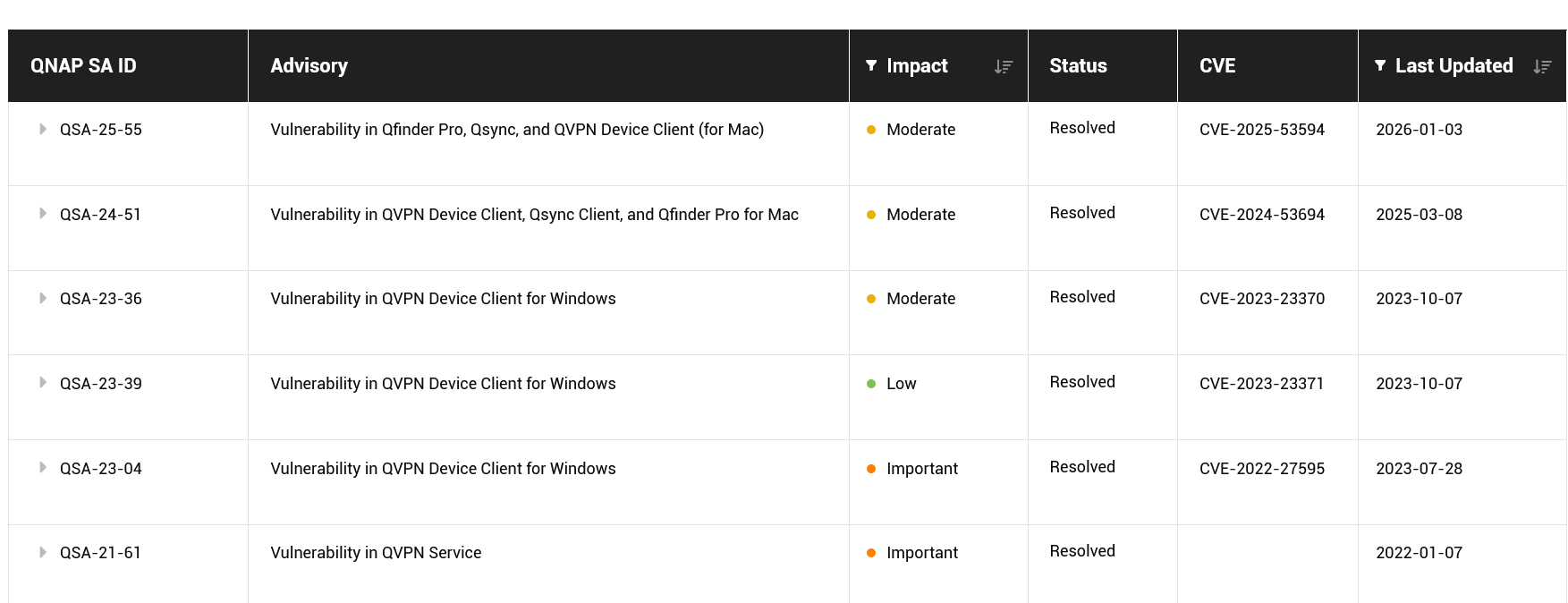
I see one for the actual service on the NAS. All the others were for clients.
And what device or software package these days is not regularly updated for security issues. So you run a VPN server app on a R-Pi. How many R-Pi updates are there because of security discovery? Yet people trust Linux based system or Windows based systems.
So just because someone has an opinion on a product’s usefulness or value doesn’t mean that there isn’t value there. @dosborne and I have very different opinions on the “safety” of our NAS units. He doesn’t use any of QNAPs cloud features AFAIK, but I use all of them…No one is right nor wrong here. It’s a matter of preference.
My humble home router/modem isn’t capable to run a VPN by itself, but tailscale is working great so far.
It’s really not that difficult, basically install Tailscale in your NAS (low/medium difficulty), install it on your other device(s) (low difficulty), sign up with an account (like google, apple or microsoft) and everything is connected and working. No need to touch any setting.
Hello. I’m using tailscale in a TS-216G which has the same processor as the TS-133 (64-bit ARM 4-Kern Cortex-A55 1,8GHz Prozessor). The TS-216G has 4GB RAM though.
You’ll not find it in the app center, but you can download it directly and install it manually. I guess you can give it a try .
Using FTP in Finder looks easy but sometine it doesn’t work well especially when u are outside your home. Finder isn’t great with FTP and your router also needs to allow the connection from the internet try this instead
Go → Connect to Server → smb://your_public_ipBut this also needs some router setup, and opening ports can be risky if you’re not careful.
The easier way is to use a VPN or QNAP’s myQNAPcloud, with a VPN, your Mac connects like it’s on your home network, and Finder just works normally.