HDP for Business Public Beta is now available — free, no license key, installed from App Center on the x86 QNAP NAS you already own. One console for VMs (VMware, Hyper-V, Proxmox VE), Windows PCs and servers, file servers and databases, with immutable backups, verified restores and multi-location management built in. HDP for Business is not HDP for PC/VM: HDP for PC/VM is the standalone app on a single NAS; HDP for Business is the central platform above it, and it can take those deployments over.
Landing page and FAQ: HDP for Business | Enterprise Backup on Your QNAP NAS | QNAP
At a glance
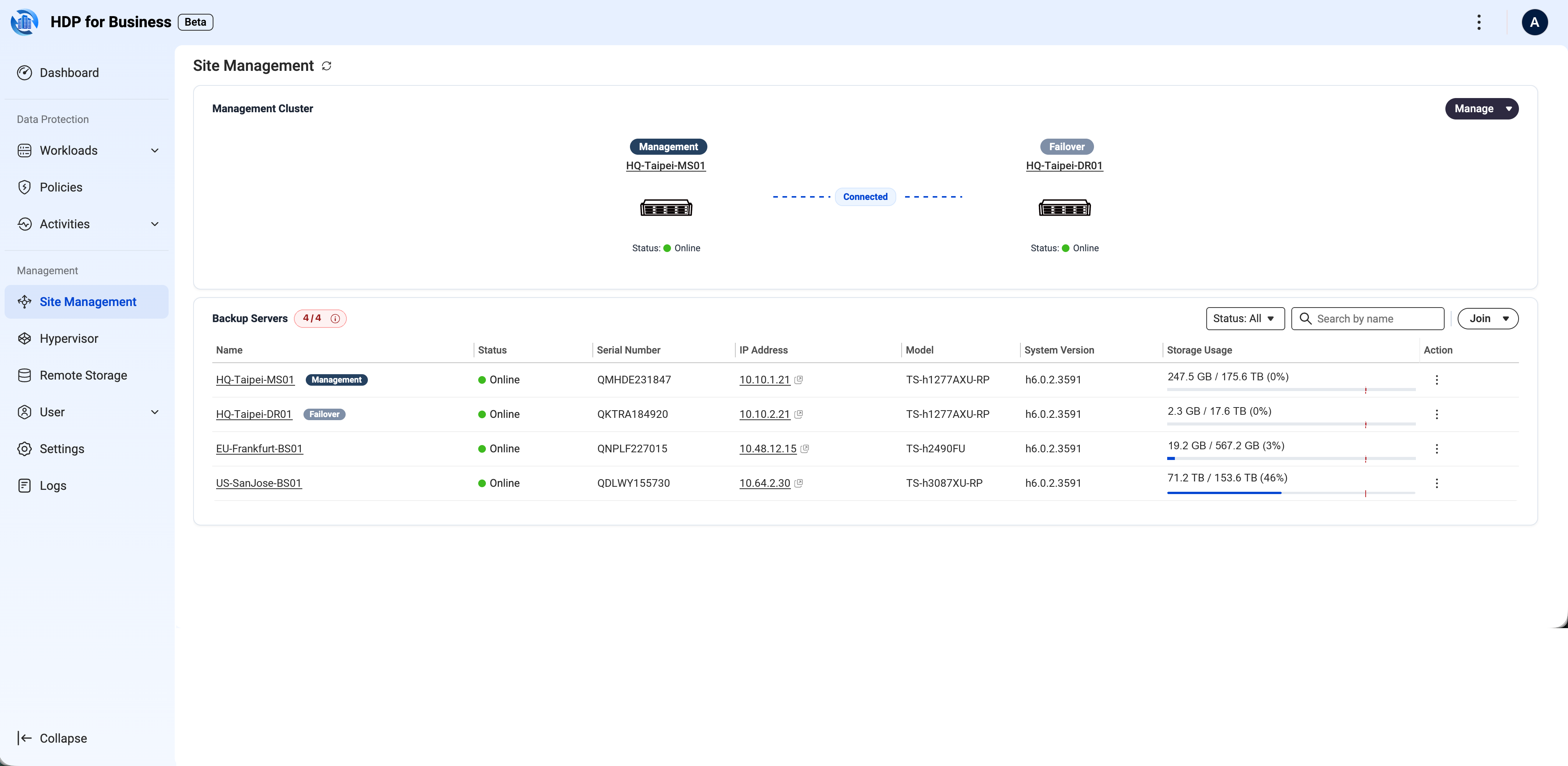
- Three roles. A Management Server is the console, and it can protect workloads itself. Backup Servers store the data and run the jobs. An optional Failover Server stands by for the Management Server.
- Hardware. x86 NAS only; ARM models cannot take any role. Management and Failover Servers need a 4-core CPU and 8 GB of RAM; any other x86 NAS can join as a backup server.
- Platform. QuTS hero h6.0.2 and later today. QuTS hero 5.2.x and QTS 5.2.x will follow.
- Beta scope. One site manages up to 4 servers, including the Management Server.
1. How it relates to HDP for PC/VM
- HDP for PC/VM is the standalone app: one NAS protecting VMware/Hyper-V VMs and Windows devices, managed on that NAS.
- HDP for Business builds on it. HDP for PC/VM stays as the backup engine on each backup server; management moves up to one central console, which adds multi-server Site Management, Proxmox VE, file servers and databases, immutable backups, Backup Verification and Instant Restore.
- Already running HDP for PC/VM? Use Take Over: backup jobs become Workloads, backup policies and schedules become Protection Policies, hypervisors carry over, and the HDP PC Agent on each Windows device is upgraded to the HDP for Business Agent automatically — nothing to do on the PC (it needs to be online; a device that misses the upgrade window can be updated from the console). Existing backups are kept; nothing is rebuilt.
- After takeover, HDP for PC/VM on that NAS becomes view-only; all backup management moves to HDP for Business. Return (Settings → Application Management) hands control back and downgrades the agents again.
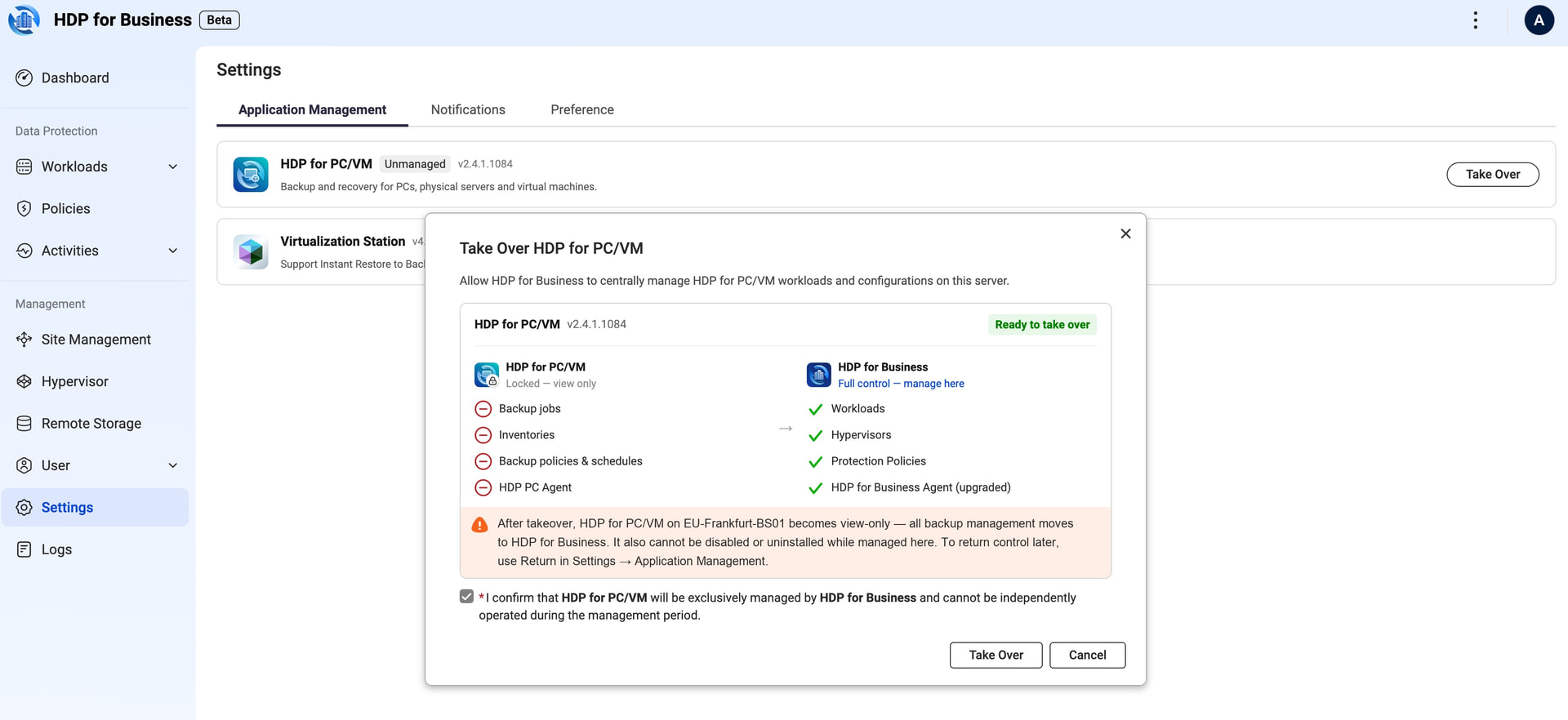
Take Over: what moves from HDP for PC/VM to HDP for Business.
2. What it protects
- Virtual machines: VMware vSphere/ESXi, Microsoft Hyper-V and Proxmox VE, all agentless. Proxmox support is exclusive to HDP for Business in the QNAP lineup.
- Windows PCs and servers: requires the HDP for Business Agent. Enter the Join Key and the device is centrally managed; policies are pushed by IT.
- File servers: SMB, rsync, QNAP NAS, NetApp, Nutanix.
- Databases: Microsoft SQL Server and Oracle, application-aware.
- Not in the Beta: Microsoft 365 and Google Workspace — use HDP for SaaS.
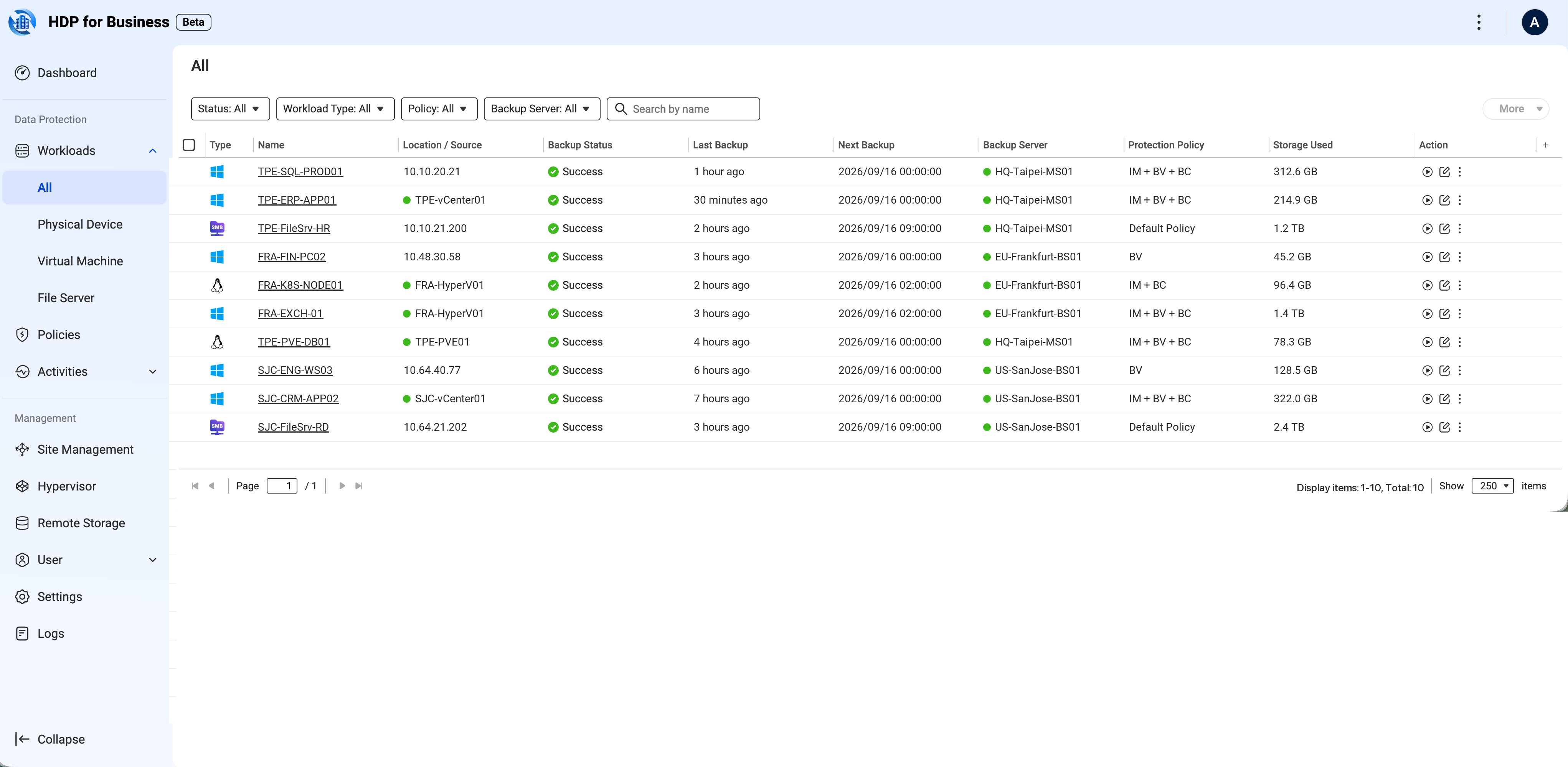
PCs, VMs and file servers in one workload list.
3. Site Management — every location, one login
- Generate an Invite Key on the Management Server, paste it on the NAS you want to add, click Connect. Its existing policies merge into the site.
- One login shows the backup status of every location. One policy applies to workloads on any backup server in the site.
- Failover: the Failover Server mirrors the management settings continuously. If the Management Server fails, the administrator clicks Switch Over and the standby takes over. The switchover is manual, one click — not automatic.
- Airgap+, set per backup server: outside its backup window the server powers itself off on a schedule and comes back for the next window.
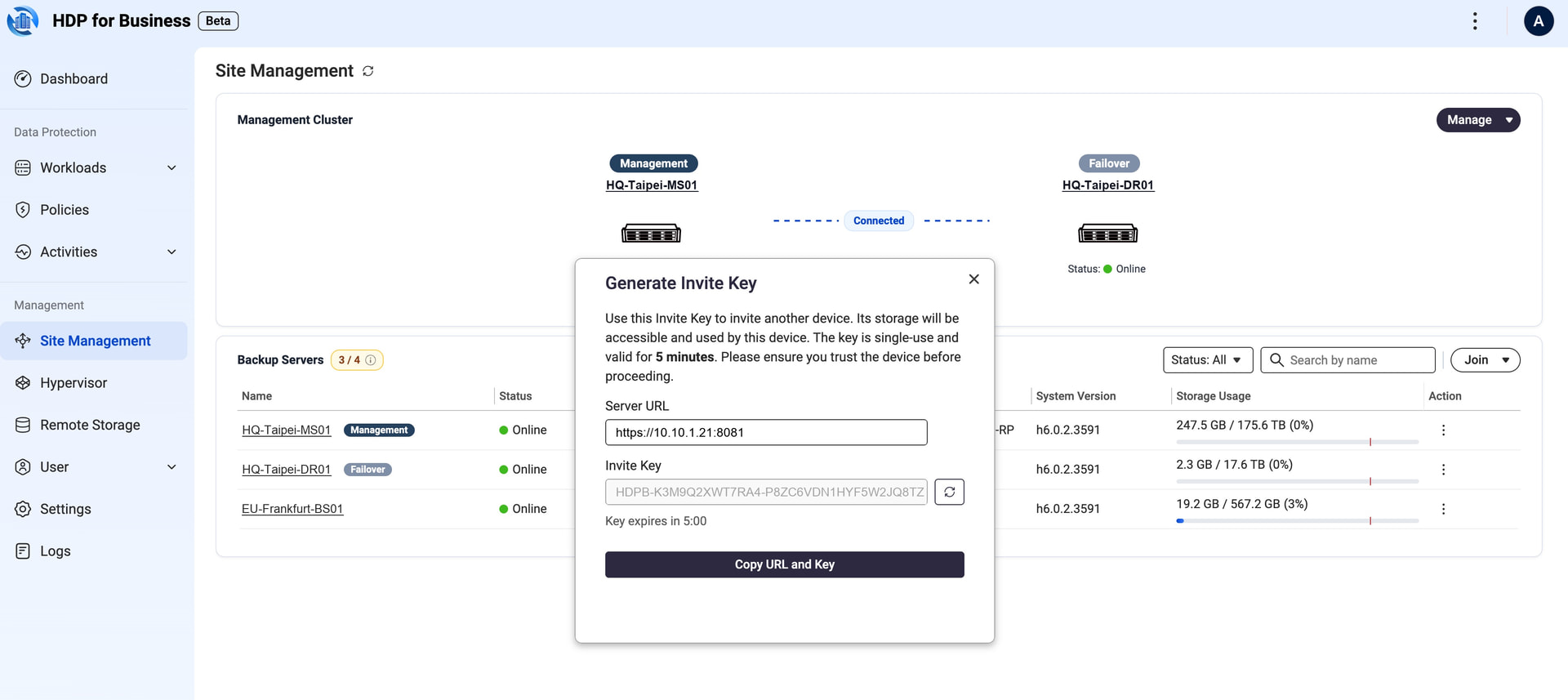
Generate Invite Key.
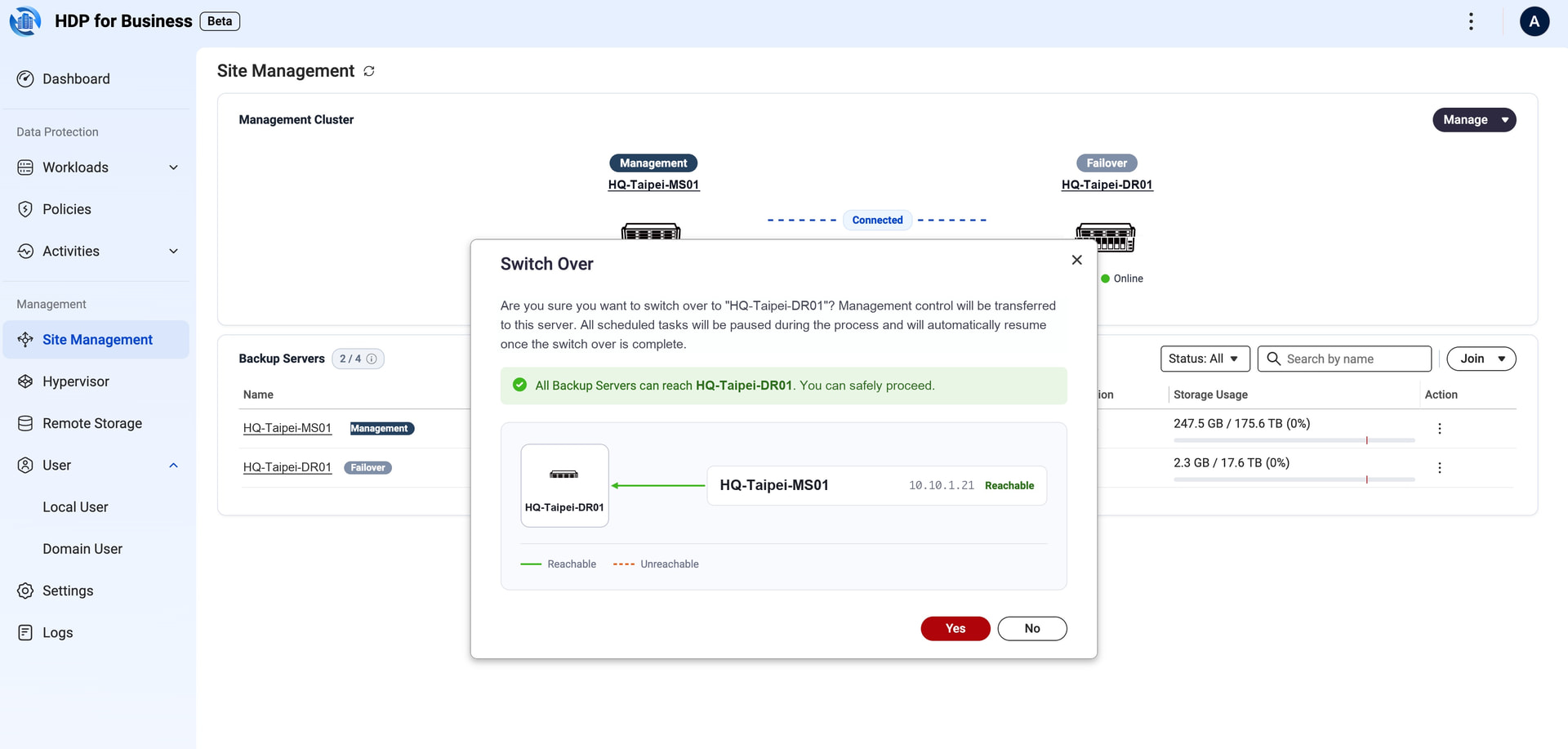
One-click switchover to the Failover Server.
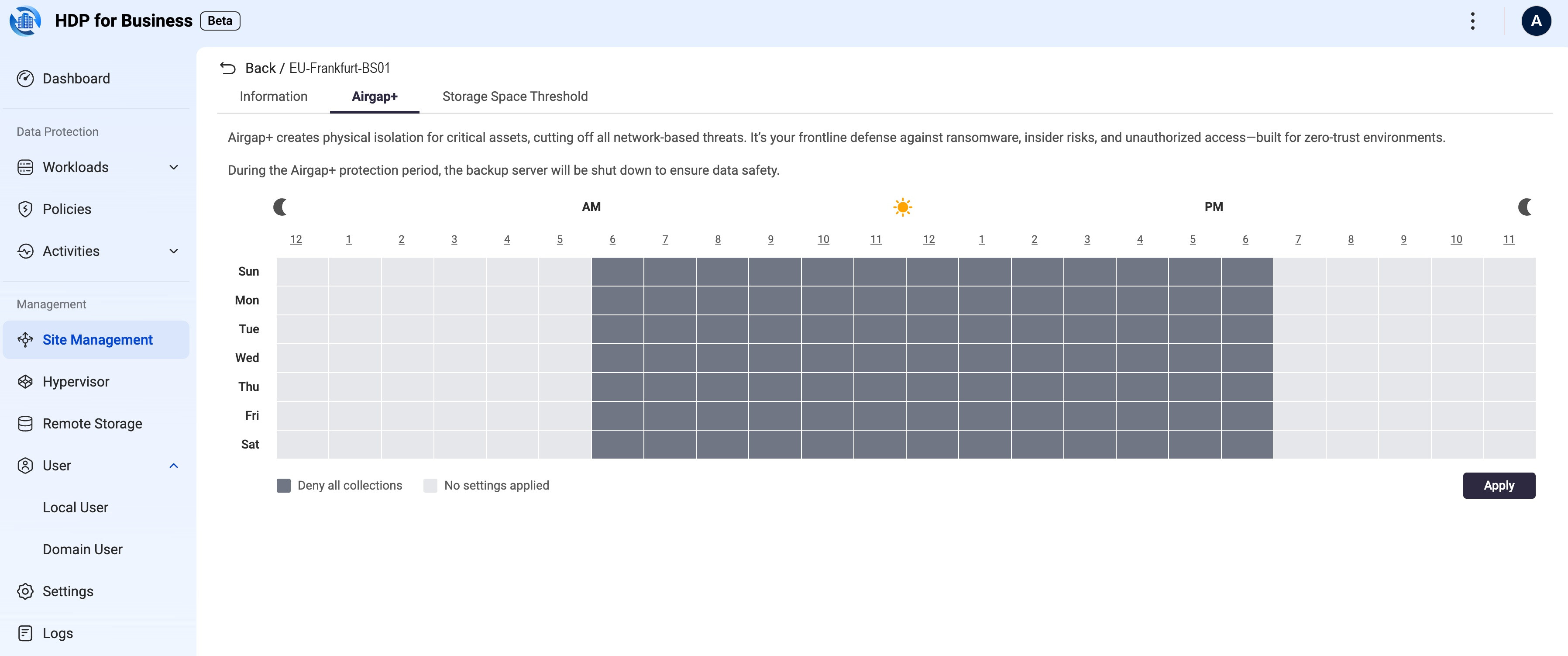
Airgap+ schedule for one backup server: shaded hours are when it stays powered off.
4. Immutable backups (WORM)
- Choose Immutable Protection Policy when creating a policy. Every backup under it is locked until retention expires — it cannot be modified or deleted, even with administrator credentials. The policy type cannot be changed afterwards.
- Requires a backup server running QuTS hero.
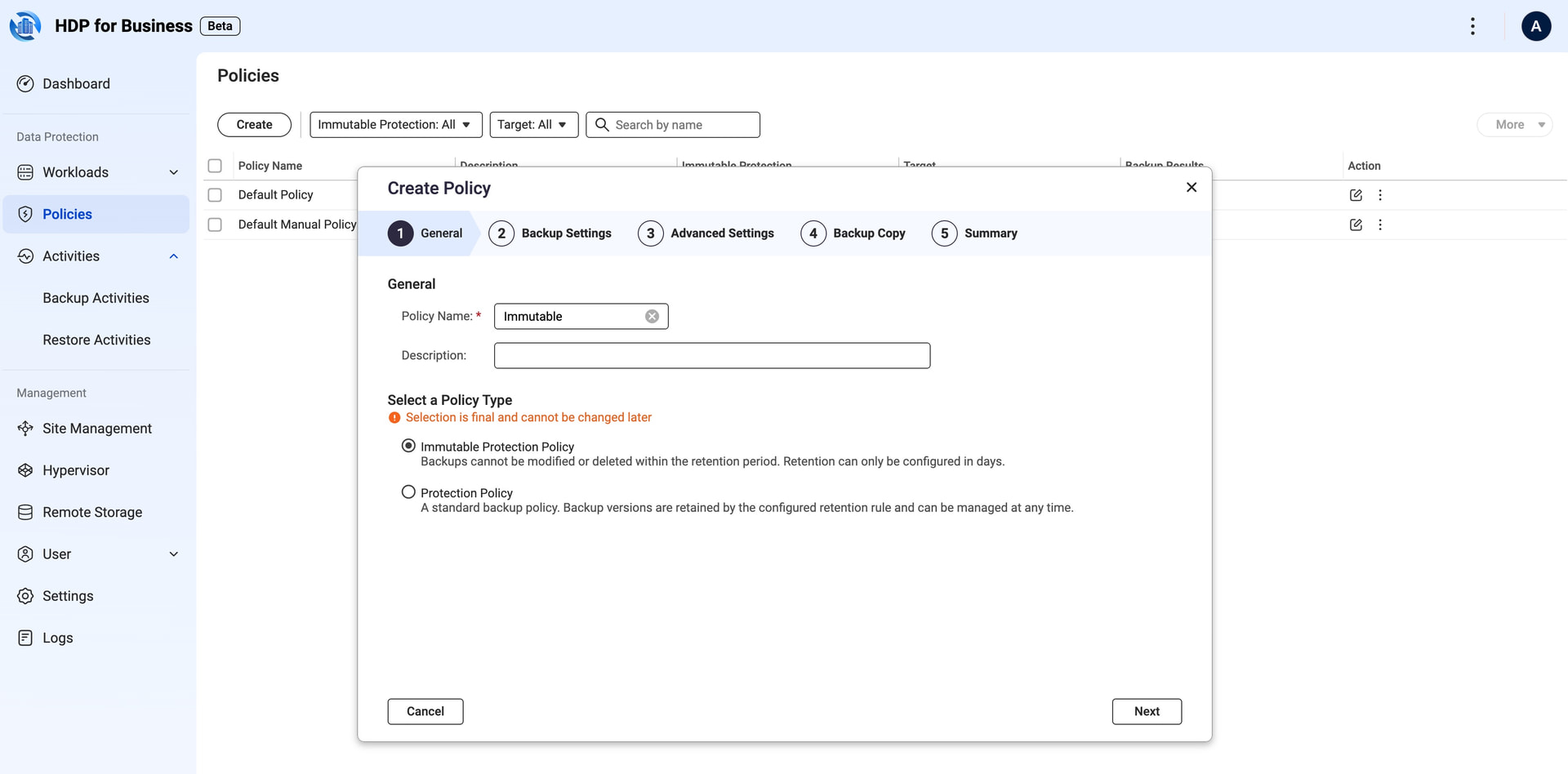
5. Backup Copy and Object Lock
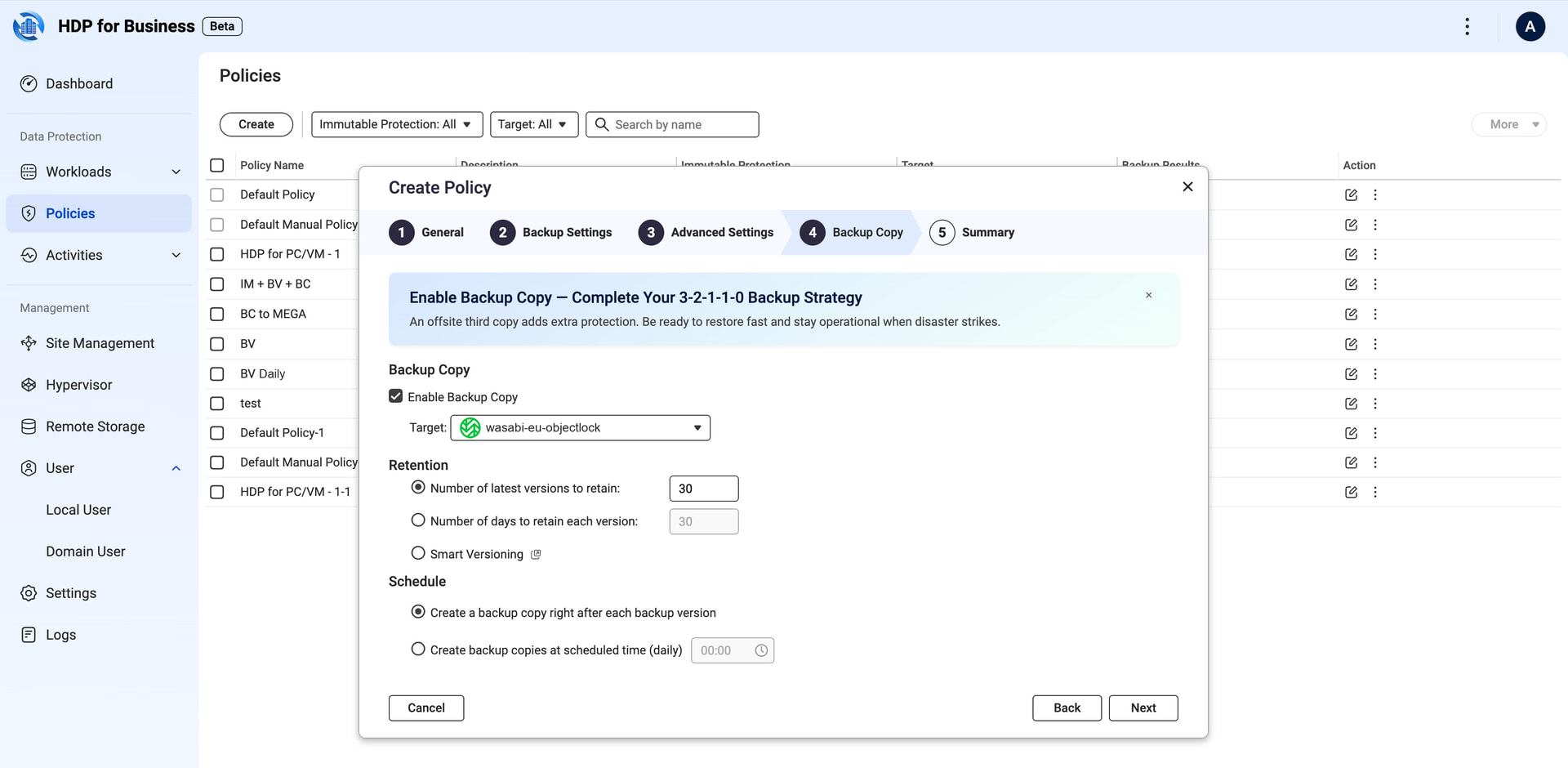
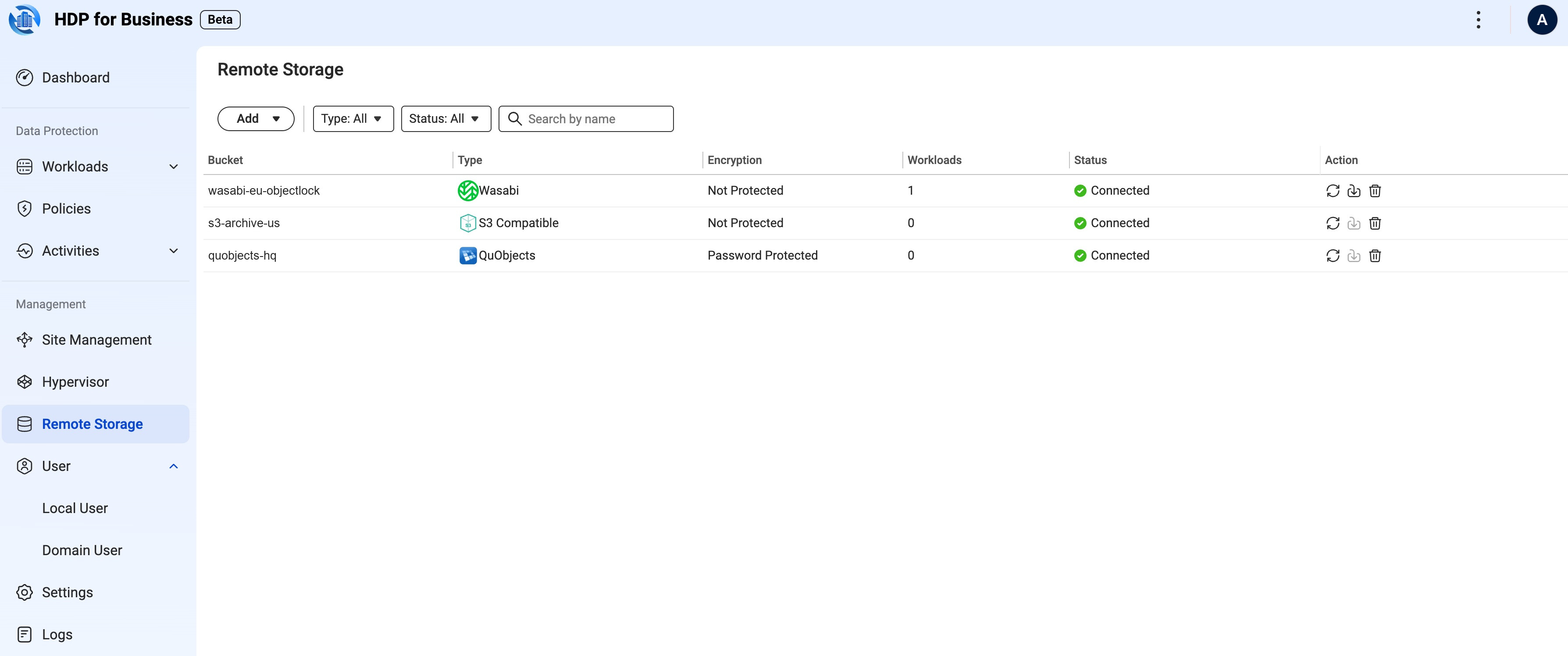
- Any policy can keep a second copy on QuObjects (S3-compatible object storage on a QNAP NAS), myQNAPcloud Object, Amazon S3, Wasabi or other S3-compatible storage.
- The bucket must have Object Lock enabled. Copies from an Immutable policy get Object Lock retention; copies from a normal policy are not locked.
- Copies are made right after each backup or on a daily schedule, with their own retention. Each destination can be password-protected.
Remote Storage: the destinations a site can copy to.
Backup Copy step in the policy wizard.
6. Backup Verification — proof that it boots
- Switch it on in the policy’s Advanced Settings. After each VM or Windows device backup, HDP for Business restores the backup, boot-tests it as a VM on the backup server and records the boot on video. Production is never touched.
- The recording stays with the backup version — play it back for internal review or an audit.
- Requires Virtualization Station on the backup server.
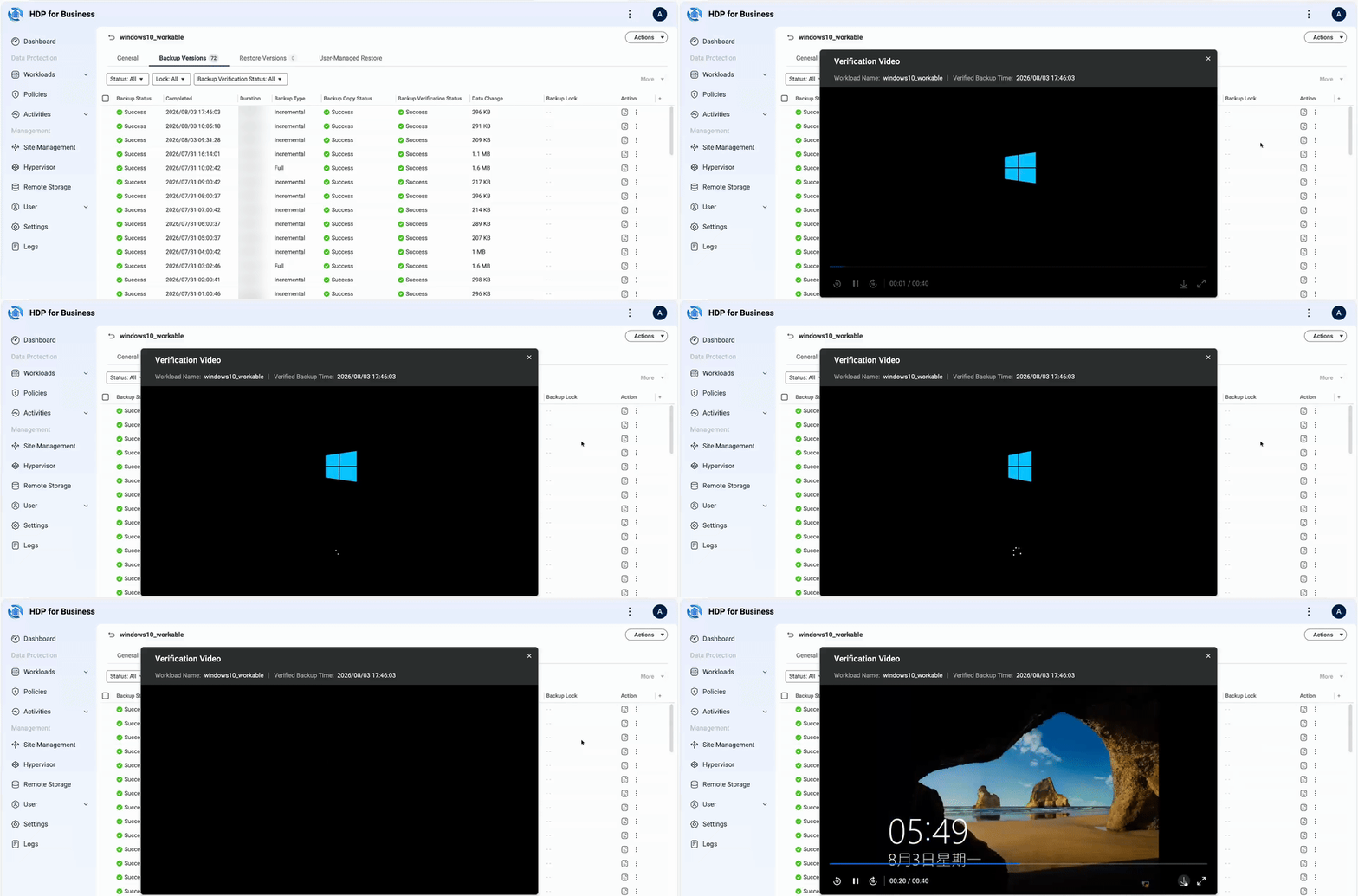
Backup Versions with their Verification Status, and the recorded boot test played back from the console.
7. Instant Restore — P2V and V2V, in minutes
- Boot a backup as a VM on the backup server’s Virtualization Station; users reconnect while you repair the production host. Sources: physical Windows (P2V), VMware, Hyper-V and Proxmox VE (V2V).
- Performance is reduced while the VM runs from the backup. To keep it, convert it into a permanent Virtualization Station VM — at restore time, or later while the temporary VM is running.
- Requires Virtualization Station on the backup server.
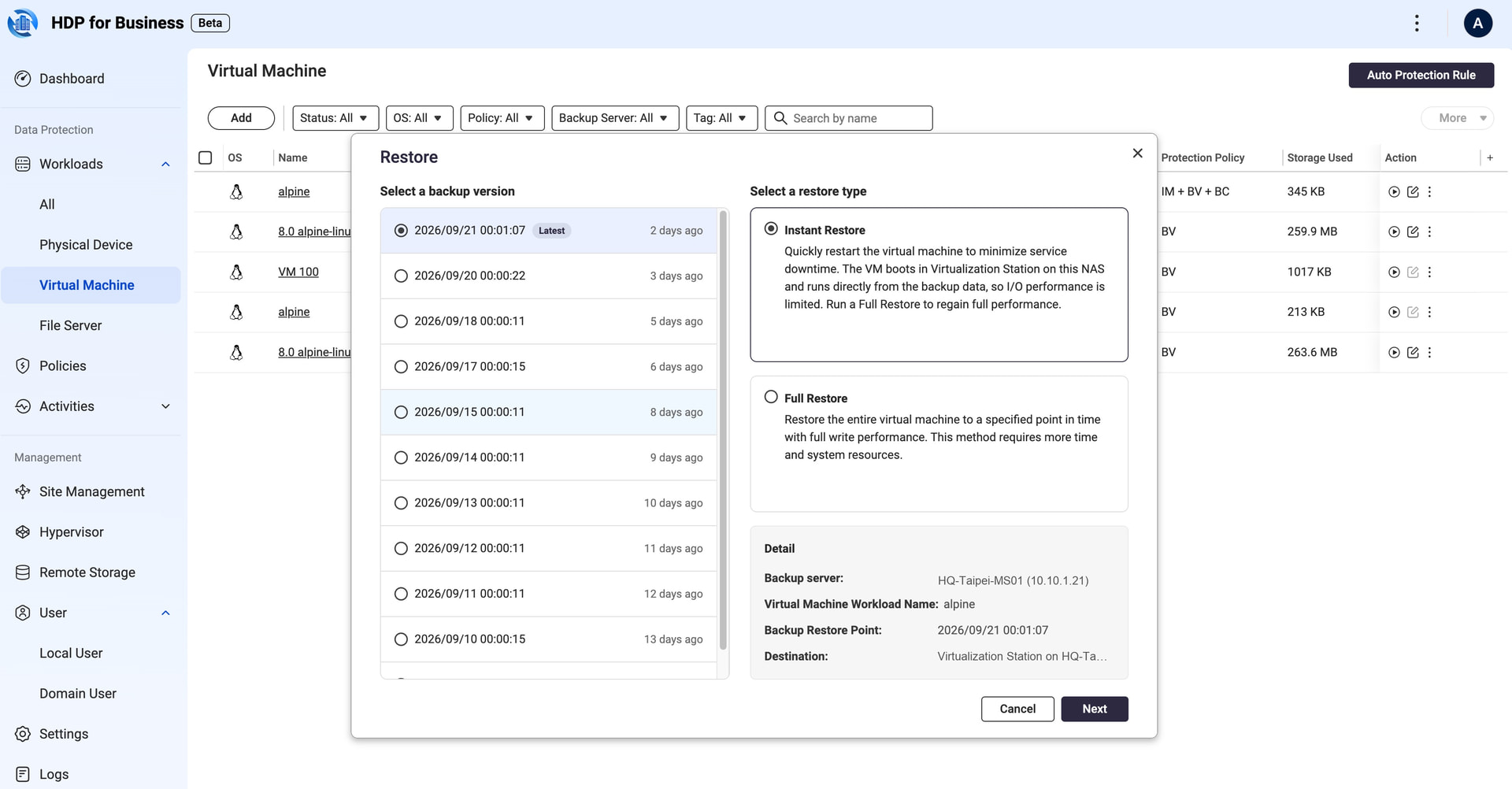
Restore: pick a backup version and choose Instant Restore.
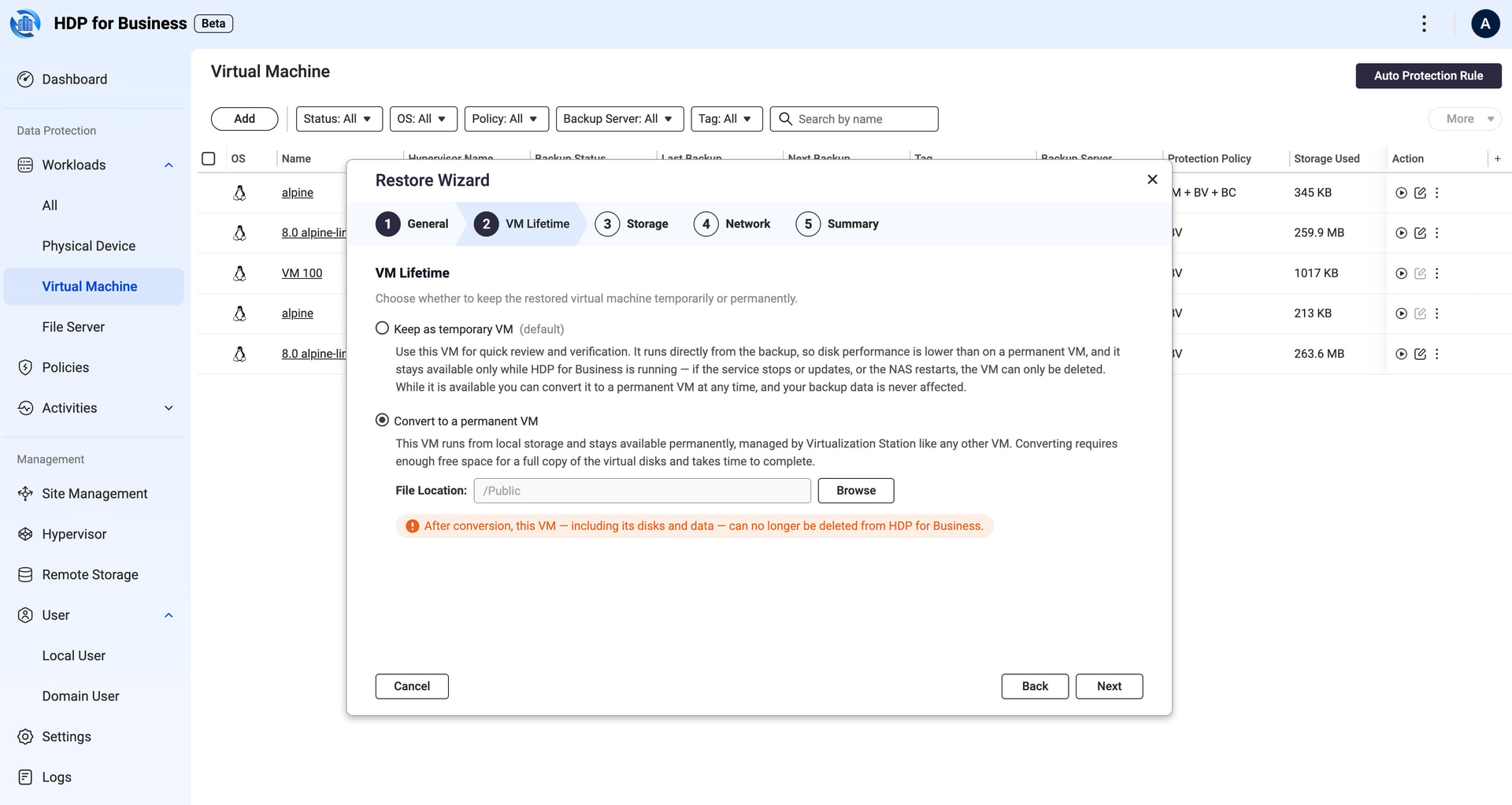
VM Lifetime: keep the VM temporary, or convert it to a permanent Virtualization Station VM.
Try it
Install HDP for Business from App Center on a QuTS hero h6.0.2+ NAS.
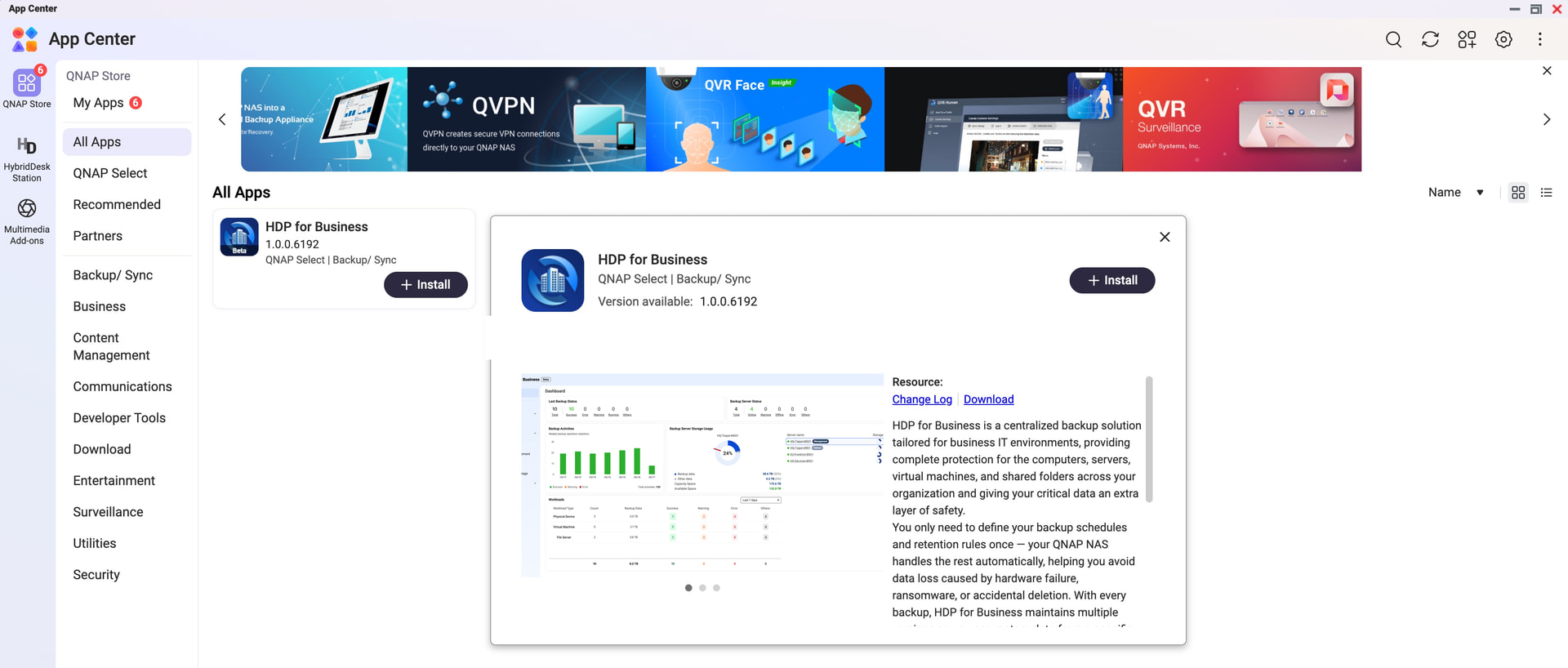
HDP for Business in App Center.
Any feedback on the Beta — what works, what doesn’t, what you’d want next — just reply in this thread.