Have you ever found yourself in a situation where your NAS suddenly has issues?
Whether it’s due to a corrupt file, a ransomware attack, or user error? Just imagine, everything was fine the day before, and now your important data is a mess. This is where the Snapshot feature on QNAP can be a lifesaver, so you don’t have to repeat the tedious manual backup process.
What Is a Snapshot?
A snapshot is like a photo: a “snapshot” of your NAS system and data at a specific point in time. In seconds, QNAP will record the status of a volume, LUN, folder, or file at that moment—so if something goes wrong, you can restore everything to the point in time before the disaster.
Advantages of snapshots compared to traditional backups:
- Storage efficiency: snapshots are block-based and incremental, so only modified data is stored.
- Flexible & fast: you can restore an entire volume/LUN, or just specific files/folders.
- Automatic and integrated: for example, create automatic snapshots before backup processes (RTRR/rsync) so files that are “in use” are still protected.
- Cloning & replication: snapshots can be cloned or replicated to another NAS, supporting disaster recovery strategies.
Cool Snapshot Features on QNAP
Some standout snapshot features you should know:
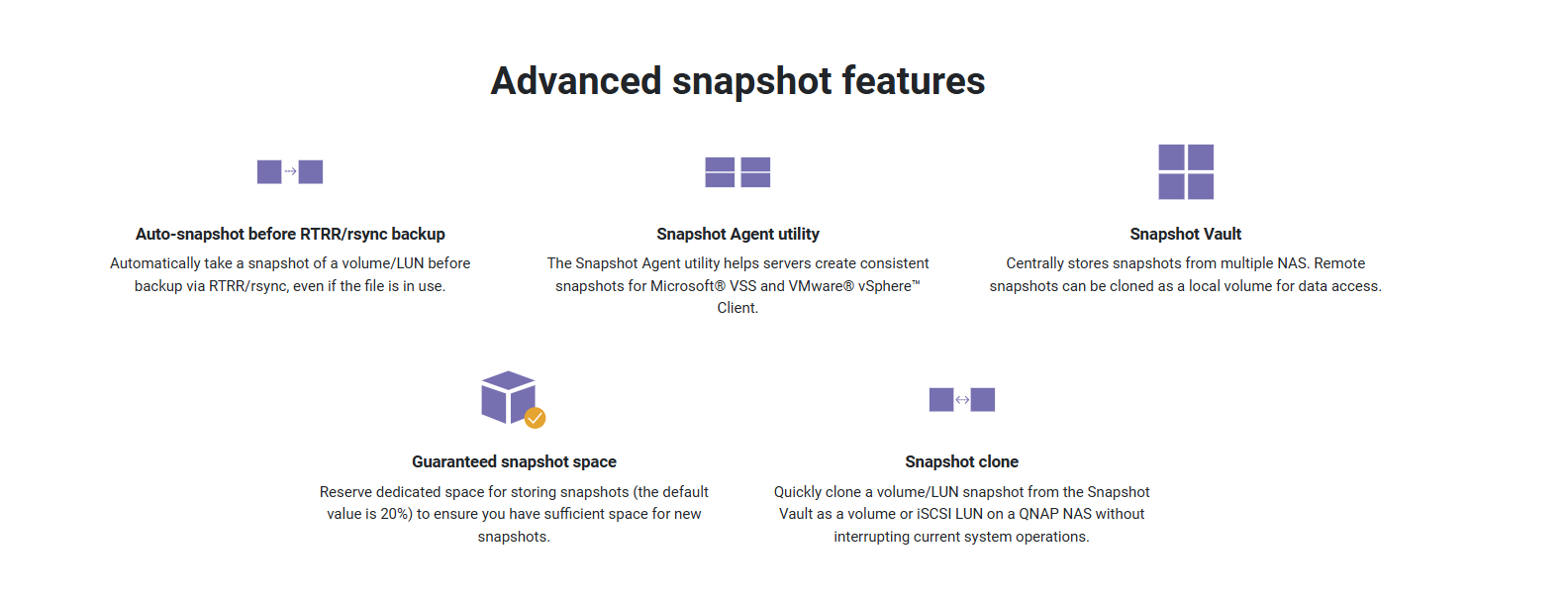
- Snapshot Vault
Stores snapshots from multiple NAS devices centrally. Snapshots from a local NAS can be cloned as a volume or LUN on another NAS, useful for direct data access or recovery. - Snapshot Replica & Real-time SnapSync
- Replica: periodically replicates snapshots to a backup NAS.
- SnapSync: real-time synchronization to a secondary NAS so both systems are identical. If the primary NAS goes down, you can immediately activate the secondary with minimal data loss.
- Automatic Smart Space Management
If storage space starts to run low, the system can automatically clean up old snapshots—for example, “preserve minimum snapshots” so there’s always a backup even when space is very limited.
But note, if remaining space is < 16 GB, the NAS can enter protection mode (read-only). - Compatibility & Snapshot Limits
- QuTS hero / QES systems: support up to 65,536 snapshots per volume or LUN.
- QTS systems: lower limits—depending on RAM and NAS specifications.
- Snapshots require at least 1 GB RAM.
- Some older NAS models do not support the snapshot feature at all.
- Integration with Windows Previous Versions
For Windows users, snapshots allow you to restore files directly from File Explorer via right-click—without having to access the NAS interface.
Snapshot Usage Tips
To ensure the snapshot feature works optimally and doesn’t cause issues, pay attention to the following points:
- Allocate dedicated snapshot space (e.g., 20% by default) so there’s room to store new snapshot versions.
- Avoid “thick” volumes if you want efficiency: snapshots on thick volumes require much more space than thin volumes.
- Enable “smart snapshot space management” so old snapshots are automatically cleaned up when space gets tight.
- Regularly monitor the storage pool status so the NAS doesn’t unexpectedly enter protection mode.
- When replicating snapshots to another NAS, if the initial data is large, you can perform a physical migration using external media to avoid saturating your internet connection.
Why Do We Need Snapshots in the Ransomware Era?
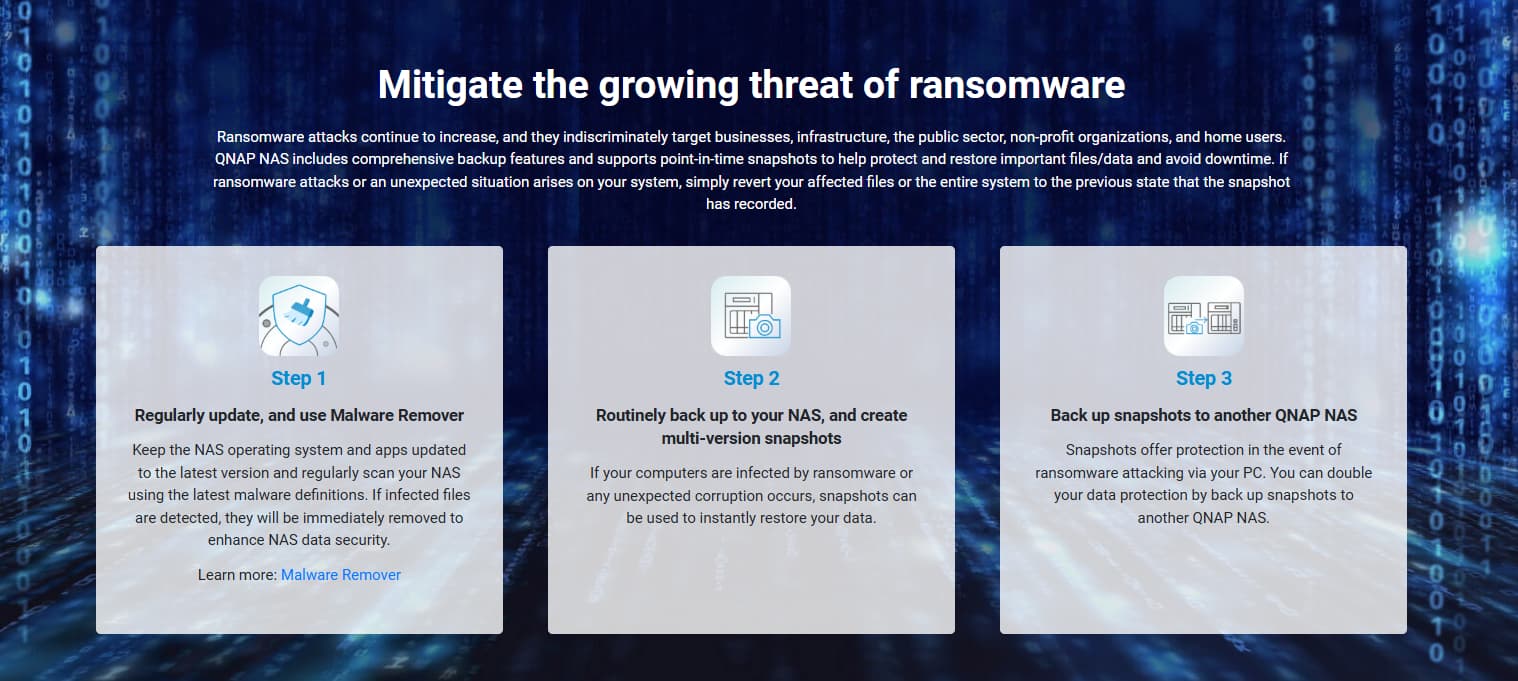
Ransomware attacks are getting more sophisticated and target everyone—from individuals to large institutions. With snapshots, if files are infected or encrypted, you can roll back to a version before the attack and minimize downtime. Additionally, replicating snapshots to another NAS adds an extra layer of protection.
Hopefully, this short article helps users, especially those who haven’t yet maximized the snapshot feature on their QNAP devices.
Click here to learn more about Snapshots on your QNAP device.