Low speed on SMB - QES

When downloading/uploading files via SMB protocol to a shared folder created on the above-mentioned NAS device, the transfer speed ranges between 180-200MB/s. Between the target NAS server and the client computer, there is a switch whose configuration fully supports a speed of 10Gb/s. I would like to mention that a 10GBase-T extension is installed in the SCA controller of the above-mentioned NAS server.

I verified the status of the port used for the connection via SSH connections and using the “ifcfg status eth8” command.
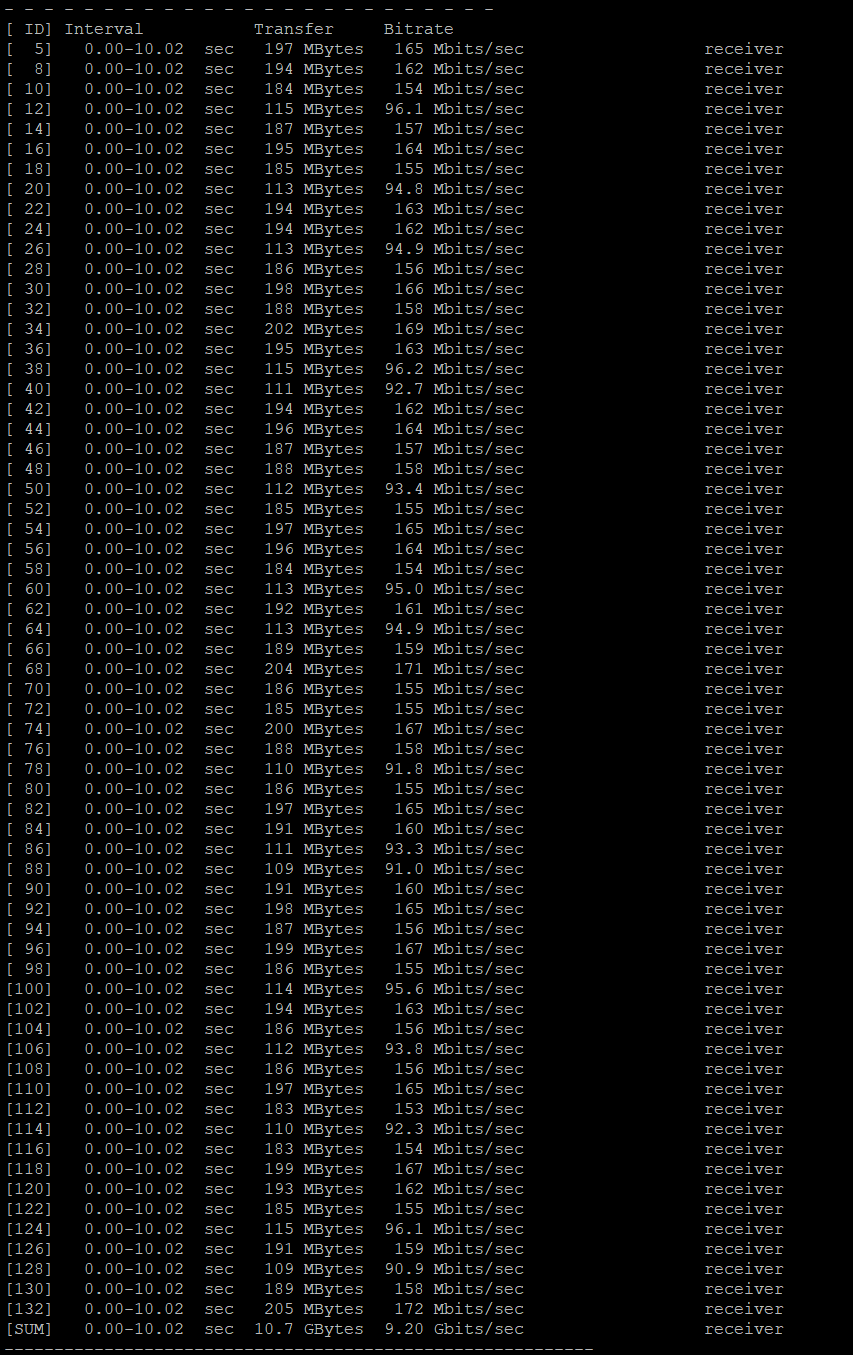
I also performed a connection test using iperf3. I used the command “iperf3 -c -P 64”, which confirmed that the connection is capable of handling ~10Gb/s.

All NAS server slots and extensions are filled with disks, from which RAID5 was created, and then a shared folder was created using the entire space of the above-mentioned RAID.

I do not see a device mentioned, just a note about QES. Can you please add this info (model and firmware used)

Hi @user712471326 ,

Thank you for providing such detailed technical information regarding your SMB performance on the QES system. We sincerely appreciate the effort you put into the iperf3 and ifcfg diagnostics, which confirm that your 10GbE network backbone is functioning perfectly.

To help us investigate this SMB throughput bottleneck (180-200MB/s) further, could you please clarify the following points?

  1. Timeline of the issue: Was the transfer speed normal before, and this issue started recently? Or has it been performing at this level since the initial setup?

  2. Cross-device testing: Have you observed the same speed limitation when connecting from other client computers equipped with 10GbE NICs? This will help us determine if the bottleneck is specific to one client or the NAS configuration.

Given the complexity of your hardware environment (SCA controller and RAID 5 on QES), we highly recommend opening a formal support ticket so our senior engineers can perform a deeper analysis of your system logs.

Please submit a ticket here: https://service.qnap.com/

Best regards,
QNAP Support Teams

The device is Es1686dc R2 with firmware 2.2.1.2513 Build 20251126

After the initial configuration, we began transferring data from the old QNAP server to the new Es1686dc R2 with firmware 2.2.1.2513 Build 20251126. The network functioned flawlessly for the first few days. Speeds reached 900-1000MB/s. In the meantime, there were no configuration changes on the QNAP Es1686dc R2 server. About a month after the initial launch, problems arose. My team and I tested whether the problem occurred on different client machines. On each device, the speed remained at ~200MB/s despite the 10Gbps connection. We tested different cables, MTU 9000, and different SMB standards – without positive results.

If you’re comfortable accessing your NAS via SSH and the command line, there are a couple of things you might like to check. None of this involves making changes - you will just be using a console interface to query the network stack.

The first is

cat /sys/class/net/eth0/speed

[If you are not using your eth0 network port, you might need to change that value in the above command to the port you are using. ] I have a TVS672XT, which has a native 10Gb port, so when I perform the above I see “10000” in response. That will give you confidence that your network adapter in your NAS, at least, really is running at 10Gb and hasn’t stepped down because of other [i.e. external] issues.

Another command you can try is:-

ifconfig -a

You’ll get quite a bit of output from this, but it’s reasonably easy to see that it’s broken down in to blocks for each physical/virtual adapter. If you can find the default adapter [typically eth0], you can have a look at the 3rd and 4th lines of output, which is where you’ll get an indication of the number of errors or dropped packets. Here’s what I get on my 672 when I try that command:-

eth0 Link encap:Ethernet HWaddr 24:5E:BE:53:7F:06
UP BROADCAST RUNNING MULTICAST MTU:1500 Metric:1
RX packets:222358095 errors:0 dropped:161 overruns:0 frame:0
TX packets:372509639 errors:0 dropped:0 overruns:0 carrier:0
collisions:0 txqueuelen:1000
RX bytes:230092094401 (214.2 GiB) TX bytes:455412818198 (424.1 GiB)

As you can see, the adapter has dropped 161 packets [in 31 days, since it’s last reboot]. If you find a large number of errors or dropped packets, that might be indicative of a deeper problem.

Finally, and I appreciate this might not help tell you the exact problem, but it might eliminate protocol-related challenges, if you have access to a unix or linux host, you could activate the NFS networking protocol and test performance over NFS rather than CIFS.

Microsoft Windows 11 Pro does have integrated support for NFS, but it needs to be activated before it can be used. Google for instructions… Once you have a working NFS client on your workstation and have activated NFS via Control Panel, you should now be able to perform side-by-side testing using two different network protocols. If you see a delta here, then that rather suggests a protocol error, whereas if you get the same or very similar results, that rather suggests that your problem is in the transport or physical layers of your connection…

Finally, your initial issue description suggests that performance started OK but then deteriorated. If the change was abrupt, that might have been a consequence of a change made somewhere - “change” being a loose term and could mean “someone moved a cable and left a marginal connection”… or it could mean an actual technical configuration change. If the change was a slower degradation, that might suggest a slow drain on resource, a memory leak, or something along those lines. You might be able to eliminate that possibility by rebooting all the devices [NAS, hosts and network gear] in the circuit. Again, this might not find the problem, but it might help narrow your search area…
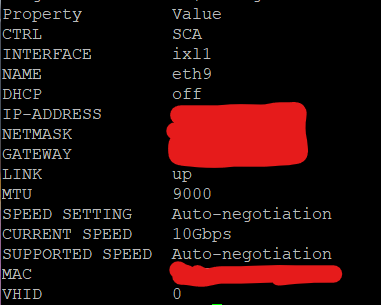
When connecting to the server via SSH, we use different commands than those used in QTS. Here, I have the “ifcfg” command. Adding, for example, the variable “status eth8” returns the following information:

OK, well from this we can pick up a couple of things… At the hardware level you’re definitely running at 10Gb/s - at least as far as the NAS to your switch. Also, from the “MTU … 9000” setting, we can see that you’ve got “jumbo” frames active - which is exactly what you’d want for optimum performance on a 10Gb/s network.

This isn’t conclusive by any means… but you’re successfully eliminating potential issues.

If you can perform equivalent checks on the “other end” of this transfer and can confirm that they are also set at 10Gb… then your next step would likely be to look at the error/dropped packet data… and/or configuring both hosts to use NFS and running a side-by-side comparison.

My experience is old… but I thought that NFS should be more efficient “on the wire” compared with CIFS, since the latter is “a bit chatty” by comparison. But that data comes from 10+ years ago - NFSv4 and whatever the latest CIFS version is might have changed that.

I am intrigued by the fact that the speed was initially 10Gbps. We wonder if this is due to the lack of support for SMB Multichannel.

https://www.qnap.com/en/how-to/faq/article/does-qes-support-smb-multichannel

I would be tempted to set this question to one side - at least initially - because you describe a problem where performance has degraded over time. Compatibility issues - those I’m aware of, at any rate - tend to be more binary in nature: stuff either works or it doesn’t. Certainly I would not expect to see compatibility as the root cause given your problem statement.

I think we might want to focus back on your description of “what is” and “what is not” the problem.

Let’s see if we can narrow the scope a bit more…

  1. Do you have other NAS or server devices on your network that you can test your clients against, sufficient that you can definitely say the problem is with one specific device?
  2. Can you set up or establish some form of repeatable, empirical test that you can use to get some objective speed tests? For example, you might be able to write a Windows shell script that sets time to zero; copies one or more files from NAS to host [or host to NAS] and then records the time taken. It be extremely helpful to you if you have this as a simple shell script that you can repeat objectively, on different hosts and at different times.
  3. It seems reasonable to expect that your devices are connected through some networking equipment as an intermediary link - and you might have one or more ethernet switches [for example] between the workstation and the NAS. Couple of things here… First is… do you have a way of physically moving a client machine to the same location as the NAS so you can re-run the test and eliminate all the intermediate network fabric? Second is… are your network devices managed or un-managed? If the former, maybe you can get some useful performance metrics if you’ve got an SNMP workstation and call pull data from your network devices.
  4. On your QNAP NAS, again via SSH, have a go at running “ethtool” - you can ask Google for articles on the meaning of all the command line options and how to sequence them to get data… On Windows, you can use Powershell and “Get-NetAdapterStatistics” to find out what your local OS thinks of the performance of your workstation’s network adapter…
  5. I’ve already mentioned it, but I do think it would help if you were able to test a non-CIFS protocol between the hosts in question. I’d suggest NFS - and setting up your NAS to service NFS connection requests [make sure to set the version properly] would be a good start. If not, maybe think about using ftp or sftp?
  6. Sixth is the obvious - change. The fact that the problem occurred after you had been running successfully for some time strongly suggests that something has changed. You don’t describe the size of your organisation or the rigour you wrap around technology changes … so is it possible that you have an issue introduced by something only indirectly related to your primary area of focus. Maybe check your change logs or talk to other people managing your environment?
  7. Seventh is reliability… not with the NAS [which is pretty on or off in that regard] but have you for, example, got any marginal hard drives? Is your NAS set up to send alerts externally if it detects an issue with a hard drive? Have you got a clean bill of health from the S.M.A.R.T. monitoring?
  8. Eighth is your network utilisation. Do you have the means to check to see if something else on the network is soaking up bandwidth and just leaving your NAS struggling to get a packet in edge-wise? This is why I think maybe the first place to start is to bring your client workstation and your NAS together physically - move a workstation to the same place as the NAS. Temporarily plug them in to a switch such that they are the only 2 devices connected and re-run your performance test. If that fails, well, you know the problem is with one of your devices; if it works, then now you can “work backwards” - moving the workstation progressively further away until the performance drops.
  9. Now we’re getting to more esoteric possible causes… Have you looked to see how your workstations are performing with respect to e.g. “Remote File Dirt Page” thresholds? This could cause the sort of problem you’re seeing. Basically, Windows clients have a default buffer setting [usually around 5Gb] for “dirty”, and “unsaved” data. Once that threshold is exceeded, the system stops taking incoming data until it has written what it has to disk. There’s a Registry parameters, “RemoteFileDirtyPageThreshold” in the Registry [Google is your friend, etc.] that you can adjust either side of a test, just to see if that makes a difference.
  10. If you haven’t already done so, definitely ask the Microsoft support community as well - it’s much larger [for obvious reasons] and there’s a chance someone there has seen something similar to what you describe here.

Very conscious that what I set out above is a bit of a scatter-gun approach [I did try and put tests in a somewhat logical sequence]. Hopefully, even if you’re not able to just follow the above through, I’ve give you some ideas you can follow up on…

SMB multi-channel is used when you have multiple NICs and want to have a faster connection. So if you have two 2.5 Gbit/s NICs, you can use both of those to transfer data across an SMB connection.

You could do that with dual or more 10 Gbps connections as well, but that doesn’t sound like your problem. It sounds to me like you are not getting expected speeds over a single 10 Gbps connection and multi-channel will not help.

We have another old QNAP QTS Hero NAS server connected to the network. The speed of copying files to/from the server via SMB reaches the expected values of 1GB/s.

We connected the test station directly to the 10Gbps port on the es1686dc R2 NAS server. Despite the direct connection without switches, the transfer speed still fluctuates around 200MB/s

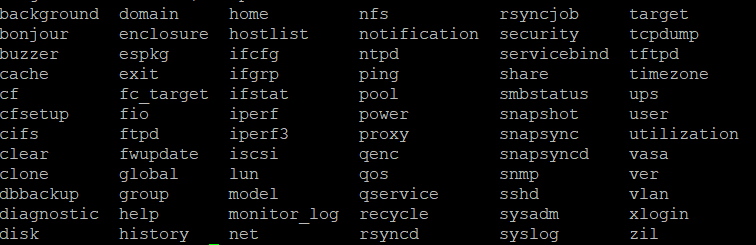
This QNAP does not have the “ethtool” command. Below is a list of available commands.

I performed SMART tests - all drives are functional, and I also reviewed the event log - no errors/warnings.

I tested the FTP connection - the result is worse than with SMB, i.e., ~95MB/s.

On one of over 30 computers, we have a situation where the speed exceeds 200MB/s. More specifically, it reaches ~600MB/s, but the speed is unstable, i.e., it fluctuates between 300-600MB/s - a complete lack of connection stability.

Check the speed using iperf from the QNAP directly to the target PC. If you’re only reaching 10G there, it’s due to factors such as:

  1. The type and number of files (size)

  2. What else is running on the NAS or PC

  3. The size of the write cache on the target PC. With a few gigabytes in some files, you can achieve the maximum speed.

Anything that needs to be read from the NAS before it can be transferred significantly reduces the transfer speed. The same applies if the write cache on the PC is full.

If you want to transfer a lot of data, around 500MB/s is realistic.

I’ve tested this with numerous QNAPs, PCs, servers, and storage systems worldwide.

– translated to english as “Mr worldwide” posted in German–

In the first message, I presented the results of iperf3. The connection allows for 10Gbps. The number and size of files does not matter, because when trying to send/download a single file with a size of 100-500GB, the speed remains steady at ~200MB/s.

check on the qnap , storage en snapshots, overview, select a disk, check Disk Health , Advanced that NCQ on all disks is ACTIVE

also check that all your 10gbit interfaces - computer and qnap are on 10Gbit and not 2.5Gbit

also for testing the connection speed, we always as reference the free blackmagic speedtest software = test of interface AND disks. - also check that no rebuild is running on the qnap, that limits also the speed during the rebuild - dependent on rebuild speed