It turns out that many NAS users encounter a major bottleneck: forgetting the administrator (“admin”) password. Without admin access, you can’t configure anything—from installing apps and managing users to security settings. But don’t panic! QNAP already provides a standard procedure that’s relatively easy for resetting the admin password. Let’s break down the steps + tips to make it hassle-free!
 Why Resetting the Password Is Important
- The admin password is the “master key” to all NAS features and settings.
- If you forget it, activities like automatic backups, network configuration, and firmware updates can be disrupted.
- The reset must be done safely to ensure your data remains intact and settings don’t get mixed up in a confusing way.
 What Happens During a Reset
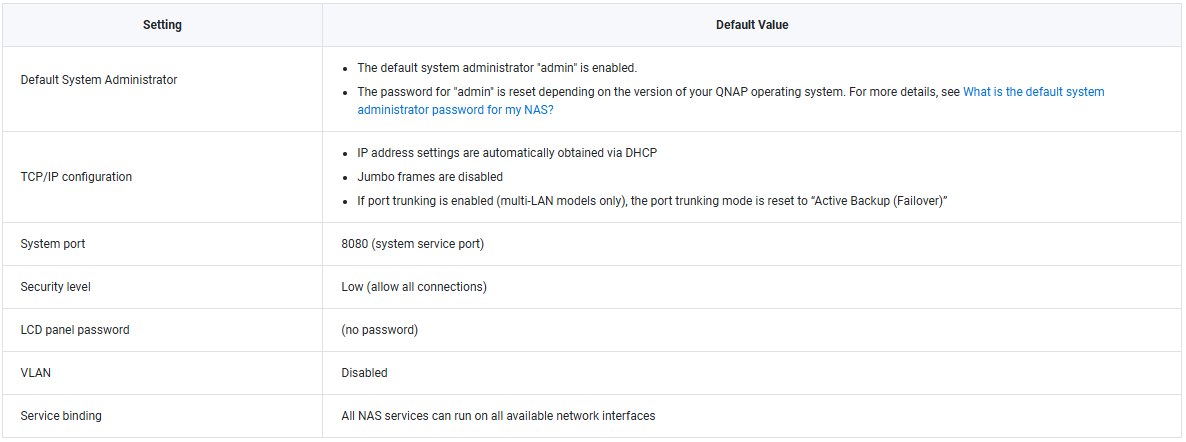
On QNAP, when you perform a reset, several settings will change, such as:
- During reset, the admin account will be re-enabled (if it was previously disabled).
- The admin password will be restored to the default depending on your QNAP OS version (QTS or QuTS hero).
- Data on the disks is not deleted.
- Some system settings will revert to default, such as:
• TCP/IP configuration → automatic DHCP
• Jumbo frames are disabled
• Service ports like system port (e.g., 8080) are reset
• Security level returns to Low (allows all connections)
• VLAN settings, service binding, and network interfaces may revert to default
 How to Reset the Admin Password
Here are the steps you need to follow:
| Step | What to do |
|---|---|
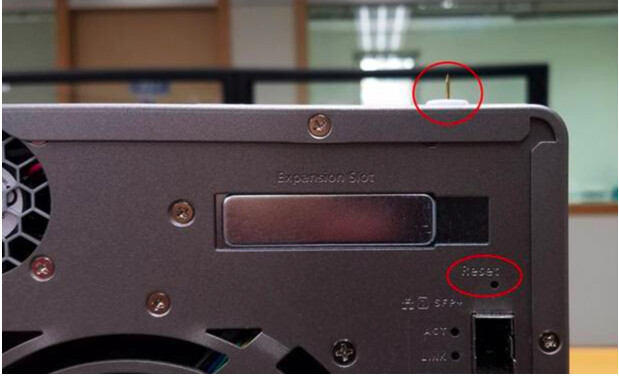
| 1. Find the Reset button | At the back of the NAS, look for a hole labeled “Reset”. It’s usually small, so you’ll need a pointed object like a paperclip or pin. |
| 2. Press & hold for ~3 seconds | Insert the pointed object into the reset hole, press and hold for about 3 seconds. When pressed, you’ll hear a click. |
| 3. Wait for the beep | After ~3 seconds, the NAS will beep, indicating the reset was successful. |
| 4. Log in as “admin” with the default password | After the reset, the “admin” account is reactivated and its password returns to default (your OS version determines the default password). You can now log in—immediately change the password for security. |
 Tips for a Safer Reset & After
- Note the default password
Before resetting, find out the default password for your OS version so you’re not confused afterward. You can check your default password here: What is the default system administrator password for my NAS? - Change the password immediately
After logging in, change the admin password to something secure: long, with a mix of uppercase and lowercase letters, numbers, and symbols. - Enable additional security features
For example, two-factor authentication (if available), or restrict IP access so only certain devices can access the NAS. - Back up important settings
Once everything is back to normal, back up your important configuration files so if a similar issue happens in the future, you can restore quickly. - Record your network settings
Since the reset will change IP configuration to DHCP, if your NAS uses a static IP, VLAN, or other special network settings, make sure you have documentation ready so you can restore them after the reset.