It would be great if I could log in to the QTS web interface in Safari using Apple’s Passwords app to automatically enter my creds instead of having to separately open the Passwords app and cut and paste my user name and password every time I log in.
I have zero problem with this. I use it all the time.
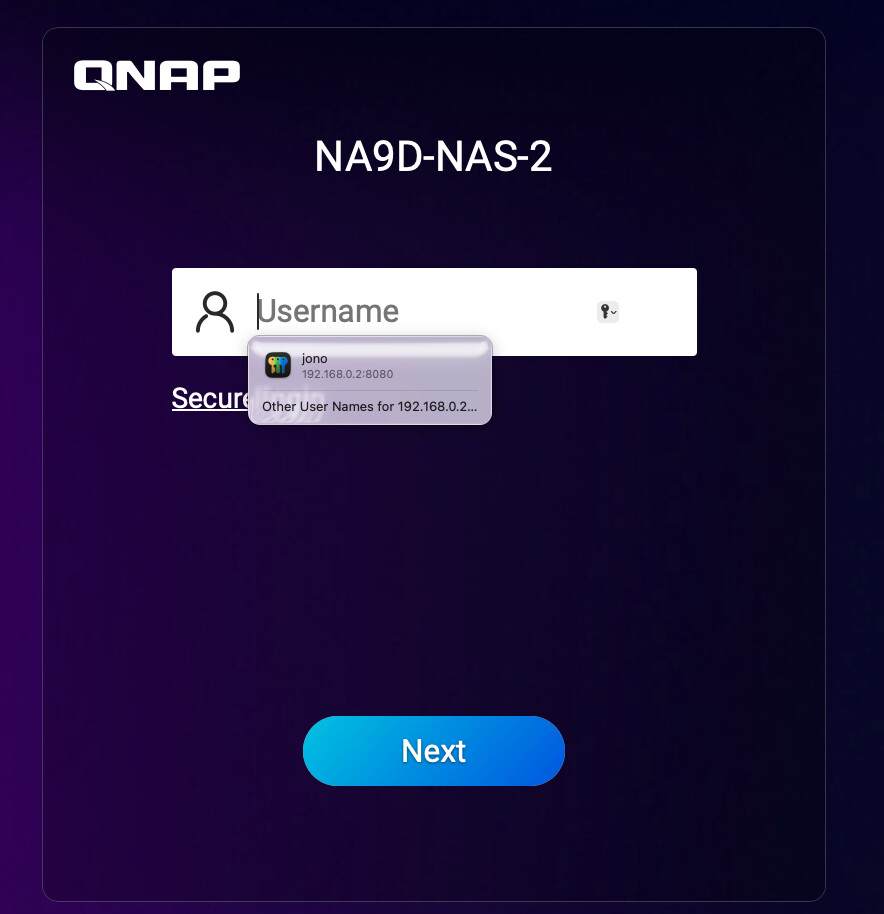
Not sure where your issue is coming from but it must be something in Safari…
From my initial check, we’re not blocking this feature on our end. Could you share a bit more about your setup or the specific issue you’re running into? Thanks!
There’s no prompt to use the Passwords app. I open the QTS interface in Safari and I’m presented with the login box. Sometimes it autofills my username, sometimes not. When I click to the passwords page and put the cursor in the box there’s no prompt to use the Passwords app as there is in other websites. The passwords icon at the RHS of the login box isn’t there on my screen. The screenshot posted by NA9D above doesn’t happen for me.
I’ve tried manually adding the account details to the Passwords app but it made no difference. I don’t think it’s ever worked.
I would check your Safari security settings then particularly for the website of the NAS. Maybe you have that turned off…
Do you have auto fill turned on or off?
Also what version of MacOS and what version of Safari? When you get the login page, nothing happens when you click in the username box?
Hi.
I don’t know how to check the security settings of an individual website. In Safari’s settings for security there are three general options - Fraudulent sites, Web Content (JS) and HTTP warning. All are ticked.
The settings for the NAS in the address box LHS settings drop down are for page zoom, pop ups, etc. Nothing about Passwords.
Autofill is turned on for Passwords.
MacOS Sequoia, Safari 26.2
When I get the login page it comes pre-filled with the NAS admin account name. I hit “Next” and get a the password field with “Password” and the “See Password” symbol. I have to right click, drop down to Autofill, select “Passwords” then search for the password.
Well, since it seems pretty certain that something is wrong either on your Mac or NAS or both based on the other thread, then this is probably in that same ballpark. Fix the other issue and you will likely fix this.