When you upgrade to a new QNAP NAS, one thing that makes you nervous is: “How do I move old data without losing configurations and settings?” Fortunately, QNAP provides three main methods you can choose from, depending on your situation.
1. Direct System Migration (Direct Hard Disk Transfer)
When to use: If you want to keep all configurations, apps, and data, and both the new and old models support migration.
General steps:
- Make sure the firmware on the new NAS is updated to the same version or newer than the old NAS.
- Power off the new NAS.
- Disable cache acceleration on the old NAS via the UI.
- Power off the old NAS, remove the HDDs — note their slot order.
- Install the HDDs into the new NAS in the same order.
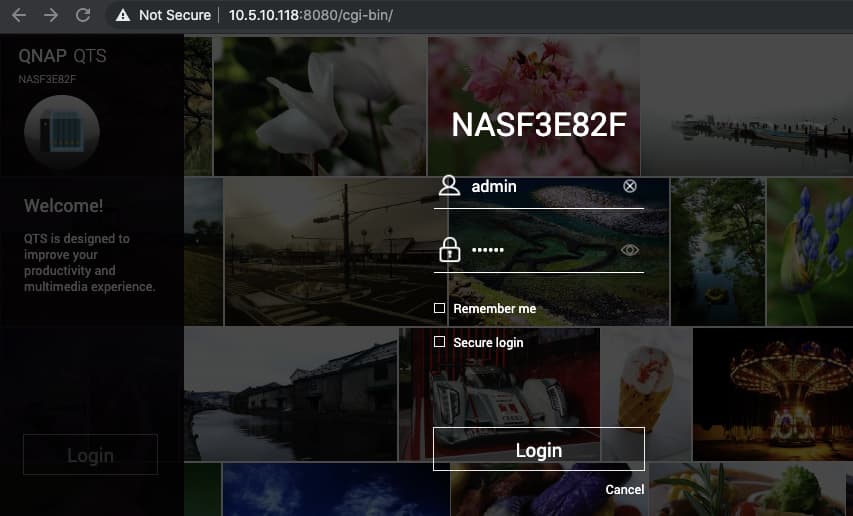
- Power on the new NAS and log in to QTS. The system will automatically detect and migrate data + settings.
Important notes:
- Make sure the new model is compatible with migration from the old model (compatibility list available on the QNAP website).
- Some settings such as network, virtual switch, or certain apps may need to be reconfigured after migration.
- If you use encrypted drives (SED), make sure you have the password during migration.
2. Backup + Fresh Setup (Use the Same HDDs but Set Up Anew)
When to use: If direct migration is not supported between models, but you still want to use the same drives.
Workflow:
- Back up all data from the old NAS to external media or another location.
- Power off the old NAS, remove the HDDs, and put them in their trays.
- Power on the new NAS without installing the HDDs, then perform the initial installation (initialize).
- Once the new system is active, install the HDDs (a “Drives with QNAP signature detected” message will appear). Choose “Manual Installation” to install the drives without reformatting (if possible).
- Copy data from the backup to the new system.
Drawback: Only data volumes can be transferred — configurations, apps, and user settings are not carried over.
3. Migrate via Network (Backup / Sync over Network)
When to use: If you want to do a “live” transfer from the old NAS to the new one over the network, without removing drives.
Practical steps:
-
Install the Hybrid Backup Sync (HBS) app on the old NAS.
-
Create a backup/replication job to the new NAS’s IP (make sure RTRR port 8899 is open).
-
Select the folders/data you want to copy, run the sync process.
-
Wait until it’s done, then check data integrity on the new NAS.
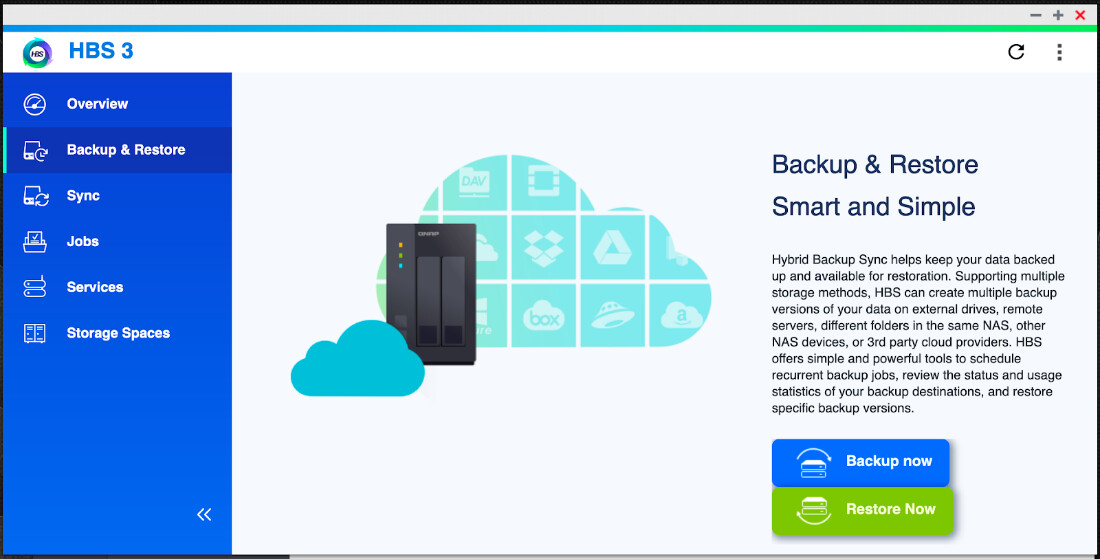
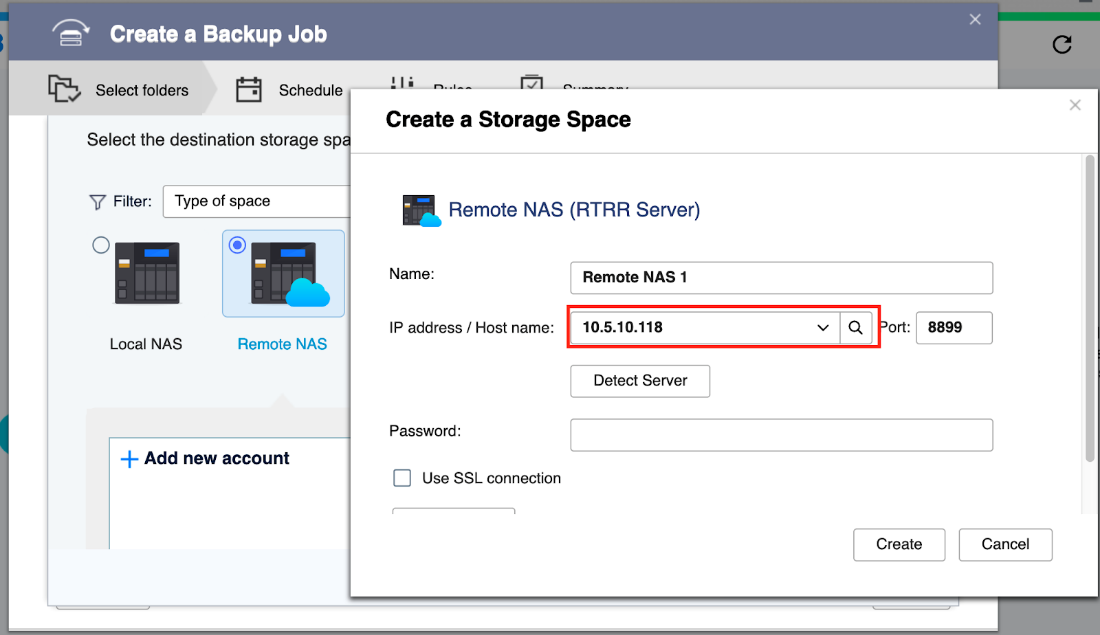
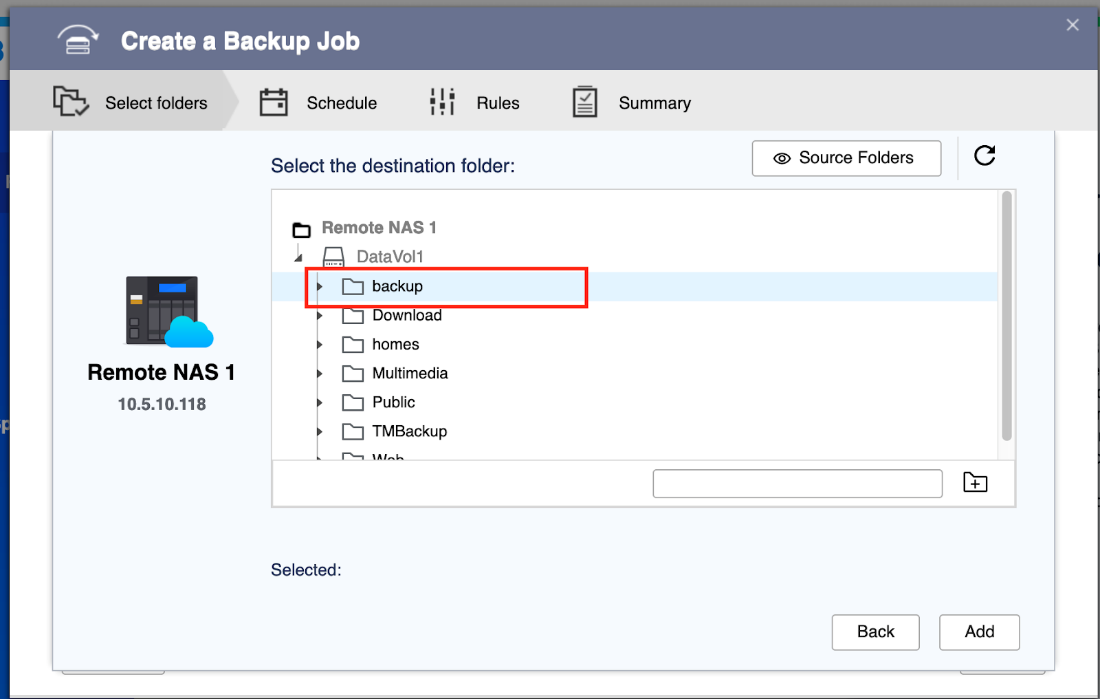
This method is quite flexible and safe — you can keep the old NAS until you’re sure the migration is successful.
So you can choose the method that suits you best by considering the model, compatibility, and how important your old settings are to you.
And also, make sure to always back up data to external media or another location first before performing any migration.
For complete information, you can see or click here