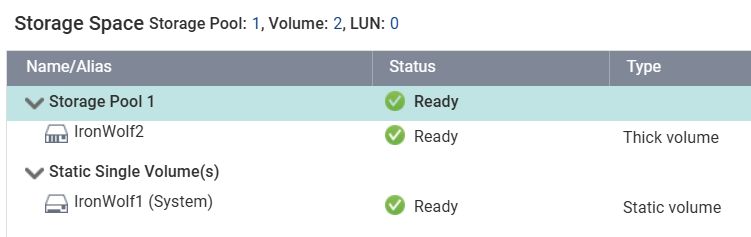
Given my configuration from the picture, how can I move my data from IronWolf1 to IronWolf2, then add IronWolf1 to Storage Pool 1 and create RAID 1 array?
No, I don’t have backup for the entire disk, I have only for selected critical files. That’s the reason I want to upgrade to a storage pool with RAID 1. I can use rsync to copy data from IronWolf1 to IronWolf2, but will it transfer the System data / apps etc this way? What would be the procedure? For the moment, IronWolf1 is marked as System disk. How can I transfer the system to IronWold2?
Exactly! RAID is not a backup, so that’s why I want a storage pool, to have snapshots.
You can just convert the static volume to RAID1
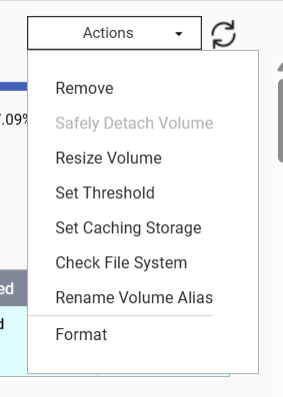
How can I do that? I cannot find out how to add a new disk to the Static Volume. That’s what I was trying to do before I created the new Storage Pool 1.
Well, if I upgrade to RAID 1 + Snapshots, wouldn’t I be protected from both physical drive damage and recover older version of files if they get deleted / modified etc? Doesn’t this count as a backup?
From QNAP site:
Snapshots are point-in-time copies of your data that allow you to quickly restore files or entire systems to a previous state. They are useful for undoing changes or recovering from data loss without consuming a lot of storage space.
Interesting. So if I have RAID 1, and one drive fails, woudn’t the remaining drive with the data and snapshots be intact, so I can just replace the defective drive? Of course if both drives fail, I will loose all data, that’s why I have backup for the most critical files, but this is quite unlikely to happen I imagine. I don’t understand what other “craps” can happen in this case.
RAID1 does protect your data but it is not a guarantee.
All RAID really protects you from is a mechanical failure of a single (or in case of RAID 6 two) disks. As @dolbyman said, if something happens to you system while rebuilding the RAID, you are hosed.
If you have data you really want or need, please have a real backup plan. I have lost a ton of data over the years because I did not have a proper backup plan. I have stuff I can never get back unless I spend thousands on data extraction from a drive. And some of those old drives I threw out a year ago…
A good backup plan consists of at least:
1.) RAID1 (minimum) to protect your data in storage on the NAS
2.) Local Backups to another RAID group or NAS or an external drive
3.) Online backups to at least one online backup provider
I have 3 NAS units. One I doesn’t store anything critical so I don’t worry about it. It’s just used for QVR Surveillance. If I lose video of my home, no worries.
One NAS is my main NAS. The other is a backup, but it has a more powerful CPU so it’s slowly taking on more responsibility. I backup each NAS to the other one or to external drives. I also backup snapshots between each NAS. I also backup critical files to MyQNAPCloud. I also backup my primary NAS to iDrive.
If I lose any one service/product, I have plenty of copies from which to recover.
Also - don’t assume that any single storage location will have uncorrupted copies of your data. That’s why you have multiple. Eliminate any single point failures.
Thank you @dolbyman and @NA9D for your insights related to external backups. Will add an external USB hard drive for local backup and use cloud backup for critical data by using HBS
That being said, how do I reconfigure my storage space to make a RAID 1 with snapshots? What I am doing right now is to rsync from IronWolf1 to IronWolf2. Will this work to move the system disk and user home directories to IronWolf2, then add IronWolf1 disk as a RAID 1 disk in the existing Storage Pool?
I brought it up a while ago when they introduced HA replication to failover machines. (If you can replicate program via HA, you can also save the info somewhere)
The “system config” is automatically copied on all drives, so no worries about it.
As for the apps and default shares: some apps can be moved (from app center), some cannot and would need to be reinstalled. You would need to backup data from the shares (like your home folders).
Once you remove the first volume (system volume), reboot the NAS, then the new volume will become your new “system volume”. And default shares will be recreated on that volume, but not the data from it, that you need to copy back.