The Role of DNS: The Internet’s “Phone Book” and “Navigator”
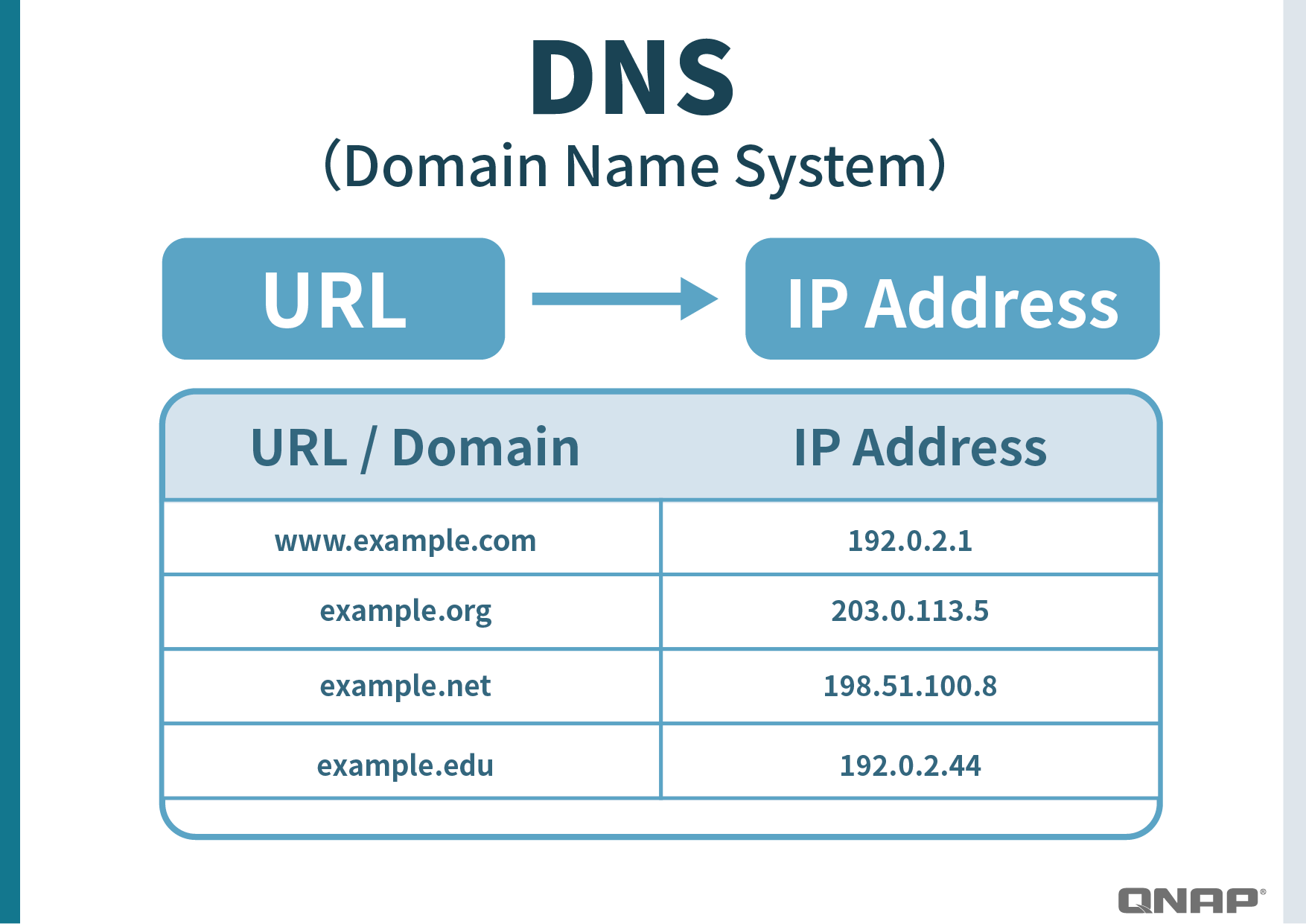
When we enter a website address in the browser, such as www.google.com, the computer actually doesn’t know its exact location. At this point, DNS (Domain Name System) acts like the internet’s phone book, helping us translate “names” into “numbers,” which are the server’s IP addresses.
For example: With the correct DNS, www.google.com → 1.2.3.4 (the real Google server).
But if you encounter a malicious “fake DNS,” it might reply with 5.6.7.8, causing your computer to go to a fake website that looks like Google but is actually a phishing site designed to steal your account and password.
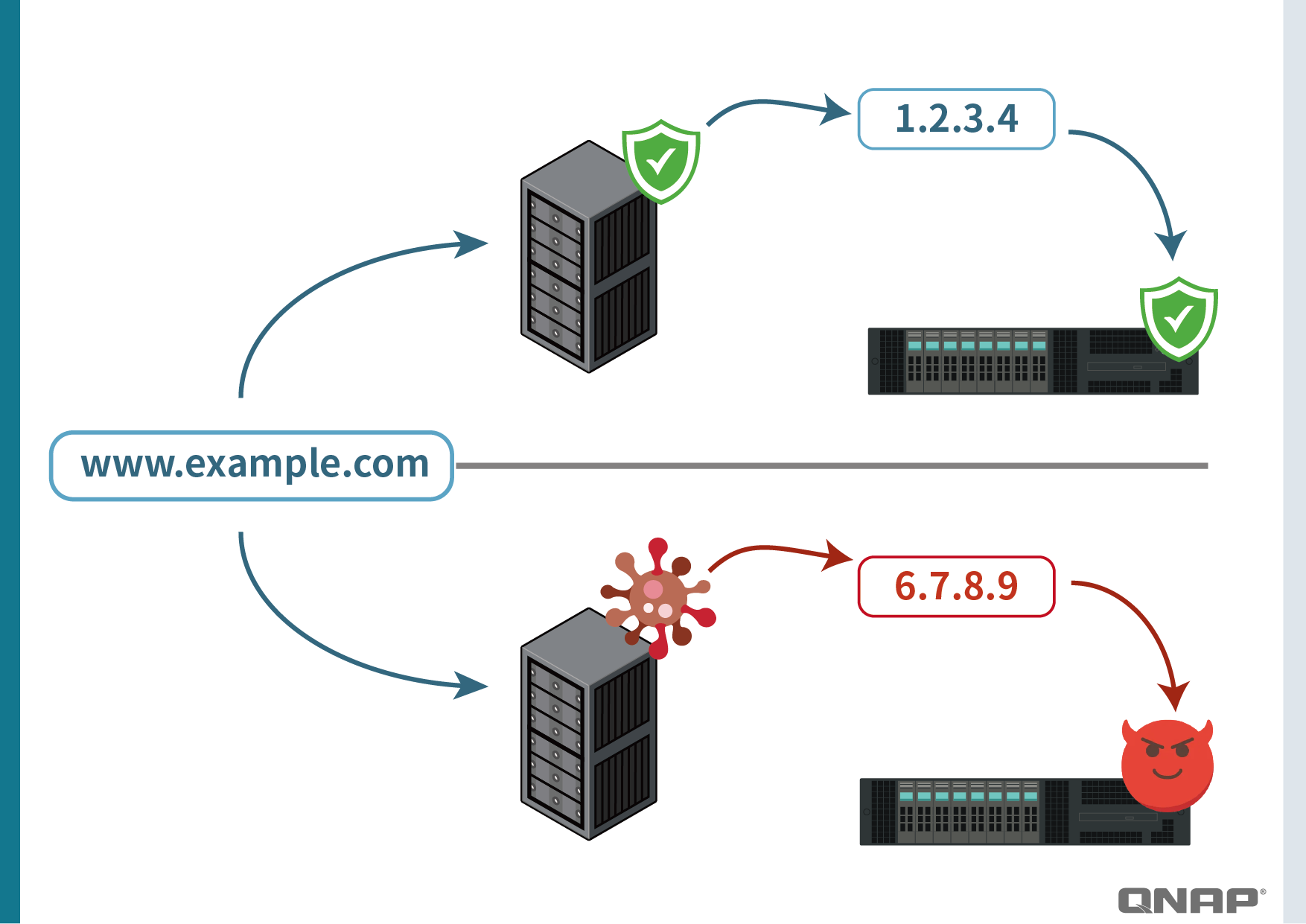
This also explains why DNS is important:
- Without DNS responses, websites cannot open, just like “tearing up the phone book and not being able to find anyone.”
- If DNS gives the wrong IP, it misleads users, like “entering the correct address into a GPS but being directed to the middle of nowhere.”
Therefore, DNS is not just a basic internet tool but also the first line of defense for online security.
How Pi-hole Works and Its Protection Principle: The Household “Network Gatekeeper”
Pi-hole is like placing a “gatekeeper” at the entrance of your home network, specifically filtering ads and suspicious websites.
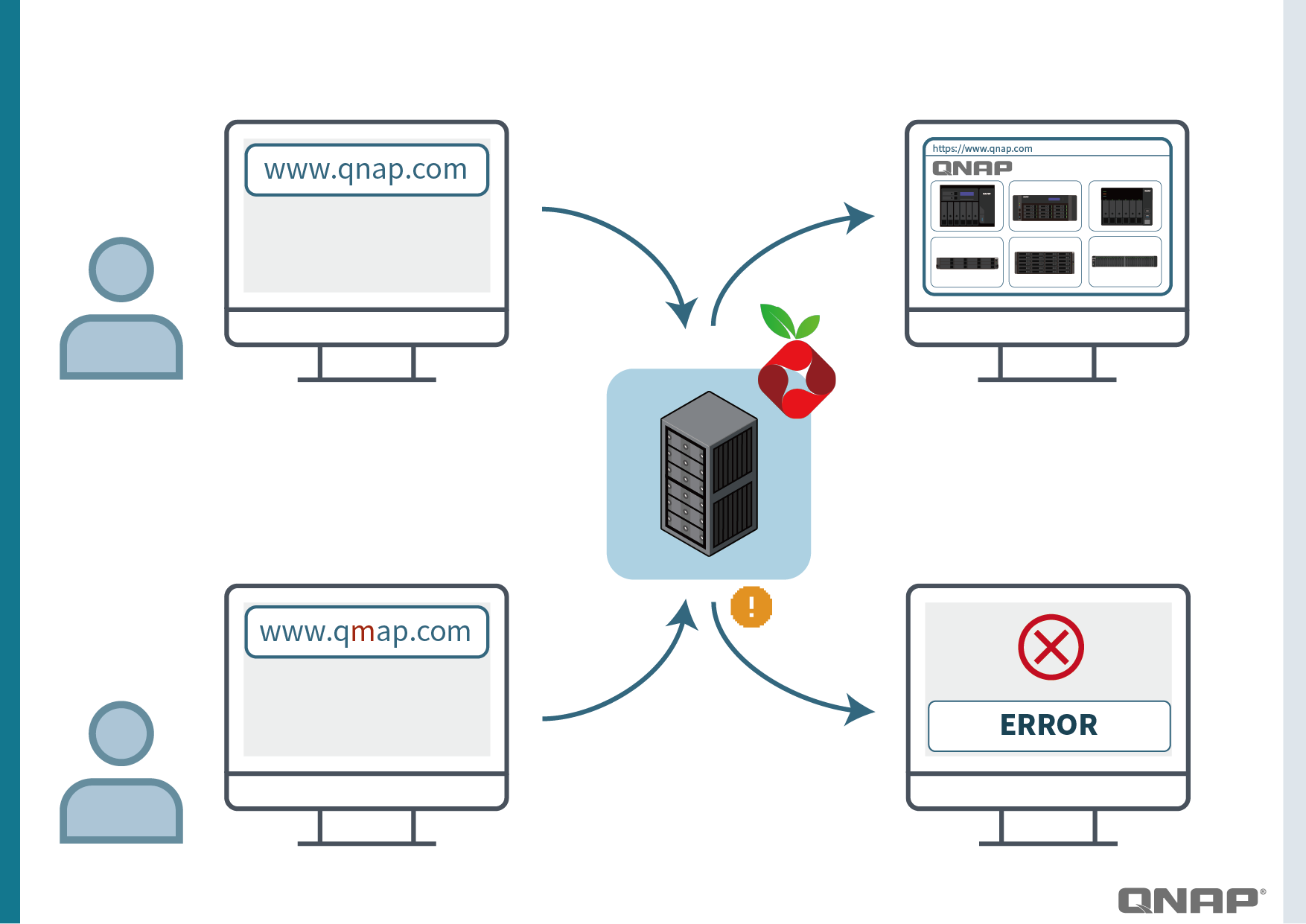
When you enter qnap.com, Pi-hole will normally reply with the correct IP, allowing you to access the official site smoothly.
But if there’s a phishing site with a similar name (such as qmap.com), Pi-hole will check its list, find that it’s a suspicious site, and directly reply with a “black hole” (0.0.0.0).
The result is:
- Your computer cannot connect to the fake site, and the browser will display an error page.
- This kind of “preemptive interception” can prevent accidental clicks, thus avoiding account leaks or malware infections.
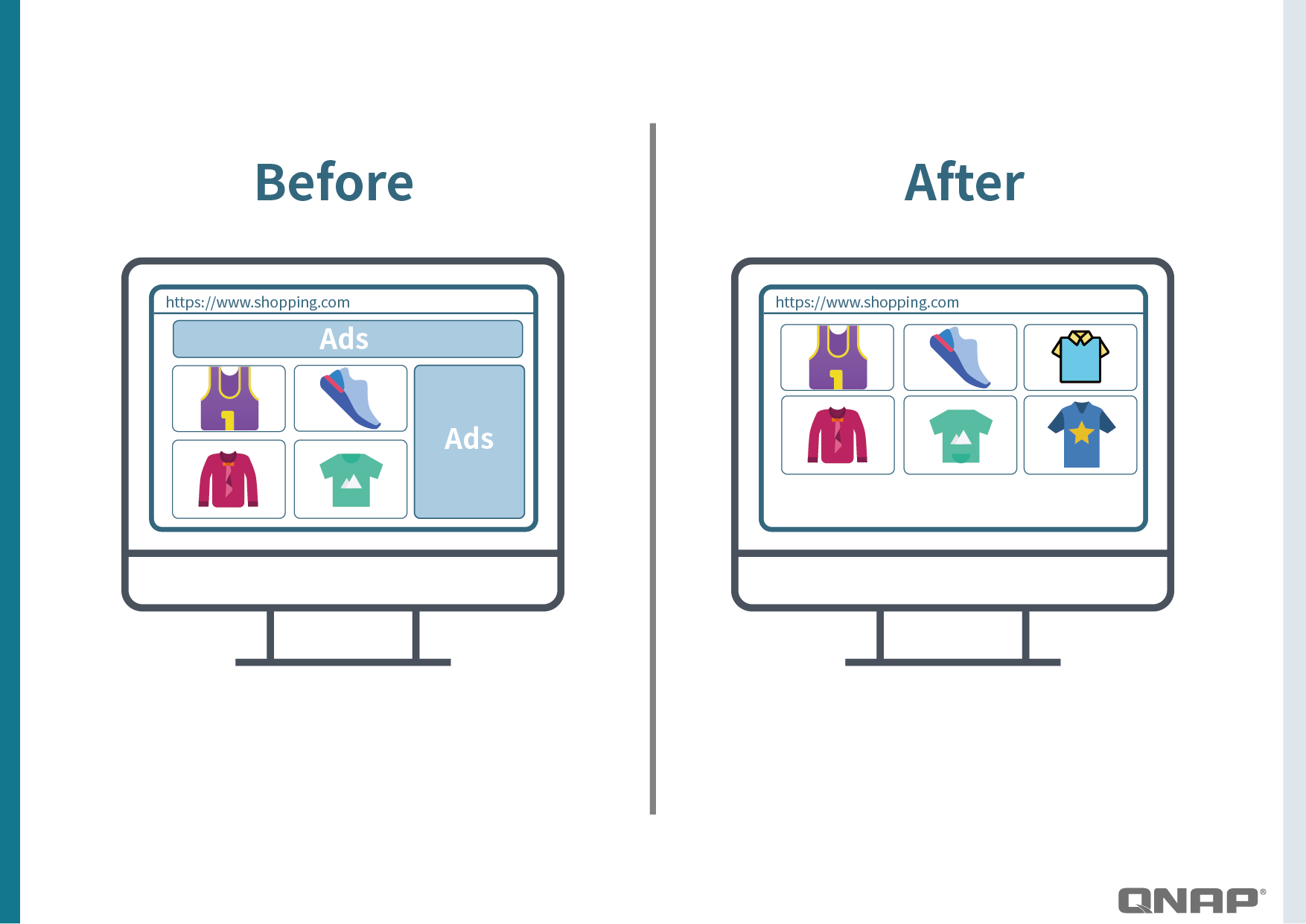
The same mechanism can also be used for ad blocking.
For example: A news website might send a request to ads.tracker.com to load ads. Pi-hole will “blackhole” it at the DNS layer, so the ads never appear. When you open a webpage, you’ll only see the main content, not a page full of ads.
Pi-hole comes with many publicly maintained blacklists (adlists) and can also manually import more sources or even create your own whitelist (allowing certain sites to connect normally), offering great flexibility.
Deployment Method: QNAP Container Station + Docker
On QNAP NAS, deploying Pi-hole via Container Station is the most convenient way:
-
Open Container Station, search for and download the official Pi-hole Docker image.
-
When creating the container, set a fixed internal IP (e.g.,
192.168.1.10). -
Open the necessary ports (
53/UDP, 80/TCP) to ensure DNS and the management interface are accessible. -
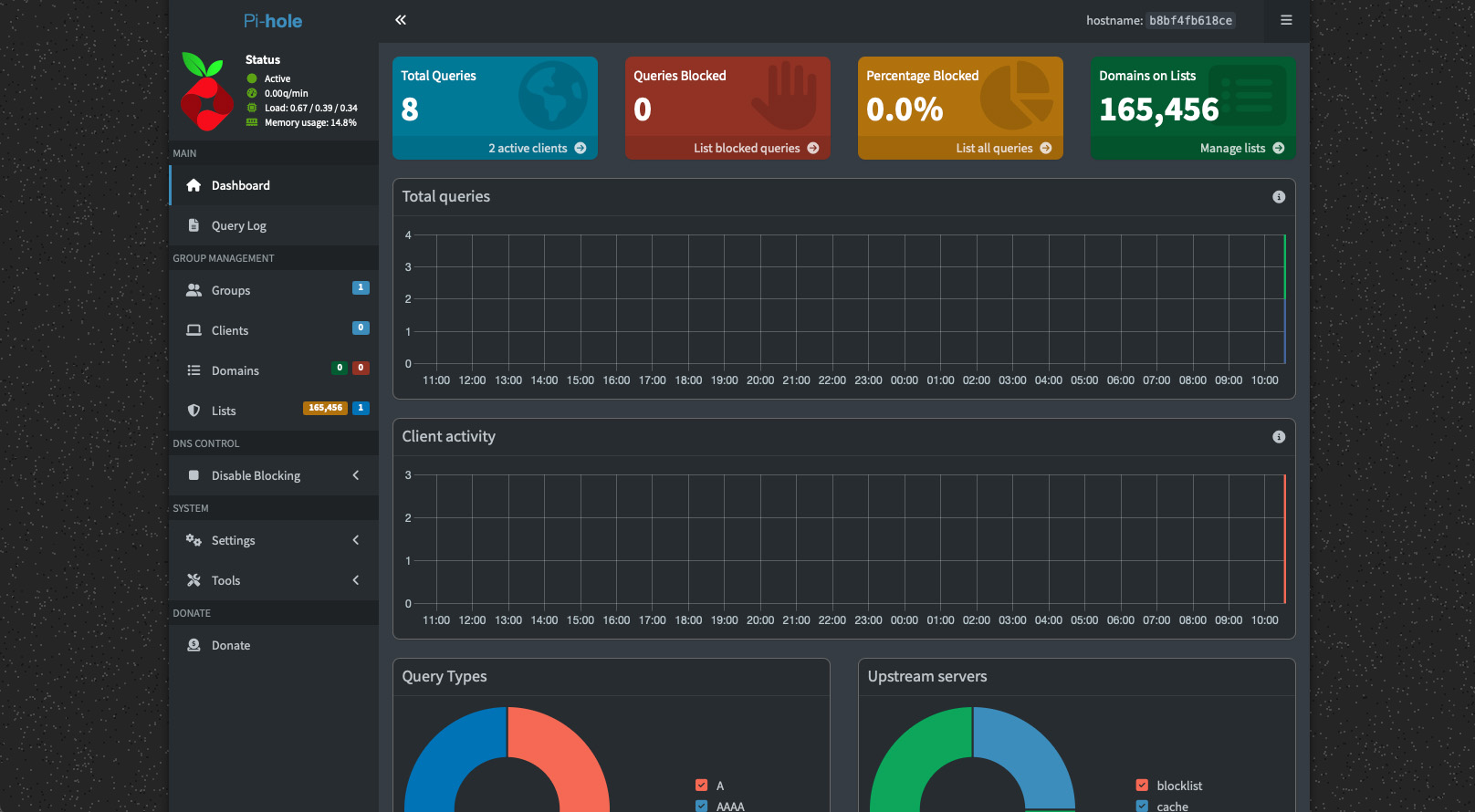
After setting the admin password, you can log in to the Pi-hole Dashboard via your browser.
Since QNAP NAS itself is a 24/7 running device, this setup ensures Pi-hole is always online and centrally manages the entire home network.
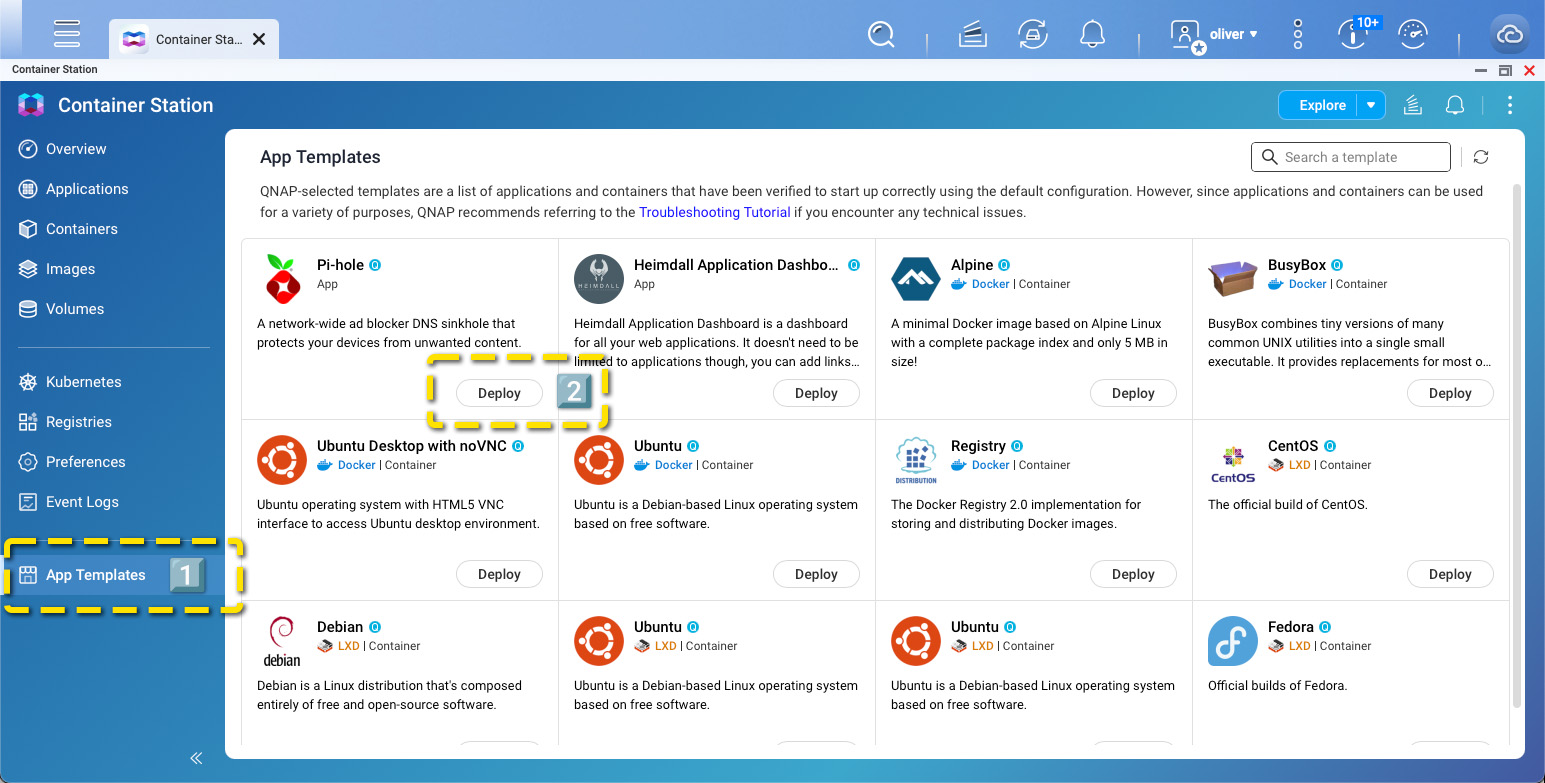
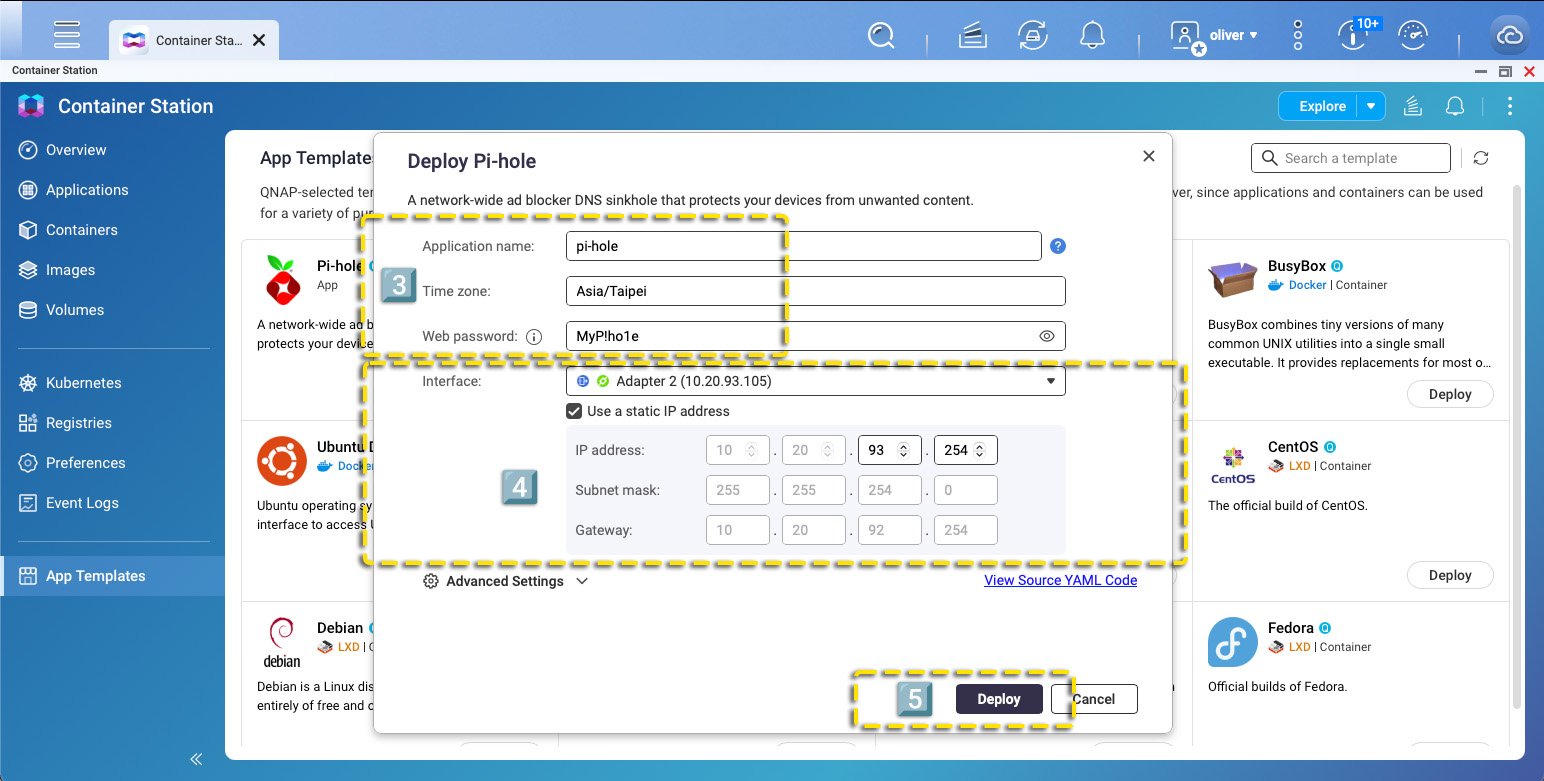
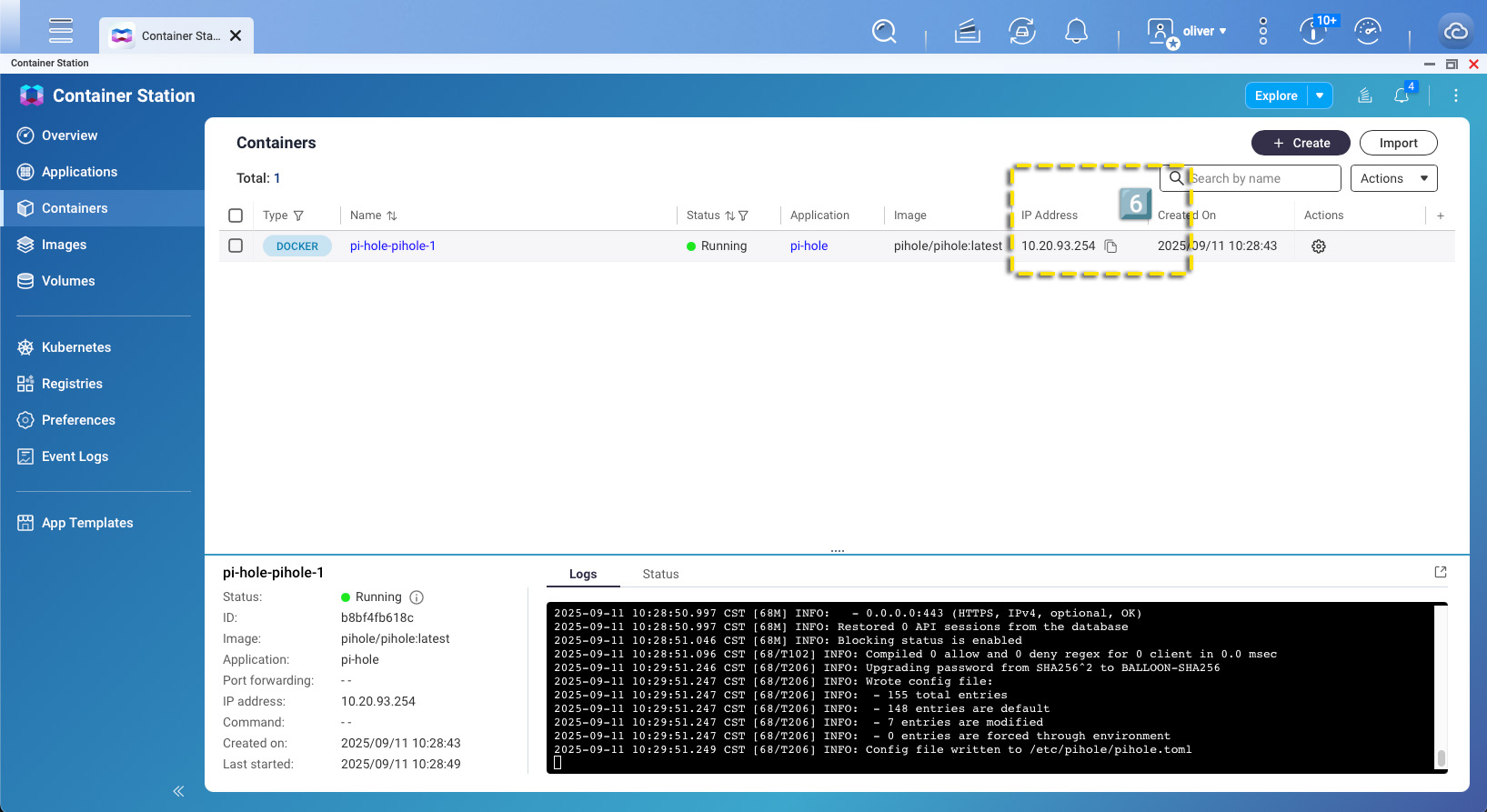
Location 3: You can set your own name and password
Location 4: Set a fixed IP for Pi-hole
This setup refers to:
Router IP: 10.20.92.254
Subnet Mask: 255.255.254.0
NAS IP: 10.20.93.105
Assigned IP for Pi-hole: 10.20.93.254
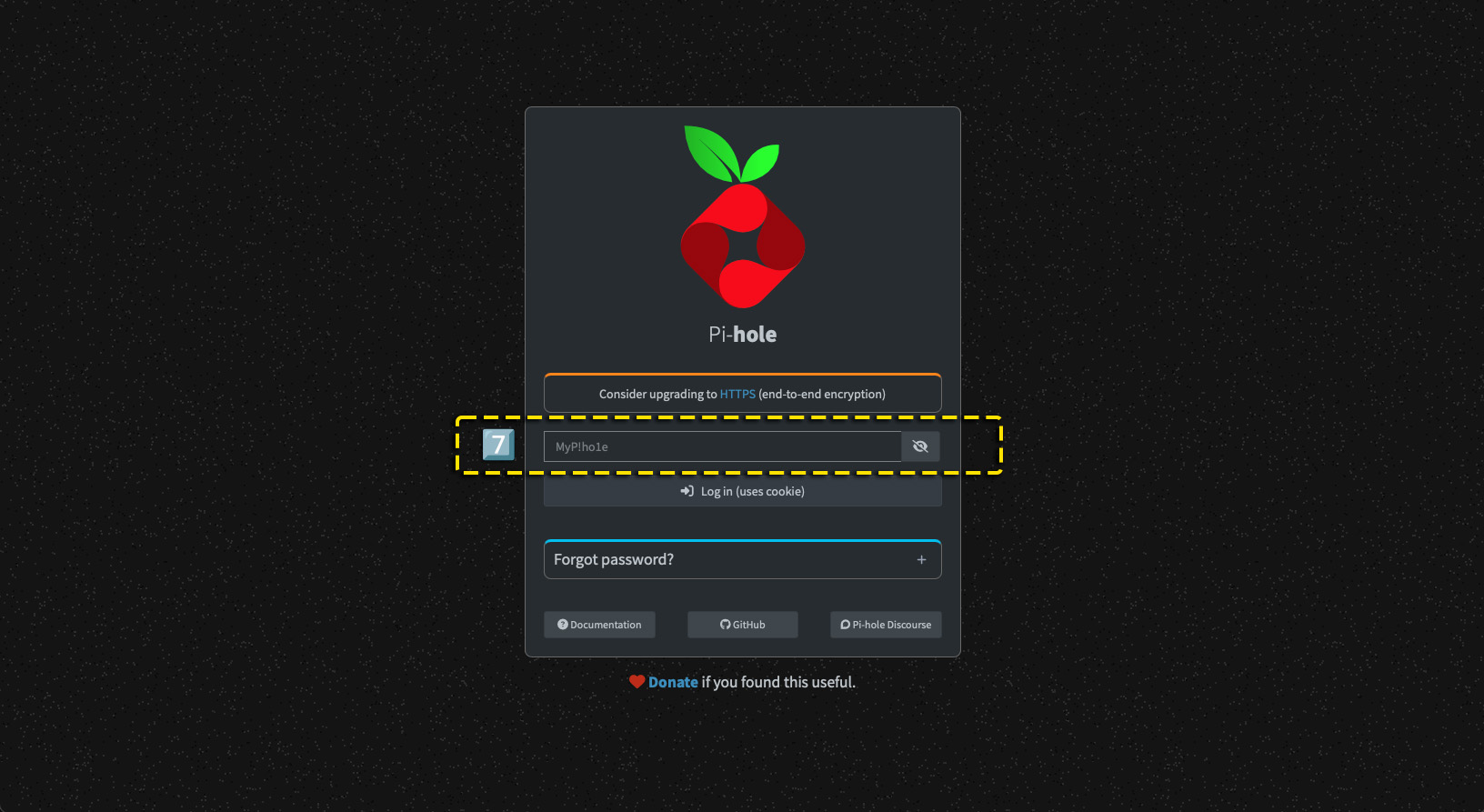
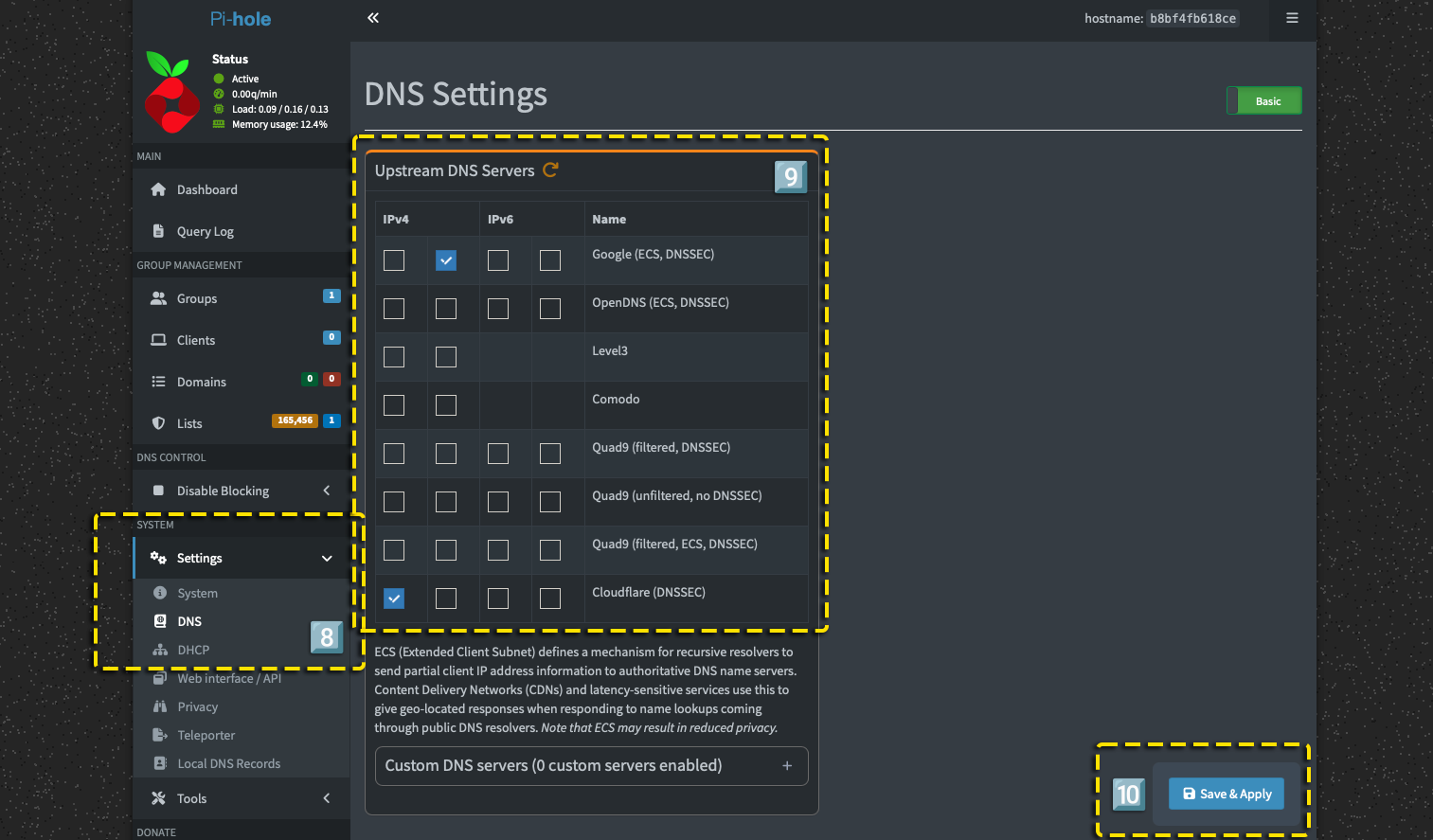
Location 8 & Location 9: Set upstream DNS sources for Pi-hole
Home Network Setup: Individual Device vs. Router Setting
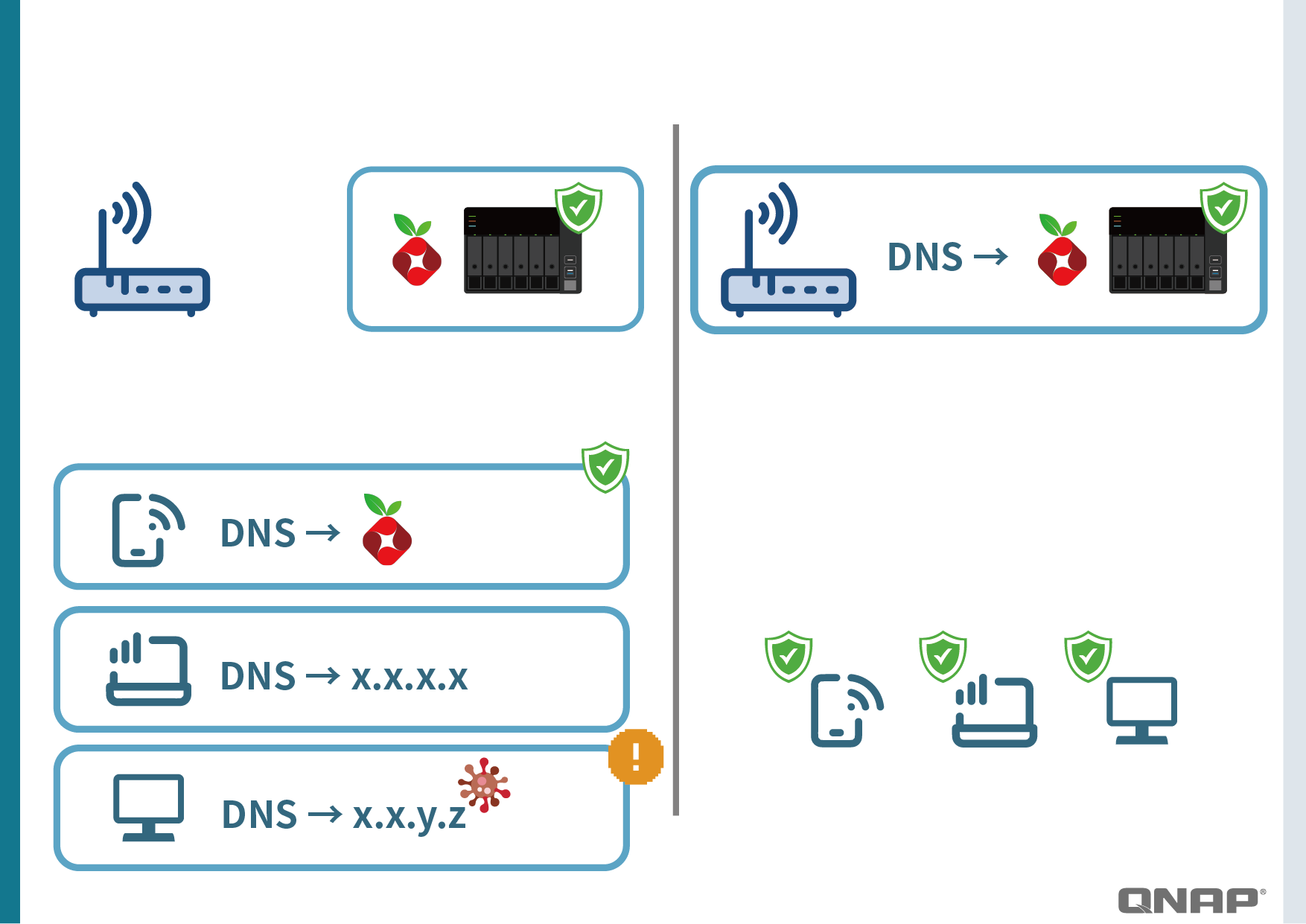
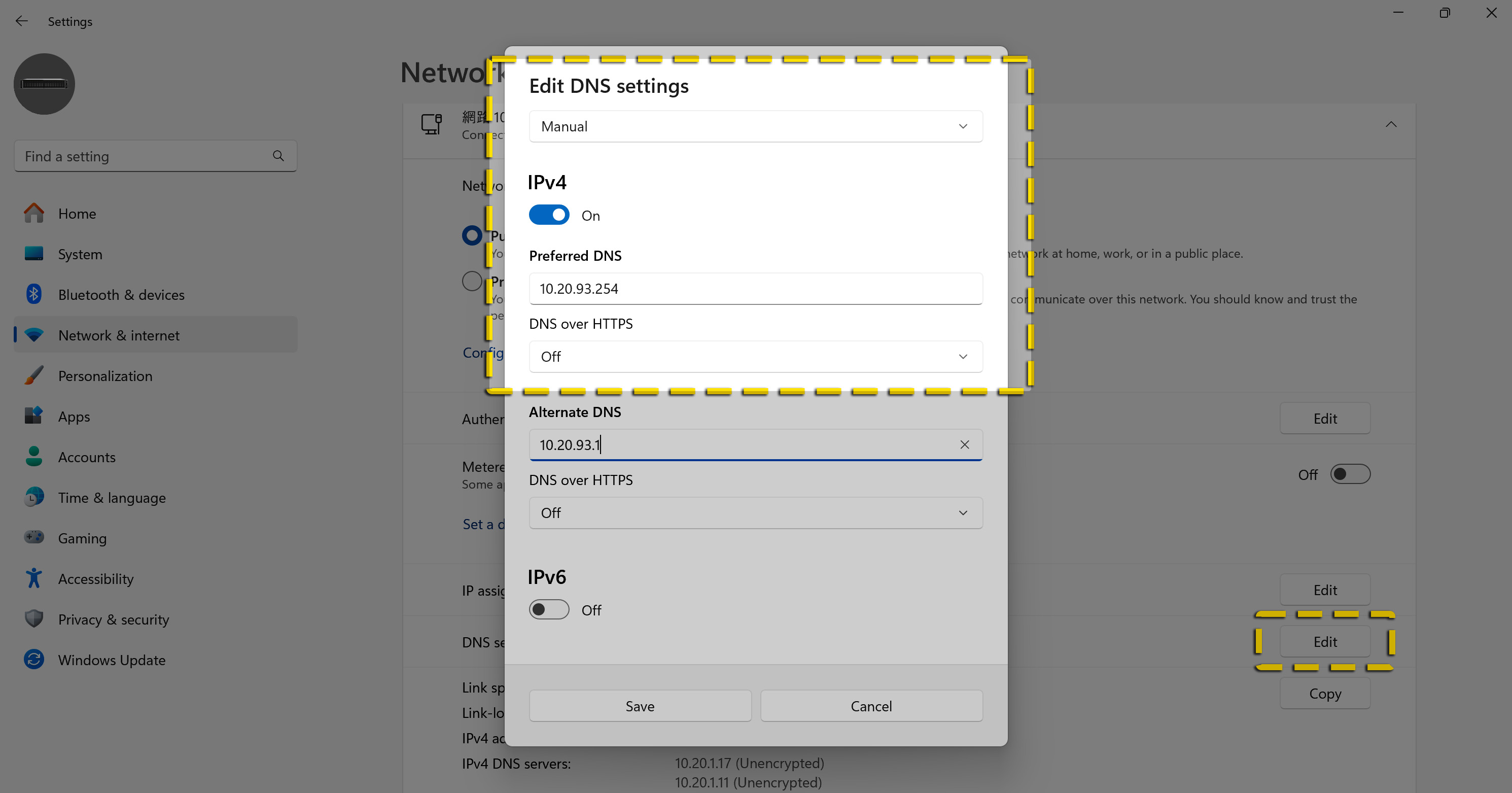
To make Pi-hole effective, devices need to point the DNS Server to Pi-hole’s IP.
There are two ways:
-
By Device (individual device setting)
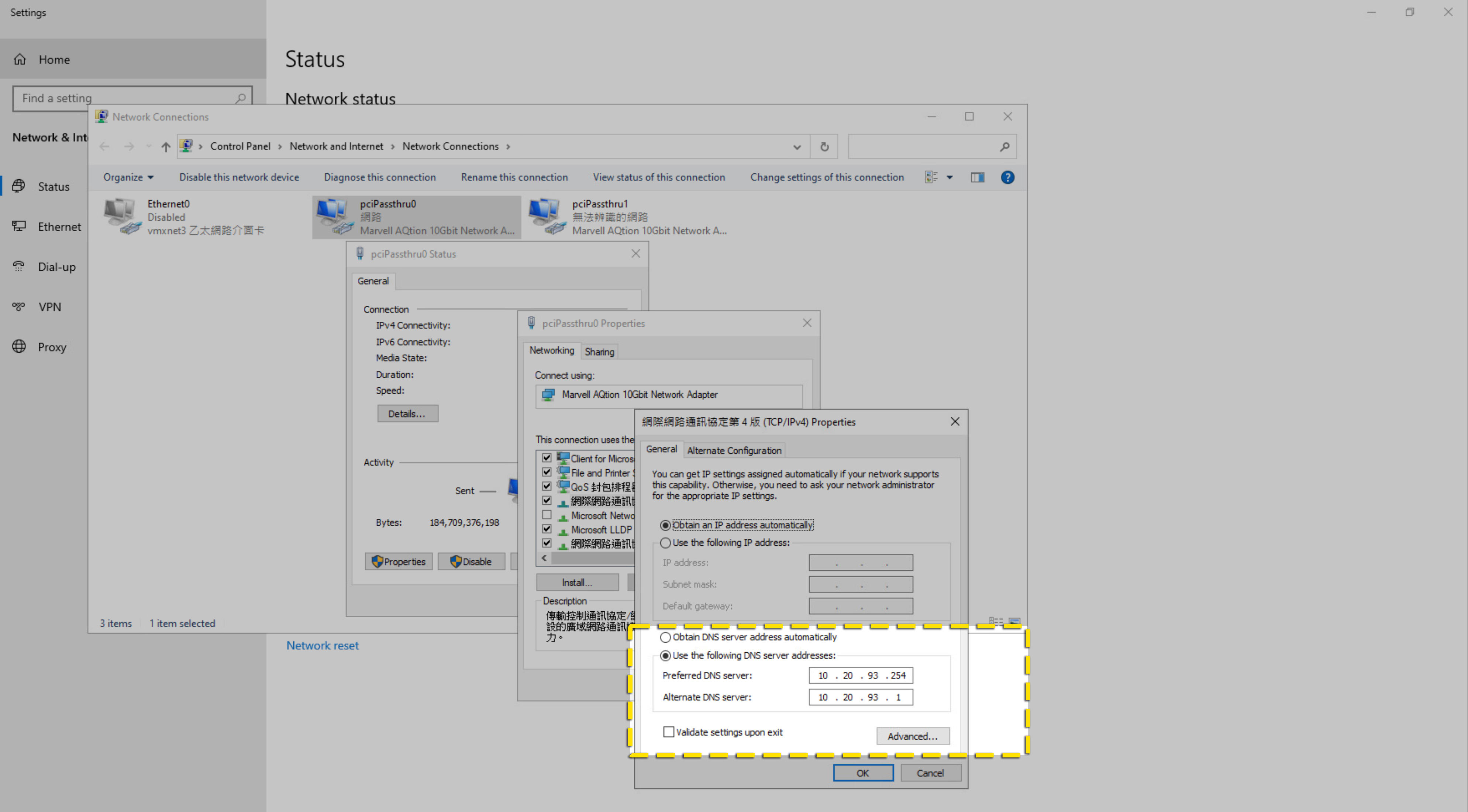
For example, in the network settings of your phone or computer, change DNS to10.20.93.254(#replace with your Pi-hole IP set above).
Advantage: Only affects certain devices, suitable for testing or single users.
Disadvantage: Needs to be set one by one, which is troublesome and easy to miss. -
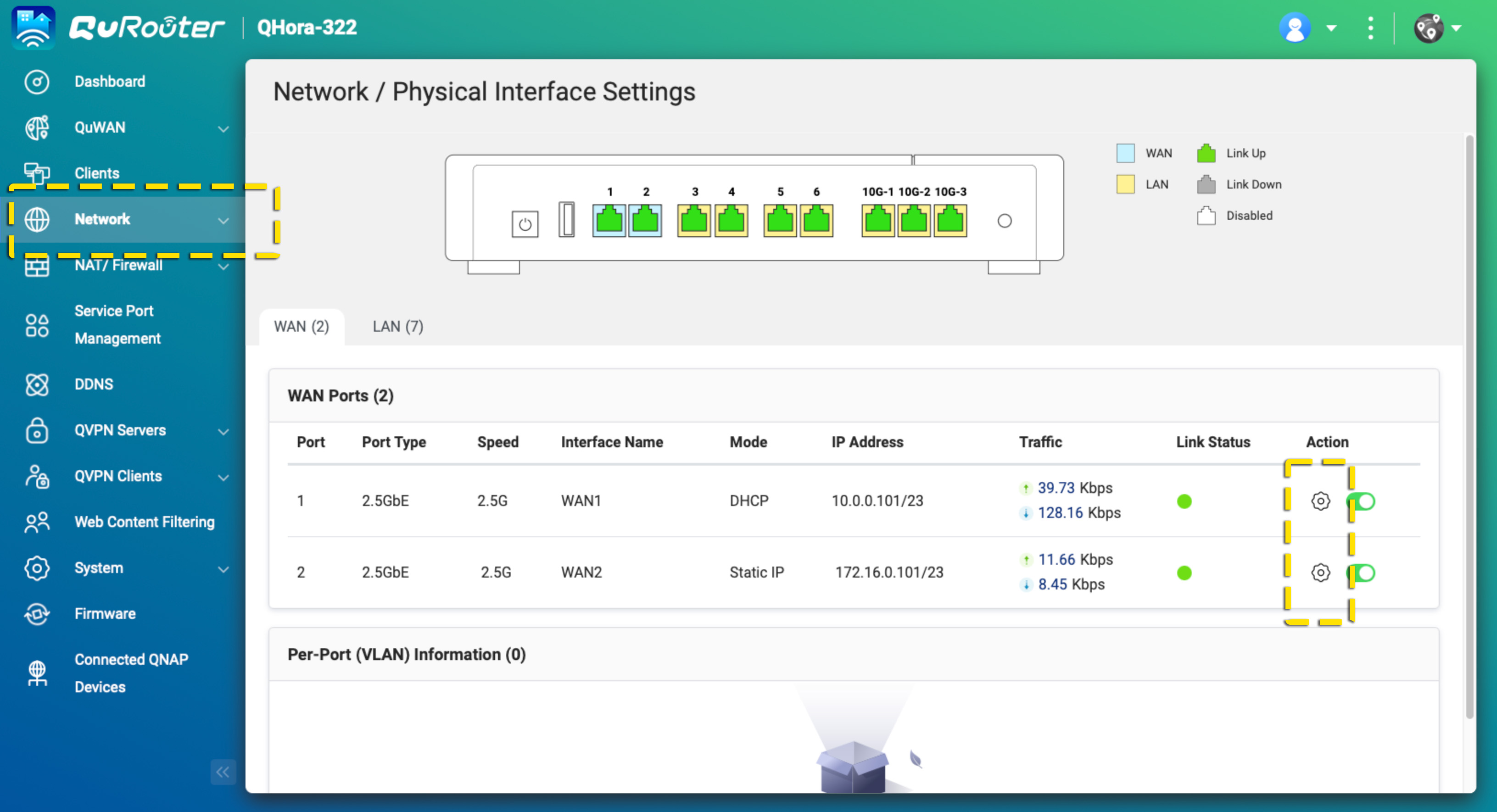
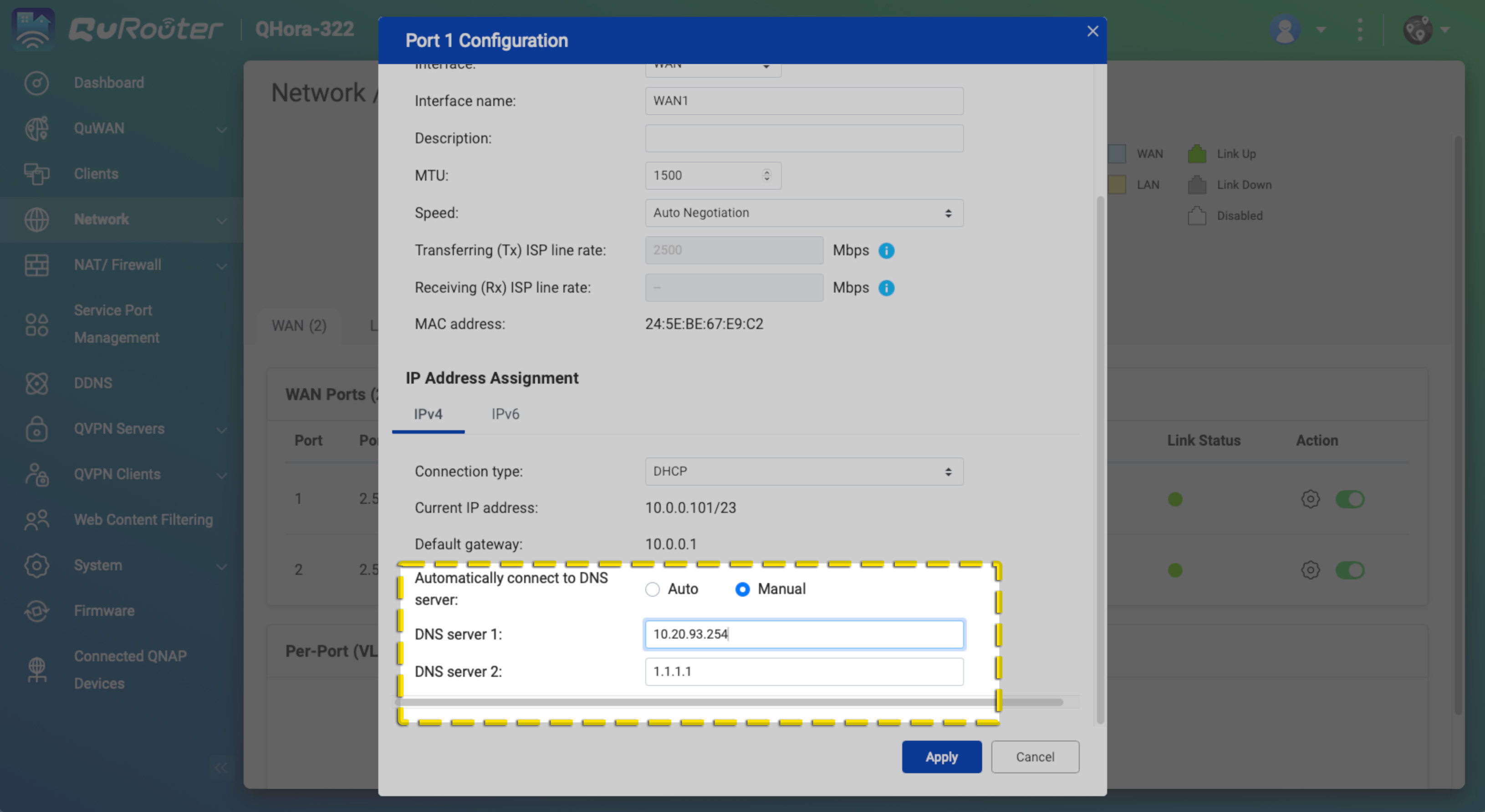
Router Setting (applies to the whole network)
Log in to your home Router and change the DNS Server to10.20.93.254(#replace with your Pi-hole IP set above).
Advantage: All devices connected to Wi-Fi or wired network (computers, phones, smart TVs, IoT) are automatically protected.
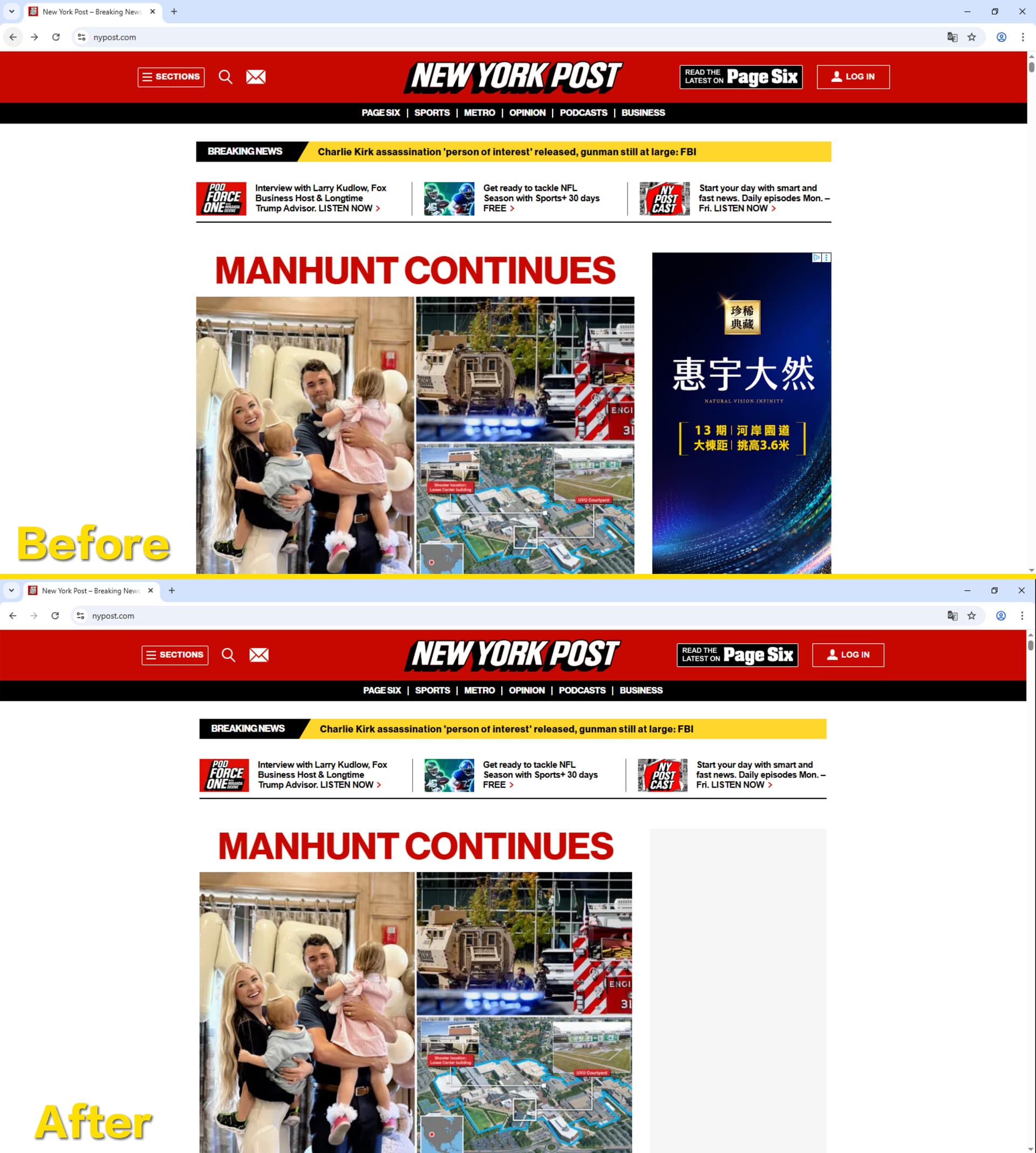
Before / After Comparison
- Before: Opening a news website, full of banner ads, pop-ups, and pre-roll video ads.
- After: The same website, but clean and tidy, and loads faster.


If Pi-hole Fails or Goes Down: Ads Will “Briefly Return”
Some people worry: If Pi-hole breaks, will the whole house lose internet?
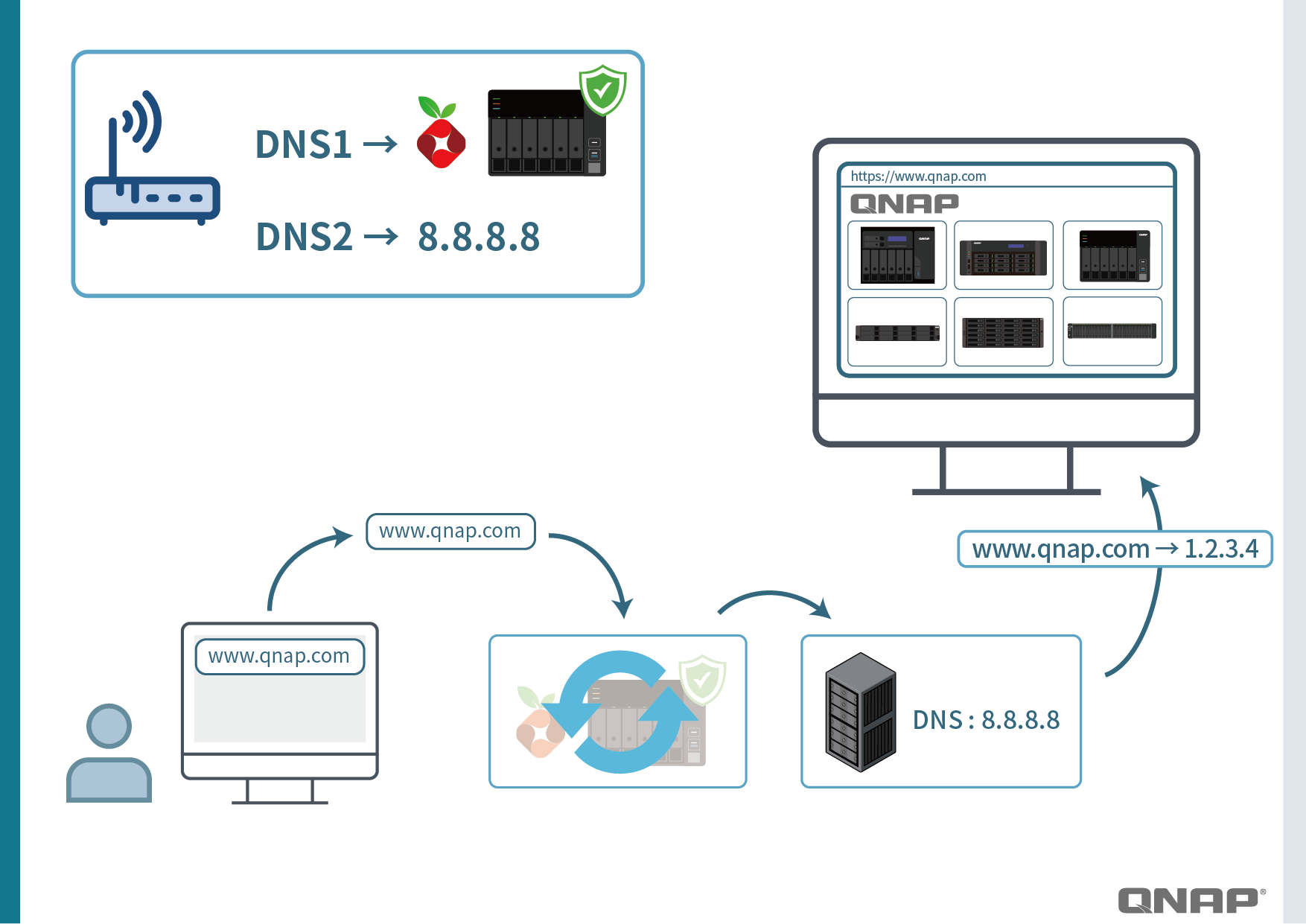
The answer is no. Because on the router or device, you can set a “secondary DNS” (such as Google’s 8.8.8.8, CloudFlare’s 1.1.1.1, or your ISP’s DNS).
- When Pi-hole is working, all queries go through Pi-hole.
- When Pi-hole fails, the system will automatically switch to the secondary DNS to ensure uninterrupted internet access.
But note:
- During Pi-hole downtime, ad and malicious site blocking will not work.
- And the IPs of those ad sites may already have been resolved and cached on your computer or phone by the “secondary DNS.” Even after Pi-hole recovers, you’ll need to wait a while (or manually clear the DNS cache) for protection to return to its best state.
It’s like usually having a security guard at your door (Pi-hole), but when the guard is temporarily off-duty, a substitute (secondary DNS) takes over. The substitute doesn’t check for suspicious visitors, so during that time, junk ads might sneak in.
Conclusion
Pi-hole is a powerful and simple solution that can block ads, malicious, and phishing websites at the DNS level, providing users with a cleaner and safer browsing experience.
With QNAP Container Station & Docker, you can quickly deploy it without extra hardware.
It’s like installing a “smart gatekeeper” at your home’s network entrance:
- Filters out junk and malicious visitors,
- Faster and safer browsing,
- Even if there’s an issue, there’s a secondary DNS as backup.
For those who value network security and user experience, Pi-hole is worth a try.