
When backing up files from your phone to a NAS, have you ever encountered:
-
- Tens of thousands of photos in the auto-backup app, but the progress bar doesn’t move at all?
- Uploads mysteriously get stuck whenever you swipe away or switch the Qfile Pro screen?
- Suspect the app has a bug, or the NAS connection is unstable?
Actually, it’s not the app’s fault, but rather the strict limitations iOS and Android place on background tasks. When you minimize the app or turn off the screen, the system, in order to save power, will ruthlessly cut off data transmission, causing your backup tasks to be forcibly “suspended.”
 Want 100% transfer success? You need Qfile Pro’s backup magic: Sleep & Transfer
This feature is a “transfer shield” designed specifically for large backups and big files, ensuring your tasks are no longer interrupted.
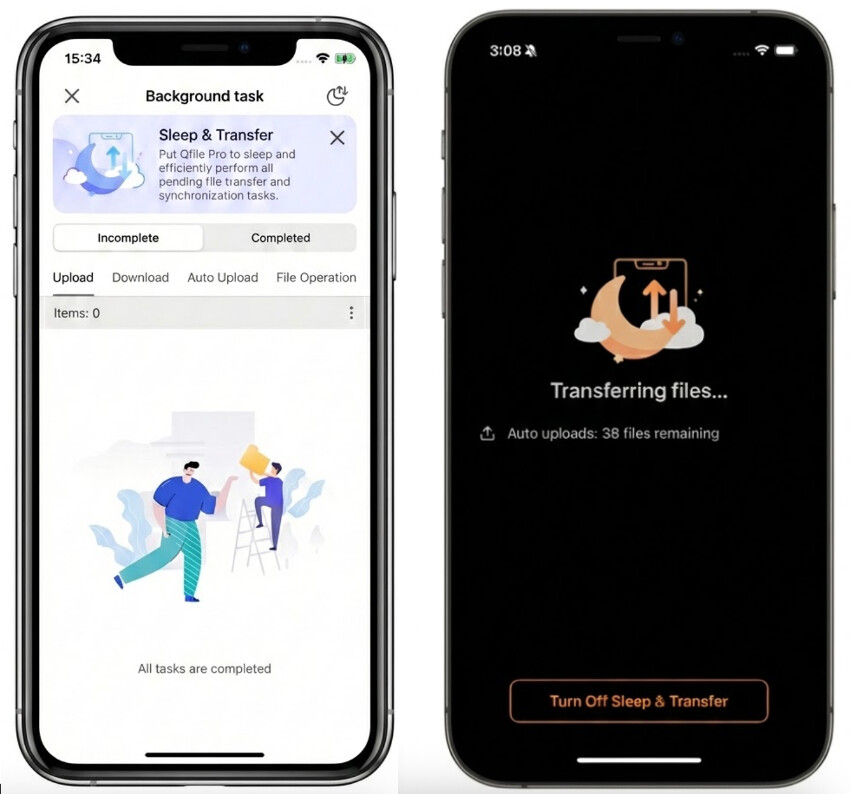
 Why can this mode save your backups?
-
Bypass system restrictions: Keeps Qfile Pro running in the “foreground,” bypassing the system’s auto-interruption mechanism to guarantee your backup completes the final mile.
-
Smart eye protection & device safety: After entering the mode, if there’s no operation for 10 seconds, the screen will automatically dim to 10%, saving power and preventing screen burn-in, so you don’t have to worry about the screen blinding you at night.
-
Clear progress at a glance: The dedicated dashboard helps you monitor Upload, Download, Auto Upload, and Qsync remaining counts, giving you peace of mind.
 Professional Backup “Three Steps” for Guaranteed Success:
- Enable [Sleep & Transfer]: Just tap the banner in the Transfer Center to activate.
- Be sure to plug in power: Large-scale backups consume a lot of power, so connecting to a power source is key to stability.
- Connect to stable Wi-Fi: Avoid interruptions caused by unstable mobile data.
Enable “Sleep & Transfer” now and let Qfile Pro reliably save all your files to the NAS! 
Detailed tutorial: https://www.qnap.com/zh-hk/how-to/faq/article/what-is-sleep-transfer-function-on-qfile-pro