I have another desktop - Which is on Windows 11. Wanted to give a try on that one. So spent 3 hours midnight until 2 AM on it to get this working on Windows 11 -
Got this error message first -
"You can’t access this shared folder because your Organization’s
security policies block unauthenticated guest access. These
policies help protect your PC from unsafe or malicious devices on
the network. "
Added Key AllowInsecureGuestAuth to registry with value as 1. Below are the details -
RegEdit Path = HKEY_LOCAL_MACHINE\SYSTEM\CurrentControlSet\Services\LanmanWorkstation\Parameters
Key (DWORD 32-bit) = AllowInsecureGuestAuth
Then this error "You can’t access this shared folder because your Organization’s security policies block unauthenticated guest access. " disappeared.
Now when I tried reconnecting(with qnap admin login), I had an different issue / error message -
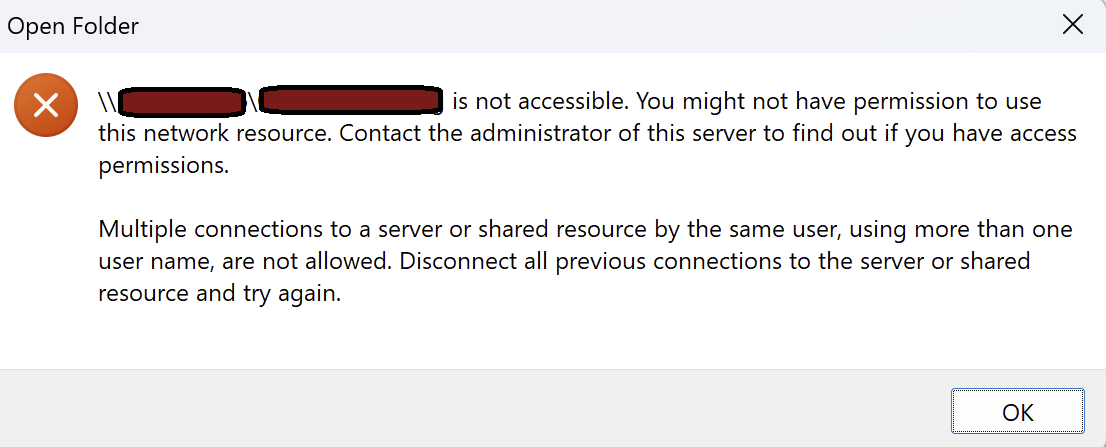
To resolve the this issue/error(multiple connections to a server or shared resource by the same user), I executed the below 2 commands from command prompt (launch cmd as administrator) one after the other in the same order.
net stop workstation /y
net start workstation
Then I did the same previous action - Connect by giving the folder name along with the server/qnap device name/ip address -
\xxx.xx.x.xx\SharedFolderName.
It requested the login/password. I keyed in the NAS admin login info, then the connection was successful. I was able to access that particular shared folder.
Now as a magic, just typing the server in the run command (\xxx.xxx.x.xx) brings up all the shared folders from the QNAP as well.
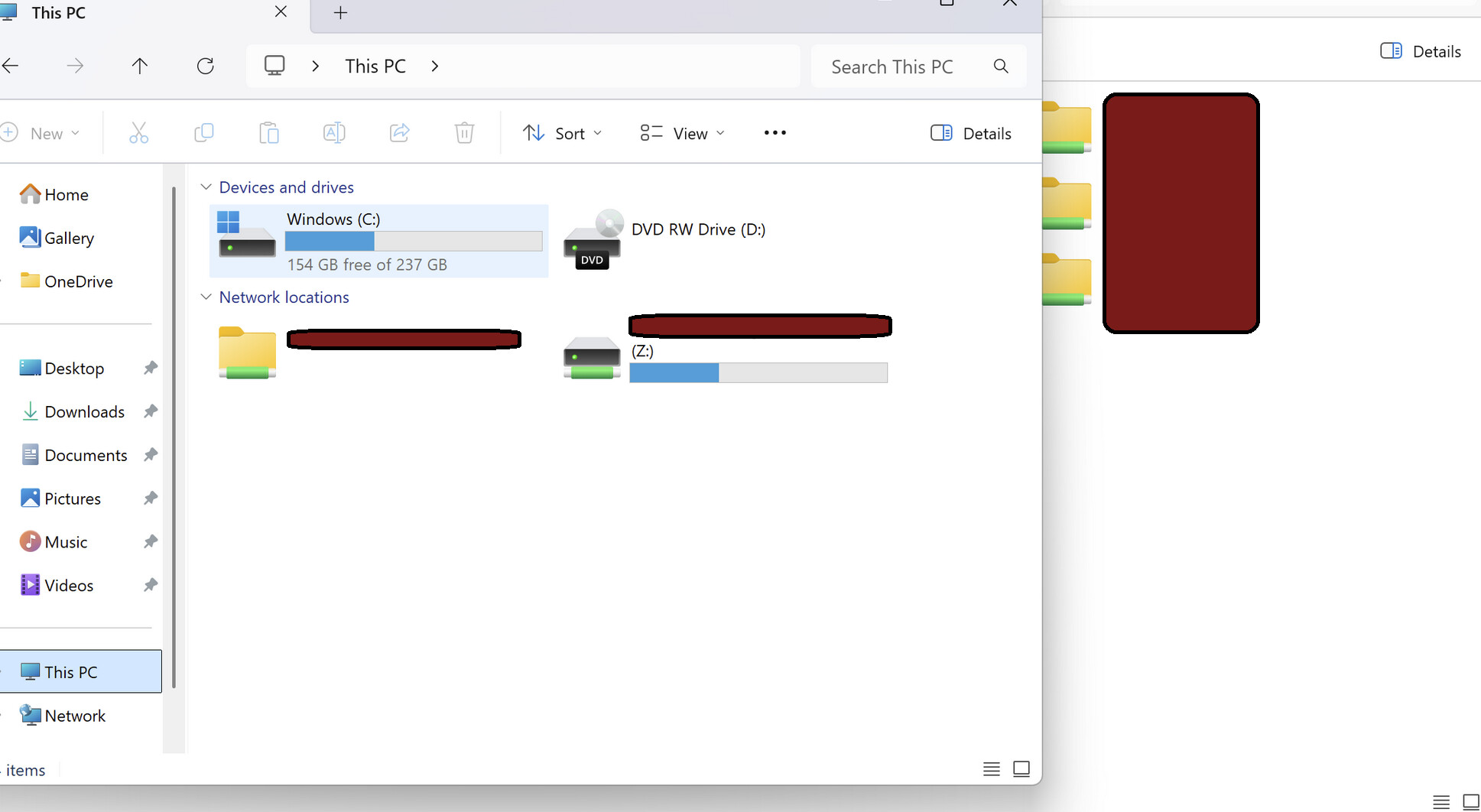
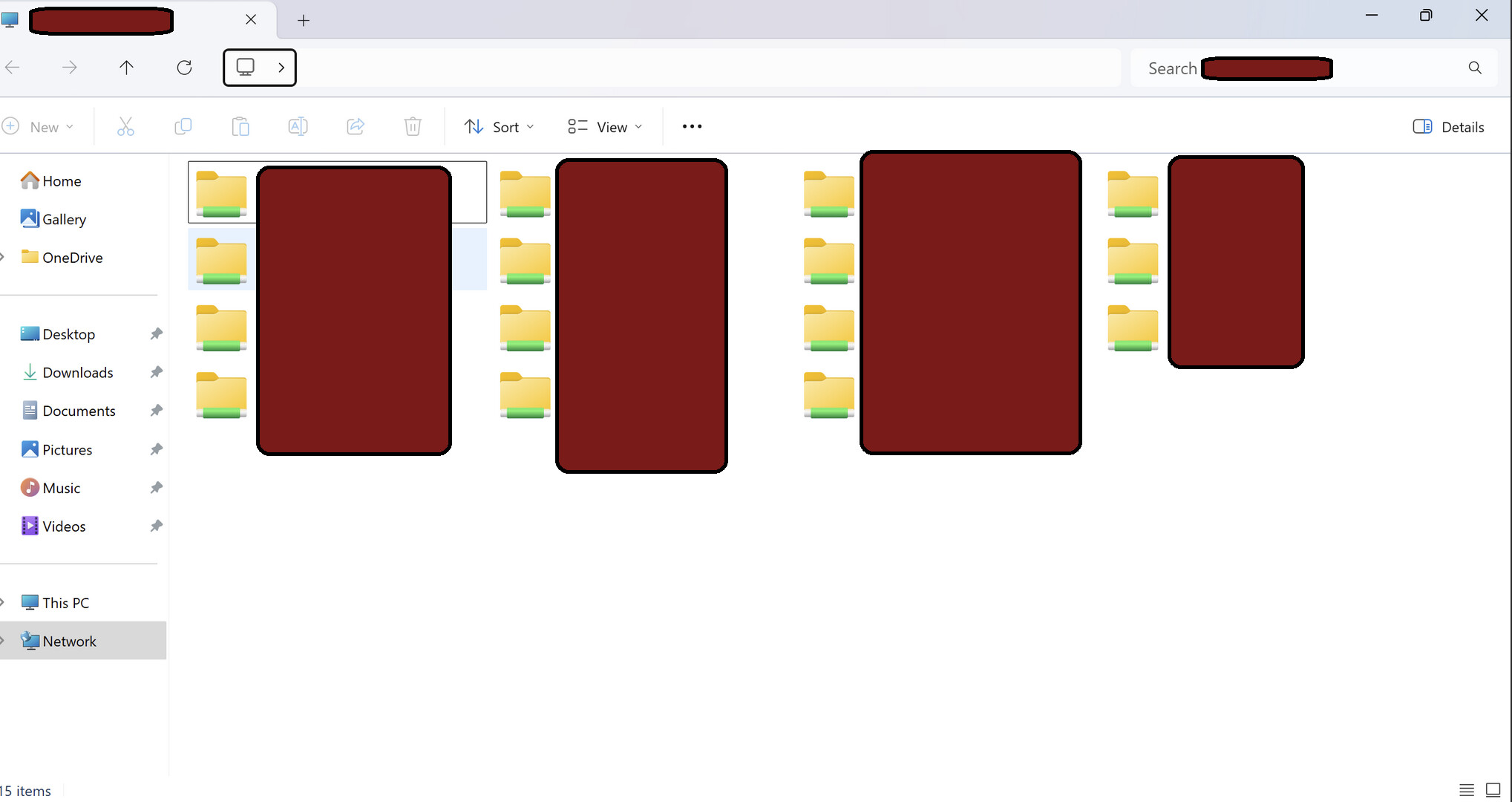
Magic
Windows have become monopoly and they are much worse than a rubbish thing.
Yet to sort the issues on Windows 10. Will try and find some time later today or later this week.
Or will simply upgrade to Windows 11
FLIP the WINDOWS… Just behaves like Donald Duck…