I’ve set a schedule to back up my TS-x53D with two drives in it. I have them set to raid 0 and a static set up.
I got past the size of the backups and wondered why when in qsync central app is shows more used than I have files on my computers drive.
Looking on the NAS I have two folders - one called home and another homes…a quick google and these are the same files but just displayed differently, so I am not using up more space. Yet in clicking on storage snapshots in the interface - it’s showing obviously for both folders because the amount is more than the computer drive, and I didnt have anything on it to start with. This is super confusing. Shall I just continue updating - as Ive set it to warn at 80% or stop it and do something. If it does warn at 80% it will stop, as previously i had the drives on raid 1 and a thick volume and I couldnt update any more at the warning level, even if extending the level. It is also taking ages updating and longer than the 100mb/s speed the network has.
Im good with graphics software but I shiver with network stuff as its such a headf–k. It’s not intuitive. Please can someone explain what I need to do. Many thanks for any help.
First of all, I would run away from a RAID0 configuration if this NAS is functioning as a backup location. If one of your drives fail in RAID0, you just lost everything. You have been warned.
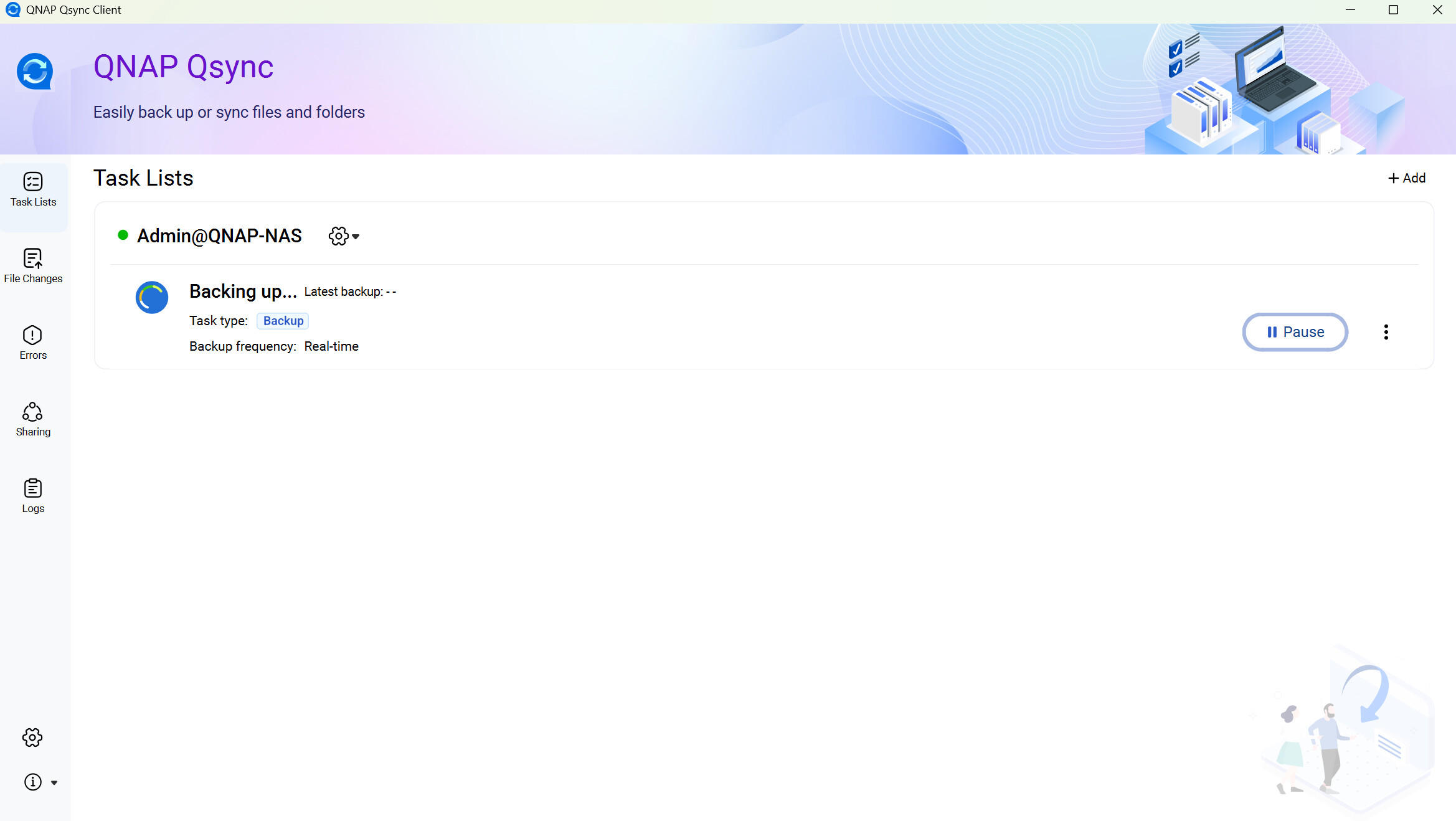
Second, I’m a little confused here - are you backing up the computer to the NAS or backing up the NAS to the computer?
So your home folder on the NAS is basically under homes/your username. Homes is where all the home folders are stored for users of the NAS. They are NOT the same.
Are you running snapshots? I’m so confused with what you are doing. It sounds like you have your PC data backed up via Qsync. You are then creating snapshots as a “backup” on the NAS.
So lots of problems here. Your “backup” is worthless if your drives fail. Unless you vault those snapshots to another NAS, they are not a good backup solution. The value of snapshots is in recovering files you accidentally deleted, etc. And it will be larger than the data that you have on your PC because snapshots keep copies of every change that you make at the bit level. So if you have a file you have previously backed up to the NAS via Qsync and then make changes to that file 10 times, you will have all those ten previous copies in your snapshots.
But you are playing a very dangerous game backing up what I assume is “critical” data to a NAS in RAID0. I would only ever use a RAID0 in instances where it’s not data I really care about. Trust me - I had a RAID0 in my MacPro years ago and guess what - yeah - drive failure. All gone.
Thanks for your reply. I’m more interested as to why the software shows more storage space used up than I am copying, from the qsync central space available (and what repercussions that will have if the update continues). Its already taken ages.
If one of the drives fails then fine - I can buy another and update again. Ive never ever lost files not backing up. I keep the same files (mainly video as I edit video) on a drive on my PC so I could use this to back up files to the QNAP again - I also back up to other NAS drives important files.
So I am more interested in knowing about the vagueries of why the software does this rather than a well meaning comment going off on a tangent.
Please understand that if a drive fails in RAID0 you don’t just lose that drive - you lose everything on both drives. Your choice.
The fact that the QNAP shows different size is likely related to how QNAP counts bits and bytes vs. your computer. Some systems use a decimal measurement where 1 kB = 1000 Bytes or 1 Megabyte = 1,000,000 bytes. Others use a binary measurement where 1 kB = 1028 bytes and a Megabyte = 1,048,576 bytes.
QTS uses binary file size measurements. So this can show very different sizes between a computer (like a Mac) that uses decimal measurements. The files are the same size, they just report different because of the way the device is measuring the data.
The second thing that can cause file sizes to be different is if you have different block sizes between the NAS and the PC. The default block size in QTS is 4K. That means every file written takes up a minimum of 4K or a multiple thereof. So if you have a 1K text file - it takes up 4K on the drive. From doing a quick search, it looks like Mac and Windows also use 4K as a default block size. But in QuTS at least, you can set different block sizes for each shared folder. So if you have a larger block size than on your computer and a lot of small files, it can take up more space on the NAS.
I’m still not completely sure though about the size differences you are mentioning. Can you please post some actual examples with numbers?
Could you provide more information, or share a screenshot showing the storage usage discrepancy you mentioned? It would help us better understand the issue and assist you. Thanks!
I’ve continued with it and it is still appearing to double the files when I want raid 0 static volume (I have two discs) - so it is nearly all used up. I had to change from 80% to nearer 100% to let it save the rest. I still have a home and and a homes folder on my NAS with what looks like files in each. I don’t know if I delete the homes folder - the one on qsync is called home. What have I selected to double the space or is it because I didnt clear a previous snyc from a previous version of qsync client. Although I can’t think that’s the case because there is only one static volume
OK. So I am still not completely sure here.
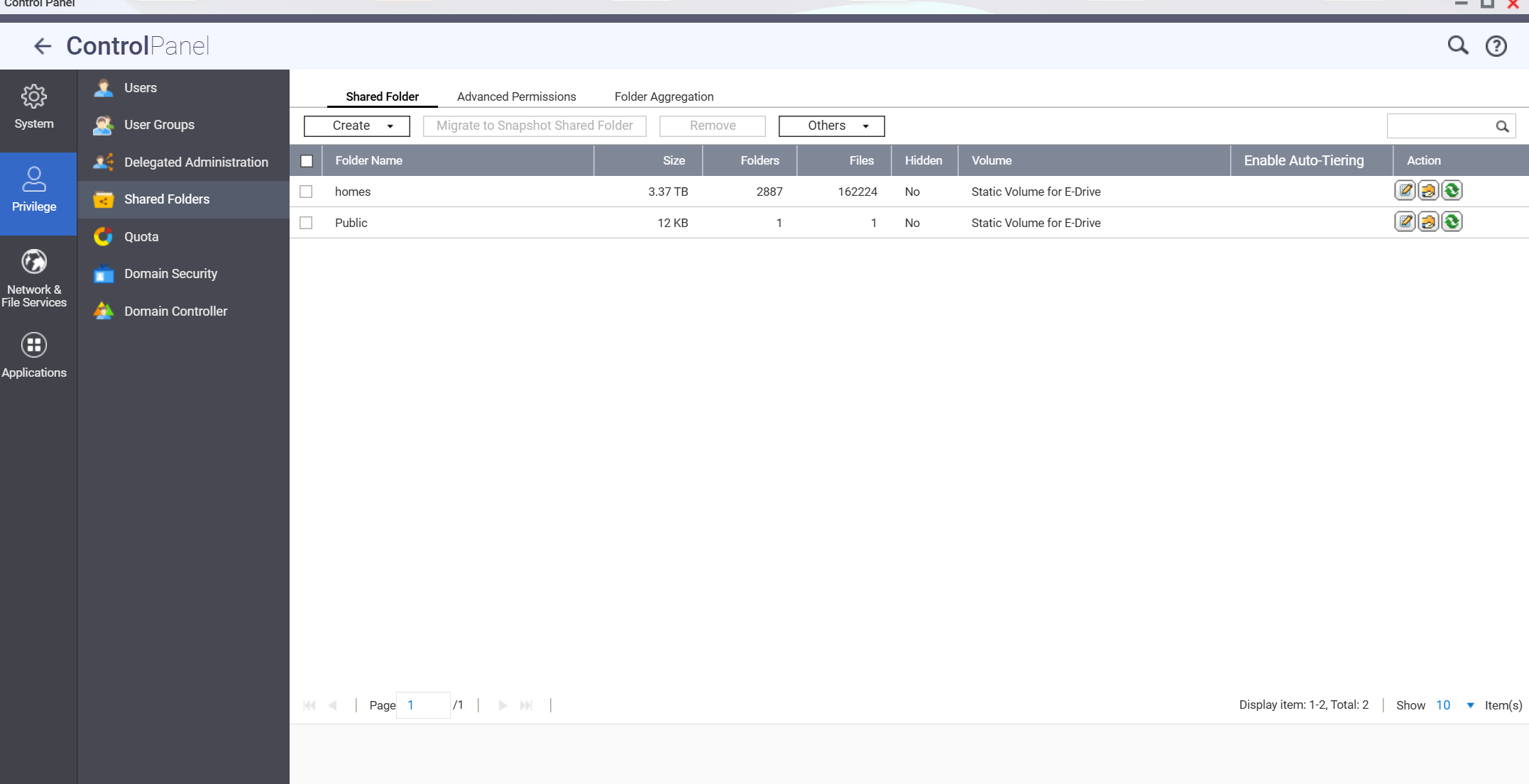
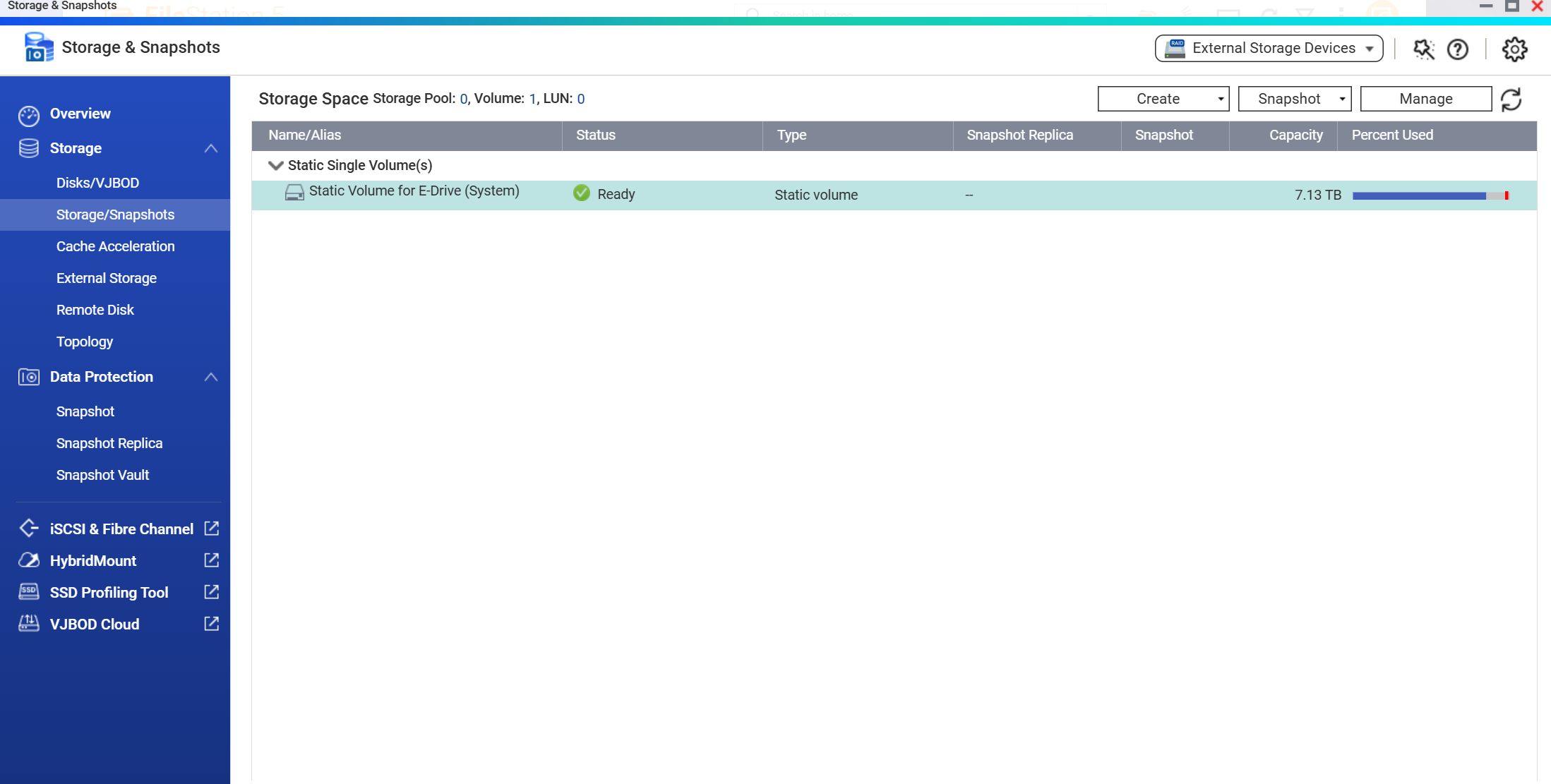
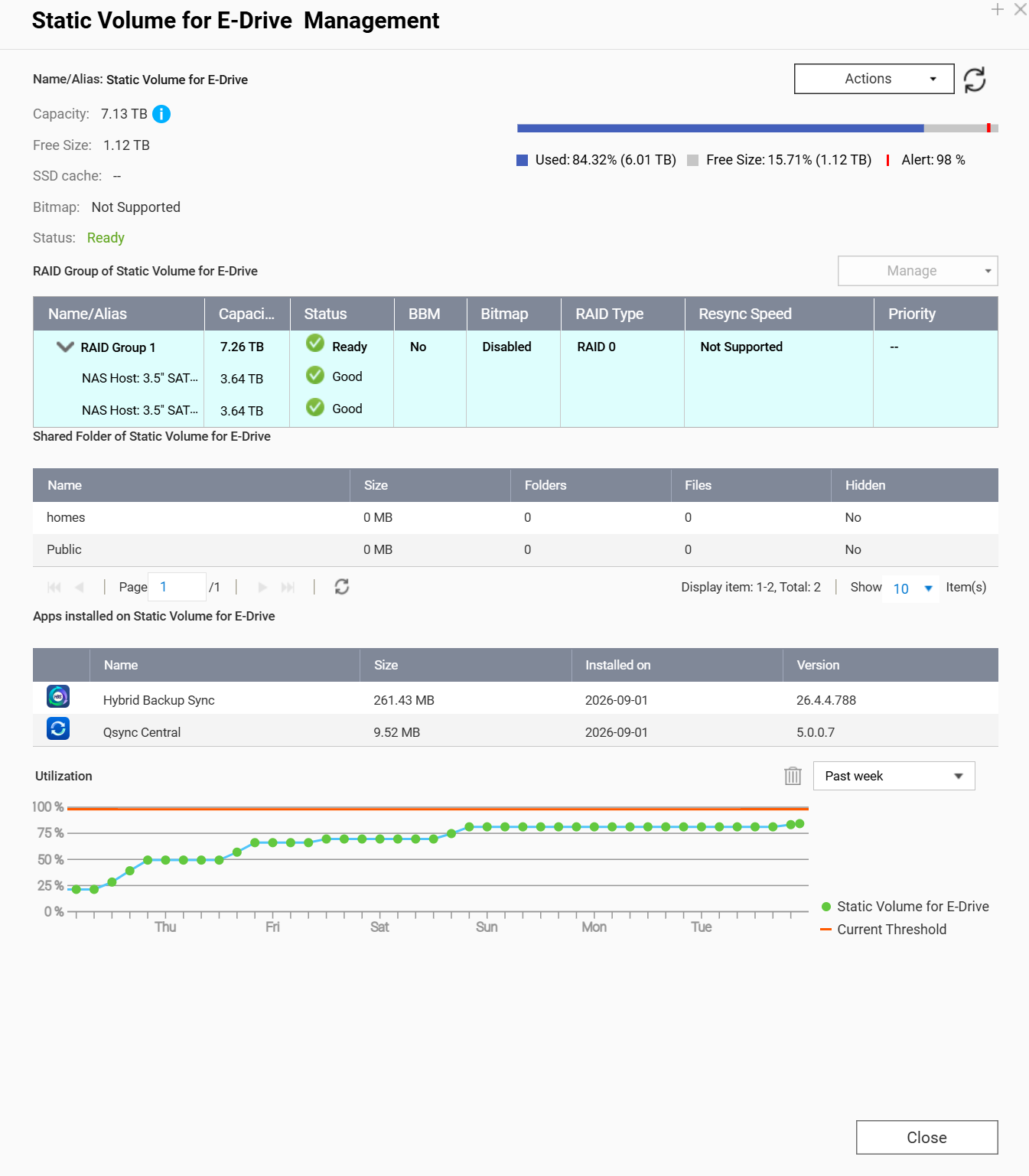
Your Homes folder is 3.37 TB. Yet your total volume usage is 6TB. What other folders do you have other than Homes and Public. Do you have any other folders in use?
Second, do you have any snapshots?