I can’t run the current (or some previous versions that I tried) Qsync Client on my 2017 iMac intel running Ventura. The app is running in the background, as I have to kill it using Activity Monitor. Qsync Central runs fine. I also am running Qsync Client with no problems on my 2024 MacBook Air. Tried updating software on TS-251D NAS as well at on iMac. No antivirus running on iMac. SMB enabled.
So my first question is if the current version of Qsync is compatible with Ventura? Have your tried completely removing Qsync (I mean completely removing everything to do with it and not just deleting the app) and then reinstalling with a clean install? Are all your preferences correct?
Thanks for your reply. I think so, on the compatibility. I have tried removing and reinstalling multiple times. When I do a search for other qsync files on the hard drive (including hidden files) all I find is the main app file. Qsync was working on my MacBook, but now I am getting “Qsync not enabled” on both the iMac and MacBook. So I am losing ground. I have a Win 11 machine that I am going to fire up with Qsync client and see if I have issues there.
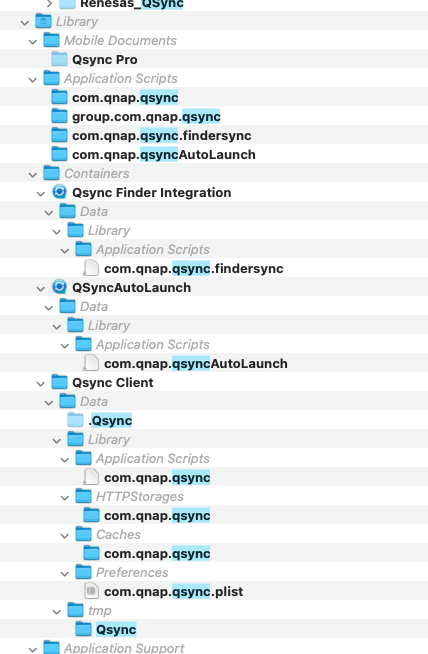
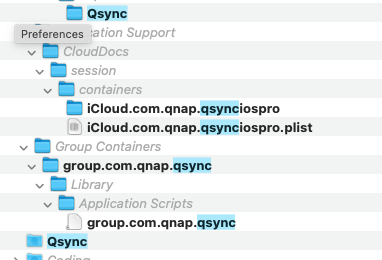
Hmm. OK. So there are a LOT of Qsync files on the Mac, not just the application. You need to use something that searches in all the library folders, etc. You need to delete ALL of them - everything…
Get rid of all that stuff. It seems like something is corrupted somewhere…
1 Like
It’s weird to me. I can use the Network Drives function on QFinder and my NAS folders show up on the Mac Finder app and I can see all the files, etc. But when I try and access thru QSync all I get is “QSync not enabled.” I thought I understood a little about how this NAS worked, but I am beginning to question everything I thought I knew.
So does the Qsync app open?
It does open now. It runs but goes immediately to background mode, with just a small icon at the top of the screen. I didn’t notice that previously. But still Qsync says it is not enabled. About the deleting, I’m not sure why Command+Shift+. did not work, but I am running Commander One now and have about 100 qsync files so far. I will delete then all when the app finishes.
Right. Click the icon in the tool bar. It should open a menu where you can then open Qsync.
Ok, thanks. The deletion of all Qsync client files and new install fixed it on my iMac. The problem with Qsync not being enabled on my MacBook was due to Qsync central being disabled somewhere in all of this more recently. So now I am enabled and syncing on the iMac, MacBook and a PC. Thanks for your help. I do have another question about syncing files now that things are working. I would like to sync the Mac file under “users” so that I don’t have to sync pair each directory like Documents, Downloads, Pictures etc. (I think there are 8 standard Mac directories that it sets up). when I try to sync the directory under “Users” I get the message “This folder has been selected to sync”. I deleted all the shared directories on all my Mac and PC units and I still get the same message. I think this is because there are some hidden directories under “Users” on the Mac that are used by the MacOS and Qsync doesn’t want to get involved with them. Is this the case? It sure is a pain to have to pair all of the documents, downloads, etc. folders individually, and remember to add a shared folder if you add a folder on any of the hard drives, etc. I don’t want to chase this any more if it is not possible. Any advice would be helpful. I turned on advanced file permissions, but that made no difference.
So what happens if you just let the Users folder sync? It may take some time for Qsync to catalog everything and sync it. The hidden directories have nothing to do with it. What may affect things though is if you don’t have access rights to all the users’ folders.
To me if it says it’s been selected to sync, well good. That’s what it should say. Now let it do its job.
I would get the “The folder had been selected to sync” box, click OK (the only option) and it would send me back to the pairing folder screen without putting my folder in the target box. I figured it probably was a folder access issue, either on the Mac or the NAS, but that error message was of no help to me in pointing me in the right direction. I dug into the Mac file sharing, checked all of those items, and finally checked “all users” for read/write access to that folder. Some or all of what I did worked, as I went back to Qsync and it accepted my top level folder access under the Mac “User” folder, like I wanted. So it is syncing now. It is hundreds of GB so I expect it will run all day or more but that is OK. Thanks again for your help, you have been very helpful and responsive. Now I have to start on what I considered to be the hard part, setting up the NAS for remote access and making it as bullet proof as possible.
OK. So yeah, likely the fact that you didn’t have access permission to those folders. So good - glad you got the figured out. Just make sure you set your read access to those folders and all child items underneath them - otherwise, you won’t get the child sub-folders and files.
Now as for remote access, please do NOT publish your NAS to the WAN. There are a couple of options:
1.) Use QNAPs, myQNAPCloud.com portal to access your NAS. This works well but has a couple drawbacks. It really only works over a browser (never tried to access a volume this way) and it runs through their servers in Taiwan. The speed is only about 2 Mb/sec.
2.) Set up a VPN. This is really the best and fastest way. If you have a router that supports Wireguard, it is extremely easy to set up Wireguard connections between your network and your remote clients. WIreguard is very fast and secure. I use it all the time and it works great. There’s a number of things you need to understand though about how it works so DM me if you want more info as it’s kind of off topic from a QNAP NAS. I would be more than willing to help you get that set up.
OK, thanks. I will take you up on your offer when I get all of this syncing done. I shut down my NAS a couple of years ago after I got about 100 emails from Chinese IPs trying to log onto my NAS when I had myQNAPCloud access turned on. I think it was a brute force password attack and they were not successful. At least I knew enough to have the log file notifications turned on.So I plan on setting up a VPN this time.
 Disable UPnP on your router and NAS and don’t forward any ports to the NAS. For control and safety, don’t count on any cloud service. As you say, run a VPN server on something appropriate, like your router, and enjoy safe and full access to your network.
Log files are only good IF something is caught and you can still access the logs Don’t count on that as any kind of safety measure.
1 Like
You have your own opinion on the cloud services. I find no problems with them. To each their own.
Agreed.
But, be aware that with some cloud services, although your system may be online, if the cloud service is down, you cannot access it (remote access cloud services for NAS, routers etc). Also be aware that these services may require ports being open on your network. If there is a vulnerability in the cloud service, your credentials and/or data can be exposed. There are dozens of “extra” reasons why it makes your system less secure.
Sure, there are scenarios where it is handy, but it shouldn’t be a blind decision.
1 Like
I will agree with you on this! 
1 Like
Regarding syncing with Qsync, I am getting a throughput of a few gigabytes per hour. It has been running for several days now and I have about 150 gigabytes synced. I set up a wired connection from my iMac’s 1GB ethernet port via Cat 6 cable to my 1GB switch, which is connected to the NAS. The Qsync connection test shows speeds around 30-50 MB/sec, but the QNAP dashboard monitor lists speeds in the 100kB/sec range. The dashboard numbers seem to reflect my actual experience. I paused the sync and copied about 300GB of picture files from the iMac to the NAS in a few hours using iMac Finder and FileStation drag and drop, so I don’t think the hardware setup is the limiting factor. Is Qsync really this slow? I do have a low-end (TS251D) Celeron NAS, but I maxed out the memory to 8GB. CPU and RAM usage is running at 10-40%, so I don’t think the processor is maxed out. Any ideas?
It is likely the fact that Qsync is going through and cataloging all your files. The first time through takes a while and on smaller files, it’s got to go work through a lot of files. If you are syncing all the hidden Unix folders, there are a ton of file and small ones at that. When you just copy files, you are just copying them. Synchronization is a different story. As it’s keeping track of what files it has, when they were changed etc.