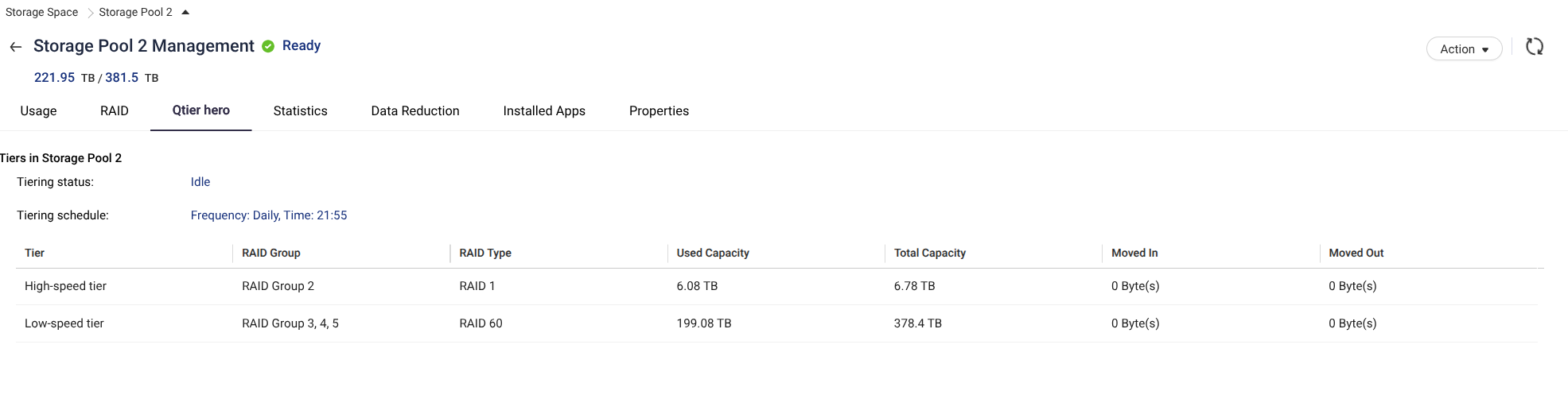
From my experience with Qtier, I would recommend using the automatic mode first.
I don’t know what type of data you are storing on your NAS, but in general the idea behind Qtier is that frequently accessed (“hot”) data should stay on the fast NVMe tier, while less frequently accessed (“cold”) data can be moved to the HDD tier. Qtier hero uses access patterns and configured policies to determine the appropriate tier for the data.
For example, if you have mostly video content and a particular video is accessed only once every 24 hours, I would not consider that truly “hot” data. There is probably no reason to keep all of that content on your NVMe tier.
Because of that, I would personally recommend letting Qtier work automatically rather than trying to manually control every transfer. The system can then optimize the placement according to the workload and configured tiering policy.
What I would try:
Set Qtier to Automatic and monitor what happens for a few days. Check the Qtier statistics/history to see whether data is actually being moved between the tiers. QNAP provides statistics for evaluating tiering activity.
If automatic tiering does not give you the result you want, then try a manual schedule during a period of low activity. I would not start with running it every hour. Tiering itself creates additional storage activity, so it is generally better to let it run during periods when the NAS is less busy.
If you really need the SSD/NVMe tier to contain the most recently or frequently used data as quickly as possible, you can experiment with a more frequent schedule and compare the results. The advantage is that active data can be promoted to the faster tier sooner, but the downside is additional tiering activity and more writes/movement between the tiers.
So my recommendation would be:
First: Automatic → monitor for several days → check Qtier statistics.
Second: if that doesn’t work well, try a scheduled tiering window during low-load hours and compare the results.
However, there is one important thing in your particular case: you said Qtier worked before the system reset and has never started again since the reset. If Qtier is not running at all, regardless of the schedule you select, then I would look at this as a possible Qtier/configuration problem rather than simply a question of choosing the right schedule. In that case I would check the Qtier status and system logs before making any changes to the storage pool.
Also, you are running h6.0.0.3500, which is the firmware version you mentioned. Since Qtier hero is a relatively new feature in QuTS hero h6.0, I would also make sure you are on a current supported firmware before concluding that the only solution is to wait for a future firmware fix. QNAP introduced Qtier hero with QuTS hero h6.0.
In short, I would not immediately force Qtier to run every hour. I would first use Automatic mode, observe the behavior and statistics, and only then increase the frequency if the workload actually requires it.