Most of us have the same problem somewhere on our NAS. You imported a folder twice. You downloaded your photo archive from a cloud service and it came back compressed. Someone sent you a picture over a messaging app and it landed next to the original. The files are all different. The picture is the same one.
Until now QuMagie was not much help with this. The old logic only flagged photos as duplicates when the files were byte for byte identical. Everything else, including a HEIC original sitting next to its own exported JPG, went into Similar Photos and got mixed in with genuinely different shots. That list was long, noisy, and slow to work through.
QuMagie 2.10.0 changes the rule. Instead of comparing files, it compares pictures.
Two albums, two jobs
You will now find both under Explore > Similars & Duplicates.
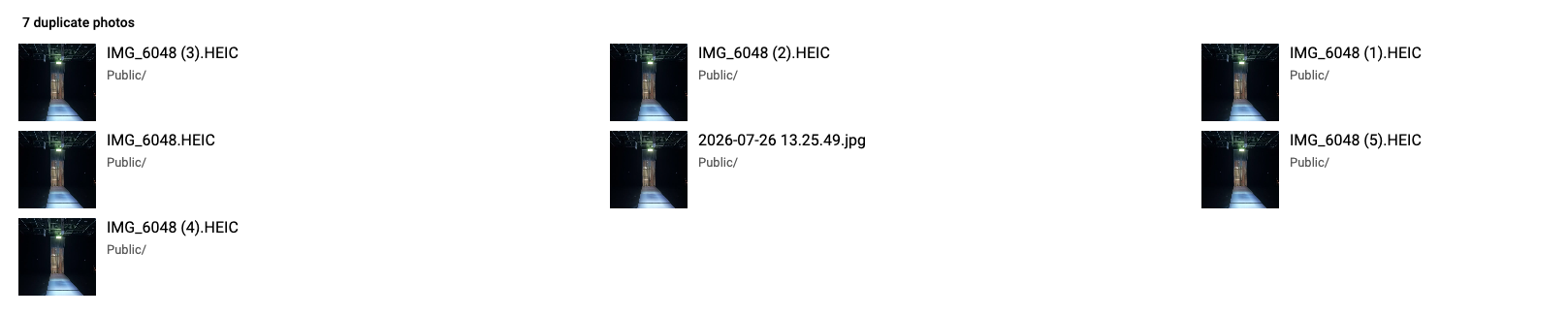
Duplicate Photos holds images that are the same picture. It does not matter if the file name, the folder, the format, or the metadata is different. If the content is equivalent, it is a duplicate, and you can usually clear it without thinking hard about it.
Similar Photos holds images that are close but not equivalent. Different moments in a burst, a different expression, a different angle. These need a human to look at them, so they stay separate and never get swept up by a duplicate cleanup.
Here is what moved between the two:
| Case | Before | 2.10.0 |
|---|---|---|
| Same file, different name | Duplicate | Duplicate |
| Same file in two folders | Duplicate | Duplicate |
| HEIC original next to an exported JPG | Similar | Duplicate |
| Full size original next to a downscaled copy | Similar | Duplicate |
| Date, GPS, or tags edited after the fact | Often separate | Duplicate |
| Live Photo next to its exported still | Similar | Duplicate |
| Burst frames with no visible movement | Similar | Duplicate (optional) |
| Burst frames where the subject moved | Similar | Similar |
The short version is that metadata is ignored and pixels decide.
One detail worth calling out. When a Live Photo is matched, deleting it also removes the paired MOV file, so you are not left with orphaned video clips scattered around your folders.
The burst photo switch
Burst sequences are the one case where reasonable people disagree. Some of you want all ten frames kept because you will pick the best one later. Some of you want nine of them gone today.
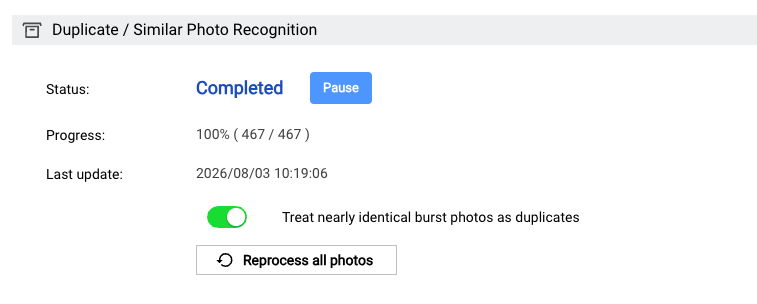
So it is a setting rather than a decision we made for you. By default a photo has to be an essentially perfect match to count as a duplicate. Turn on Treat nearly identical burst photos as duplicates and the threshold loosens, which pulls motionless burst frames into the Duplicate album where you can clear them in one pass.
Frames where the subject actually moved or changed stay in Similar either way.
Cleaning up
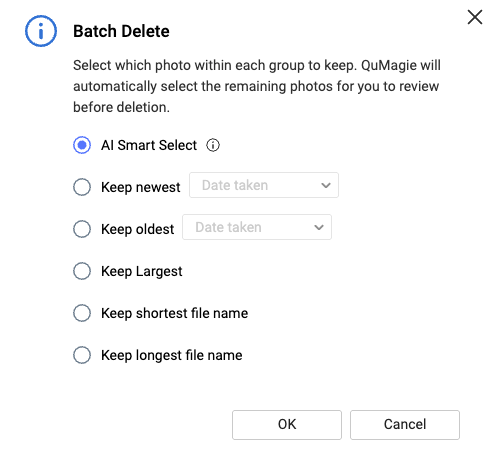
Both albums support conditional selection. You pick a rule and QuMagie preselects which copy to keep in every group and marks the rest:
- Keep newest
- Keep oldest
- Keep largest file
- Keep longest filename
- Keep shortest filename
- Smart Select
Keep largest file is the one most people will want, since file size usually tracks resolution and compression level.
Smart Select is for when size alone does not settle it. It ranks the copies in each group by resolution first, then file size, then how complete the EXIF data is, meaning GPS, timestamp, and camera information. In practice that usually means the messaging app copy gets marked and your original survives. You can review what it picked and override it.
You can apply a rule to the whole page at once, use a different rule on a single group, or skip the rules and pick by hand. Selection is not deletion. Nothing happens until you confirm, and the confirmation tells you exactly how many photos are about to go.
One honest limitation. If every copy in a group has the same timestamp, the same size, and the same name length, a rule has nothing to sort on. QuMagie tells you when that happens instead of picking arbitrarily, and leaves those groups for you.
Groups you want to keep
Not every group needs an action. Sometimes you look at a set and decide you want all of them.
Select the group, choose Hide from List, and it drops out of the album without anything being deleted. Hidden groups are not gone either. Each album keeps its own list under Settings > AI Feature > Duplicate Photo > Hidden List, with the equivalent path under Similar Photo, where you can Unhide individual groups or Unhide All.
Before you delete anything
Removed photos go to the recycle bin of the multimedia folder they came from. If you clear a group and then realize you wanted one of them back, you can restore it, and it reappears in the list afterward.
Two other safeguards. Photos where the subject genuinely differs stay in Similar. And photos that only share a background, like two different subjects shot in the same park, are not grouped at all.
Large libraries also load in pages of 50 groups now, so several thousand groups no longer means waiting on the browser.
Getting started
Update these from App Center:
- QuMagie 2.10.0
- Multimedia Console 2.11.0
- QNAP AI Core 3.8.0
Recognition runs in Multimedia Console under AI Engines > Duplicate / Similar Photo Recognition, against the multimedia folders you have indexed. The burst switch lives on the same page. If you have a large library, give the first pass time to finish before judging the results.
Then open QuMagie and go to Explore > Similars & Duplicates.
Tell us where the line is wrong
The interesting question with a feature like this is always where the boundary sits. If you find a pair that should have been called a duplicate and was not, or a pair that got grouped as duplicates when they are clearly different photos, we want to hear about it. Reply here with what the two files were and we will take a look.