At Computex 2026 and the QNAP World Tour 2026, QNAP demonstrated how AI agents can operate QVR Client. The agent receives a task in natural language, switches cameras, searches footage, exports clips, and reports the results.
Current status: Release Testing. Supported AI agents: ChatGPT Codex, Claude Code, and Antigravity CLI. A beta version is available. The request process is described at the end of this post.
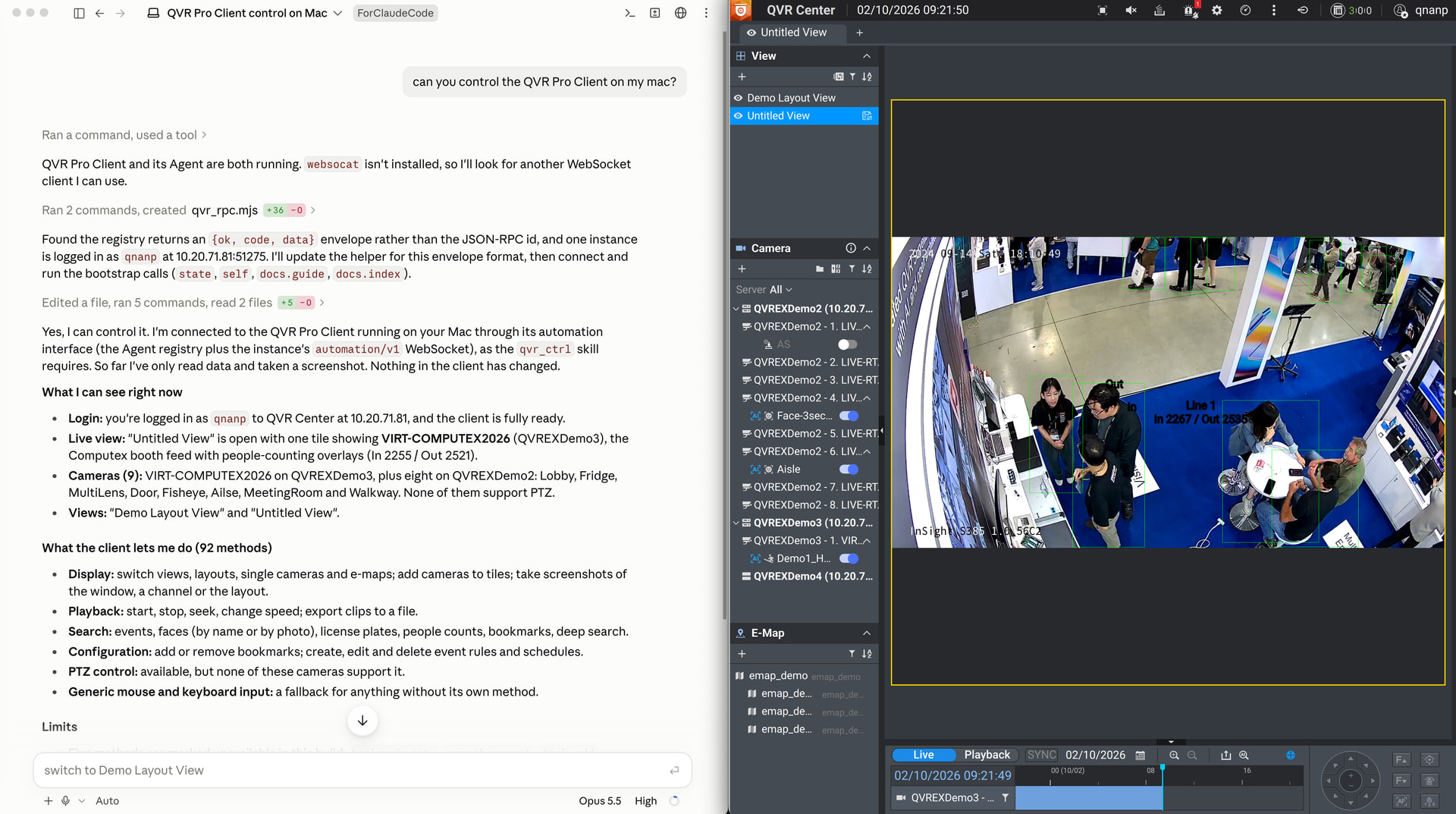
Supported Tasks
| Input | Agent Action |
|---|---|
| “Show the Lobby camera in fullscreen.” | Identifies the camera by name. Loads the camera. |
| “When did Alex appear yesterday afternoon?” | Performs a face search for that period. |
| “Was the license plate ABC-1234 detected this week?” | Performs a license plate search. Summarizes results. |
| “Export the last 5 minutes from the Door camera.” | Exports the clip. Monitors progress until the file is saved. |
| “Create a rule: Motion on the Walkway camera starts recording.” | Creates the event rule. Confirms saving. |
The current build offers 92 automation methods. Coverage: Live view, playback, search, export, bookmarks, event rules, schedules, PTZ, and screenshots. Multi-step tasks are supported. Example: “Find all face matches for Alex from this morning, export a 30-second clip for each, and summarize them in a table.”
How It Works
- Detection. The agent queries the QVR Agent, a registration service installed with the client, to discover running clients.
- Specification Retrieval. The agent retrieves the session rules, the list of methods, and the parameters for each method from the client.
- Execution and Verification. The agent sends JSON-RPC commands over WebSocket. After each action, it checks the client status.
The client is self-documenting. Any agent capable of establishing a WebSocket connection can use it. Methods from later builds are recognized without updating the skill.
Setup
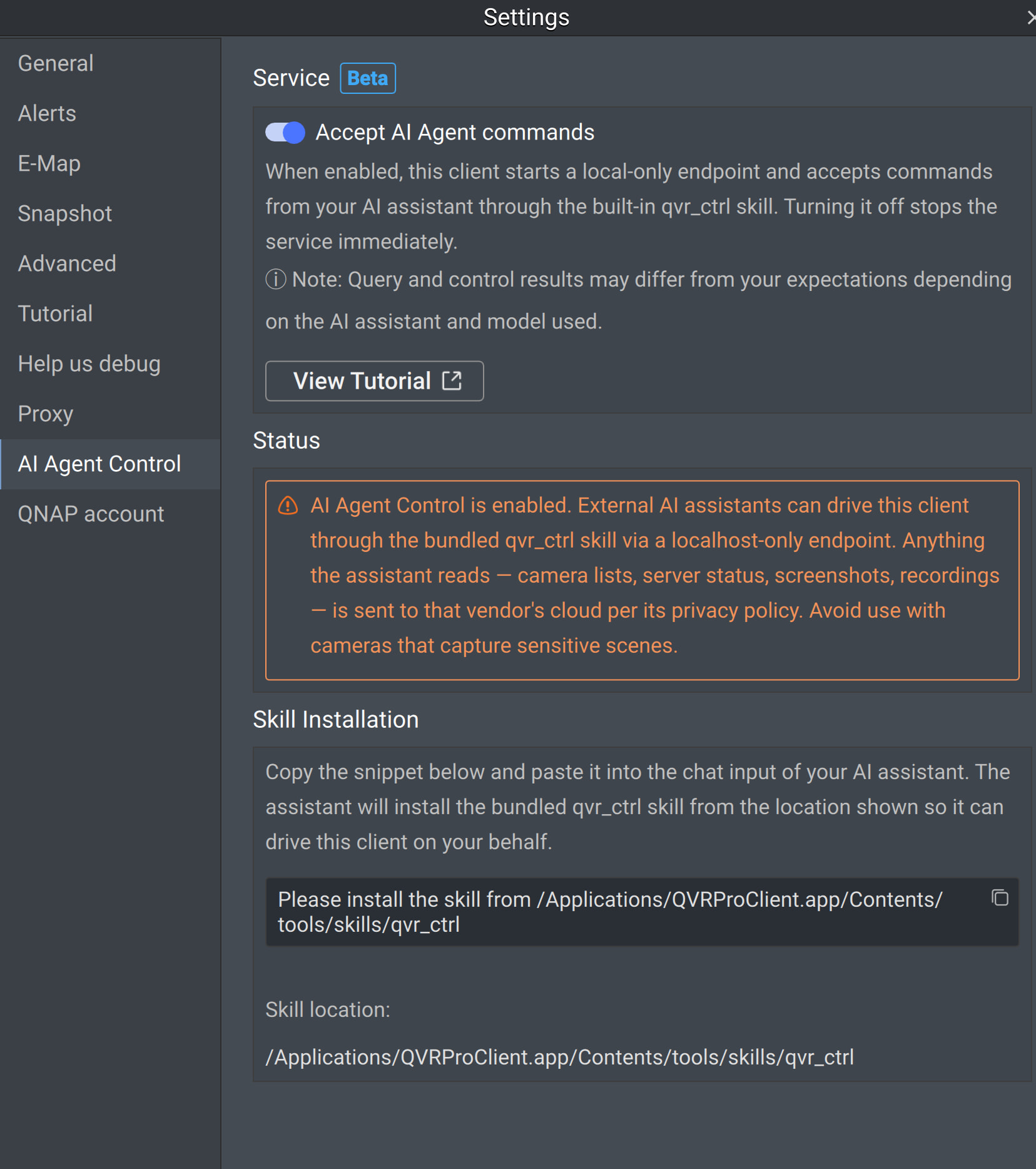
- In QVR Client, open Settings > AI Agent Control and enable Accept AI Agent commands. The client launches a purely local endpoint. Disabling the option immediately stops the service.
- Under Skill Installation, copy the prompt and paste it into the AI agent’s chat (e.g., Claude Code). The agent installs the
qvr_ctrlskill provided with QVR Client.
Setup is complete. Recommended first input: “Can you control QVR Client on my computer?”
Security and Privacy
- Activation. The service runs only while Accept AI Agent commands is enabled.
- Scope. The endpoint listens only on 127.0.0.1. It is not accessible from the network.
- Credentials. Passwords, PINs, and camera credentials are not exposed to the agent.
- Permissions. The agent operates within the permissions of the logged-in account.
- Method Labeling. Each method is labeled as read or write. The agent can be restricted to read-only methods, or every change can require approval.
Warning: Data accessed by the AI agent—including camera lists, server status, screenshots, and footage—is transmitted to the respective AI provider’s cloud according to their privacy policy. Use with cameras covering sensitive areas is not recommended. Results may vary depending on the AI agent and model.
Requirements and Limitations
Requirements: the beta version of QVR Client for Windows or macOS, and an AI agent on the same computer.
Limitations of this beta version:
- Remote control is not supported.
- Some methods are not yet available.
- Login must be performed by the user.
Get the Beta Version
To request the installation files, leave a comment on this post or send me a private message. The installation package will be provided.