Surveillance Camera System: Isn’t It Enough Just to Record Video?
With QNAP’s surveillance camera system, QVR Pro, you can record up to 8 channels for free simply by installing a NAS. Since it’s free, some may wonder, “Does it lack functionality?” However, features essential for a surveillance camera system—such as HDMI output from the NAS itself and action execution triggered by event detection—are all supported as standard.
In real-world environments where surveillance camera systems are installed, it’s not just about being able to record video. For example, there are cases where you want to quickly notice and take action if “a suspicious person appears on camera” or “a valued customer visits your store.”
This time, we’ll build a system that uses QNAP’s facial recognition feature, QVR Face Insight, to detect faces and notify by activating PATLITE.
Starting a Person Analysis Task with QVR Face Insight
Please install QVR Face Insight / QVR Face Tiger on your NAS in advance.
In QVR Face, create a facial recognition task from [Live Analysis Task]. Click [Create Task] to proceed.
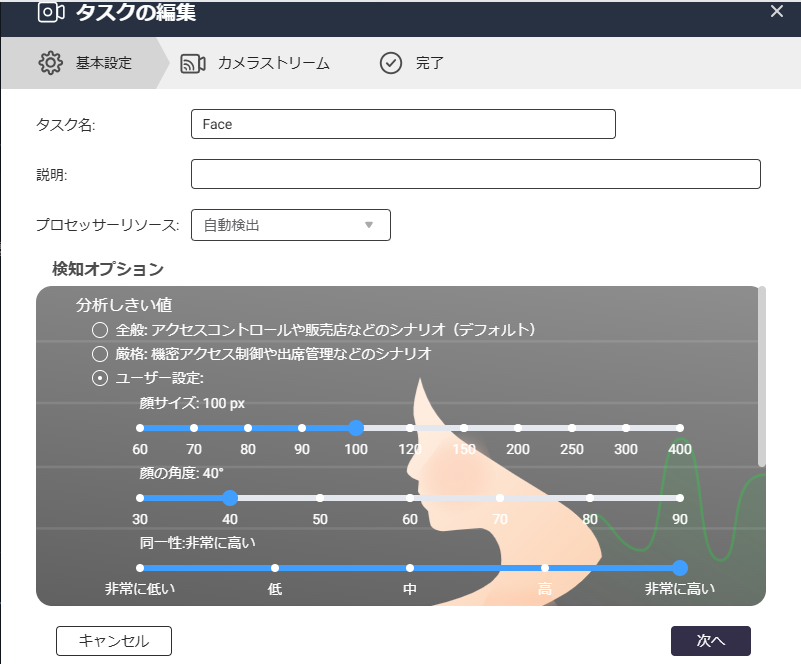
You can use the preset settings, but here we’ll use “User Settings.” Set the detection to prioritize facial “identity” very highly. (= To accurately distinguish people)
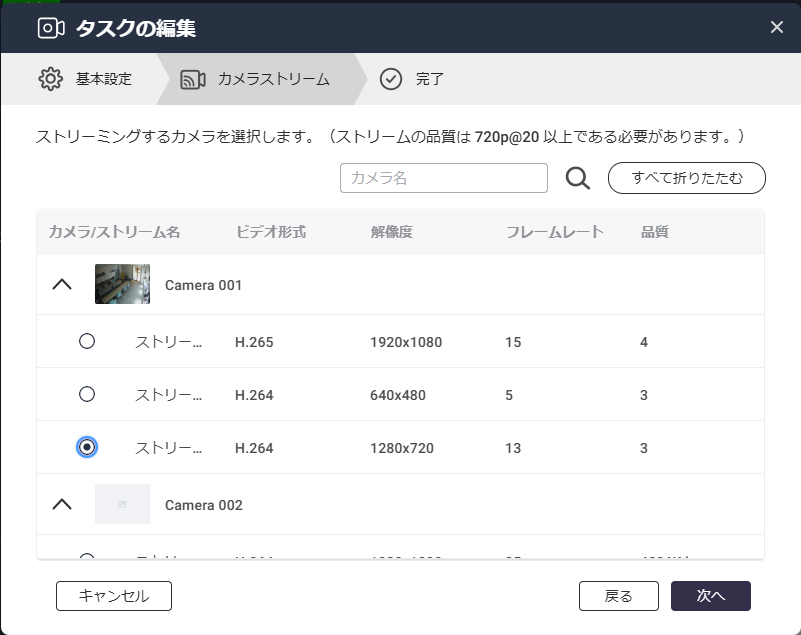
Next, select the camera to use for detection.
You’ll likely choose cameras filming the store entrance or building entrances and exits.
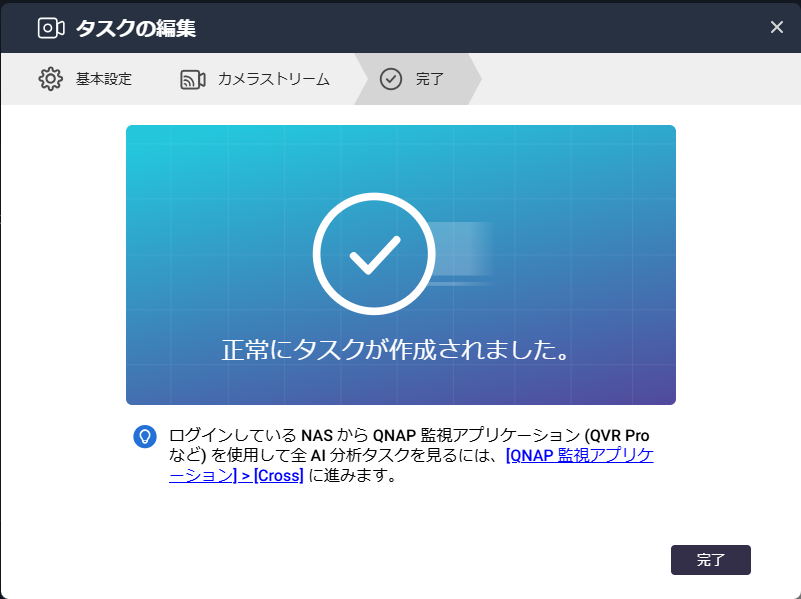
With this, the “face analysis task” will start running.
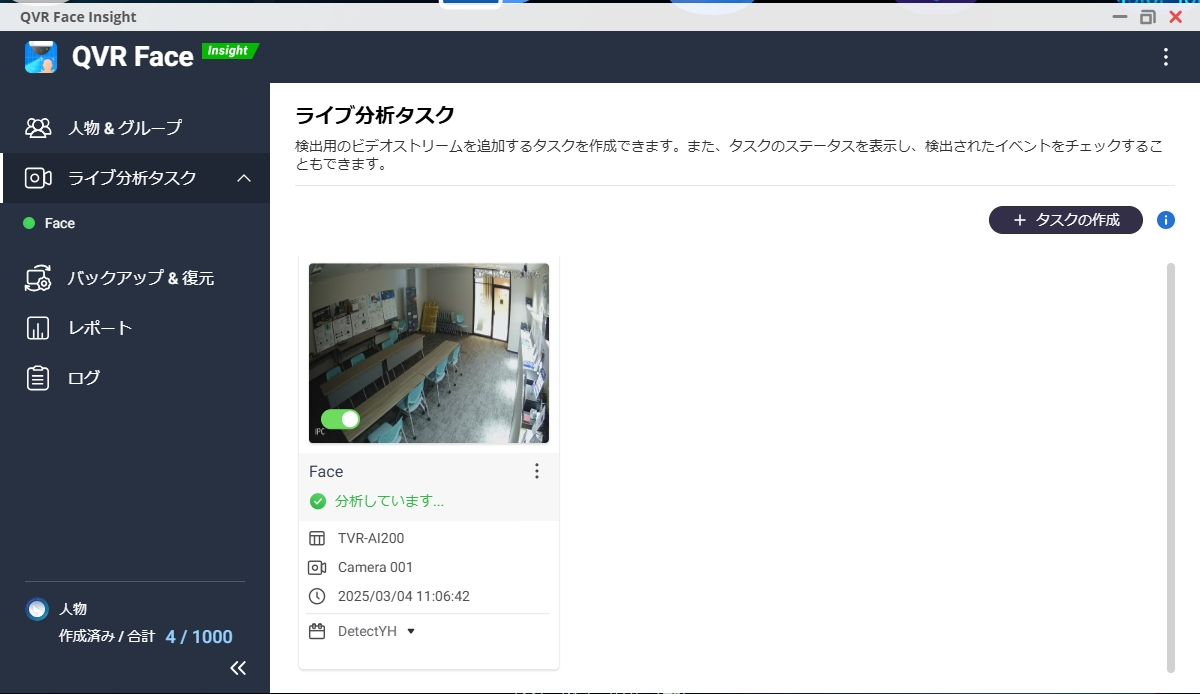
Once the facial recognition task starts, you’ll see a message “Analyzing” and the camera footage.
When a person passes by and their face is recognized, it will be recorded.
Adding a Person Profile
After running person analysis for a while, faces will be recorded as “unknown faces.”
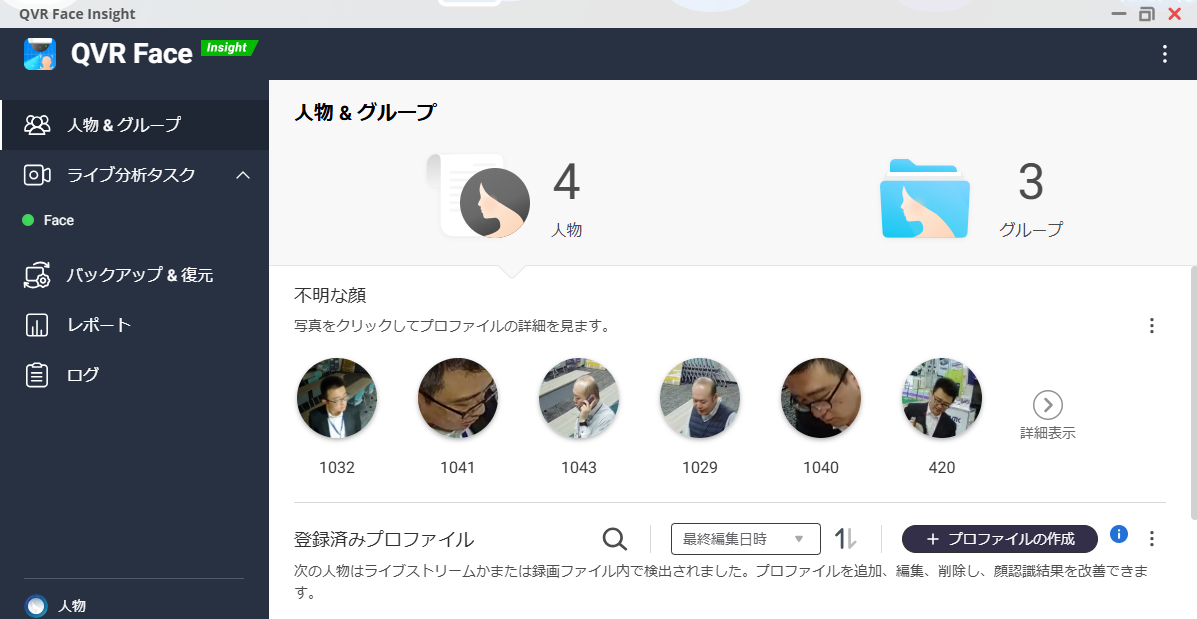
Click on a face in this screen to move to the “Who is this person?” screen.
Here, click “Register New Profile” to add a person profile.
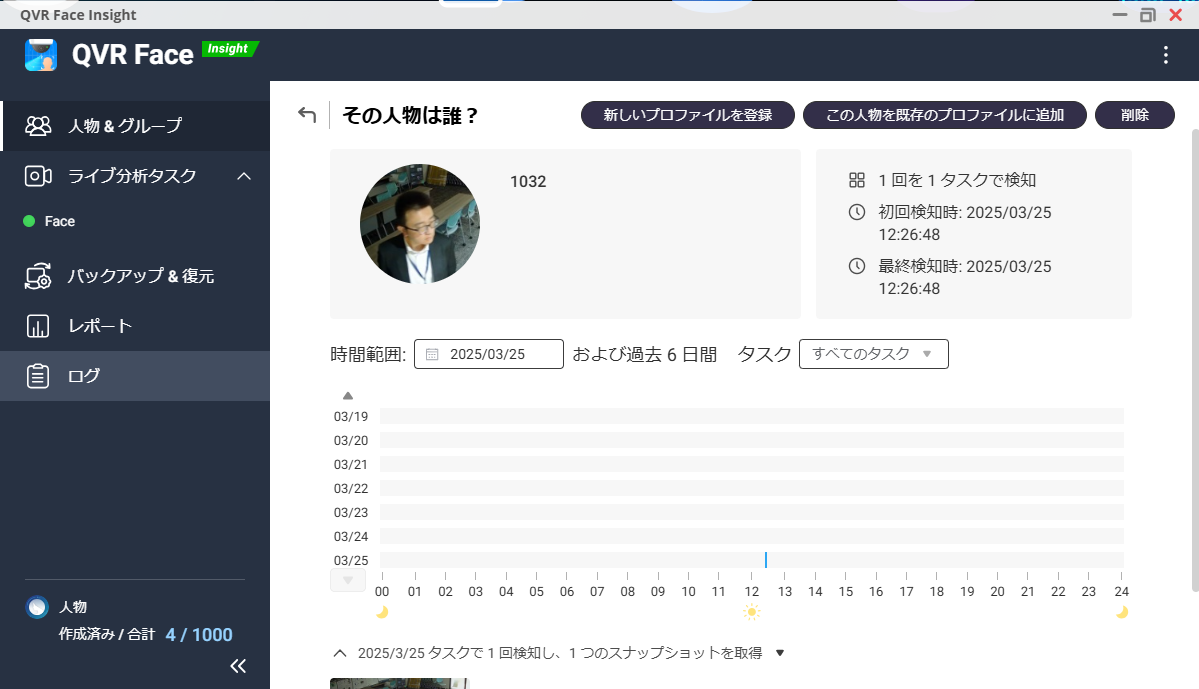
Register a profile key and name like this.
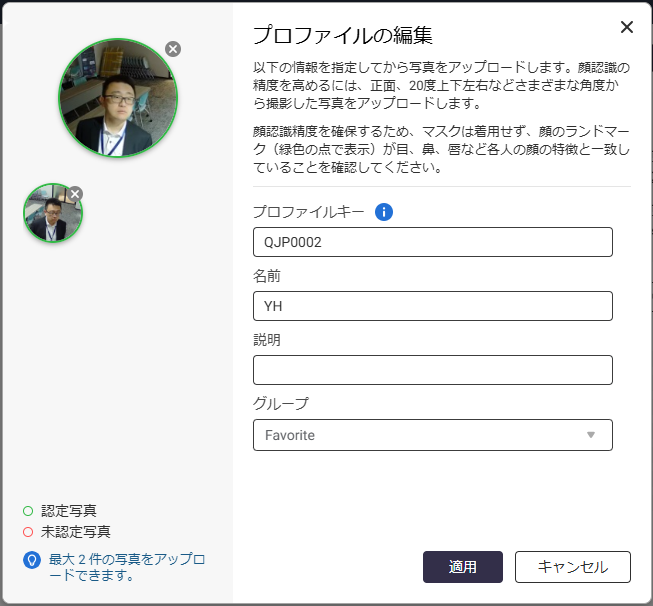
Once registered, every time the person is detected by the camera, it will be recorded.
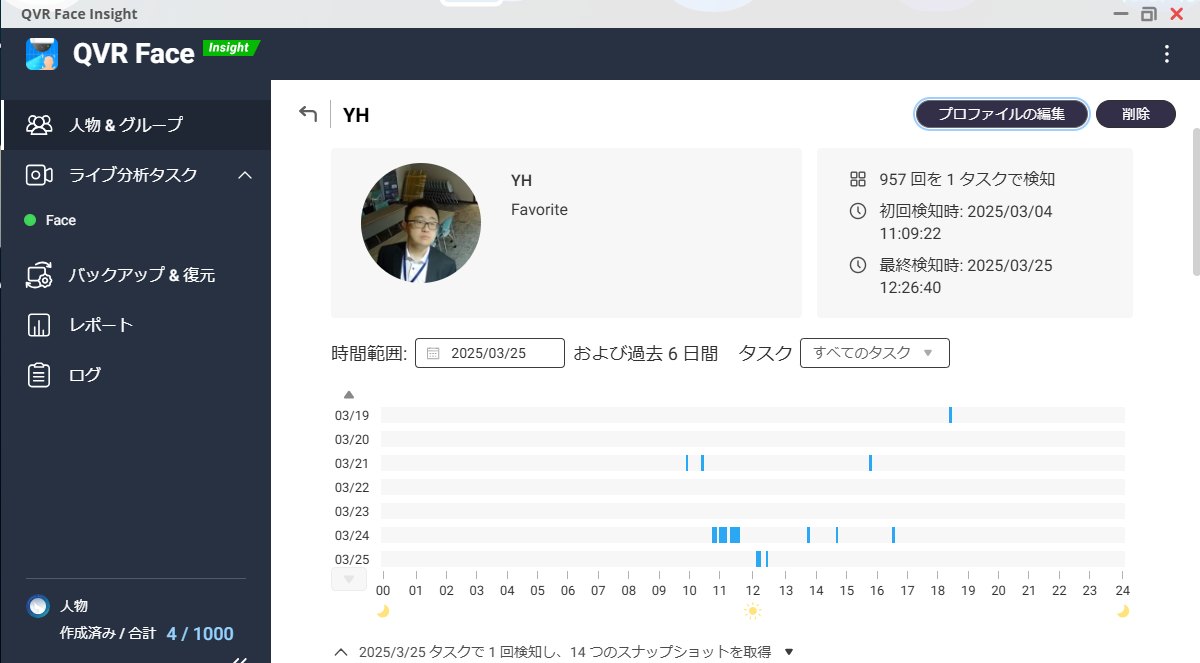
With this, the “person detection” setup is complete.
Event Trigger Settings Upon Person Detection
To trigger an action when a specific person is detected, set up the “notify when a specific person is detected” part. In [Live Analysis Task], click to create a rule.
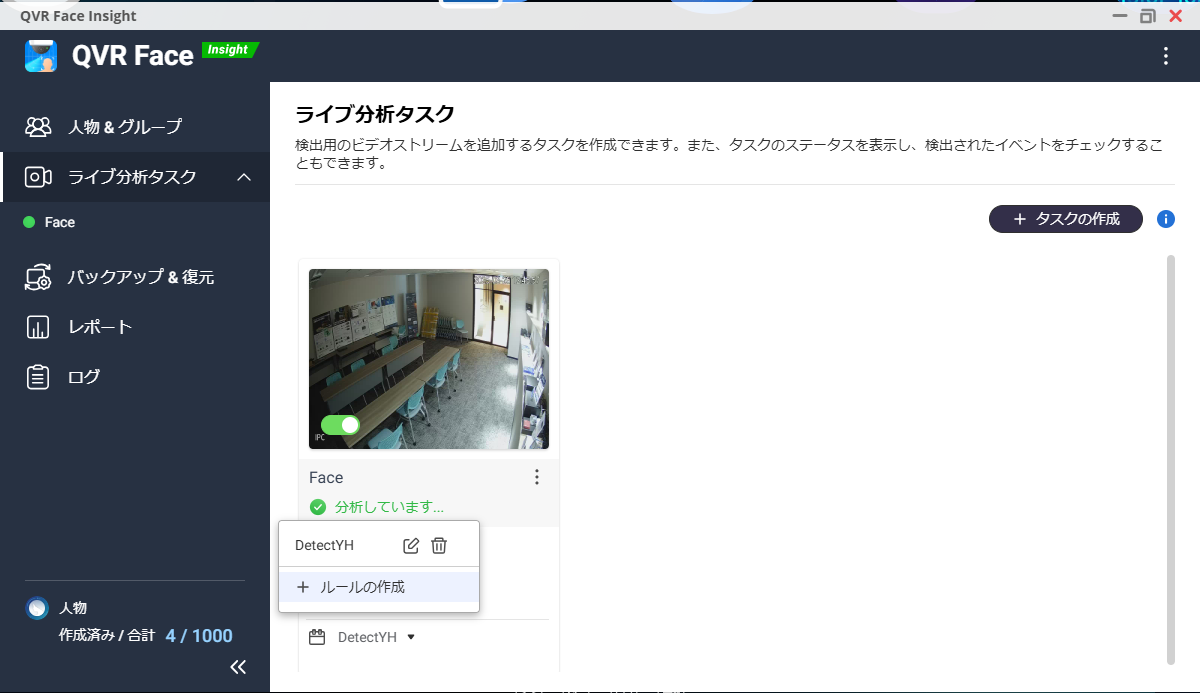
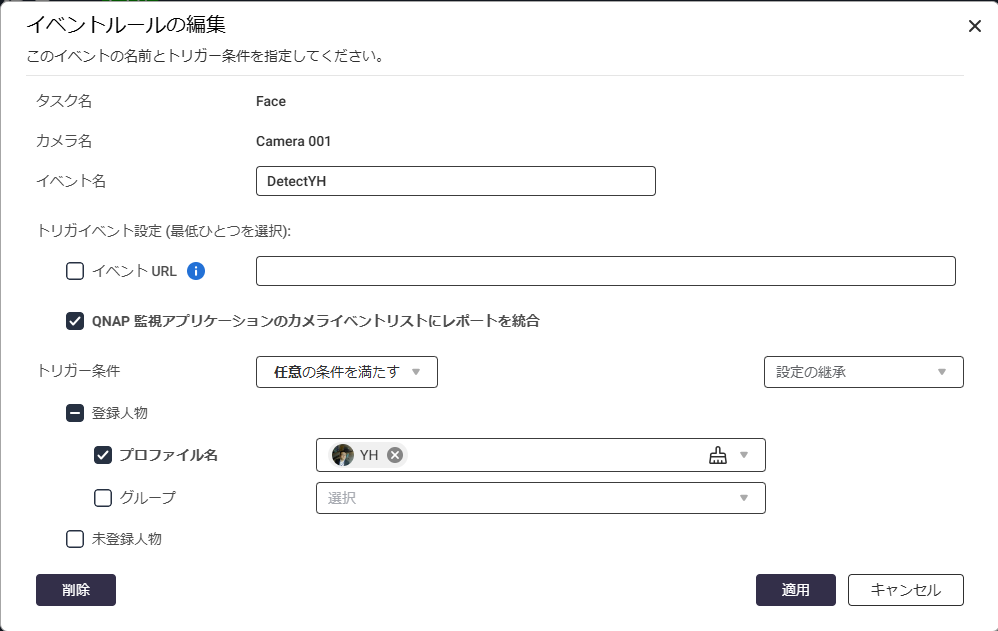
On the event rule creation screen, set the event name and event conditions.
For “Trigger Event Settings,” check “Integrate report into the camera event list of QNAP surveillance application.”
If you want the action to trigger when “any” of multiple people are detected, set “Meet any condition” and set the profile name to the target person’s profile.
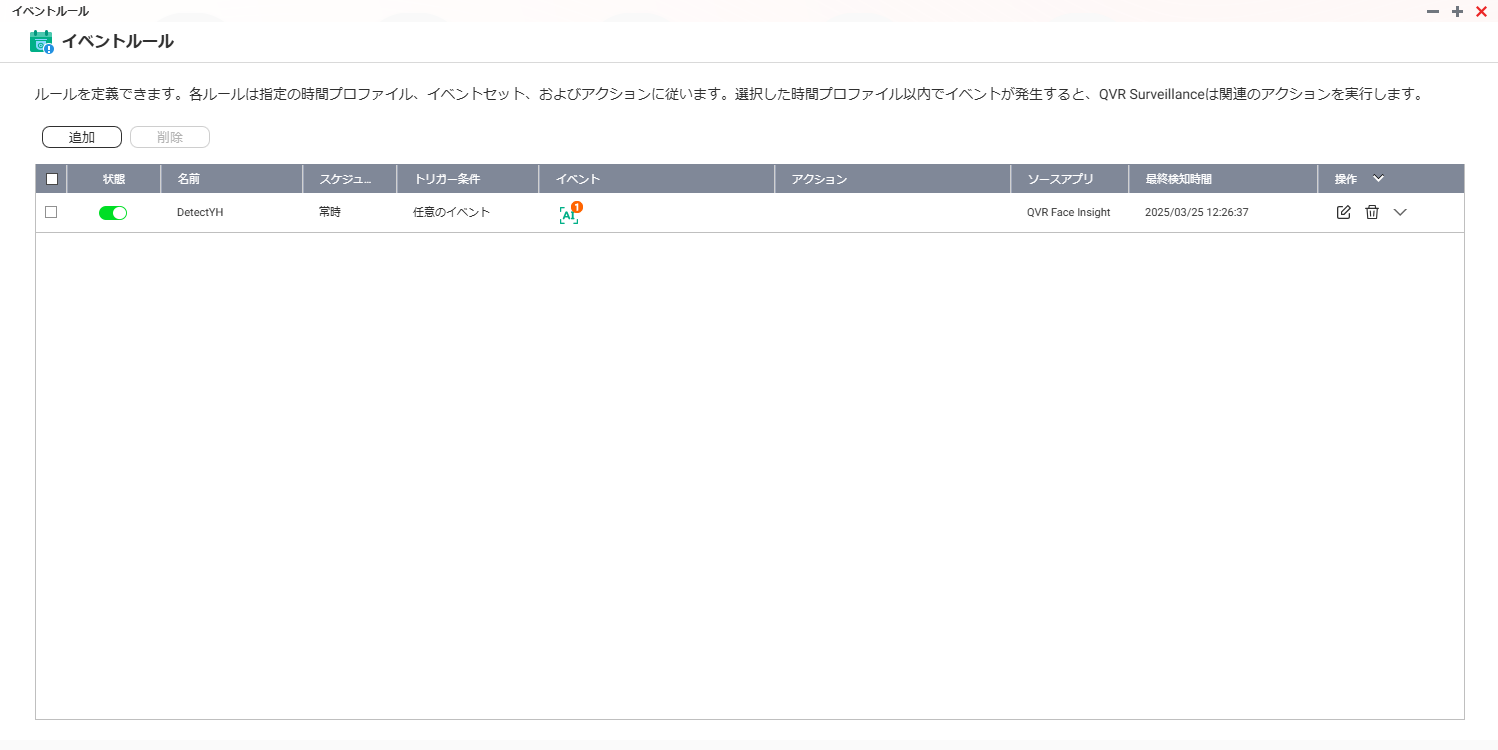
Once applied, the event will be added to the “Event Rules” in the QVR Pro settings screen, where you can set actions for the event.
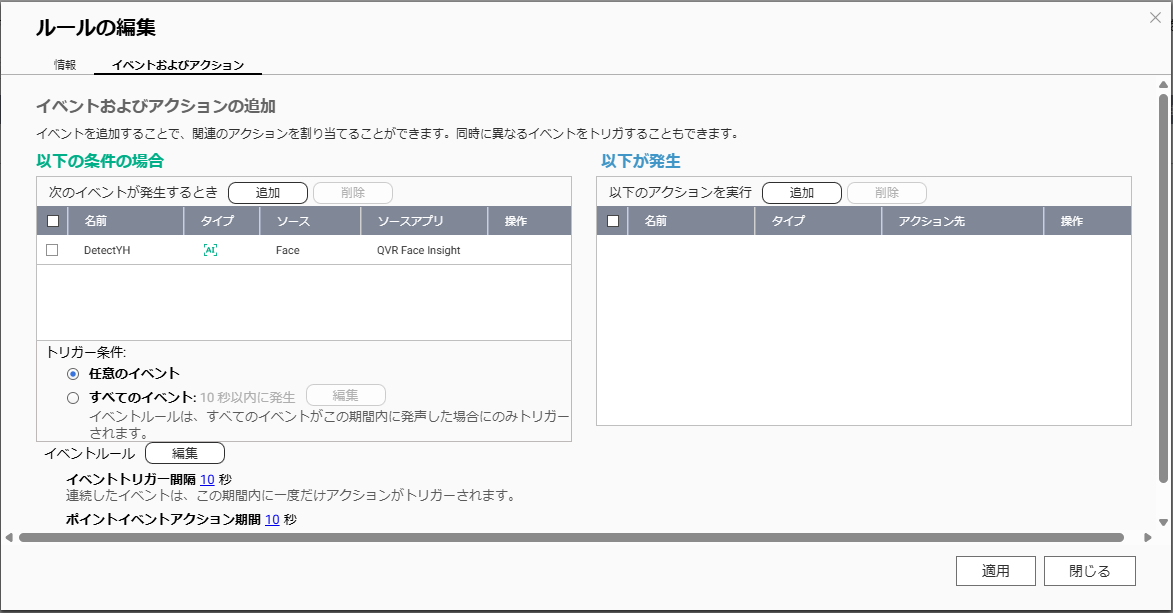
In [Edit Rule] under [Event and Action], click the [Add] button next to “Execute the following action.”
Select [Action URL] for [Type],
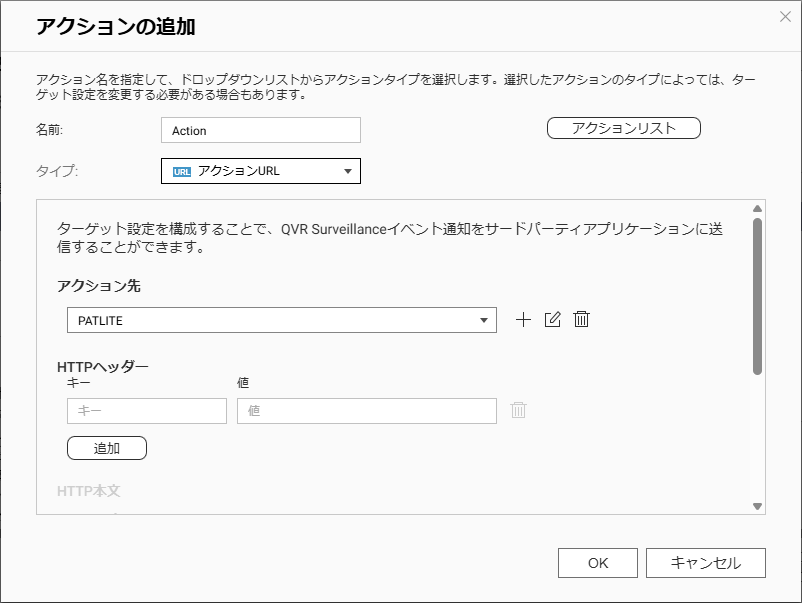
QVR Pro Action URL Settings Screen
Set it using PATLITE’s URL as follows.
Here, the setting value is “http://10.27.64.99/api/control?alert=222000&restore=10”.
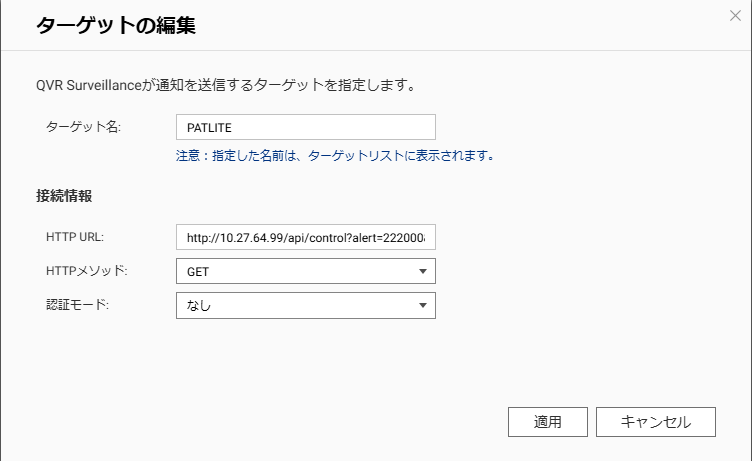
Click Apply to complete the “Event” - “Action” workflow.
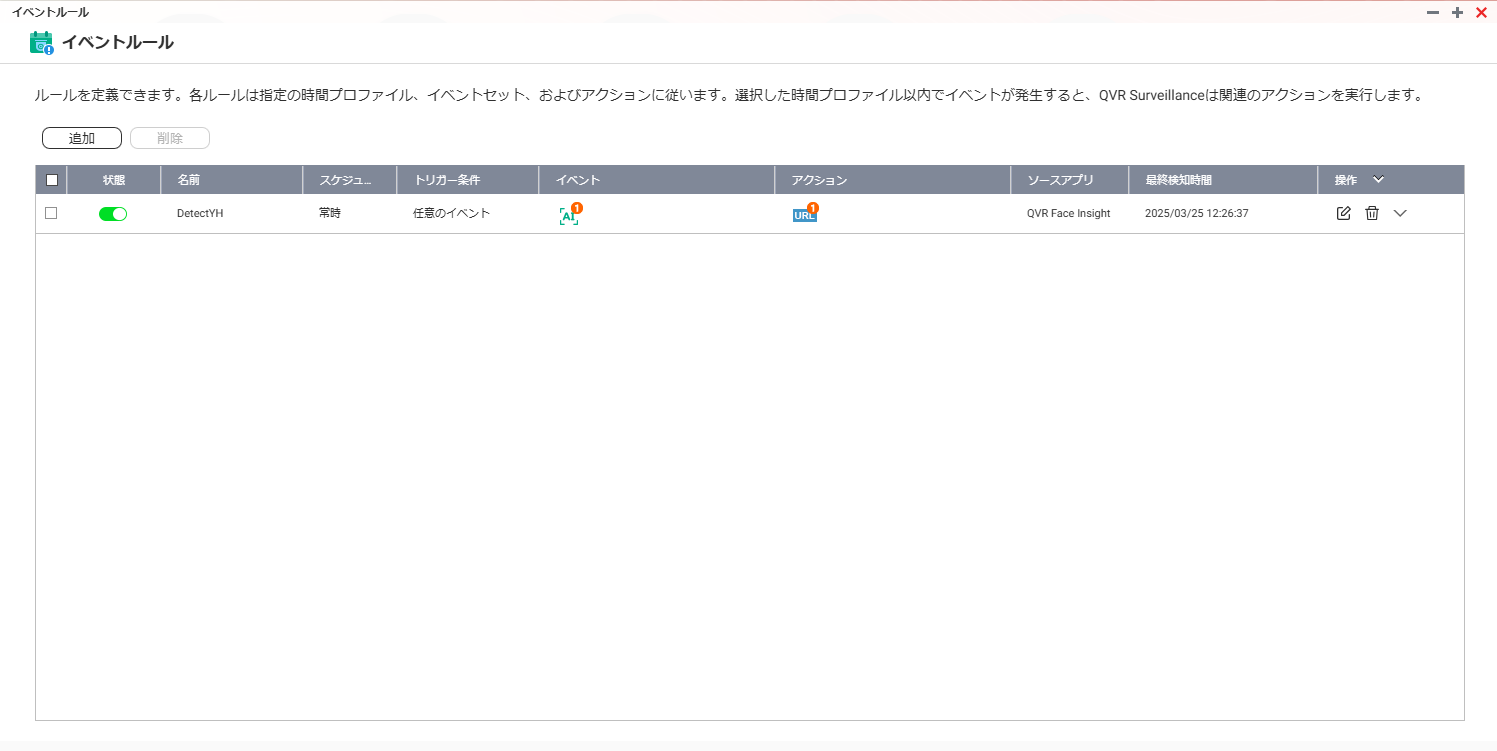
Now, let’s check the operation.
Operation Check on YouTube
Simply detecting a person does not trigger an action to PATLITE; only when the person is recognized and matched, notification is sent using PATLITE.
This time, we set up action output to PATLITE, but you can also choose email notification or push notification to QVR Pro Client, depending on your usage needs.
Summary
This time, we built a flow of “face recognition → action notification to PATLITE” using QVR Pro (actually TVR-AI200).
- Event detection was set to person recognition this time, but you can also use license plate recognition or high temperature warnings as triggers. (Note: The camera may need to support event detection functions.)
- Instructions to PATLITE can actually be set as email notifications or push notifications to QVR Pro client.
- Both event notification and event reception can be done via URL, so you can combine it with anything that can send or receive via URL.
These are the main points summarized for this time.
Equipment Used This Time
The equipment used this time was PATLITE’s NHV4-3DP-RYG. It can be operated via URL, making integration easy.
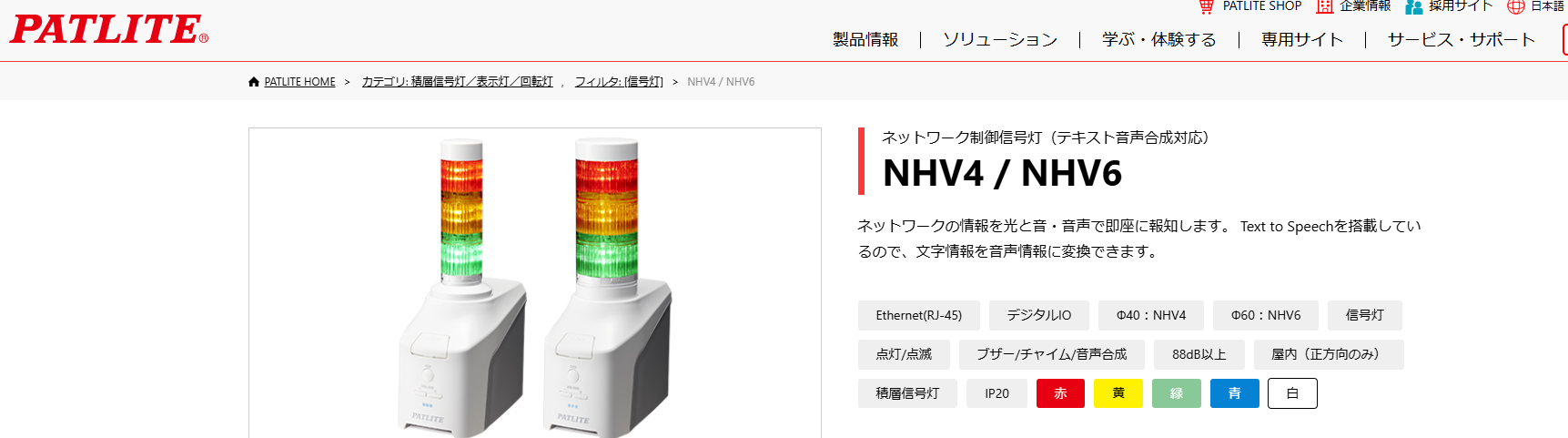
Thank you, PATLITE.
If you have any products you’re wondering whether they can be linked with our QVR Pro / TVR-AI200, please feel free to contact us. We’ll check the operation at @Harinezumi.