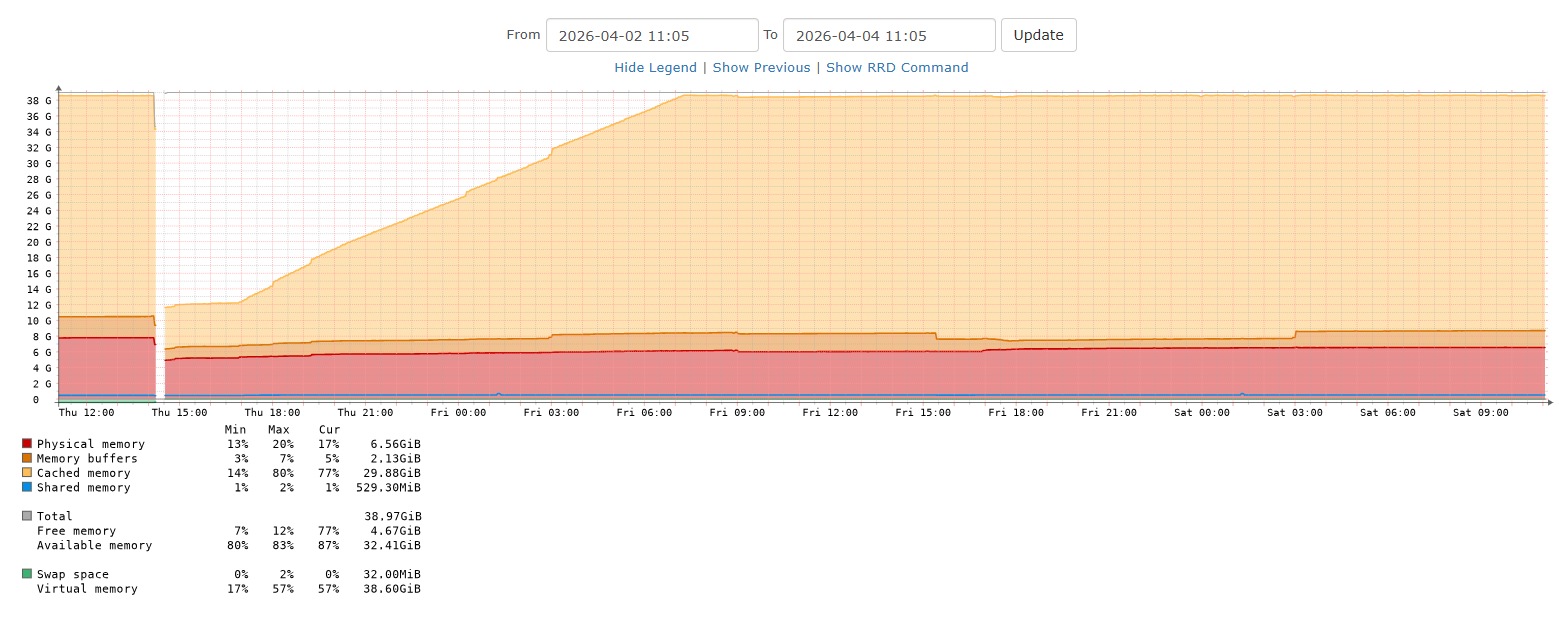
Since a recent firmware update I have been running into RAM issues, where it will end up consuming 100% ram and start putting normal processes RAM usage into Swap.
Requireing a reboot of the system to fix the issue, after which it returns to “normal” use.
Details:
Firmware: QTS 5.2.9.3410
NAS: TS-673A
RAM: 32GB ECC
Network setup: 1 port, untagged + 2 vlan
Normal RAM usage of processes: between 7 and 16 GB
NAS usage: Containerstation Host → Nextcloud, Plex, Nginx, HomeAssistant, (+/-20 containers)
Testing done:
Deceased running processes to have a stableish 7GB usage
Kept track of RAM usage over time
It seems the buffer keeps increasing over time and not decreasing. Its space is taken off the cache first, followed by normal RAM space taken into Swap.
Does anyone have any insight into what would make the buffer size grow?
Although you included the hardware and firmware details, it would really help if you said what processes you were running and the role that the NAS is serving.
These boxes are so versatile anything could be happening.
Does QBoost release the memory?
Appologies, Ive added it to the orignal post. and for you: “NAS usage: Containerstation Host → Nextcloud, Plex, Nginx, HomeAssistant, (+/-20 containers)”
Previously it also hosted GPU intensive containers, Viseron (NVR), CodeProjectAI, Wyoming-Whisper&Piper. Those I have migrated away as those were the first to suffer from the Swap usage.
QBoost is not in use, as far as I know. As no SSD is present.
(Edit: I have just checked QBoost was not installed, i’ll have a look what I can configure through there)
I would open a ticket. You may have some zombie processes running that aren’t properly closed and taking up RAM. I’ve seen this happen with CPU time before. I’ve also had things like Hybrid Mount start taking up massive RAM.
Here is my suggestion for what you could try even before opening a ticket. I would install HTOP in your SSH shell. This is a richer version of the TOP utility and with it you can do things like sort which processes are taking up large amounts of memory.
Identify the processes or apps. Then in App Center, stop the processes. Do this for every one of these. Once all the processes are stopped, reboot the NAS. The restart each app. After this, monitor your RAM usage and see if it is better behaved. If not then open a ticket.
I make this suggestion because just rebooting will simply restart all the runaway processes that were taking up resources. Rebooting alone doesn’t reset them. You need to stop them first and then reboot.
One thing QNAP warns you about doing before updating firmware is to reboot the NAS if it has been running a long time. I would take that to heart. I used to ignore that message and just update the firmware. Well, I had Hybrid Backup Sync start to gobble up CPU time like crazy. Everything looked OK and after rebooting it was fine for a while and then started to go awry. Working with QNAP, I discovered this trick of stopping an app and then rebooting. Fixed the problem. All this happened after a firmware update.
So now I reboot before updating the firmware. Makes the whole process take longer, but it seems to prevent weird things from happening.
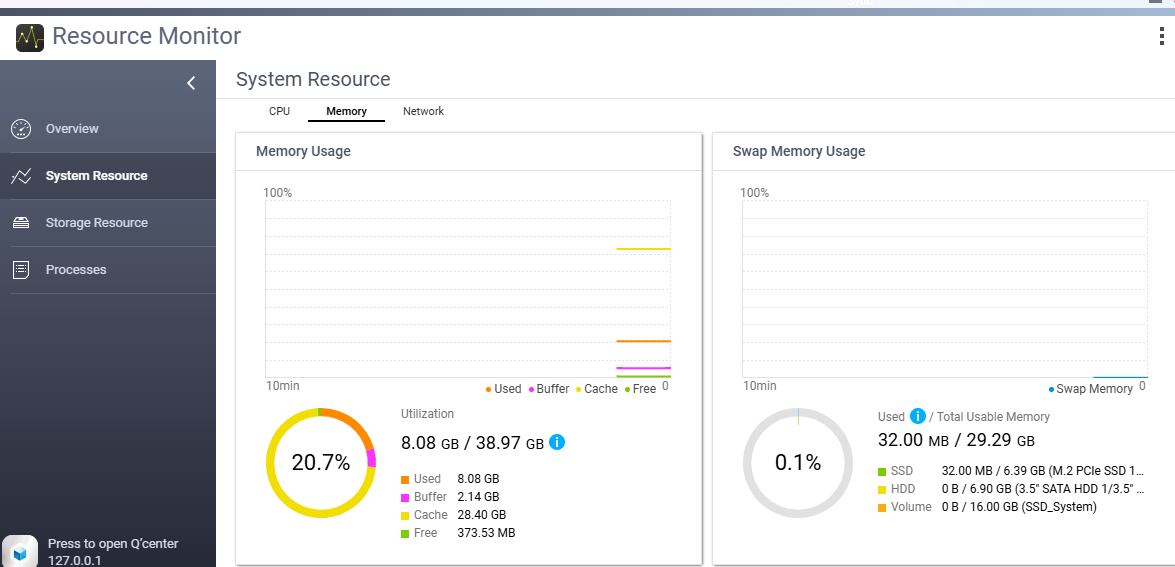
The behavior seems to have become more stable with QBoost installed, buffer is reduced and taken over by cache now.
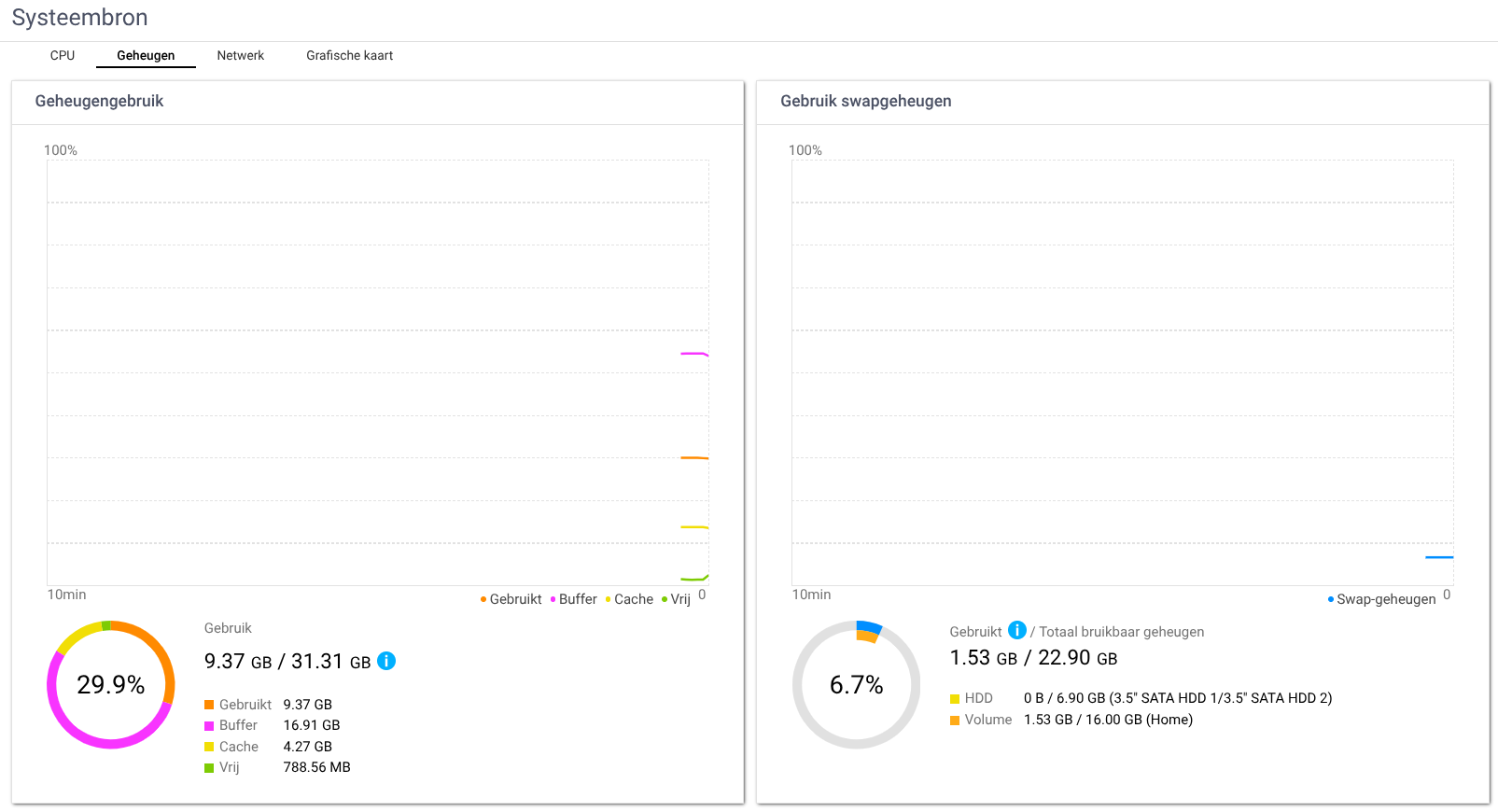
But not before swap usage is growing slightly. Swap seems to almost never decrease, it went rhough the following:
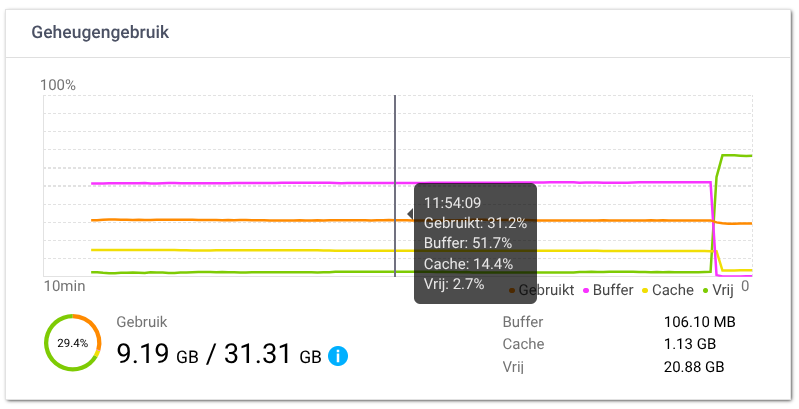
As you can see the buffer is still big, and I think I now understand what causes it to grow: USB Disk usage.
Since a FW update I was unable to reach the remote QNap for HBS, as a temporary measure I attached a USB drive to backup to.
This was a few days before this systems firmware update (never update without a proper backup).
The NVR software worsened this, as it was also using its own external SSD (conserving the internal HDDs with read/write actions). Since moving the NVR the system only hung once, today, but for a very short time. Swap usage was at that time about the same as in the visual, however the UI would not load to display the Cache/Buffer balance.
Would there be a command line command to display the balance between these two? Then I can login through SSH to check the balance between the two, as I suspect the buffer taking all space from applications and cache might cause issues like that.
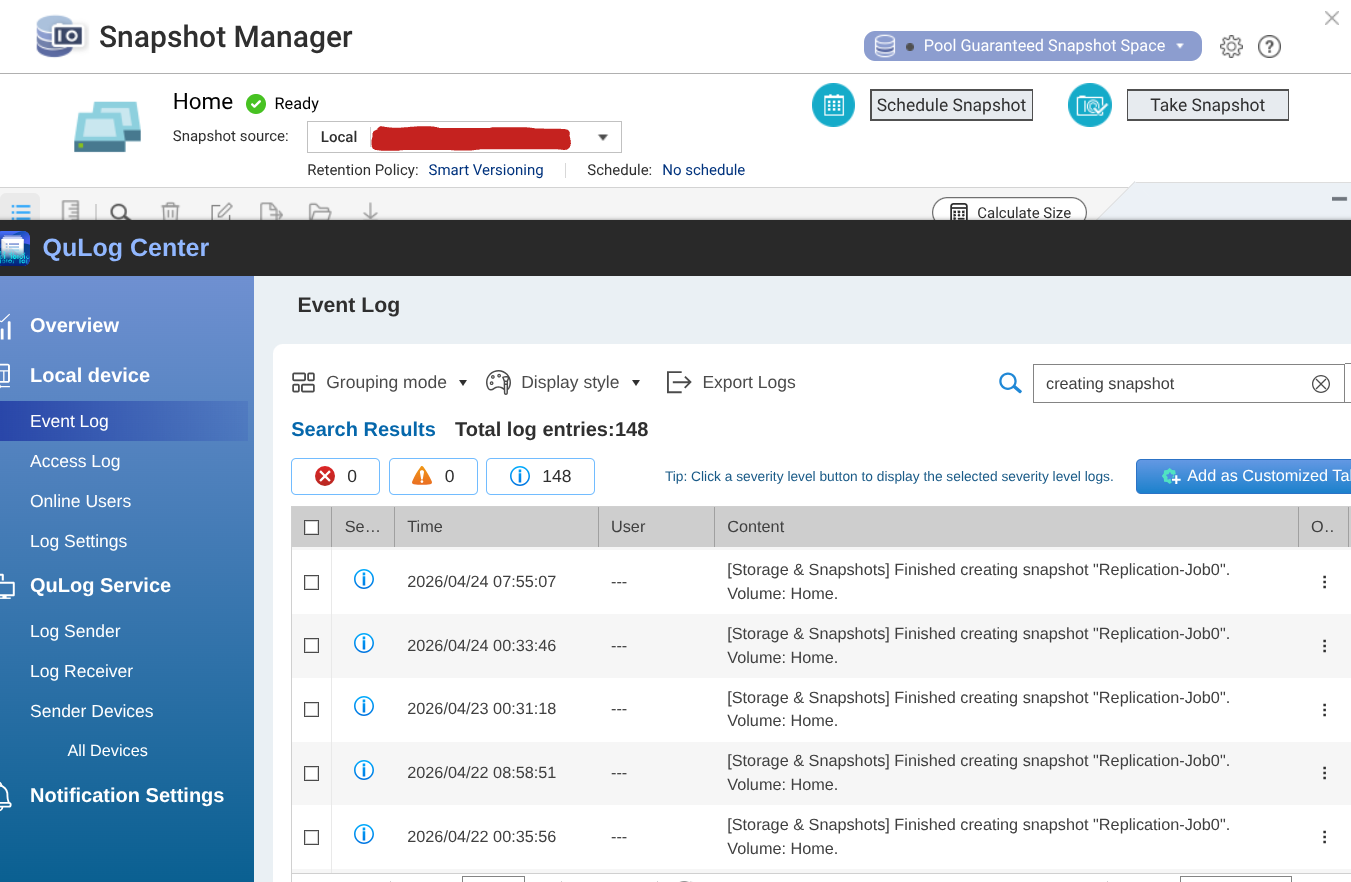
The issue was found, in the end it was a combination of HBS creating a snapshot (not entirely on disk), the indexing of folder sizes and the fact QBoost was not installed.
Disabeling the snapshots where needed, and definitely disabling the folder size indexing made all the difference.