I tried to replace a disk in my TS-231P3 with a bigger one. I followed the steps here ( QNAP – Expand Volume With Larger Drives | PenguinPunk.net ), meaning: I tried to replace the disks one by one. After changing disk one my NAS didn’t recognize the new disk, I waited for 12 hours, but nothing changed. So I restarted my NAS. Now the new disk is recognized by the NAS and I started to rebuild the volume.
Is this the correct way to enlarge a volume? Why isn’t it possible to replace the disks without restart, as suggested in many todos … ?
As it already being recognized and starts to rebuild, it shall be fine.
If you are curious on why it is not auto rebuilding (I personally do) you can open a ticket for remote diagnostics. There should be logs remain in the system.
in fact I need still some assistance … story short: disk 1 resynced (as described above, I had to restart to do it), disk 2 changed as recommended with “replace disks one by one”, this time the resync started automatically, but the webinterface (QTS) crashed and was off, ssh still worked. I waited for the resync to complete (red LED on the NAS stopped) and had to restart the NAS. Resync was succesful .. o.k. quite rough, but successful
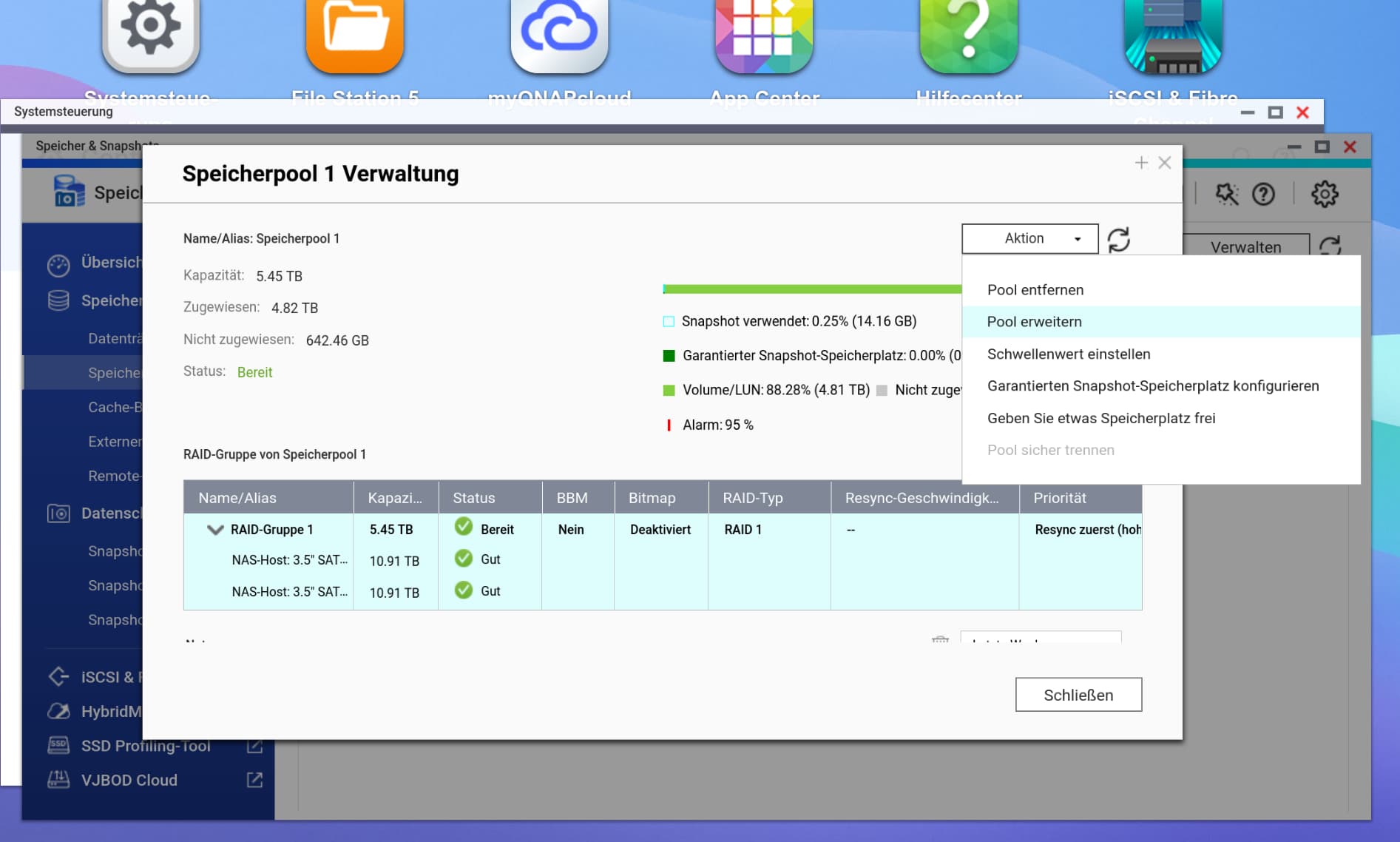
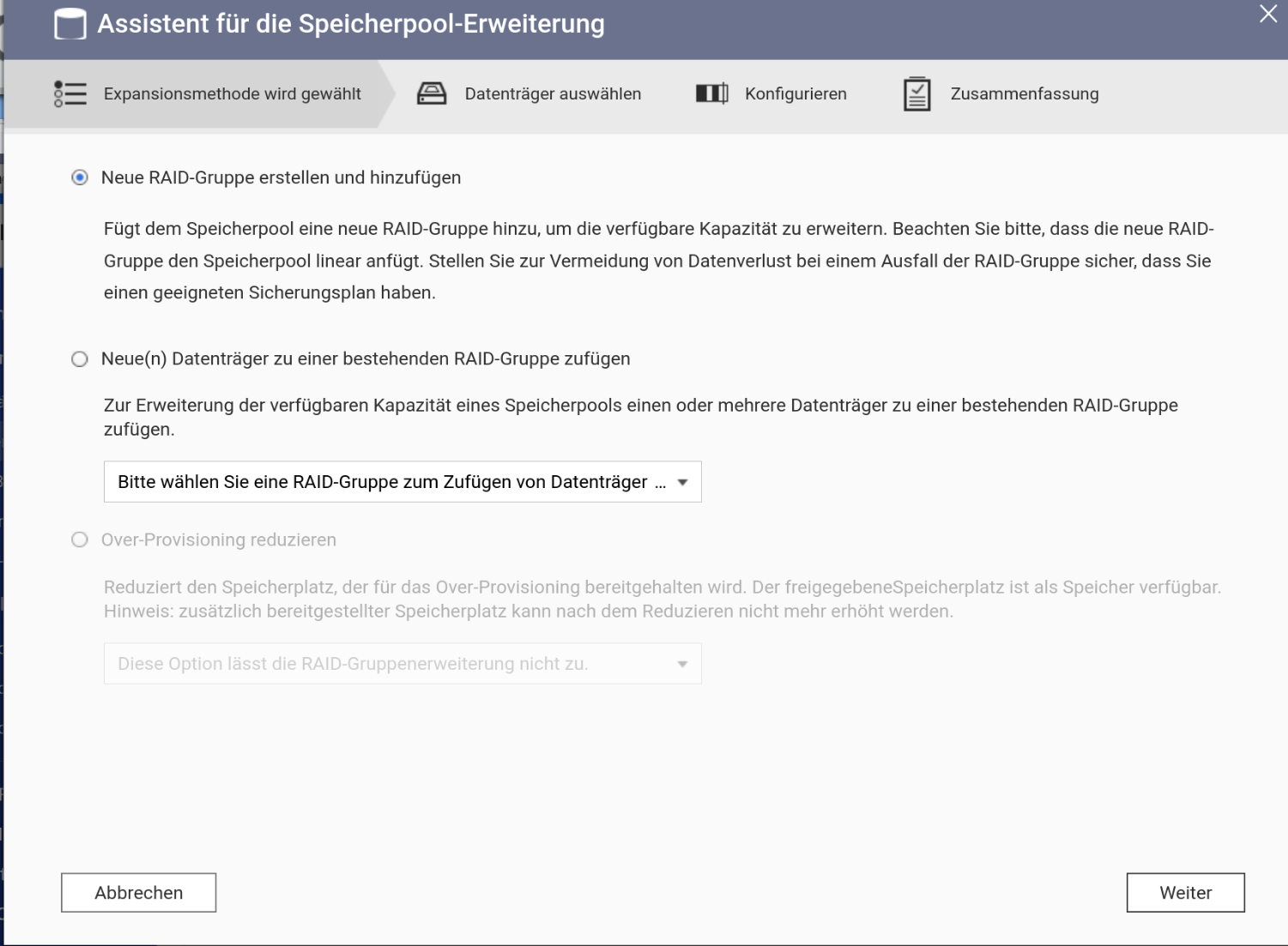
As last step I tried to expand the storage-pool of my thick volume, but this is not possible - there is no option in the pop-up dialog ( for this . Disks are o.k., resync ist complete, no errors visible …
After discussing this with the internal team, please open a support ticket for us. Our Support Team will step in to further investigate and resolve the issue. Thanks!


 . Disks are o.k., resync ist complete, no errors visible …