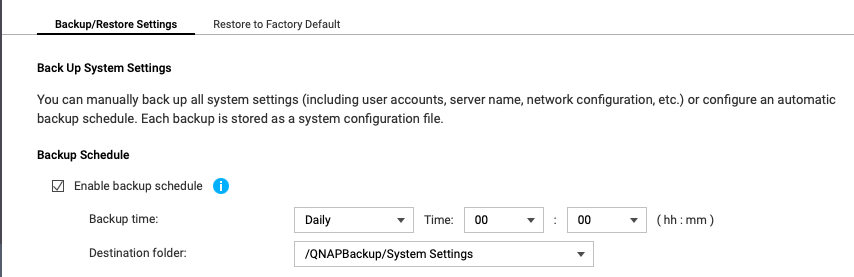
I want to enable scheduled Settings backup but can’t see a way to nominate a default folder on my computer for the .bin files. this now on a TS-664 (running QTS v 5.2.7.3297) but had the same question on previous hardware and OS.haven’t found a tutorial for this so any pointers much appreciated.
Hi. 
The automated backups can only be saved to filesystems mounted on your NAS.
Typically, you’d save your settings to one of your shared NAS folders.
Transferring these backups to an external device like a PC is outside the scope of QTS, but could be achieved with some backup software on your client device that allows pulling from a remote location.
Thanks for your reply. I was afraid of that! The obvious drawback is that a situation requiring restoring the settings would (in my experience) likely mean sign in issues, so rendering a backup on the NAS unavailable. If I do a manual backup and select “download to computer” it sends the bin file to the Download folder on my networked win10 PC - not the end of the world, but I had hoped that the Scheduled option would be a bit smarter. I don’t even see any way to choose a local folder destination - Do you know where it will save them by default?
Mine shows the NAS shares in the folder picker. But, no - I don’t know where the scheduled backups are saved by-default. I guess you’d need to pick a location before it starts saving the settings.
BTW: every Wednesday at 3:04am, QTS creates an automatic backup of all your settings and stores these internally in a hidden directory. It saves a copy of the actual config files used by QTS. Is this any use to you?
So understand that the “backup” of the NAS settings is actually pretty minimal. It’s really some things in how you have QTS configured. That’s it. If you have a situation where you need to rebuild your NAS, you don’t need the settings file right away. Start the rebuild and after you get things going, then you can grab the settings file off the storage pool and restore it.
Just be aware that there is a LOT that is not saved in settings.
- Container Station Containers
- Virtualization Station VMs
- NoteStation notes
- Download Station Downloads/tasks
- And more…
thanks for the info. My use case is pretty basic and always thought that that settings like users, permissions, security settings etc would likely be the most important. like many, I assumed that Backup is more comprehensive than it turns out. Will pay more attention to the manuals in future. Breaking news: I just saw the details of update 5.2.8.3359 build 20251225 official which does appear to include some changes to backup and restore, including options to choose a location of the saved files. I’ll look into it a bit more closely now.
“The automated backups can only be saved to filesystems mounted on your NAS.”
Important to correct the record here - the above is not true. I have a TVS-672XT and a TS-670 and I use HBS3 to schedule a stack of different backups [I have in excess of 60 configured HBS3 backup jobs] and on the destination NAS I can specify which folder I want each HBS3 backup to write to. In fact, the reason I have so many discrete jobs is because I have Data01, Data02, Data03, Data29, Data30, Data31… for each of the 31 days of a month - and then I use the HBS3 schedule to run the specific job on a specific day - so that even though I only have the 2 NAS configured in this backup arrangement, I can get 31 generations of backup….
To give a more helpful answer… in HBS3 backup, there are a range of different options that you can choose from when you select that you want to write your data to a remote computer. From the HBS3 main screen, when I go to “Create a Sync Job” and select 1-Way sync [for a backup], I’m given a choice of:-
Local NAS
Remote NAS
Remote Rsync Server
Remote FTP Server
Remote CIFS/SMB Server
… and then a bunch of cloud options.
My suggestion - if you’ve not already looked - would be to see what services or options can be supported by your destination host [where you want your backup data to be copied]. It should be pretty easy for you, for example, to find a piece of software that enables it to run an ftp server services - available for Linux, Windows, Mac, etc. You can then use a Sync job - which you can run on a timer - to give you everything you need.
And as I covered earlier, if you have the disk space available on your destination host, you can even write multiple clones of the same basic job, set them to run on a schedule to create a multi-generational cycle - and now you not only have backups, you have the ability to go “back in time” across as many days/cycles as you have the capacity to support.
If you decide to go this route, I strongly recommend that you break down your backup activity in to discrete jobs with discrete cycles. For example… I have a “Data” Backup set, which includes e.g. office documents that get edited all the time, with a 31-generation cycle [maximum supported by QTS]. However, I also have a “Music” Backup set, which covers the digital copies of Audio CDs I buy and import. Because the data in an Audio CD never changes, I don’t need more than 1 generational copy - I just need to keep my backup synchronised with my primary copy. By dividing your content up along the lines of “how many generations do I need” you can reduce the amount of disk space you need at your destination, by not having many generations of everything.
Hope that helps.
I think you misunderstood the original post.
You can schedule backups of NAS data to anything going anywhere.
For a scheduled backup of the NAS settings, you can only save those to the NAS. The NAS settings is completely different than backing up NAS data. Backing up NAS settings is done from the Control Panel:
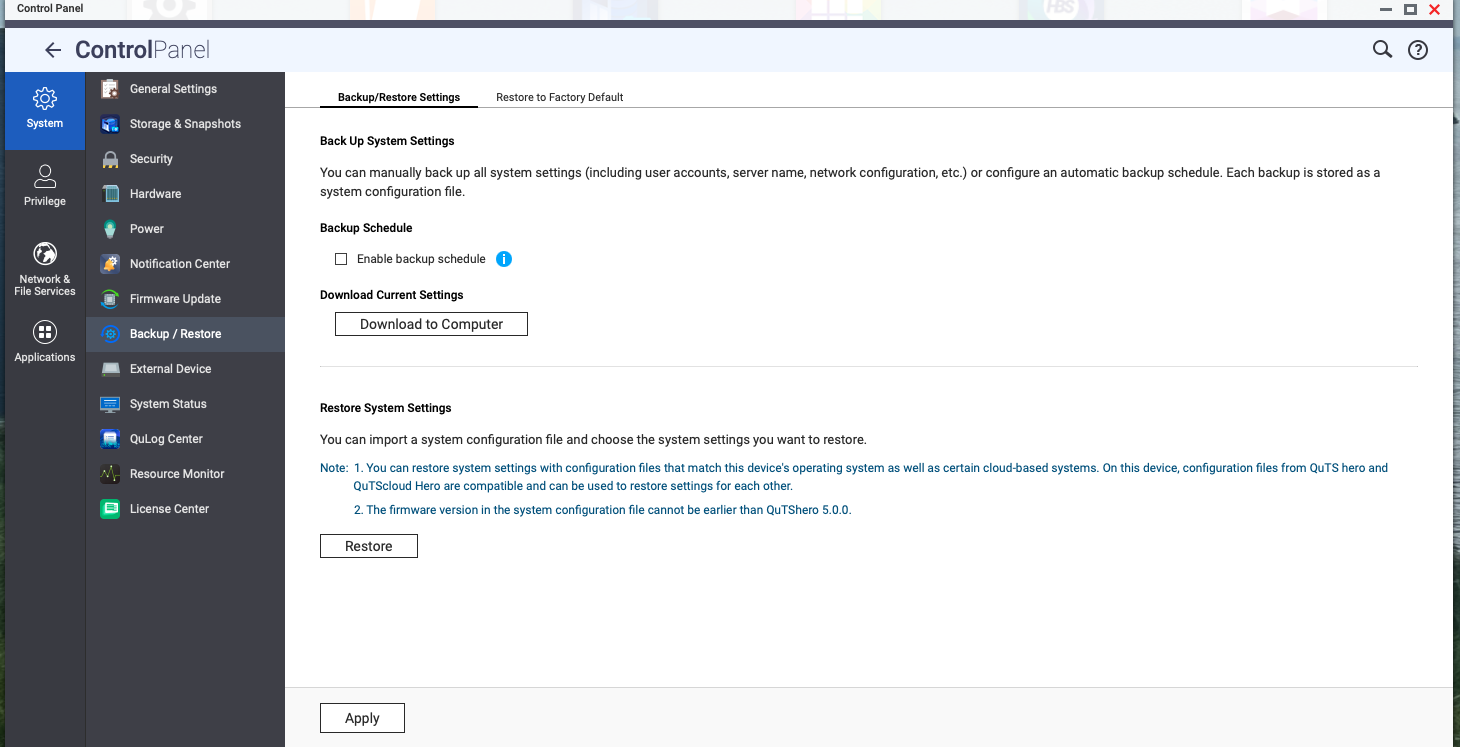
Now you can backup the NAS settings to the NAS and then use HBS to send it elsewhere. That could work.
Personally, I just save the configuration for my various devices any time I make a change. I archive that along with the firmware version that I am running. I do this for all my NAS devices, Routers and anything else with a saveable configuration and/or firmware. These go to the cloud for backup so I can access them at any future time if something goes wrong with the device in question.
I appreciate your willingness to correct the record, but your “correction” is incorrect. 
This topic is about backing-up NAS settings. This is not the same as running a userdata backup.