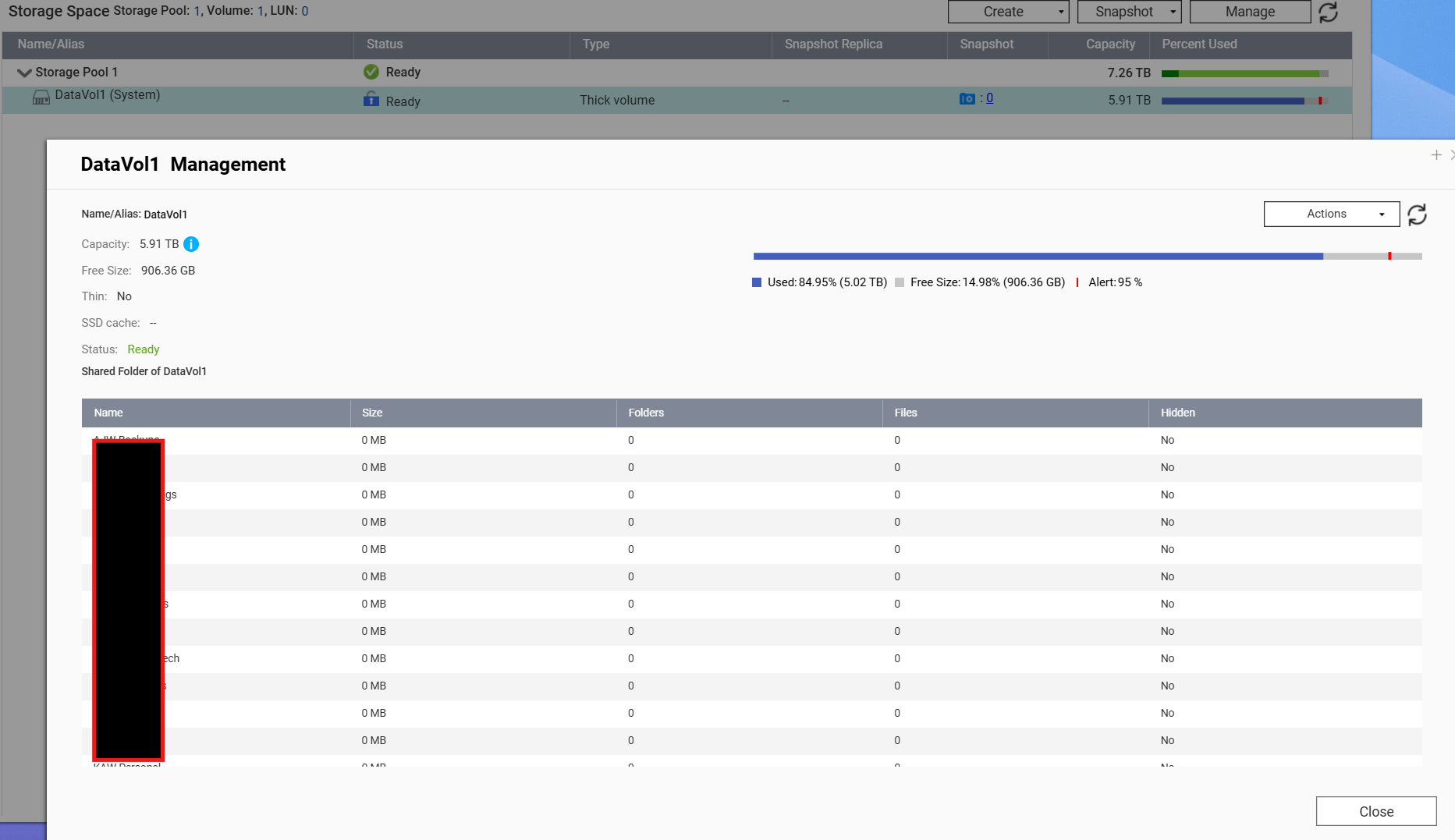
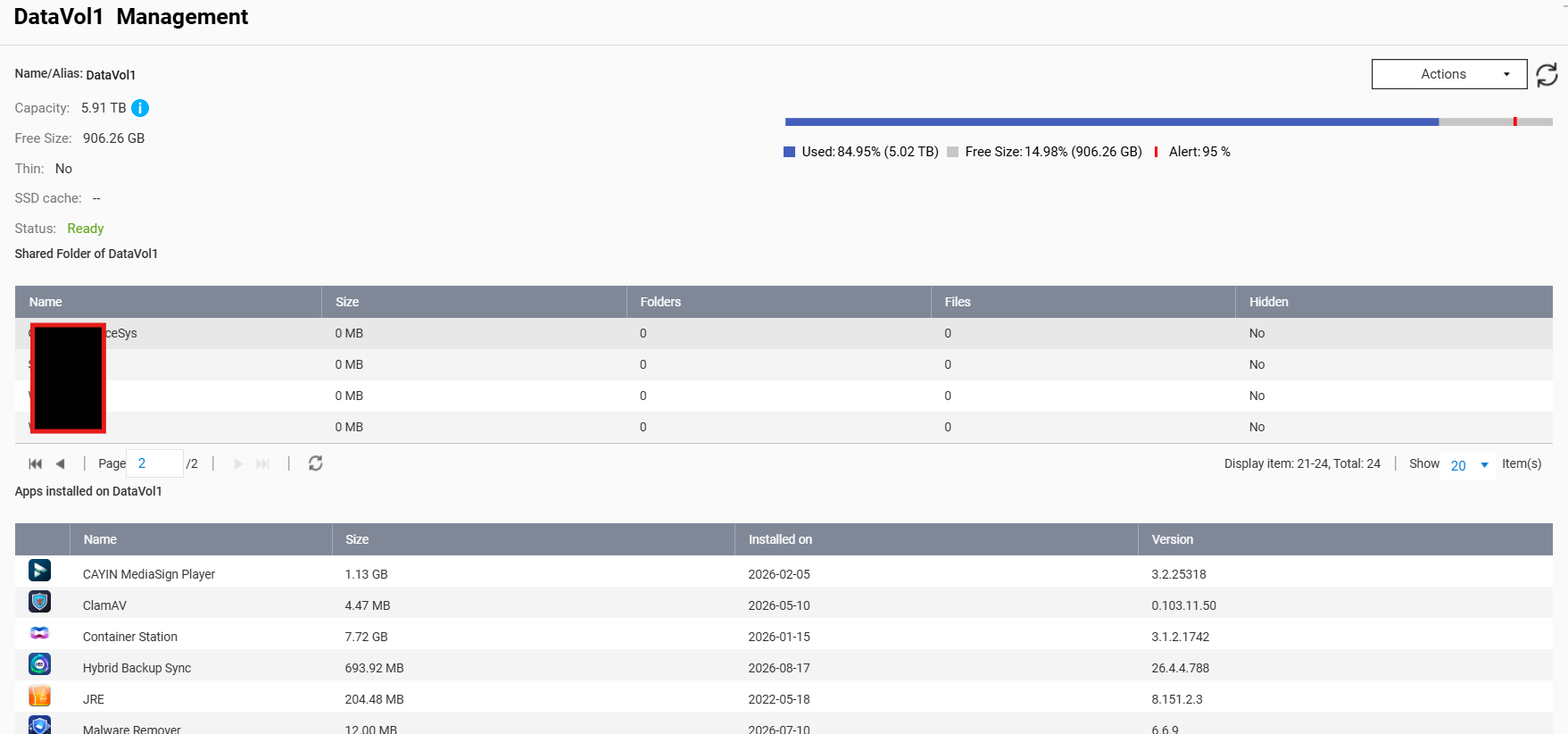
Since upgrading my “TS-453 Pro” to Firmware version “QTS 5.2.10.3577” yesterday, now, when I initially go to “Storage and Snapshots” → “Storage/Snapshots” → “Volume 1” → “Manage”, the list of Shared Folders shows no data - for each folder, the Size shows as 0 MB, and Folder and File counts show as “0”, for each of my (approx.) 25 shared folders.
If I go to “Page 2”, then the last few Shared Folders do initially show data, but then immediately update to zeros; and when I go back to Page 1, the majority of the 20 Shared Folders show data - then immediately each line refreshes, in sequence, resetting back to 0, 0, 0.
Tried an incognito browser, same result, so doesn’t look like a browser cache issue.
After a few Internet searches, went through a few things - logged off/on; rebooted NAS; ran a “Check File System”, but to no avail so far.
Also - since the firmware upgrade, keep getting an Alert stating “Message: [QVPN Service] Failed to add “OpenVPN” to the QuFirewall allow rule.”. Haven’t managed to get to the bottom of that one ether yet…
Does anyone have any ideas why/suggestions to resolve, the Shared Folder data issue?
Thanks,
Best to post some screenshots of your storage management
Page 2:
Before the Firmware upgrade, I’d used this screen extensively - every time I backed up selected Shared Folders to an External Drive, using the information to ensure that the total size of all the Selected Folders for backup didn’t exceed the External Drive capacity. Never had an issue until after this Firmware upgrade…
(NAS is using RAID10 btw)
At least you have backups then, so if the NAS data is a goner, you are safe.
What happens when you navigate to the data itself via SSH ?
If you use WinSCP, you can do it pretty easy via GUI
data should be under
/share/CACHEDEV1_DATA/* (Unless the file system was ported over from an old CAT1 device)
Apologies, I should have maybe been clearer: the data itself (the actual files and folders) are, to the best of my knowledge, still intact; and are accessible both from File Station, and via SMB from my Windows PC (the 2 ways I access files on the NAS). And other things are also working OK - Plex Server is still serving/streaming media out to a Plex Client, etc. And using SSH, I can navigate to each Share under /share/CACHEDEV1_DATA/, and everything appears to be there… At this time, I have no concerns (maybe foolishly!) about the integrity of the actual stored data (files)… (so hopefully the NAS is not a goner, and this is just a s/w glitch).
It’s only the meta-data (if that’s a correct description - the number of Folders, number of File, and the space used by the Share) that’s not being shown in the management interface when ‘managing’ the volume named “DataVol1”…
So the only issue is the display of the share usage then ?
I think this is rebuild at 2AM via a cron job, maybe the cronjob has an issue or the data got corrupted.
Could be a good idea to open a ticket (in case it’s a bug)
Could you go to Control Panel → Shared Folders and let us know what information is shown there? We’d also recommend opening a support ticket so our Support Team can assist you. Thanks!
Hi,
Due to the advice from the previous reply, I have in fact already opened a Support Ticket, although I’m having issues enabling Remote Support as has been requested - I’ll have another go at that shortly.
Re: going to Control Panel → Shared Folders - yes, all the information that’s “missing” from the Storage/Snapshots pages, is indeed showing perfectly ok on these pages - so thanks for that, I can now get the information that I wanted… (never revisited the Shared Folders pages after setting them up, so had forgotten that that information was displayed there…). Weird that it’s showing in one place and not the other…
Many thanks,
We’ve confirmed internally that this is a display issue only and does not affect actual functionality, though we apologize for the confusion it caused. We’ll resolve this in the next release. Thanks for the report!
Excellent - thanks for the confirmation - and thanks again for pointing out the alternative way of finding the required information.