well - if I configured this for you, and you paid me for the configuration of your TVS-1282T3 (which must have been a LONG TIME AGO) - you know very well that I would help you FOR FREE, and get your system working - without any charge. But you say that I set this up at 19.19.19.5. I have NEVER EVER EVER EVER configured a system at 19.19.19.xxx for anyone - and I have done about 3000 QNAP systems now. All static IP’s for QNAP 10G network are typically 192.168.2.3 and all the client computers are 192.168.2.xxx.
So it looks like I never setup your system. And since this is OLD (2016 MacBook Pro) - I have no idea of what is going on with your system. As you know, you can’t update a 2016 or 2017 Apple computer to the latest MacOS, and Apple has stopped support of Thunderbolt 2 devices, and for modern operating systems (of which Big Sur is not) - many companies like Promise (for products like the SanLink2) - you can’t even get drivers for this anymore from Promise.
So if you are getting poor write speeds on your QNAP, but your READ speeds are good -
how full are your drives - are they over 90% full - check in Storage & Snapshots
have you enabled Disk Caching ? With SSDs (because the TVS-1282T3 ran QTS) - because disk caching with SSD’s will SLOW DOWN this QNAP, and will give you the write speeds that you are seeing (“but caching is supposed to make things faster “ !!!”)
And if it’s none of those - and you in fact hired me to do this for you - you can simply CALL ME and I will help you for free to get this working properly - or at least I can diagnose what is going on.
If it is an isolated direct connection only between the 2 systems, the IP used wouldn’t matter. That’s my read on it, but it could be something different. It is a strange subnet to use.
Potentially, yes. There could be a routing statement, or the system could identify the subnet used on the second interface and route it automatically (which should happen) as it knows it’s a local address (if my memory of multiple NICs / multihomed doesn’t fail me).
Also, please be aware that multi-channel SMB is useless unless you are using more than one NIC. You shouldn’t need it with a 10Gbit connection.
Download the AJA System Test Lite app from AJA’s website. Set the target as one of your NAS shared folder. Then run it. You’ll see what your data rates really are and not based on what your OS is telling you.
In Windows you could get away with mapping a route via hosts file, I think (route add publicIP interface), no idea how that would be on MAC. But I would still avoid using public IP ranges for internal use.
As Macs run Unix (yes, a truly real OS - Unix not Linux ), you can use a hosts file.
Still there is little to no need to run a funky and weird IP scheme. Plus, if you want to run 10 Gbit, invest in a switch with a couple 10 GBit ports and put your NAS and Mac on your LAN. Should really be no speed difference between a direct connection and one through a switch.
To me, the only “direct” connection should be if you have a “T” NAS and can run Thunderbolt direct from the Mac to the NAS. It works freaking well - I can attest to that. But it appears completely transparent as QNAP has done a very nice job in their virtual switch software of routing the T-bolt traffic onto the LAN connection.
Why? Nothing wrong with a direct connection. I use the second NIC on my NAS boxes to connect primary and backup systems directly to keep the traffic off the main ethernet lines.
Absolutely no need for the expense of a switch (unless you need more than 2 connections), or another point of failure, or the electric use….
To rule out multiple variables, I have a computer that performs well and maintains a consistent connection of around 800 MB/s write and 1000 MB/s read on the QNAP. It’s a MacBook Pro running macOS Big Sur with a QNAP T310G1T 10GbE adapter.
The same computer was upgraded to Ventura, and immediately the write speed dropped to 400 MB/s while the read speed remained at 1000 MB/s.
I then reinstalled macOS Big Sur, and the original speeds returned right away.
@Bob Hey Bob, yeah, it’s been a while. Actually, I still have the chat log from our conversation when you intervened on my system, since we were using TextEdit to communicate during the TeamViewer session. It’s not important, but I know that back then, no one had been able to solve my problem, but you had. FOR FREE THANK YOU
My storage is at 38% usage.
I don’t have an SSD inside. Only 8x 3.5" NAS hard drives.
I need to emphasize that the connection works perfectly on my Macs that are running BigSur and below. Since I’ve been dealing with this problem since 2022, I thought an Apple update would have fixed this performance issue in the following months. BUT NO! It was only when I went back to those old Macs that I realized the speed hadn’t decreased at all.
nsmb.conf
[default]
signing_required=no
IN THE LAST HOUR
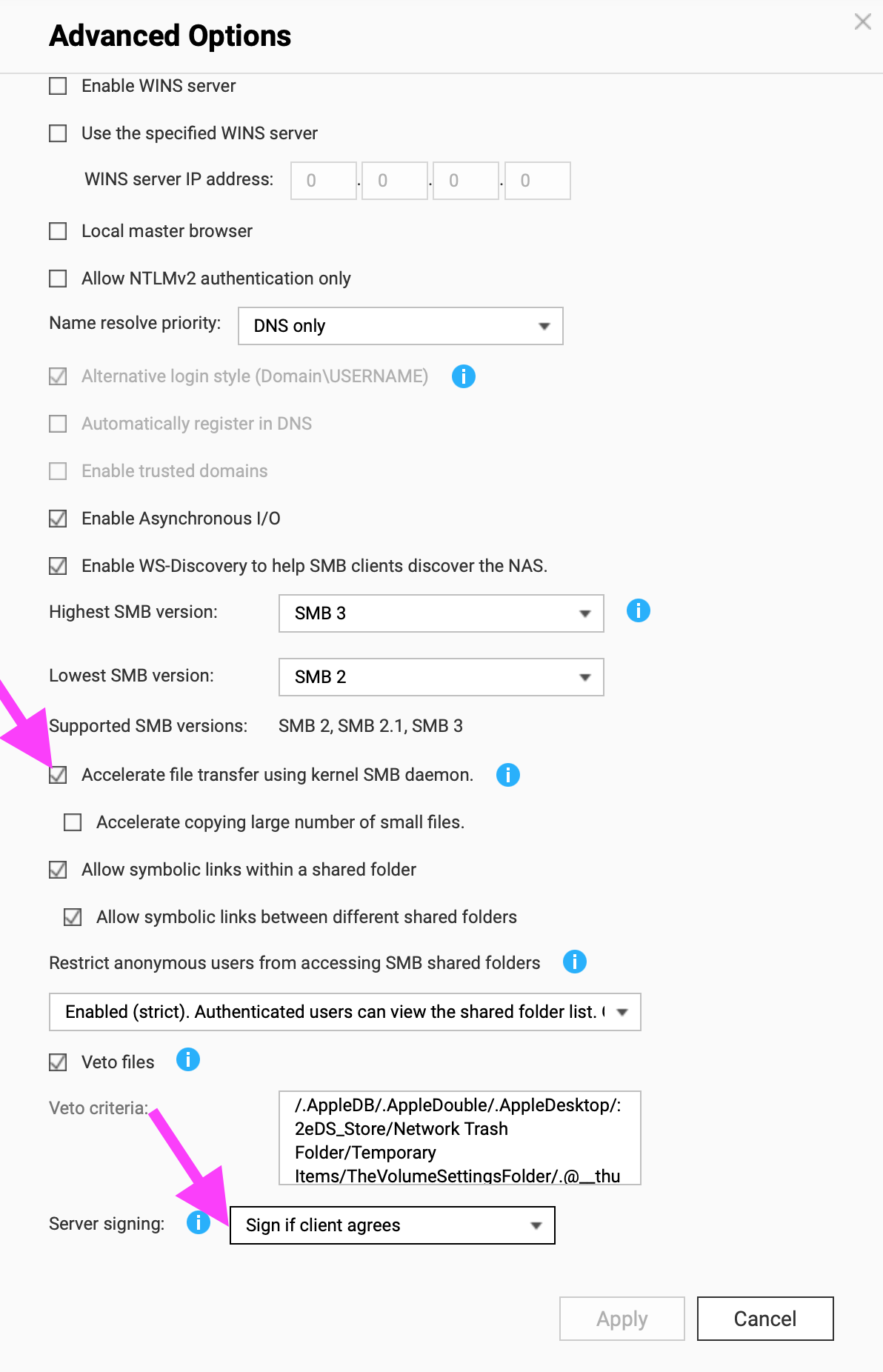
I just checked “Accelerate file transfer using kernel SMB daemon,” which Claude suggested, but I have no idea what it does. I’m an editor, cam op and a producer, NOT a technician.
I changed Server signing according to SMB to: “Sign if client agrees.”
It seems Monterey and later versions handle SMB Signing differently. Thanks Claude but Bob will take the lead from here thanks.
It’s fine if you have a single machine, but it sounded like the OP had more than one machine. Connecting two NAS units together for backup purposes is a fine idea.


 It is a strange subnet to use.
 ), you can use a hosts file.