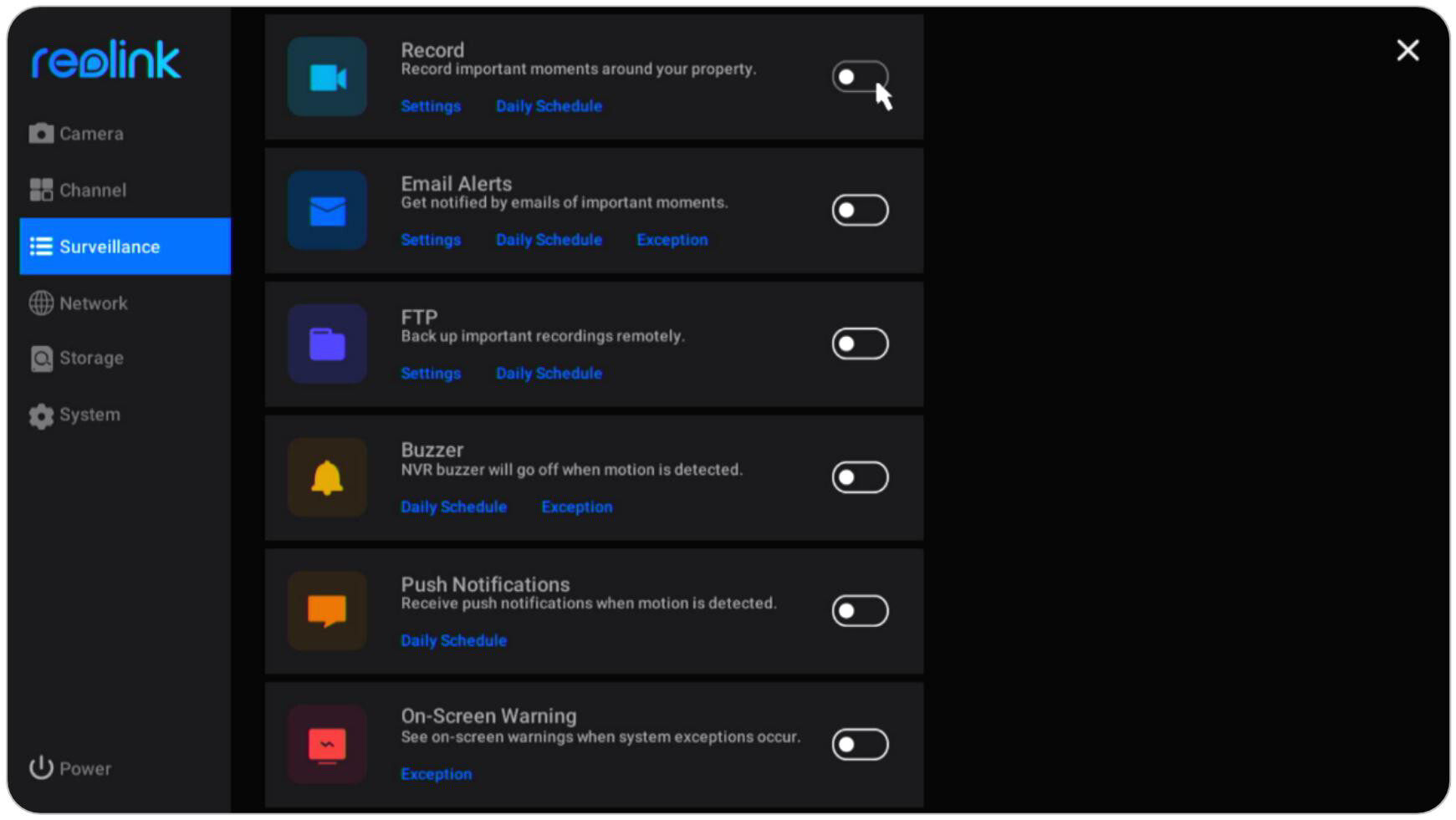
When my security system detects a movement around home it sends recording/image to my PC but I must have PC on 24/7 to do so. My NAS & NVR are all on the same wired network. Folders I need on NAS are:
folders on PC currently
reolink Security
/local recording
/screen recording
/screen shot
/time lapse
How do I setup account/permissions permitting NVR to upload to NAS?
This is likely completely dependant on the functions of your NVR. The most common setup for this I believe would be to setup an FTP server and setup the NVR to upload the files, however, your system may have other options available such as saving to a network share.
Externally, again depending on your NVR, it may be possible to setup a script/app to copy the data from the NVR (if you can access the data that way) and have it mirrored on the NAS.
Depending on your model, you should have the FTP option to send to the NAS. Enable FTP on the NAS.
I don’t know if you have ever used or looked at QVR Pro. It’s actually quite a nice app and is not a “Marketing Checkbox” application.
If you want to use a NAS just for storage, then you need no more than an ARM core in one of the cheap NAS units QNAP makes. That’s fine. But the nicer boxes can do way more than just store files. That’s one of the cool aspects of them.
There is a Youtube video somewhere using 101 cameras on a QNAP NAS at a Chrysler dealership His CPU usage is ~30%. Can your NVR do that. NVR’s that can handle 100 cameras cost way more than a NAS. You might want to explore what a NAS can do before writing it off.
There’s a lot of reasons why eating an orange could be a viable option. What if the banana is too ripe or too green?
It’s entirely possible the OPs NVR doesn’t have much storage. After all, he is wanting to move files off of it and onto the NAS. It could be old and not very good. We don’t know.
But adding the NAS and QVR Pro adds a number of benefits including not having to move storage through some complicated file transfer mechanism. Fewer moving parts basically.
Now maybe the cameras are coax and connected to the NVR - well, then you gotta stay with the NVR. Or maybe it’s a new fancy, high-end NVR in which case, stay with the NVR.
We don’t know. But there is nothing wrong with making the suggestion, yet you have just written it off.
If you mean you want to send the “Download” and “Local Recordings” to the NAS instead of your PC, you don’t need to do anything really special. Simply create a main “Shared” folder (say “Reolink CCTV”) and make sure “Hidden” is not ticked in its properties, and optionally tick Previous windows versions, recycle bin, sync, then add sub-folders for “Temporary”, “Downloads”, “Screenshots”, “Screen Recordings” and “Local Recordings” etc.
Assuming you’re using the Reolink Client on a PC, you should simply be able to browse to the folders in “Client Settings”. (Or even in the NVR)
You can always use Qsync if you want to optionally sync any files to your PC for editing clips etc.
I’ve not done this with my own CCTV as I only seem to need to access it once every blue moon.
Having just checked my own system, I’ve seen that you can only set the “Download” and “Local Recordings” via the Reolink Client. ( App & Client - Reolink )
The NVR interface (available from a monitor / TV plugged into the NVR), phone app, Reolink Client app for PC and web browser interfaces all have different capabilities. Hope this helps.