I’m playing with qsync central. My goal is to have my phone sync to my NAS. Then be able to access the mobile phone sync folder as a share on the NAS. I’d be able to manage photos etc on my phone via a folder on my desktop PC… To download files form the sync’ed folder immediately for use on PC.
For the life of me I cannot get Qsync central to MOVE the sync folder outside of it’s default location. I’m unable to access the folder through the file system on my PC as a result.
Anybody know how to SYNC files via qsync or otherwise to a SHARE folder on the NAS so they can be managed on another device? Software like Google Drive does this beautifully. However, I don’t want to sync to a cloud server, rather I want to sync to my NAS.
Thanks
I do that all the time here.
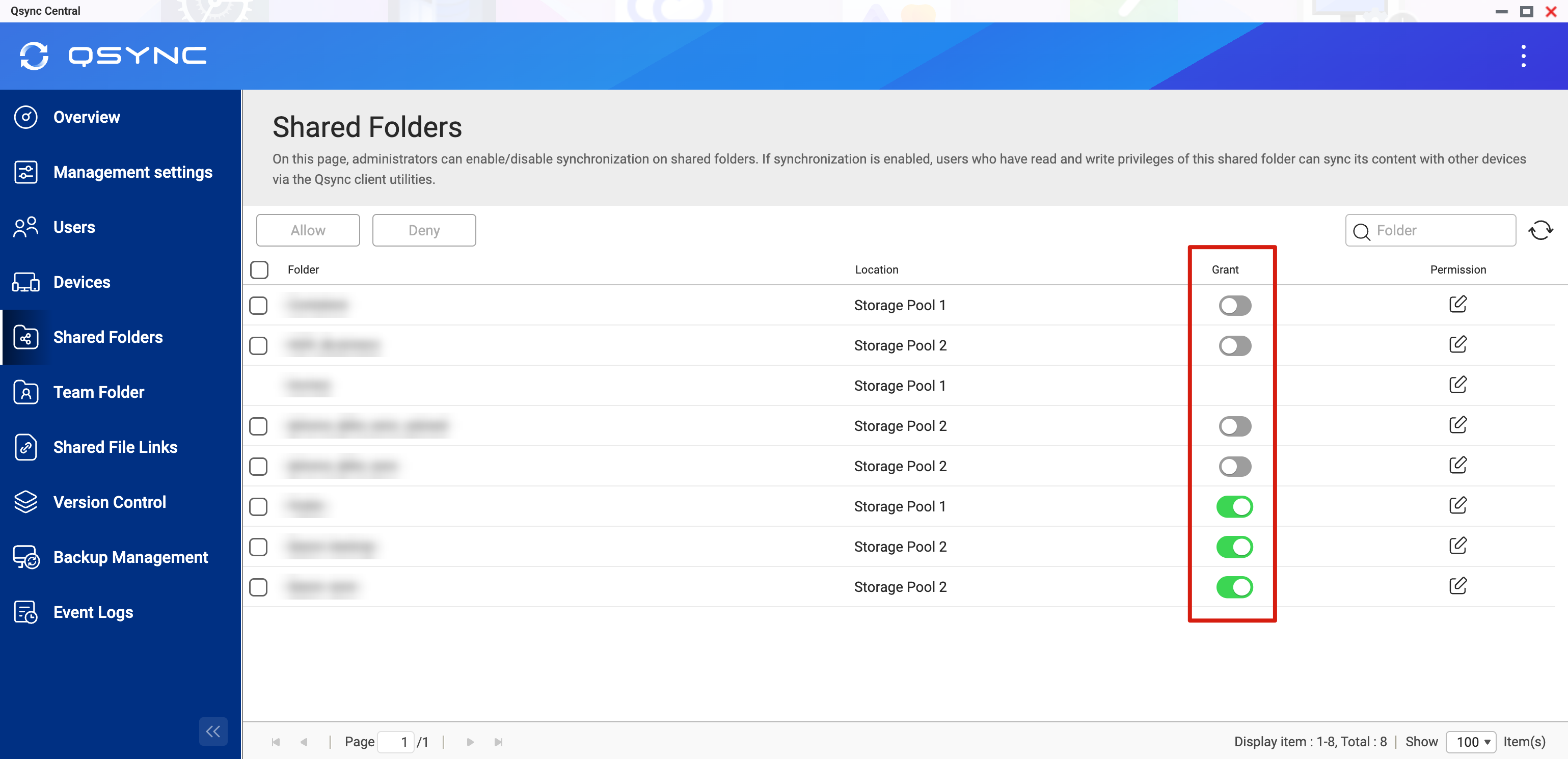
Create shared folders on the NAS, making sure they’re not hidden and sync enabled. Ignore the default share folder “Qsync”
Check on your PC that they’re visible on the network, create local folders and sync them to the NAS with Qsync client.
Install Qfile Pro on your phone and connect it to your NAS. Your shared folders should show up there.
Done.
Create shared folders on the NAS, making sure they’re not hidden and sync enabled. Ignore the default share folder “Qsync"
Okay got that part…
Check on your PC that they’re visible on the network, create local folders and sync them to the NAS with Qsync client.
My goal is not to install any software on the PC. I want the phone to sync to a share folder on the NAS, say "/NasShare/PhoneSync/. Then access that folder on the NAS like any other folder on the NAS without installing a client on the PC. This doesn’t seem possible with Qsync Central?
This is how I handle my Cloud services. I don’t have to install any software to the PC (only on the NAS). It just sync’s the folder on the NAS with the cloud file server.
Install Qfile Pro on your phone and connect it to your NAS. Your shared folders should show up there.
Cool I’ve got Qfile Pro on my phone and the folder is sync’d up to the NAS already. However, I want it in a custom share folder it’s in that Qsync folder, not directly accessible via network file share. I was hoping I’d not have to install anything to the PC. Seems redundant to me… It just needs to sync a folder on the NAS accessible by the PC in theory. Maybe they didn’t program Qsync Central that way?
Done.
It would be nice if there was a more open way to configure this like Hybrid Backup Sync I use for my cloud file services. There I sync to the NAS in a folder I can access through the network. I don’t do any additional accounts, setup, just link to a NAS folder sync and away I go.
Thanks for the tips!
To create a custom shared folder on the NAS:- Control Panel > Privilege > Shared Folders > Create > Shared Folder. You can then create sub-folders in it in File Station if you want.
I have 2 iphones with qfile pro installed on them. I created a a shared folder for each of them. The idea was to have wireless automatic upload of photos on each iphone to each respective shared folder
I made sure the folders were accessible from the userids used to log into the nas from qfile pro.
Then in qfile pro i mapped them within the transfer dialog.
Now any new photo on either of the iphones is copied up to the nas automatically.
Hope this makes sense and helps.
Cheers
P.S. I started out with qsync client and central on the nas but wasn’t working for me so i uninstalled both the client app and server app of qsync.
Hi,
In your article, you mentioned Qsync Central and your goal is syncing mobile data to your NAS. Based on that, I’m assuming you are using the Qfile Pro app.
Using Qfile Pro’s Qsync feature does not require installing any software on your PC (Qsync Client).
Instead, All you need to do is install Qsync Central on your NAS, then go to the Shared Folders tab and enable sharing permissions for your designated shared folder.
This allows you to configure your own synced folders instead of having to use the default Qsync folder.
After that, you can connect directly to the sync folder on your NAS via Samba to access the synced mobile data.
Another idea: Could Qfile Pro’s Auto Upload feature meet your needs? If your goal is to upload photos and videos to the NAS, Auto Upload seems to be the easiest way to do so.
The goal is to SYNC files. I want the ability to control what on the phone and what is removed and or transferred off via syncing a network folder.
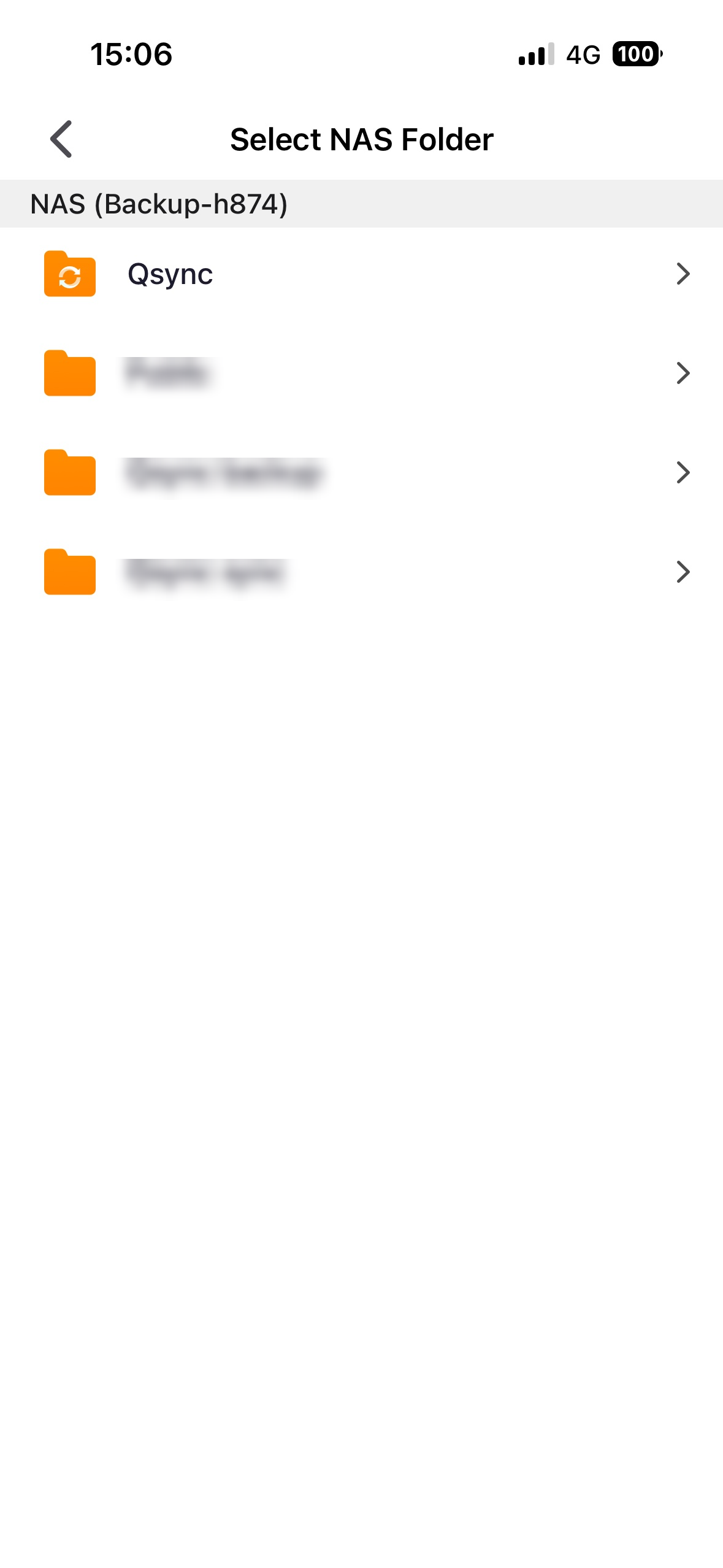
I cannot get this to work. The phone has sync’d to a private “Qsync” location in Filemanager of Qnap OS. However, I cannot access that folder through the shares, even when I select a share under Qsync->Shared Folders.
Works OK here. Typical setup starting from scratch…
-
TS-251B
Control Panel > Privilege > Shared Folders > Create > Shared Folder
Name: TESTSYNC
Hide Network Drive: Ticked
Enable Sync: Ticked
-
Mobile Phone: Samsung A23 5G
Qfile Pro > Device List (top left) > Add Qnap Device
Connect via myQnapCloud > Select Qnap Device > {enter login details}
Your NAS folders will be displayed
…
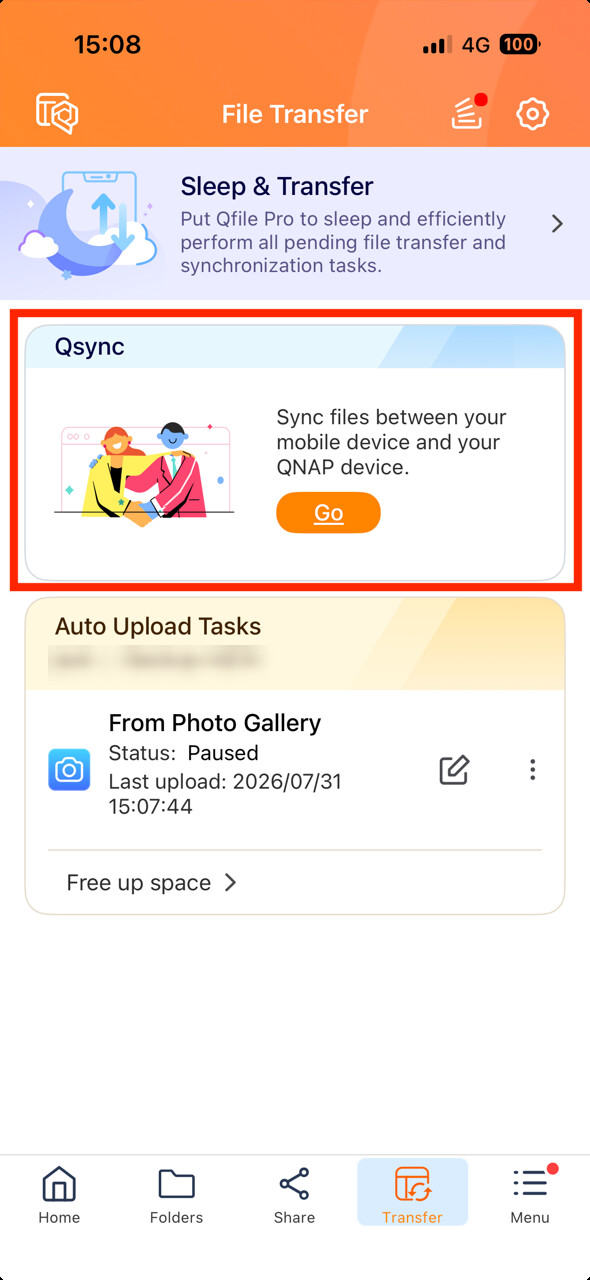
Transfer > Qsync > Go > Select NAS
…
Add Paired Folders >
Paired Folder Paths
NAS folder > TESTSYNC > Set Location
Device Folder > Internal Folder > Pictures > Set Location
Selective sync (None)
Paired Folder Settings
Sync Method > Two-way
NEXT (top right)
…
File Transfer Settings (set to suit)
DONE (top right)
UPDATE: I got it working, Richard your steps are correct. Whoever wrote this app though, I could NOT figure the UI out. It took me several days to figure out where to touch / click in it to get at what I needed. Thanks for hanging in there with me guys.
Step 2:
My smartphone connects to NAS and I can execute transfers, etc. However, after your steps for Transfer > Qsync > Go > Select NAS doesn’t allow me to select a folder on the NAS to sync to? It just saves to “Qsyc Synchronization Tasks” for which Qsync Central only saves to a default (private) location on the NAS, not visible through SMB share.
I am able to select folders on the NAS if I use “Auto Upload”. However, that doesn’t allow me to do a two way sync? Auto Upload also sorts media into month folders. I don’t want that either.
I just want to mirror my phone DCIM folders on my NAS with a two way sync.
This software was written by somebody far smarter than me. Darn I’ve spent HOURS trying to figure this out with no luck at all.
Now that I’ve tried “Auto Upload” I cannot figure out how to turn it off. I don’t want that feature.
Oddly, under “Transfer”, Qfile Pro shows "Qsync Synchronisation Tasks" AFTER you’ve created a sync task and "Qsync > Go" when you start with a blank slate.
It would be better, in my opinion, if the UI remained the same and just listed the current tasks with the option to add / delete / modify tasks.
The only way to get the UI back to the original state is to delete any tasks and logout of any connected devices (or uninstall / reinstall the app)
That’s my farthing’s worth anyway.