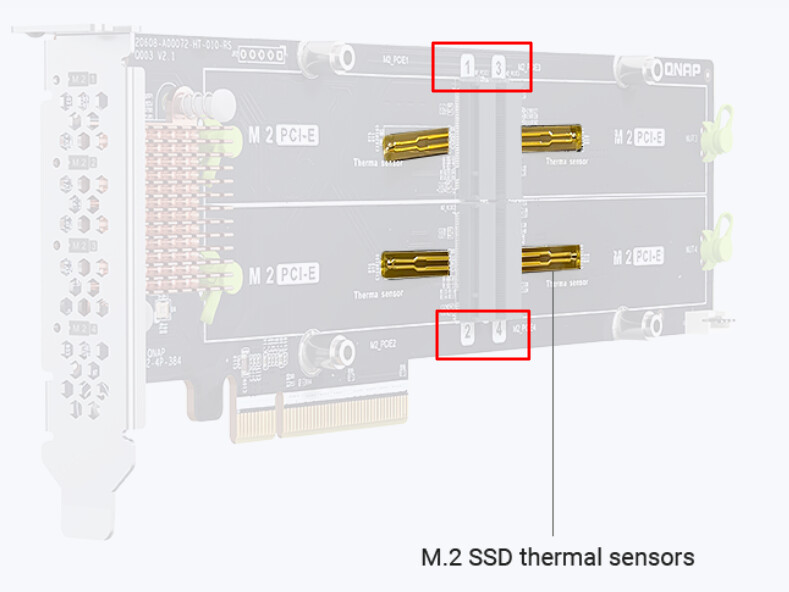
I have QuTSHero 5.2.7.3256 (9/13/2025) installed on my TS-h1887XU-RP.
When I installed it, I just had the PCIe card installed with 4 NVMe where the OS was installed.
I want to move the system volume from the NVMe’s to a different system volume instead. I’ve had sporadic heat problems with the NVMe’s’ because the fan and cooling module on the QM2-4P-384 isn’t that great. A quick temperature jump lasting one or two seconds to 73 degrees C is enough to trigger the system to mark the NVMe faulty and move to the hot spare, and today this happened 4 times when the system wasn’t even under load - it regularly happens to NVMe’s 1 and 4 - never 2 and 3.
I’ve moved all the installed applications that I can over to other storage volumes. The only apps I can’t use the Migrate option for are OS ones which I can install manually if needed: Virtualization Station, the NVIDIA GPU Driver and Kernel Driver, Malware Remover and Qboost. The VM I had running on the system volume I’ve already exported and set its storage location to a different volume, so I can import it easily again if needed.
My question is, if I do this, would the apps that are installed on the other volumes be okay, or would I need to reinstall those too? Reason I’m asking is because I run the Plex app, and I have it installed on a different volume from the system volume. Would I need to reinstall it? I do have backups of the required folders and files, but to be honest, its a pain to restore it from a backup (and I know because I did it when I migrated from one system to another!) and takes forever because of all the small files.
As the OS is on all drives (not just your NVMe’s), the NAS will start up fine yes.
The apps that were moved to other volumes should also still work. You can promote a new pool to be the system pool, but make sure it’s an SSD based one (2.5" or internal NVMe would be fine)
I did plan to move the system pool to a 2.5" SSD Raid 5 with a hot spare - they’re in the rear bays. Thats where I already moved the apps to, and there’s no shared folders set up on it at the moment.
Side note - I noticed the 2.5" SSD I set as a hot spare is also eligible to be used in case a failure of the NVMe pool! The NVMe’s and 2.5" SSDs are the same capacity. I thought hot spares had to be on the same device bus?
I have never used hot-spares on QNAP (as the drives always spin, due to the md9 and md13 situation, I always discourage from hot-spare usage, but that shouldn’t be an issue for SSD).
But due to the different bus/speeds, best to not dabble in mixing them (even though it’s offered)
Thank you for providing the detailed description of your setup and situation.
To help us better understand the cause of the NVMe temperature fluctuation,
could you please share the following environmental details:
Is your NAS placed in an air-conditioned or temperature-controlled room?
What is the approximate ambient room temperature?
Does the NAS have sufficient ventilation space around it?
These environmental factors can greatly influence the cooling performance of the QM2 card and NVMe modules.
In addition, please check that the M.2 SSD mounting screws on your QM2-4P-384 card are firmly secured.
If any screws are slightly loose, it may cause a small gap between the SSD and heatsink assembly,
potentially leading to less efficient heat dissipation or inaccurate temperature readings.
Please refer to the image below for the screw locations:
M.2 SSD screw mounting points — QM2-4P-384 installation reference.
If the installation appears correct but the same issue persists,
we recommend reviewing QNAP’s official QM2 installation guide
to ensure the expansion card orientation and system airflow are properly configured: How to Install a QM2 Card | QNAP Official Tutorial
Thank you again for your valuable details.
Once you share more about your setup environment, we’ll be glad to assist you further with more precise recommendations.
The NAS is in a rack enclosure, which is mesh panels on all 4 sides. The top and bottom are fully enclosed except for cable openings. The NAS is in my living room, which is typically around 24 degrees celsius. The rack is placed in a corner about 8-10 inches from the right and rear wall, and there is open space on the left and front sides. To promote air circulation, there is a small fan under the rear of the NAS pointed up and outwards in order to move air more quickly from the rear of the unit.
The M.2 mounting screws on the card are secured, and the installation instructions were followed, including the installation of the thermal pads and the rubber pads. The NVMe’s are also on the QNAP compatibility list for the TS-h1887XU-RP as well as the QM2-4P-384.
The issue is only occurring sporadically, and I’m not sure why. The cooling fans have been set to performance mode. The system wasn’t even under load when the temperature on either the 1st or 4th NVMe suddenly jumped. It was never both at the same time. The CPU temp was reported to be about 58-62 degrees celsius, the CPU usage was about 2-3%, and the system fans were running at about 7200-7300 rpm on each occurrence.
I had a similar problem with SSDs installed in the QM2-4S-240 card last year, so I removed that.
I’ve since put a box fan in front of the system to push air in under the bottom of the NAS, but thats more of a stop-gap measure until I get a chance to pull the 4P card out of the system and get the system back into the desired state without it.
There’s an NVIDIA Quadro P1000 installed in the unit which is also on the compatibility list, but I’m thinking the internal air-flow just isn’t sufficient when all of the drive bays are populated and there’s a video card as well as other devices in the PCIe slots. There’s no fans directing air across the length of the cards installed in the PCIe bus, just the small ones on the devices themselves, so heat is just being circulated to the card(s) beside it, not being directed to a rear vent.
Thank you very much for the detailed information regarding your setup and installation environment. Your input is extremely helpful for our ongoing analysis.
We will conduct internal testing and simulation based on the conditions you described to further investigate the possible causes. Once we have any updates or findings, we will promptly share them with you.
We truly appreciate your patience and cooperation.
We would like to provide an update regarding this case.
Based on our internal testing with the same model and configuration, the M.2 SSD temperature remains stable when the system fan control is set to Automatic mode, which allows the system to adjust fan speed dynamically according to temperature.
In comparison, if the fan speed is manually limited or fixed at a lower level, higher M.2 temperatures may occur under certain conditions.
Suggestion
Please check whether the system fan control is currently set to Automatic or Manual mode.
If it is manually set, switching to Automatic mode or slightly increasing the fan speed may help improve cooling performance.
How to Check or Adjust Fan Settings
Go to Control Panel > System > Hardware > Smart Fan.
Review the Fan Mode setting.
Select Automatic mode to allow the system to control fan speed based on temperature.
Click Apply to save the changes.
You can also verify the current fan speed and temperature under Control Panel > System Status > Hardware Information.
For additional reference, please see QNAP’s official documentation:
If the issue continues after confirming automatic fan control, please create a support ticket through Helpdesk or the Service Portal for further assistance.
The fan speed setting has always been set to automatic. I’ve had the fan mode set to either normal or performance, but the situation can and had still occurred.
The issue seemed to be random. It could go months with no problems, and then one day one of the M.2’s could overheat and the system would start migrating to the hot spare, and it would only occur once in a day. Other times, it would happen a number of times in an hour or two, switching between modules 1 and 4. It only ever happened with those two - modules 2 and 3 were always unaffected. Module 4 was originally the hot-spare. All of the modules in the unit were Western Digital 1TB WD Red SN700 WDS100T1R0C NVMes.
I’ve since removed the PCIe card, did a restore to factory defaults and have set the system volume to a RAID array using 2.5” SSDs.
I don’t know if there was a random issue with the card itself - I’d hear the alarm go off on the unit, log in and look at the temperatures, and the temperatures listed on the modules would be below the 70 degree threshold - it would only take me a minute or two to get to the screen to check the temperatures. I don’t know if the system waits for the temperature to be above the threshold for a minute or more before triggering the migration or not, but that could be something to consider implementing.
The system was not under load at the time this latest issue occurred. And if you read the full post you’d see my notes on the installation and environment.