About Data Backup When Using Cloud Storage
With the convenience of being able to easily access data from anywhere in Japan or around the world, more and more customers are using cloud storage as their main storage.
However, at the same time, we are seeing many cases of customers returning from cloud to on-premises (often due to the monthly costs of cloud storage becoming too high), or using both cloud and on-premises together (“measures in case cloud storage becomes inaccessible or data is lost,” “on-premises cache for files that need fast access”), and consulting with us about using NAS in combination.
This time, we received an inquiry about whether it is possible to shorten the synchronization time (especially the initial full sync) when syncing data from cloud to on-premises NAS, so we checked it out.
Prerequisites
- Although “cloud storage is mainly used,” some data remains on the file server that was used before migrating to cloud storage.
Under these conditions, when setting up a sync job on NAS, if you pre-write data to the NAS folder with the same folder structure as the cloud storage, could the initial sync time be reduced because downloading is not needed? We were asked about this.
Experiment Step 1. Normal Sync from Cloud to On-Premises (Checking Required Time)
Folders containing typical office files would be ideal for this experiment, but since we didn’t have a suitable folder on hand, we used a folder containing demo video materials.
First, we perform an active sync from cloud storage to NAS as usual to see how long it takes.
With mirror settings,
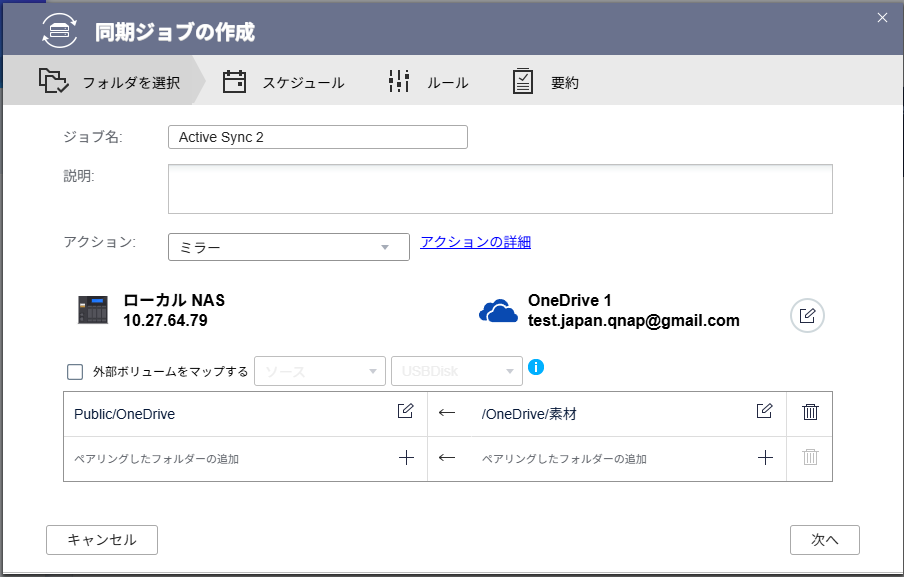
Sync settings to get the same dataset on-premises
We will sync this 113GB folder.

113GB of data
We measure the time until the one-shot sync without a schedule is complete.
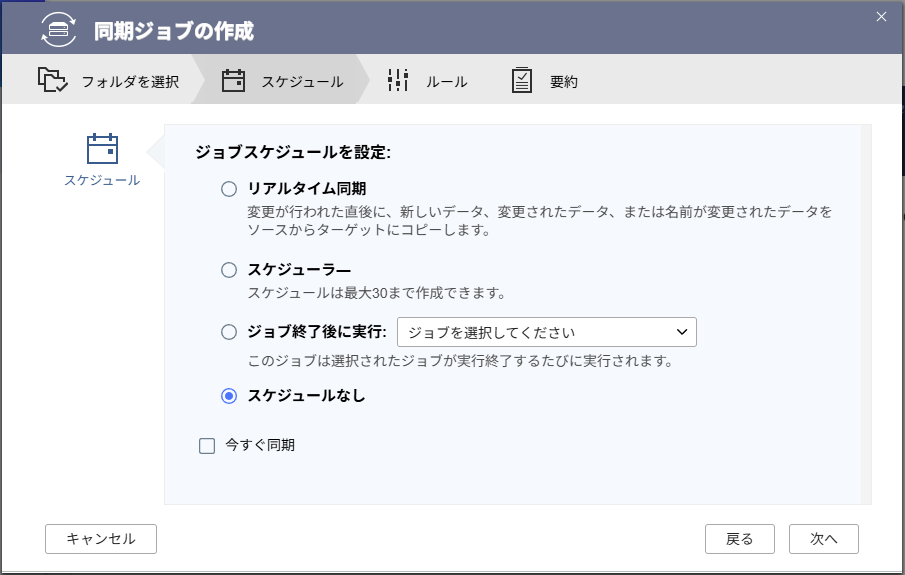
Set to one-shot sync without a schedule
This is the setup. Start the sync.
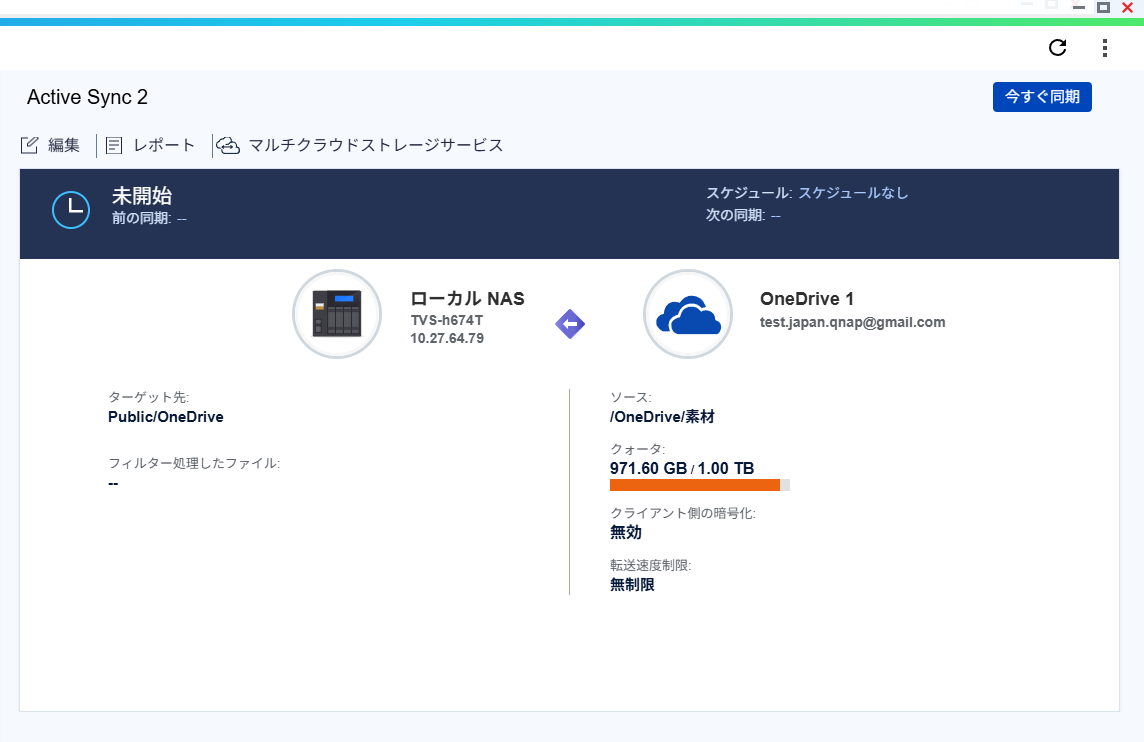
Sync task summary
Sync is progressing at about 10MB/s. It is expected to finish in about 3 hours.
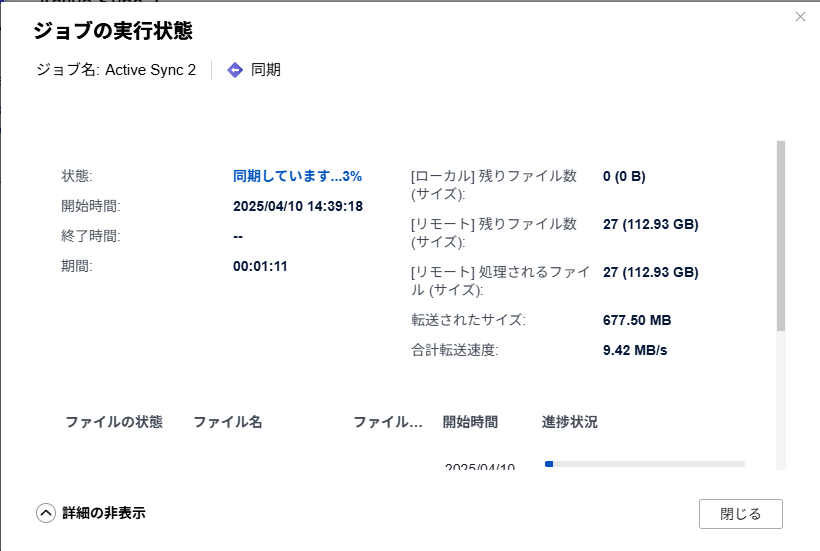
Sync task execution status
Checking with the resource monitor, network traffic is confirmed to be around 10MB/s.
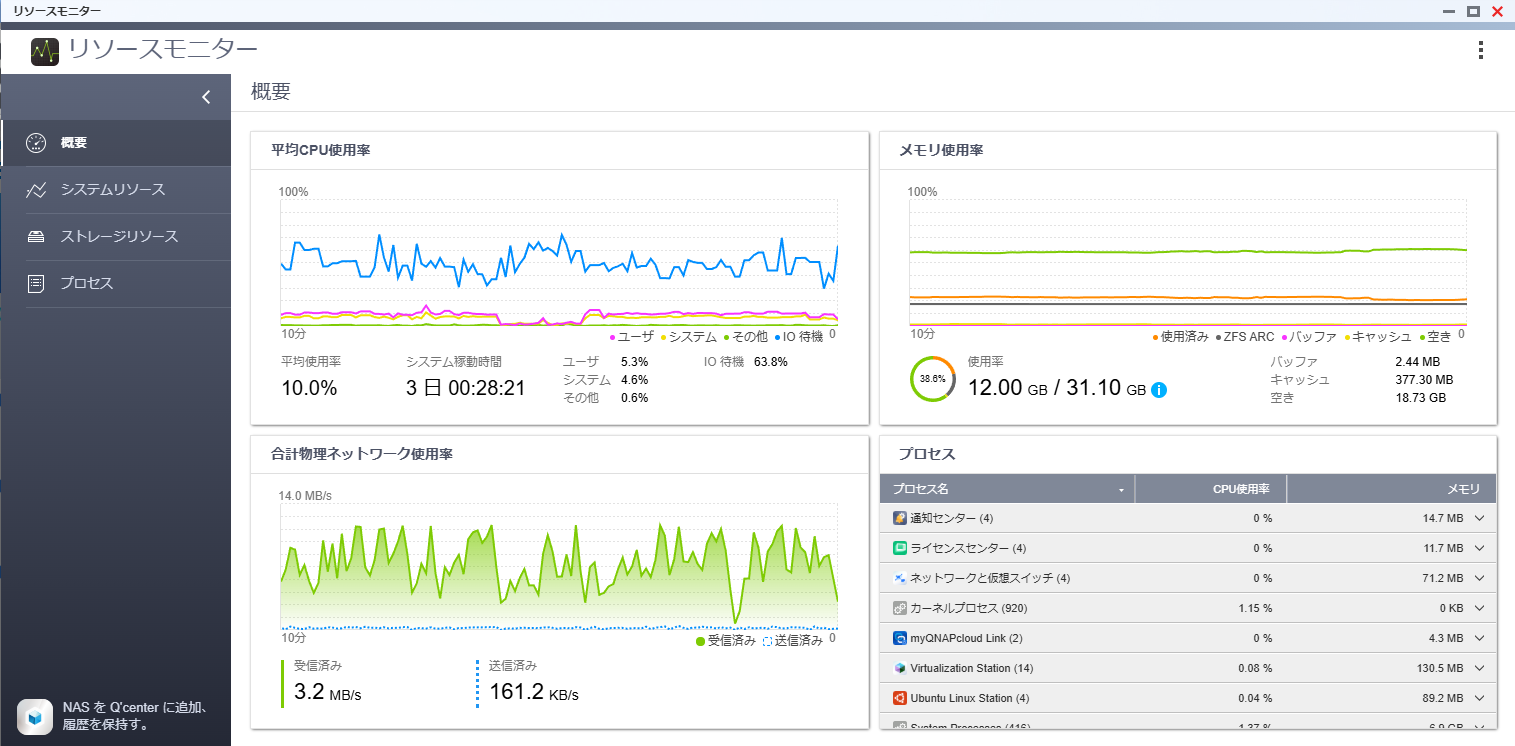
Resource usage during sync execution
It ended with an error displayed, but the files seem to be lined up on the on-premises side, so we’ll proceed with checking in this state for now.
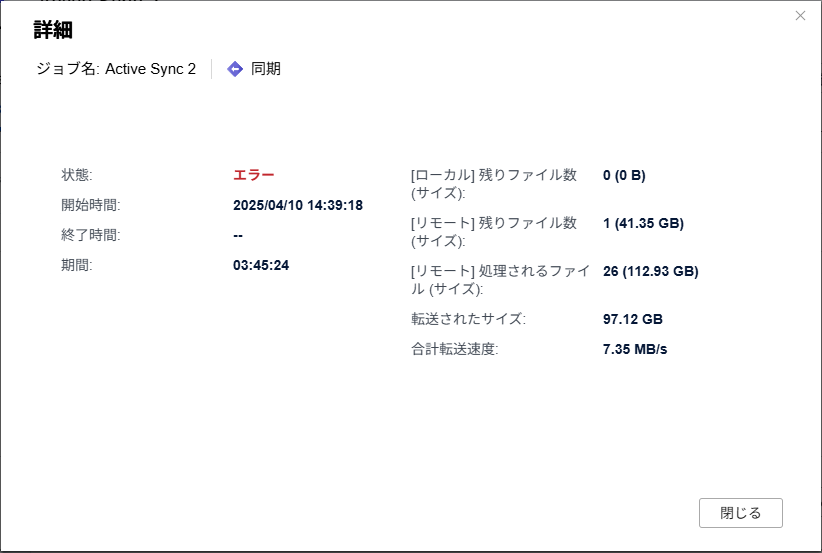
Test dataset sync complete
The folder contains a solid 112GB of files.
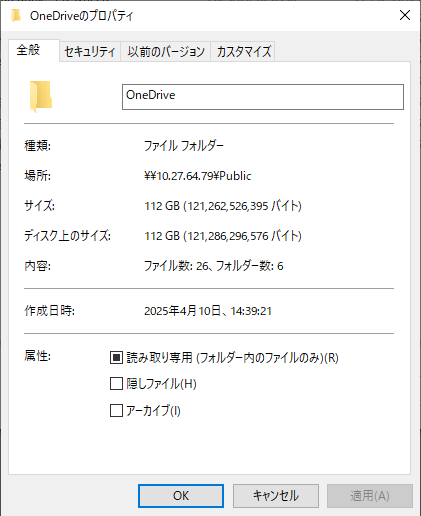
Test sync data size is 112GB
Experiment Step 2. PreSync Sync from Cloud to On-Premises (Checking if Time Can Be Shortened)
We prepare the folder synced in Step 1 as “Presynced” for clarity. (The contents are exactly the same as the synced folder.)
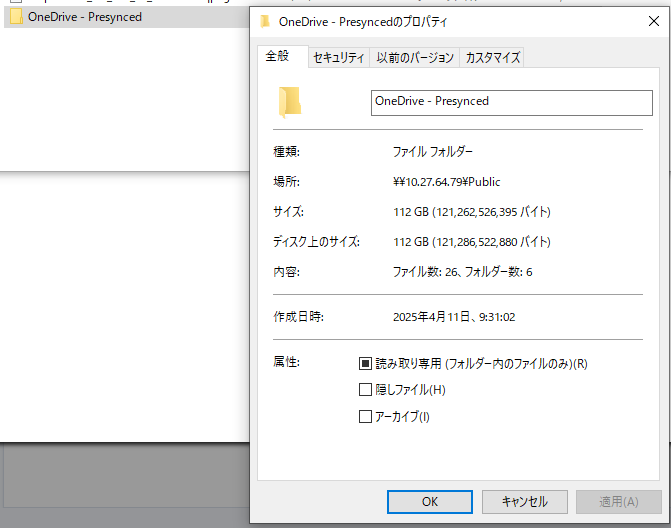
Preparing the dataset on-premises
Set up and execute a sync job from the “/OneDrive/素材” folder used in Step 1 to the “/Public/OneDrive - Presynced” folder.
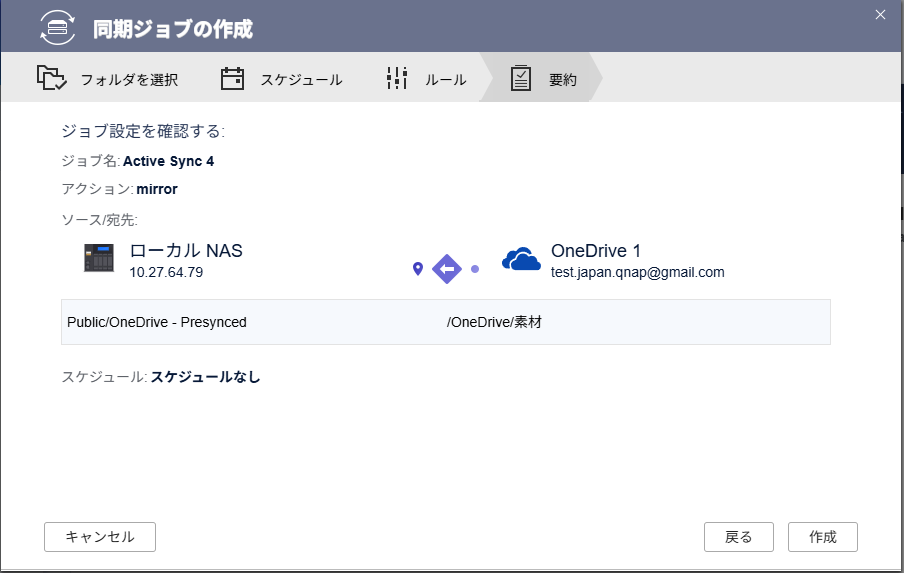
Create a sync task with the on-premises dataset storage location as the sync destination
Started the sync.
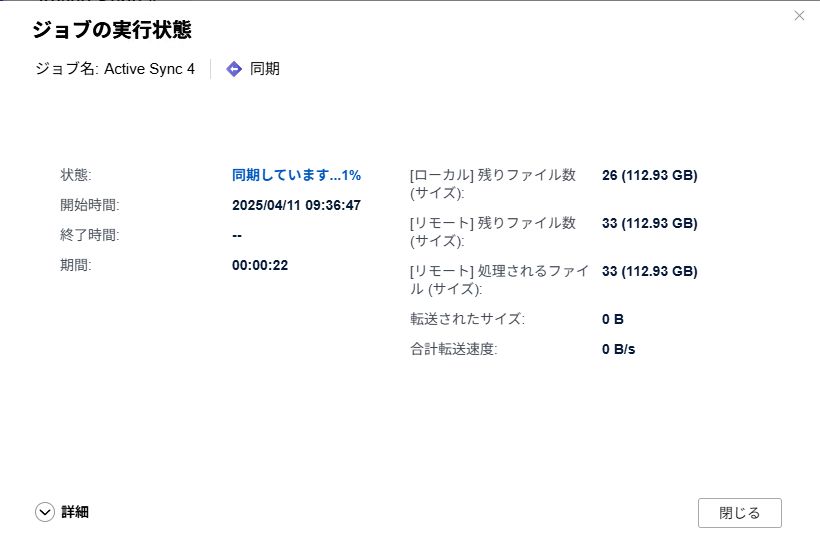
Initial sync execution status
File transfer progress does not advance, but the “[Local] Remaining files” count decreases sequentially. Presumably, it compares the checksum information in the metadata held by OneDrive and the local checksum information, and if the files are identical, it deems transfer unnecessary.
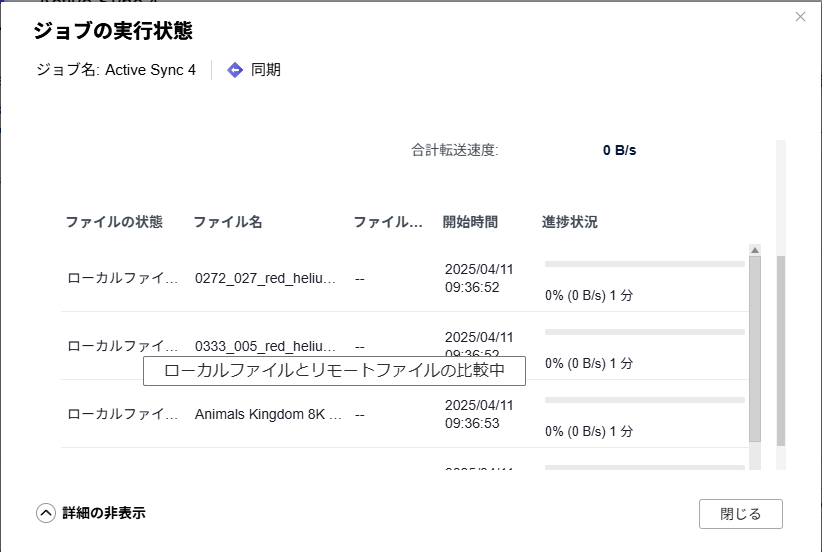
Comparing local and remote files
Since actual data transfer does not occur, it was completed in about an hour.
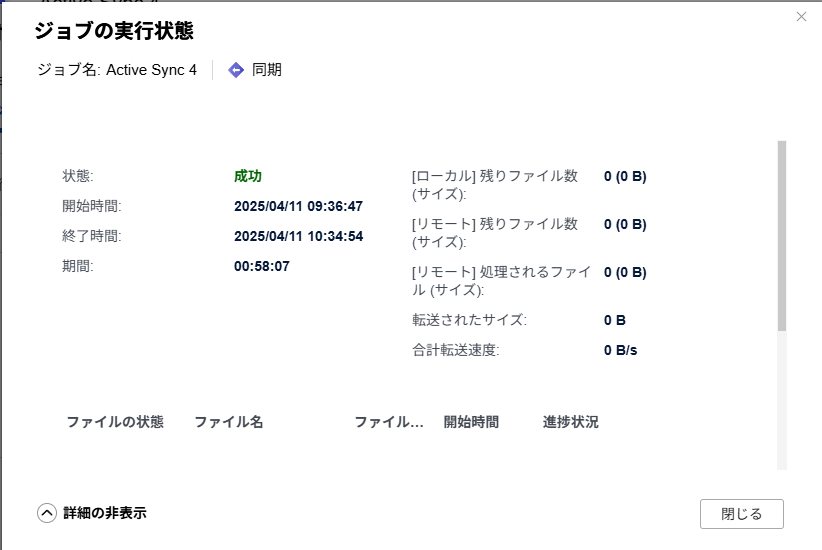
Task completed in about a third of the time compared to actual sync
When running the sync job again, the first run has already checked the sync status and, since there are no changes, the sync job finishes immediately.
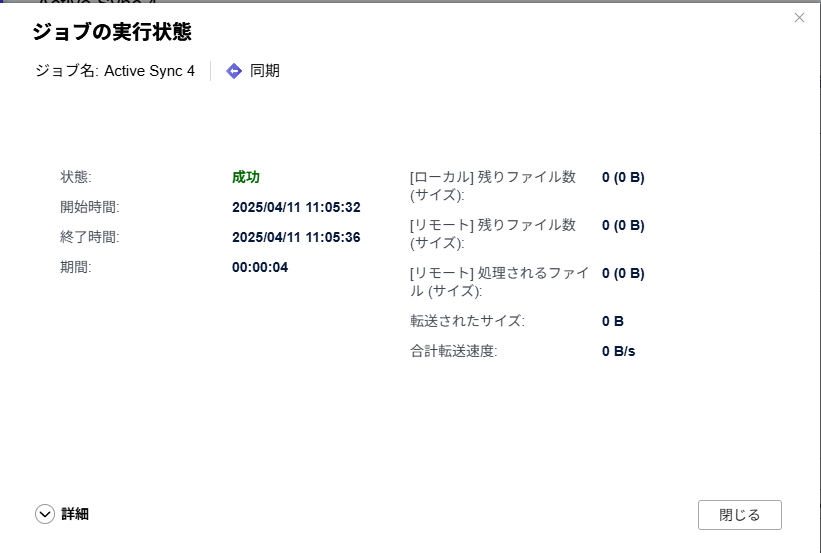
From the second time onward, checksum verification for already checked files is not performed
When files are added to the cloud storage side, only the newly added files are synced, as confirmed.
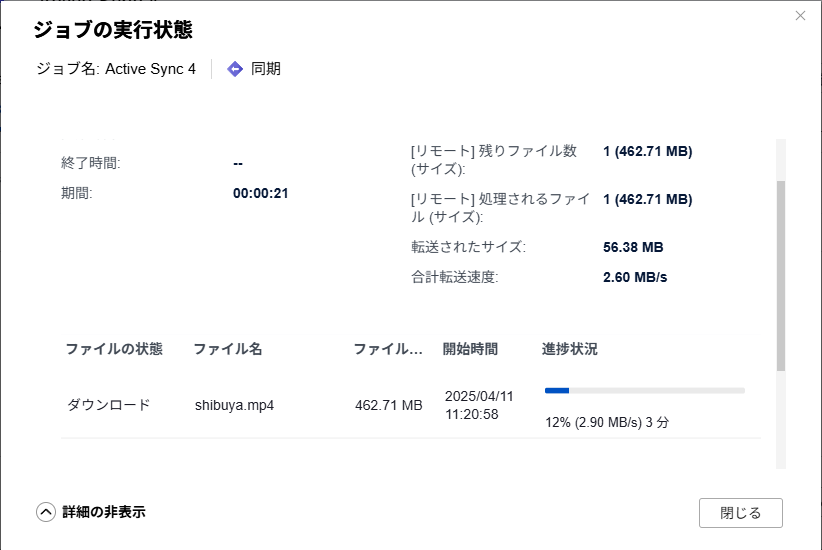
When new files are added to the cloud storage side, they are properly synced to the on-premises side
Summary
We checked whether the initial sync time can be shortened when syncing data from cloud storage to on-premises NAS, if the same data already exists in the on-premises NAS.
In conclusion,
- If the cloud storage metadata (presumably) and the on-premises checksum calculation deem the files identical, actual file transfer is skipped, thus saving time.
This result shows that it can be used as a way to shorten file transfer time during the initial sync.
If you are considering migrating to cloud storage, you will probably upload data to the cloud storage and start using it. However, we still think it’s better to keep a copy of the data on-premises, so for future considerations, it’s a good idea to also store the same dataset on the on-premises NAS.
We hope this information is helpful.