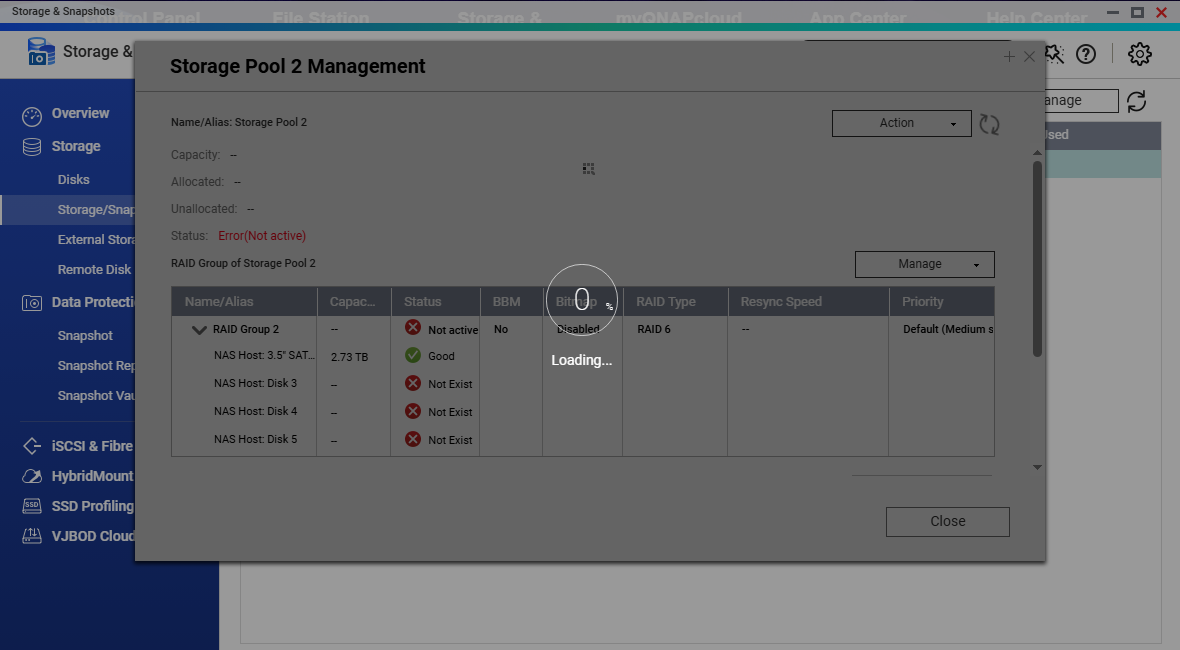
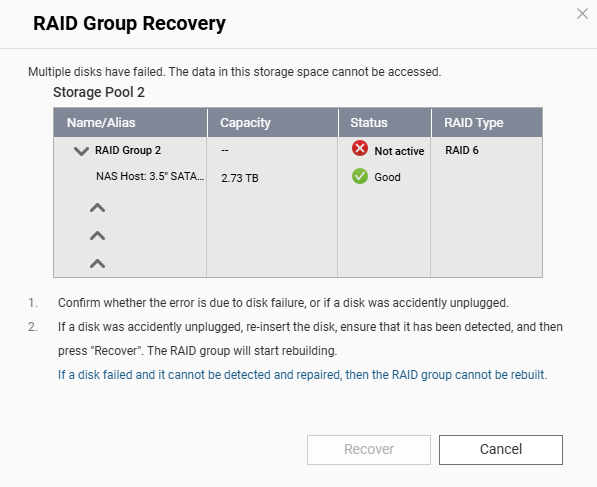
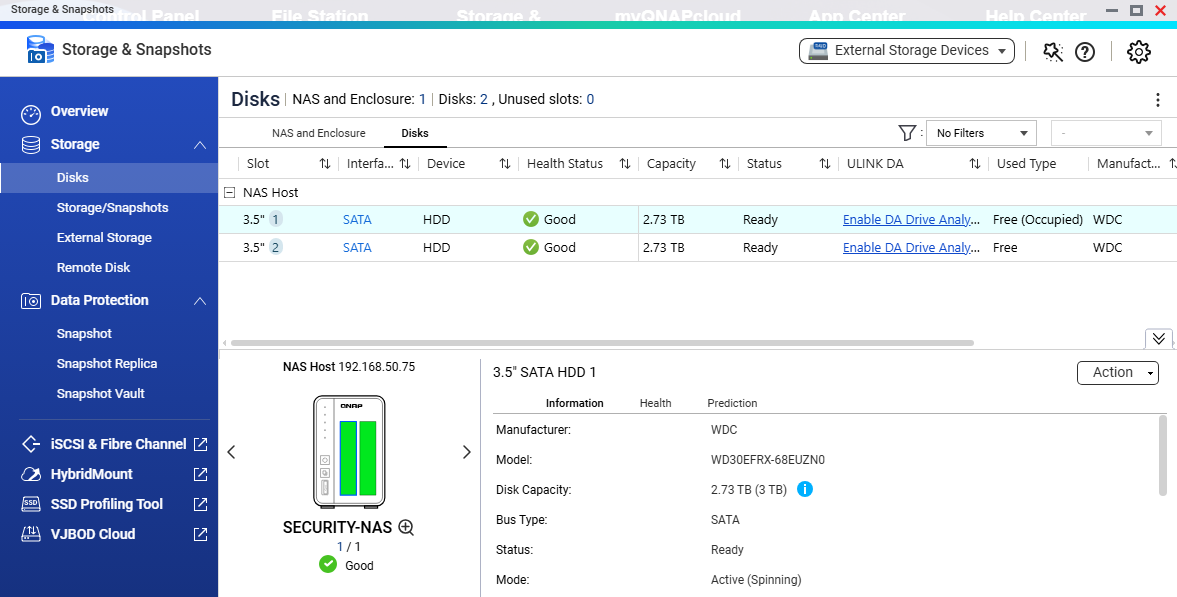
I am looking for some assistance as a new user of a TS-216G 2-bay NAS that I would like to have configured with (2) 3.0TB WD Red NAS HDDs in RAID 1. The drives that I have were given to me by a family friend who no longer needs them. However, they do not seem to be registering correctly within the latest QTS user interface I have installed. Both drives appear to be in good health & reporting correctly but one drive seems to already have been configured for RAID 6 (see attached images). At a minimum, I am open to any suggestions on how to clear the current configuration entirely to start fresh with initializing the TS-216G for first time use. Apologies in advance for any missing details but please let me know what other information is needed & I certainly appreciate any assistance, thank you in advance!
NAS model: TS-216G
Firmware Version/Build: QTS 5.1.9.2954
Network Setup: SINGLE PORT
Drive Configuration: UNKNOWN OR POSSIBLY RAID 6, NEED HELP HERE
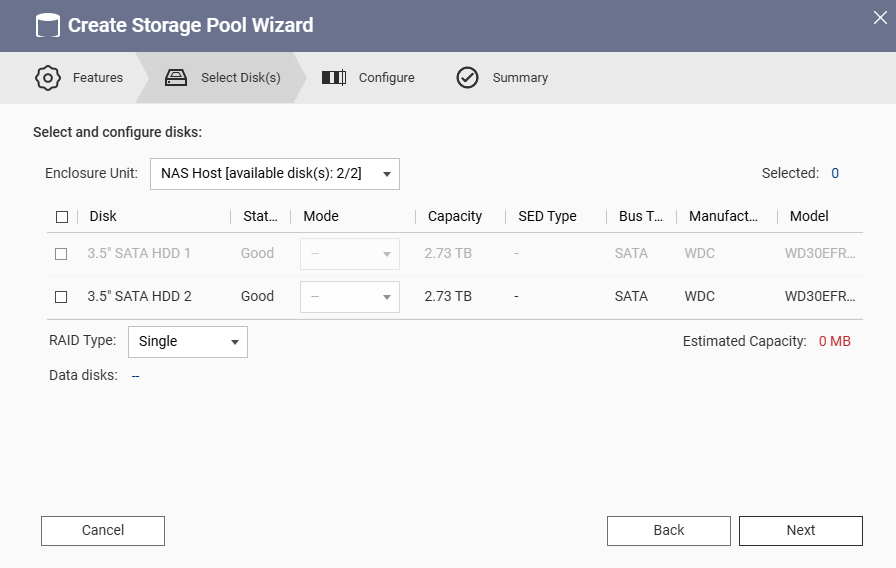
Thank you for the comment, much appreciated. That was my first order of business was using a bootable HDD management utility to completely wipe both drives (formatted using GUID/GPT partitions). However, I’m open to trying something else because it doesn’t seem like I’m able to clear the previous RAID configuration. Is there some sort of utility that would allow me to remove/reconfigure the present RAID configuration & wipe the drives completely? I’m wondering if the utility I used (GParted) did not properly do the trick. When I attempt to create a new storage pool, one of the drives is greyed out & cannot be selected (see attached image). When I attempt to manage the existing storage pool (which I did not create), the interface seems to lock up & get stuck at 0% while trying to refresh itself.
Thanks for the response. I don’t suppose there’s a more user-friendly option than Diskpart? I’m not as an advanced user with Windows embedded utilities like I once was. Or perhaps a tutorial you might recommend in conjunction with using Diskpart if that’s a preferred method?
Indeed, thank you for the correction & the response. After re-running the utility, I could see each drive’s full unallocated space (~2.729TB) so I was under the impression it worked. Perhaps I need to create a single partition on each drive? The (bootable) version of GParted I was using was not great in terms of display resolution so it was difficult to navigate. Can I run GParted within Windows 10 x64 or is there some other user-friendly disk management utility that would be able to quickly diagnose the two NAS drives in question? Perhaps Windows disk management?
The following image shows the drive status from QNAP QTS, so doesn’t that indicate the associated drive space as being “free” (i.e. unoccupied)?
Just-to-add: some Linux distros will try to auto-assemble a RAID with mdadm when they see a drive (or drives) that are marked as Linux RAID members. This requires you to manually stop the array before you can make any partition changes.
That’s where editing the partition table on Windows gives you a slight advantage. It won’t try to assemble Linux RAID members (at-least, it didn’t when I last checked).
Ugh, I was hoping for something a little more user-friendly than the old-school Windows embedded version of diskpart. Any thoughts on that? Surely there has to be something more user-friendly by now for hard disk drive management…LOL.
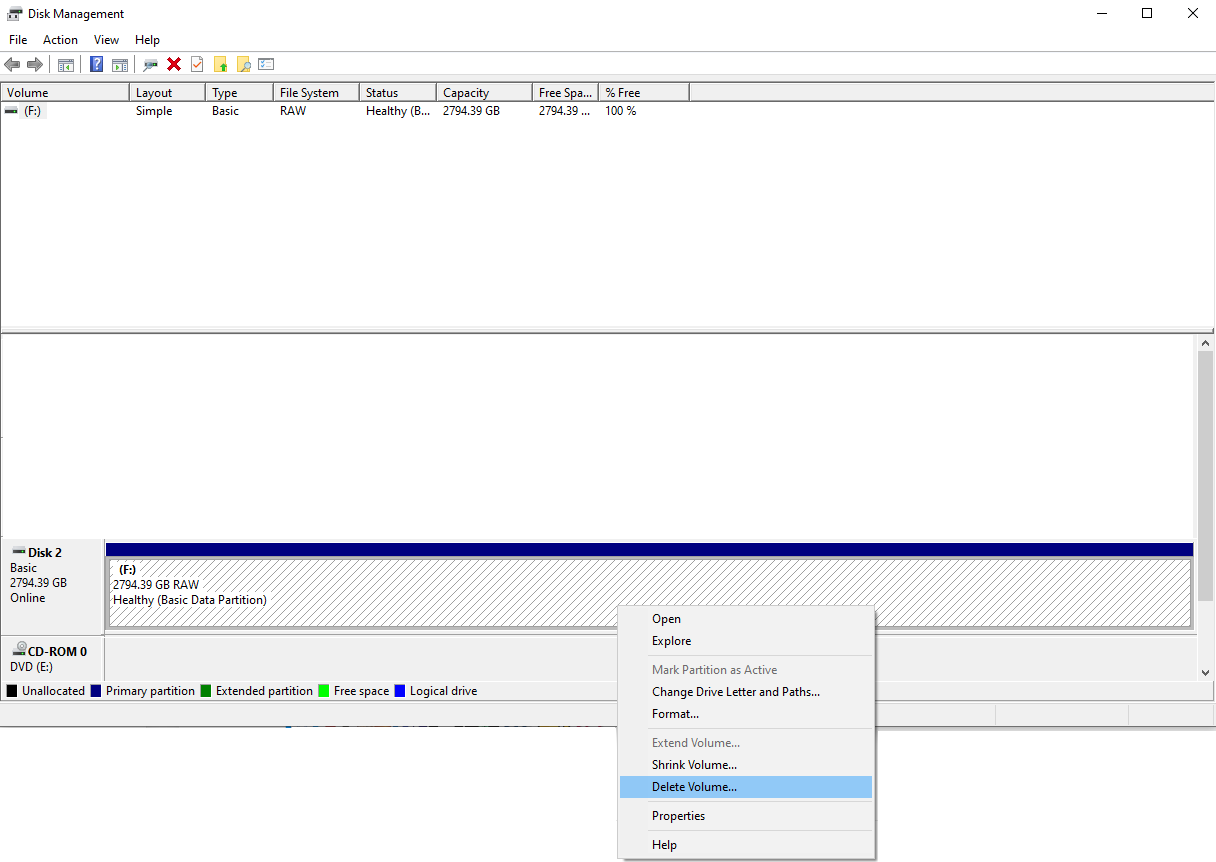
Indeed. See attached image for what Win Disk Mgmt displays when I remove the disk from the QNAP NAS & attach to a Win10 desktop computer. Should I try selecting “delete volume” to see if that doesn’t anything productive? As discussed above, I don’t think it’s going to matter because shouldn’t the QNAP QTS interface partition & configure the associated file system accordingly once the drive is installed within the TS-216G?
**Side Note: perhaps another question for@QNAP*, but why can’t I simply initialize & reconfigure a drive directly from the QNAP QTS interface? I haven’t been able to find a user-friendly way to accomplish this, aside from “create storage pool” function where one of the drives is greyed out.*
EDIT: For grins I selected “delete volume” & as I suspected the drive just now shows the full unallocated drive space of 2794.39GB.
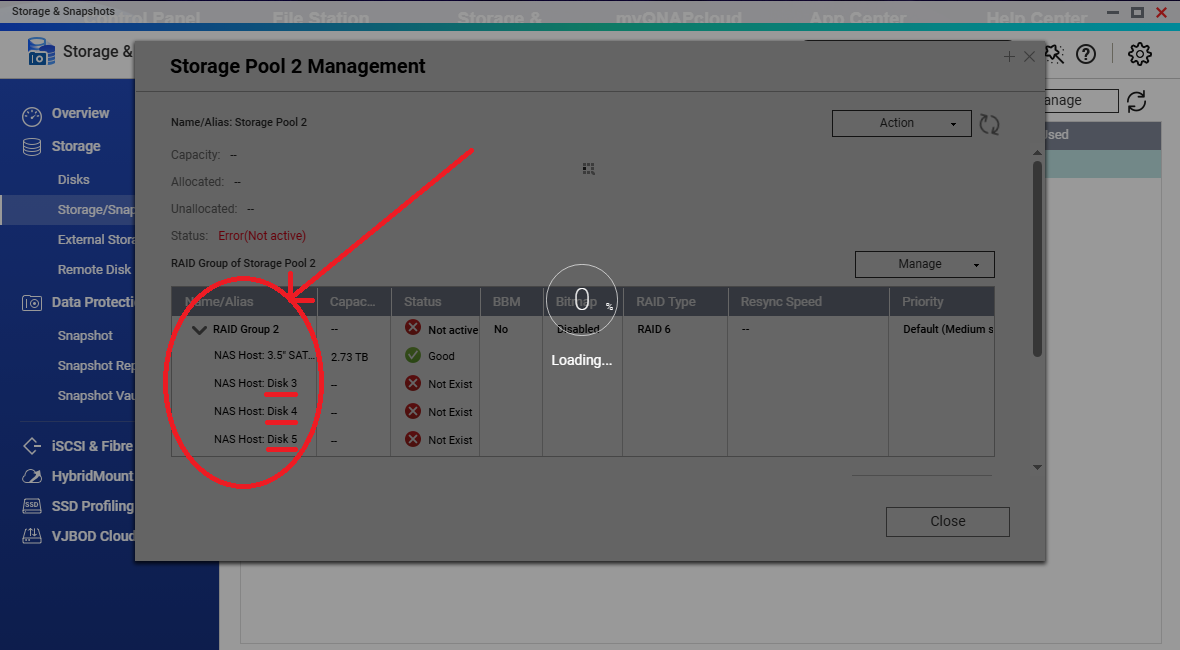
Stemming from my previous post, I don’t think it’s the drive partitioning and/or the file system format that’s the issue. For whatever reason, installing this previously used drive within this new TS-216G NAS has it looking like it already belongs to another RAID group of some sort. Take a look at the attached image. My guess is that I need to figure out how to remove “Storage Pool 2” without it being able to “load” itself because as I noted earlier, it just hangs at 0% so I’m not able to get beyond the initial status info screen.
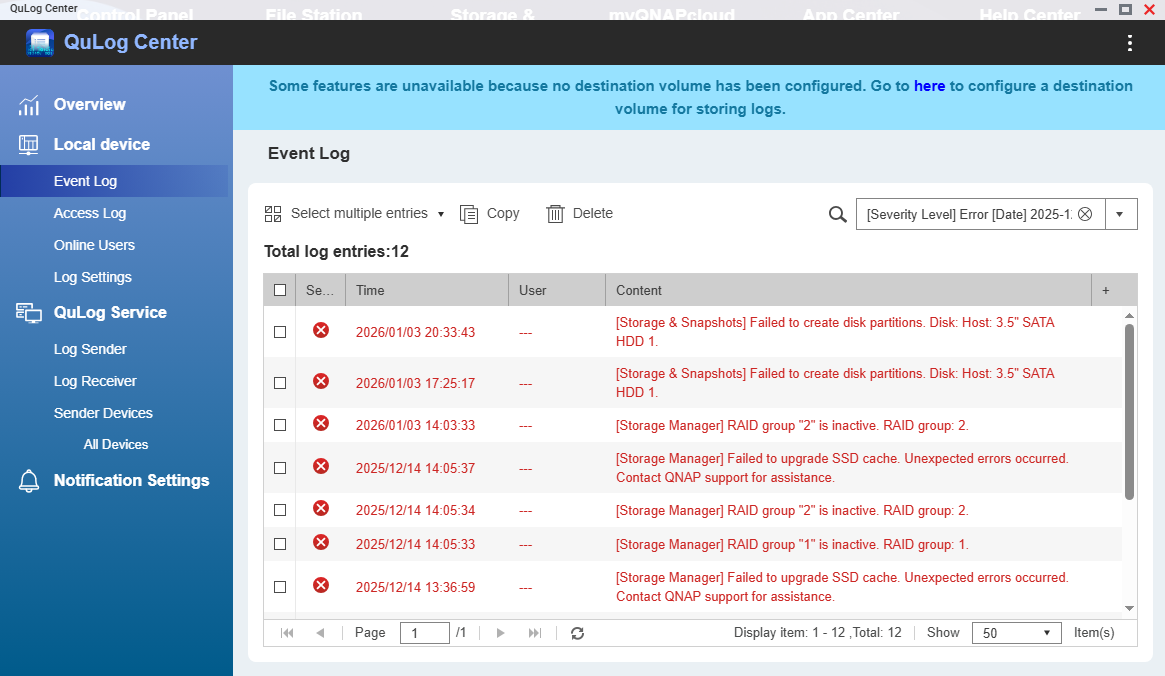
EDIT: For @QNAP support, I’ve included a snapshot of the event log from “QuLog Center”. Though there’s not much information beyond the message itself (i.e. error code, how to resolve, etc.).
Not sure what you are doing..just clear the disks of any former QNAP OS partitions and the NAS will be same as new. No need to fiddle with anything else. (You can also just do a full system format from the GUI)
Yup, that’s exactly what I have done and that doesn’t appear to be working. In my head it sounded pretty simple only as soon as I insert the CLEARED/UNALLOCATED HDDs into the new TS-216G, it somehow already has a RAID storage pool assigned (storage pool TWO no less, does that suggest ONE was also created?). One that I did not configure, so I’m at a loss on how to proceed. What’s stranger yet, is when I reconnect the HDD in question to a Win10 PC, it doesn’t show any partitions/file systems (see screen capture images above). How is that even possible?
EDIT: Also, since I’m unfamiliar with the latest version of QTS, I’m not even sure how to perform a full system format without having to fiddle with the “storage pool” configuration that I don’t recall from earlier QTS versions. Open to suggestions on trying something if you can direct me to the proper menu commands, thanks.
So did you do the initial Web Set up of the NAS? Is this a new NAS or one you bought or received second hand. You really need to do the initial setup. At that time, you will be able to completely wipe the drives and create a new pool.
If you have the NAS up and running and then try to format the disks, I don’t think you can do that as the NAS depends on that disk being there. There is no need to use an external disk utility, etc. Completely reset the device (10 second reset) and start from scratch.
I did, twice now using a factory reset but I can attempt this process again to ensure I didn’t miss something. Perhaps another factory reset + re-cleared HDDs might do the trick? At this point I’m willing to try whatever will just work, LOL. Brand new QNAP TS-216G but repurposed 3TB WD Red NAS HDDs that also aren’t too old either (HDDs report all “good” SMART stats).
As noted above, since I’m unfamiliar with the new QTS interface, how do I perform a simple HDD format without fiddling with the storage pool? It’s different than I remember from earlier versions of QTS.