TVS-882 Web UI Unusable - "The server is busy or the network is disconnected!"

Hello, hope you’re all well.

Beginning with the previous firmware 5.2.8.???, and worsening severely with the most recent firmware 5.2.9.3499, my TVS-882 ( Intel quad core, circa 2018, 16GB original + 32GB added) has been displaying the following behavior:

When connecting to the Web UI, my browser (Firefox on Windows 10/11, Linux Mint; Chrome on Win 10/11) frequently hangs at “Performing a TLS handshake” with my NAS, using the direct IP or the internal domain I have assigned to it. Sometimes, usually after 40-180 seconds, the UI will load. When I attempt to log in it either takes a few seconds, or it takes several minutes to do the back-and-forth of ‘username’ into ‘password’. When it takes a long time to do the login process, it almost always takes several minutes (3-5) to progress past the blue “loading…” screen and into the UI.

Following that the UI continues to take 30+ seconds to do anything - open an App window, display system information, display the dashboard, etc. It is functionally impossible to use. Similarly, SSH is also impossible - most frequently I don’t get asked for a password before the connection resets, and when I do connect, the connection gets reset within 45 seconds maximum.

I am able to access the NAS directly and get into the CLI (HDMI cable and USB keyboard).

The network is currently set up with two of the four ports connected: one serves as the Main Gateway, and the other is dedicated to VM station (not currently running any VMs). I’m running Ubiquiti hardware for my network stack, and it is handling the DHCP and DNS for my internal network. The NAS ports and VMs are getting the correct IPs, which I have statically assigned via the router (from outside of the DHCP range).

>>I don’t know if it’s related, but when accessing my VMs remotely via the VM Station console, they will also frequently blank out the screen, even on ‘medium’ or ‘low256’.

When I can access the UI (or via CLI) I do not see anything that I’ve been able to identify as a cause:

  • CPU is under 50%
  • Memory is under 10%
  • Network traffic is in the kb/s range
  • No disk usage to speak of

The last major change that I made to the unit was adding Container Station back in January 26, but I never had any containers running. I had removed that, and the issue persists. Prior to that I had the network configured in a 2/2 port trunk - 1+2 was the main gateway, 3+4 for VM Station, but I… honestly didn’t need it? Complete overkill for how little network traffic I have.

I have done the following:

  1. Reset the .qos_config as advised here
  2. Reinstalled the latest firmware manually via CLI as detailed here
    1. I actually thought that this fixed something… for about an hour. Then the message started to happen again.
  3. I’ve stopped and/or removed a few apps that I wasn’t using
    1. Container Station
    2. Qsync
    3. Qsirch
    4. Qfile(?)
    5. A few others, I’m sure…

Not sure what to do next. Data is safe, not that FTP will stay connected for long enough to do anything. Starting the connection from the NAS CLI might work if I need to offload the data. Not sure how to do the VMs though…

Please let me know what other information I can provide to help. Thanks in advance.
So there’s a couple things I can suggest as I have had my TS-873A sometimes go into massively high CPU usage.

First of all, you mention performing a “TLS handshake.” I am assuming then that you are using HTTPS? On your LAN, there is no need. I would not mess with secure web connections over the LAN.

Second, CPU usage is not as important a statistic as CPU Load. The CPU Load number is roughly the number of threads that the CPU is currently processing. The i5-6500 you have in your unit has 4 cores and 4 threads. So any Load number higher than 4 is going to cause a slow-down in your NAS as things start to get bottlenecked. A thread doesn’t have to be taking massive amounts of CPU time either.

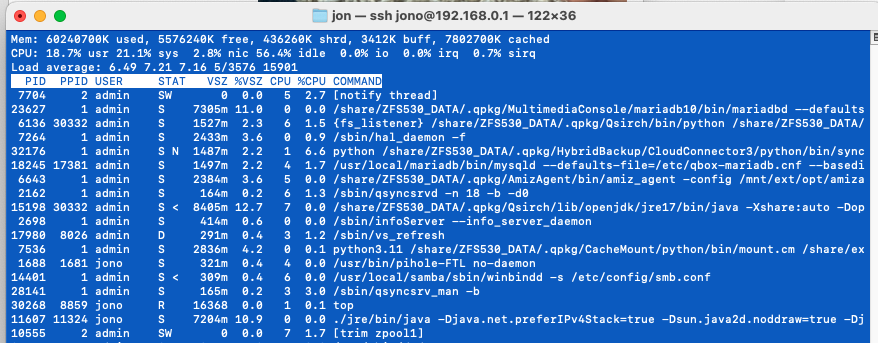
To see what is going on, you will need to SSH into your NAS and run the Linux command top

You will get a screen that looks like this:

The Load Average on the third line is the all-important number. In my case here, this is my TS-873A which runs a Ryzen V1500B. It has 4 cores but 8 threads. So anything below 8 and I am good. In your case anything 4 or below will be good. The load values are like 1 minute, 5 minute and 15 minute averages.

With this info then you may end up being able to find out the offending process. But maybe not. So I have another trick for you.

Stop all your apps in app center that you can.
Shut down the NAS until it is completely off.
Power the NAS on.
Restart your apps.

What seems to happen sometimes is that there are zombie threads left over from applications that consume resources. They should die off but they don’t. Stopping and restarting the apps doesn’t seem to clear these as the start/stop process basically returns the app to the previous state. Rebooting doesn’t do it either. You have to actually turn the NAS completely off with the applications stopped.

I have found this to be the case multiple times when updating firmware. QNAP warns when the NAS has been running a long time and suggests a reboot before updating the firmware. I would highly recommend this before any firmware upgrade. I think when upgrading then w/o rebooting can cause stuff to get left out somewhere on its own and those zombie processes just sit there and cause problems. I’ve now been following the reboot then upgrade firmware followed by another reboot and things go much better.

Finally, if you still are having problems, open a support ticket. They will pester you initially with all sorts of questions like, “Are you using third party memory”? Which is a crock. But stick to it and insist that you would like them to get into the machine and clear out zombie processes that are not being killed off by the OS.

I can almost guarantee that you have some of those…

Let us know what your load numbers look like.

On other thing you may want to consider, is that you should be able to pretty easily upgrade the CPU in your NAS. I upgraded my TVS-672XT from an i3 to an i7 and it makes a big difference. Your i5-6500 has a CPU mark of 5600. The i7-8700T has a CPU mark of 10,218 - twice as fast. You can get one of these on eBay for about $80.

Not sure if the i7-8700T is compatible with your socket. I have a TVS-882 and I upgraded to an i7-7700. 4 cores 8 threads 8658 cpumark. Runs great!

Excellent, thank you.

That’s… a good point about TLS over internals. I do have a single port open to the outside, but I don’t have an SSL set up on it anyways, so I’ll turn that off and see if that helps. (… if I could ever get the control panel to load!) Having a single port open to the world for a website is an acceptable level of risk for me.

Okay, top shows… none of the three load stats ever got above 0.85 for me while I was watching it. I let it run for about 30 minutes or so while I poked around on the Web UI and tried to understand what was happening. I noticed that there are a lot of QVS tasks, whatever those are. While poking around the Web UI, Resource monitor showed ~20 zombie processes.

I stopped every app that I could, at which point the Web UI started to work a lot better. I wasn’t entirely paying attention to when it stopped disconnecting so much, I’ll have to pay more attention when I bring them back up. I then let it shut down in full, sit for about 10 minutes, then brought it back up. Still shows 20 zombie processes, with no additional apps started. “python3” and “manaRequest.cgi” are the most of them

Alright, I started Plex server and that seems fine. I started Virtualization Station, and… almost immediately got the pop-up. Time for a support ticket… Joy.

Thanks for the guidance!

Good note about swapping the CPU, I figured it was soldered to the board. I’ll look around for an i7-8700T, that seems like a good option. The 9th gen should also fit, but I think I’ll take 6c12t over 8c8t, even if it is one gen older.

It looks like both use the LGA 1151 socket. However, when I did a quick ChatGPT (buyer beware) search, it suggested the 6th and 7th generation cores and lists the i7-7700 like you have. It did not list any 8th or 9th generation cores. And looking further…

No after further investigation, the i7-8700T will NOT work with the motherboard that uses the i5-6500. Even thought sockets are the same. Thank you @Franklin for pointing this out.

So looks like the i7-7700 is the right choice.

Uhm, I would be very careful about having web ports open on the NAS unless you are running that particular application in a Docker container. QNAPs do not have the best record when it comes to being exploited. You have been warned!

QVS tasks are related to Networking and Virtual Switch. More on this later…

Zombie processes will always exist. So don’t worry about that. What they are is a thread that has finished running and need to be cleanup and killed by the OS. You can chase after them and attempt to kill them from the command line, but you will many times find they don’t exist when you kill them. That’s because the OS has already done it. What happens though is sometimes, the Zombie process don’t get killed and hang around. Those are the ones we want to eliminate, but it’s virtually impossible (AFAIK) to know what zombie process are ones that are not being killed.

manarequesk.cgi is a management request process that is always running. Python is also always running.

OK. So there is an issue with your Virtualization Station setup. Hence why we went through the slow and tedious step of doing one thing at a time. If there’s something wrong with the way your network settings are configured (ie: Network and Virtual Switch), you can have problems. Make sure your virtual switch settings are not creating any loops or anything like that. It’s possible they are and this can cause problems. This would be my first stop on this.

So in Virtualization Station shut down all your VMs. Then stop Virtualization Station and shut down the NAS. Restart the NAS and then start Virtualization Station. See if the problem starts up right away without and VMs running. If it does, then definitely open your ticket. If it doesn’t then start your VMs one at a time and note when the problem starts. When the problem starts, then you will know what VM is causing the problem. So then stop that VM. See if the problem then goes away. Figure out what is different with that VM.

VMs take a lot of resources on the NAS. You may absolutely want to upgrade your CPU if you are having issues with running multiple VMs. You may also want to look at the idea of running Containers instead of VMs if they are doing simple “one task/app” sort of things. Containers seem to be much more efficient.

You are welcome.

OK. I gave you bad advice here! See the other posts from Franklin and myself…The 8th generation CPUs will not work with your motherboard.

I researched the upgrade years ago. I was thinking the socket was the issue, but I am kinda remembering the motherboard Intel chipset was rhe problem.

I did a bit of quick digging this morning, and I think you’re right. I wanted to check to make sure the chipset would support a newer generation. The TVS-882 that I have runs on an Intel “SKYBAY” motherboard, version “Default string”, with BIOS “QZ02AR02”. I’ve not been able to find reliable or useful information on any of this (Okay, “Default string” aside…), but I do recall something about consumer 6th gen mobos requiring a BIOS update to run 7th gen. I’ll make sure to do more research before ordering anything.

Thanks!

Noted. This particular one is basically one app, so I’ll see if I can migrate it to a docker container. I don’t really need it to have a GUI or anything, I don’t think…

OK. So there is an issue with your Virtualization Station setup.

Maybe… I left it alone last night, and I’ve been poking at it for an hour or so and I haven’t noticed any issues. I do still have every other app off - only Plex, VM Station, and this one VM are running. Now I don’t know what the heck to think.

I think you are right to point me towards the Network and Virtual Switch, though. Not that I could name why, specifically. I’m going to slowly turn on other applications over the next few days and see what happens. Hopefully the steps of ‘turn everything off, shut down, cold boot’ got to the core of the issue, and what I was experiencing was some sort of hiccup.

That said, I now have this wonderful reference for what to do next if this happens again. I’ll also try to remember to do a cold boot before doing firmware updates. I always to a reboot before, even if it doesn’t ask, but a cold boot seems like a reasonable precaution to take.

Yep, nope. Woke up this morning to the unit being unreachable again. It worked for a few hours yesterday, then failed overnight I suppose. Rebooted it, turned off the VM, turned off VM station, Plex, so it’s running just what I can’t turn off or remove. Did a hard shutdown, waited 5 minutes or so, started it.

It came back up, I signed in, and within 2 minutes of me poking around in the menus (I opened App Center for it to update, and then opened Network and Virtual Switch to double check settings) I got the popup for busy or disconnected. Good thing I opened a ticket.

Tangential, it would be nice if I could figure out how to shut down the VMs from the CLI. I looked around on the disk but couldn’t make heads or tails of what Virtualization Station is named. Some of the packages are nice and clear, and others… aren’t.

Thanks for everyone’s time and effort. I’ll follow up after talking with Support.

Virtualization Station is also called QKVM.

Try stopping Virtualization Station at the CLI:

/etc/init.d/QKVM.sh stop

Are all the running VMs shutdown?

If you start Virtualization Station again, do all the VMs start too?

/etc/init.d/QKVM.sh start

Regarding this issue, we will continue to assist you through the ticket you’ve opened. Thanks!