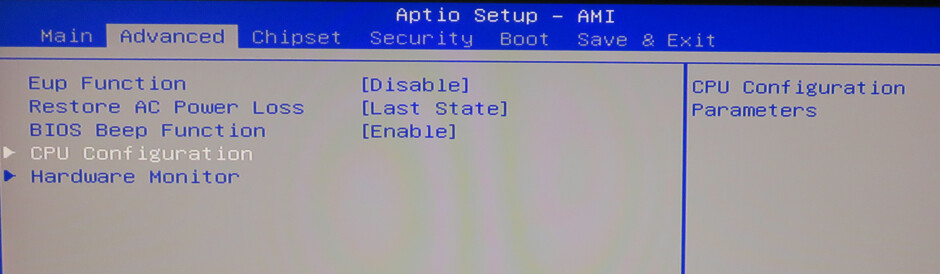
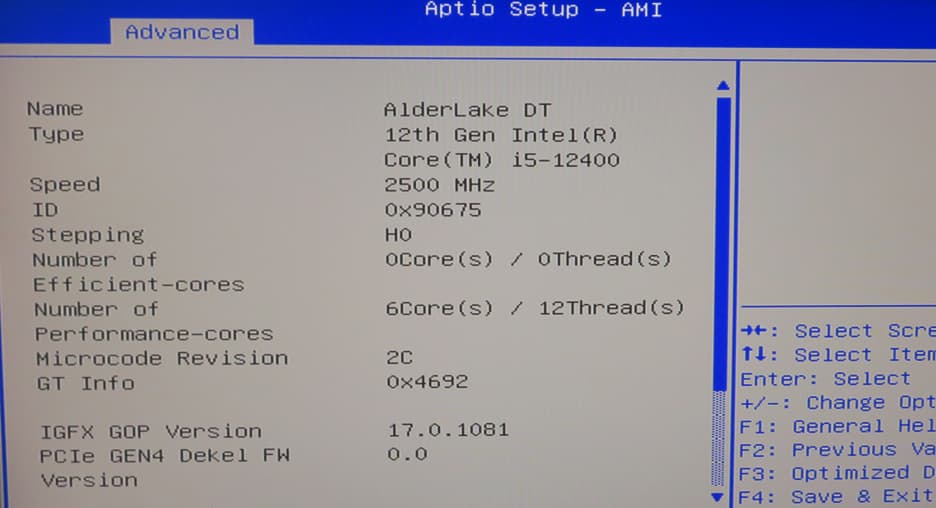
Updated my CPU to th 13700t. Everything is working well. Want to confirm C-States is enabled, so I am in the BIOS (DEL or F2), but when I tried CTRL-F1 to enable the advanced options, nothing happened. BIOS is B649AR23 (5.27 Core version).
Tried 2 different USB keyboards, both front and rear USB ports (just in case).
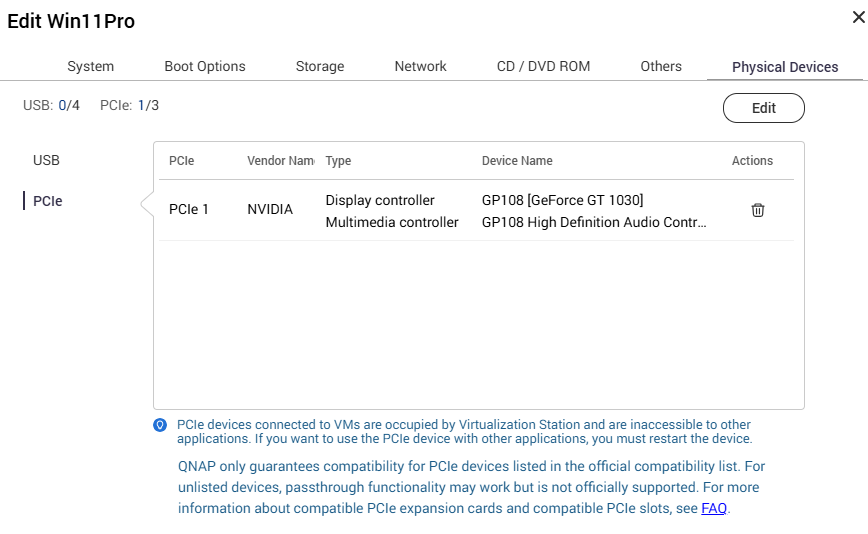
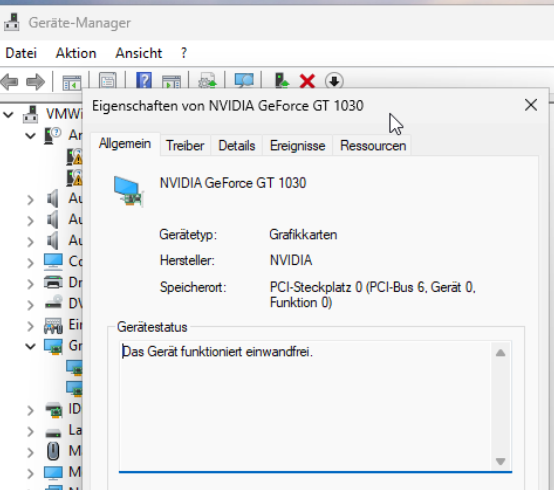
I buy a ZOTAC GeForce GT 1030 (ZT-P10300A-10L).
On the Compatibility List is only the ZOTAC GeForce GT 1030 LP (ZT-P10300E-10L). But i can only buying the first GPU.
I use now no graphics card.
It was only a test. The TVS-h674 is fast ennough for me
Interesting note about the CPU change. To clarify: I can access the BIOS, but I cannot access the advance settings anymore. This was possible in the past. And yes, that seems to have happened after the CPU change
I want to enable C-States to reduce power consumption. If there’s a backdoor way to check the setting, or even change it, that would work also.
Okay, I got it to work and enabled C-States. I tried to enter the bios using DEL and then do a CTRL-F1. The key is do do CTRL-F1 during startup to enter the BIOS into advanced mode.
Temps down from 62 to 50 degrees after enabling C-States!
Yes, we’ve confirmed that you can enter the advanced mode using CTRL + F1. We’re glad to hear you succeeded!
Also, we checked and found that when a graphics card is inserted, the BIOS defaults to displaying on the external monitor. We wonder if this is why you couldn’t see the BIOS screen originally. If you need further checking or confirmation, please feel free to open a support ticket. Thanks!
I couldn’t initialize see the BIOS because my HDMI out wasn’t working. I have no external graphic card. I had to install the HybridDesk Station in order for HDMI out to start working, even during booting.