All my drive lights are green, but noticed today my TVS-h874 cannot be seen by my network and Qfinder also cannot see it. It was working great a few days ago.
My backup QNAP NAS is visible on the network and the login screen pops up and the rest of my devices and PC’s are fine on the network. I am not familiar with QNAP shell commands and logs and all that but am fairly good with networking and have been learning about QNAP and following forums.
What are my steps to try to regain access? I have it plugged into my 10G network port which is connected to a 10G QNAP switch as is my PC.
I did not want to reboot it without checking if that was a good thing to do. I rebooted my router but that did not make a difference. I checked my router list of devices and nothing else had the fixed IP address from the TVS-h874. The LCD lights up and shows the IP address on the front. I have not recently updated the firmware and I think I am at least one version behind.
Kind of scary so any suggestions welcome. It is only about a year old and since I may have to create a ticket wanted to start here. It is interesting that I just bought and setup a QNAP backup NAS a few months ago. But I still want to get this one up ASAP.
One more thing. It is not setup for nor can I access either NAS over the internet for any purpose, it is local LAN access only.
This why I like the LCD panel on my NAS - could you use the IP displayed on the LCD to access your NAS? If you have not changed the default system port, it should be like
h ttp://12.34.56.78:8080
Or use terminal to ping the NAS to check the network connection between the computer and the NAS is working.
@haru0, Thanks for getting back to me. I really wanted the LCD display also and glad I have it! Now only if I could see the NAS. The strange thing is I am connected to the 10G add-in card in the NAS which I believe shows as #2. On the LCD it still shows the correct IP address from my network range which is how I always accessed it. Nothing has changed there. So I was surprised when QFinder could not access it. It says it is the right IP address but the PC is not seeing it now. But Qfinder and my PC can see my other QNAP NAS on the same subnet so don’t think I have a network-wide issue? It is not listed on my router log either now as being connected. Hmmmm.
But the QNAP 10G switch lights light up when I connect it.
The on-board Ethernet port #1 shows on the LCD with some strange IP address outside of my network’s subnet or range (and I do not think the one you mentioned, it was in the 200’s) so not sure what I can do with that port? Unless I could plug my ethernet cable into that port and it would grab a HDCP IP address if I rebooted? My guess is since it is starting at the wrong subnet my router won’t see it? I know at one time I did connect via that port when setting it up. At this point I don’t care about 10G, just want connectivity. I tried a different port on the 10G switch and still no joy. And my PC is on that same switch and it is fine.
Also, I was afraid to reboot as I have read that is the wrong thing to do sometimes as I have been following QNAP forums and subs since I bought my first one to try to learn. So not sure if that should help or perhaps create more issues.
I can google how to use terminal etc. but am on windows and that is a bit outside my normal tech zone although I do build my own PC’s and networks…
If this gets too complicated, I may just want to setup some hand-holding with QNAP support so I don’t do something wrong. I just don’t know what changed. My weekly Hybrid backup sync jobs ran Sunday per my email notification so all was good then. I noticed this issue on Tuesday night. I did not login or change anything between Sunday and Tuesday.
Guess I just need to know what to try next that is not too risky based on the above info.
@diwiwi, It was not listed on my router’s attached device list. But tonight when I get home I am going to write down the exact address on the display for both ethernet ports and triple check everything.
Yes, I have read about the 3 second…but scary that holding it too long does 10 second. I posted some more details on @haru0 's post.
but scary that holding it too long does 10 seconds
Assuming the reset button is enabled:
The NAS will beep once after pressing the reset button for 3 seconds, and it will beep another time after 10 seconds. So you just need to stop after the first beep.
That said, the 10 seconds reset does not delete data (but will be annoying to reconfigure)
@BJB I don’t think need reboot or 3-second reset yet, could you help to confirm the network port is
#1 Onboard 2.5GbE Port 1 #2 Onboard 2.5GbE Port 2 #3 External 10GbE Port 1 #4 External 10GbE Port 2 and connect to Switch
Here has a safest and easiest test, no need terminal and zero risk for your data:
Unplug the all ethernet cable from your NAS.
Plug the ethernet cable from switch to port #1 and wait 30 sec - 60 sec for NAS update the ethernet information, then press the LCD and is should show the new IP address of the port #1.
Repeat 2. and note all 4 ports and check which port IP is on the same network segment as IP address of your Computer.
Then you can use that IP address (maybe like h ttp://192.168.1.74:8080/) to access you NAS, and check what happened on the network settings.
Once you get access to your NAS, please give it a fixed IP address outside of your router’s DHCP pool. Then you never have to worry about this. You don’t need to use Qfinder normally.
I will try this tonight. I can verify though that when this first happened, and again last night, I verified that the internal #1 and #2 were both all zeroes and I only had one cable plugged into my 2 port QNAP 10G card, but #3 had a random address outside of my subnet and #4 was the same IP address that I always used. And after swapping cables around I am unsure what port 3 and 4 is on the network card? But both ports were definitely populated with numbers.
I will try 1 and 2 tonight and see what they say. I previously used these ports with the NAS before I setup my 10G connection so one should be setup and working.
I do not have a segmented network. Everything is on the same series of numbers.
I know…this is like the plumber not fixing his own sink. I always do this when I help someone or I setup something new, like my backup NAS. However my NAS units have used this IP address for a very long time, so it is all over the place. And reserving it should be no big deal, you type it in once! But it may come to that…
Thanks for the reminder for sure. Got to get in there first.
Thanks. I did all this. Out of the internal ports one was in my subnet range and I was able to login. NAS is healthy.
I snipped all the ethernet ports and Mac ID’s
The strange thing is that my 10G ports always said connected in control panel even when nothing was connected. And Qfinder when it found the NAS (only when plugged into internal ports) always listed the MAS as connected to 10G and the network card. And the fixed IP assigned there.
I was able to connect not by qfinder but by just typing in the right path.
I changed my 10G card to an IP address outside the range when I was logged in. The LCD panel persistently lists IP addresses for 3 and 4 regardless if plugged in. Not knowing which is 3 or 4, I tried both. Neither allowed me to connect to the NAS when connected to the card.
When connected to the 10G card Qfinder does not even see the NAS. Could the card have gone bad?
Do I need to reboot to get the card to be properly show what is connected or is the persistent LCD display for them and labeled as connected in control panel normal.
I just wanted to mention something about QFinder Pro, that I have noticed. If you let QFinder Pro become “outdated” - it appears to stop working. Simply update to the latest QFinder Pro, and then it will magically start to work again, and then find your QNAP. With that said - NA9D’s suggestion is the correct suggestion. Once you get in, immediately change the IP address in the Control Panel> Network Settings to a STATIC IP, so that it never changes and your DHCP router has no ability to change it randomly.
Good to hear from you! Sorry for all the edits…it’s late
I will update Qfinder per your post. Knowing the IP address of the internal port from the LCD helped.
My IP address on the 10G card was always a fixed address. My issue (or one of my issues) was my router had always excluded this from the DHCP range and it lost that entry as I figured out. I was able to use an internal ethhernet port, and the onboard LCD to determine that IP address and can get in.
I then set the IP address for the 10G card outside of the DHCP range entirely but my remaining issue is my 10G card remains stubbornly unable to connect even after changing the IP address as mentioned above. I am leaving my internal working port as is as it is still working.
I am waiting to hear from QNAp Monday on some ideas to get the 10G card going again as it has worked great for a year.
BTW, thanks for the great setup info for 10G. I enjoyed blazing speeds until this. Perhaps my card is cooked…
when I setup a system with 10G, I ALWAYS isolate the 10G network from the rest of the network. Which means, that I either setup a VLAN on a separate subnet, or I simply use a second switch (a 10G switch like a 10G QNAP switch) for the 10G stuff - with everything on a static IP. For example - you set the QNAP 10G port to a static IP of 192.168.2.3 subnet 255.255.255.0 MTU 9000. Then you set your computer’s 10G port to 192.168.2.11, subnet 255.255.255.0, MTU 9000. This is isolated from your house internet network - which means a second cable to the QNAP 1G port and second cable to your computers 1G port (or use WiFi for internet on the computer). Now, on your Mac, you click on GO> Connect To Server> smb://192.168.2.3> Connect - or on a PC, you go into the RUN window and type in \\192.168.2.3, and now you can mount your QNAP, and never be confused about where your 10G connection is !!!
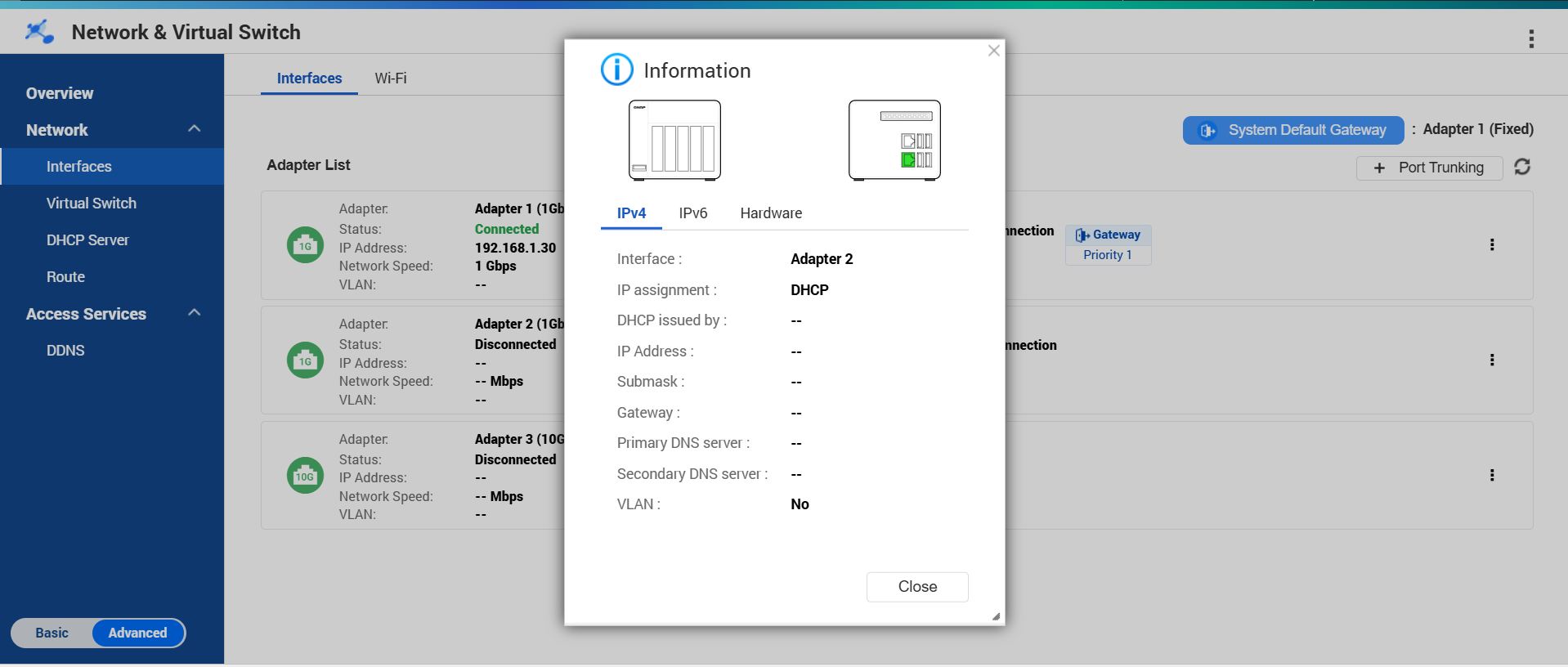
Trying to get back to switching back to 10G this week. Can someone let me know which port is three and which is four on myQNAP QXG-10G2T when mounted in and looking at the back of my TVS-h874?
Thanks
If you have the options, go to Network and Virtual Switch, Interfaces, click on the 3 dots next to the various interfaces, then Identify. Should should hopefully get a popup similar to this that will show you which is which.