I’m on a TS-233 and get several alerts for Unusual File Activity Monitoring when Security Checkup runs. How can I set this as an exception so it would suppress an alert?
In Security Center you can change the settings.
I’ve gone through choices in Security Center before posting. Which setting are you referring to?
I’d like Unusual File Activity Monitoring to ignore normal maintenance events such as a Security Checkup scan
I’m not sure if there’s a way to specifically ignore maintenance events. But you can try adjusting the threshold values. I don’t have this feature turned on but it looks like there may be some knobs you can twist a levers you can pull to make it do what you want. You will just have to experiment with it.
simply switch them off in security center 
This is a beta feature in Security Center. Perhaps I’m one of the few trying it. I will disable for now as I find it’s providing more noise than usefulness.
Hi @kenhickey ,
Thanks for trying out Unusual File Activity Monitoring and for the detailed follow-up — feedback like this on a Beta feature is genuinely valuable to us.
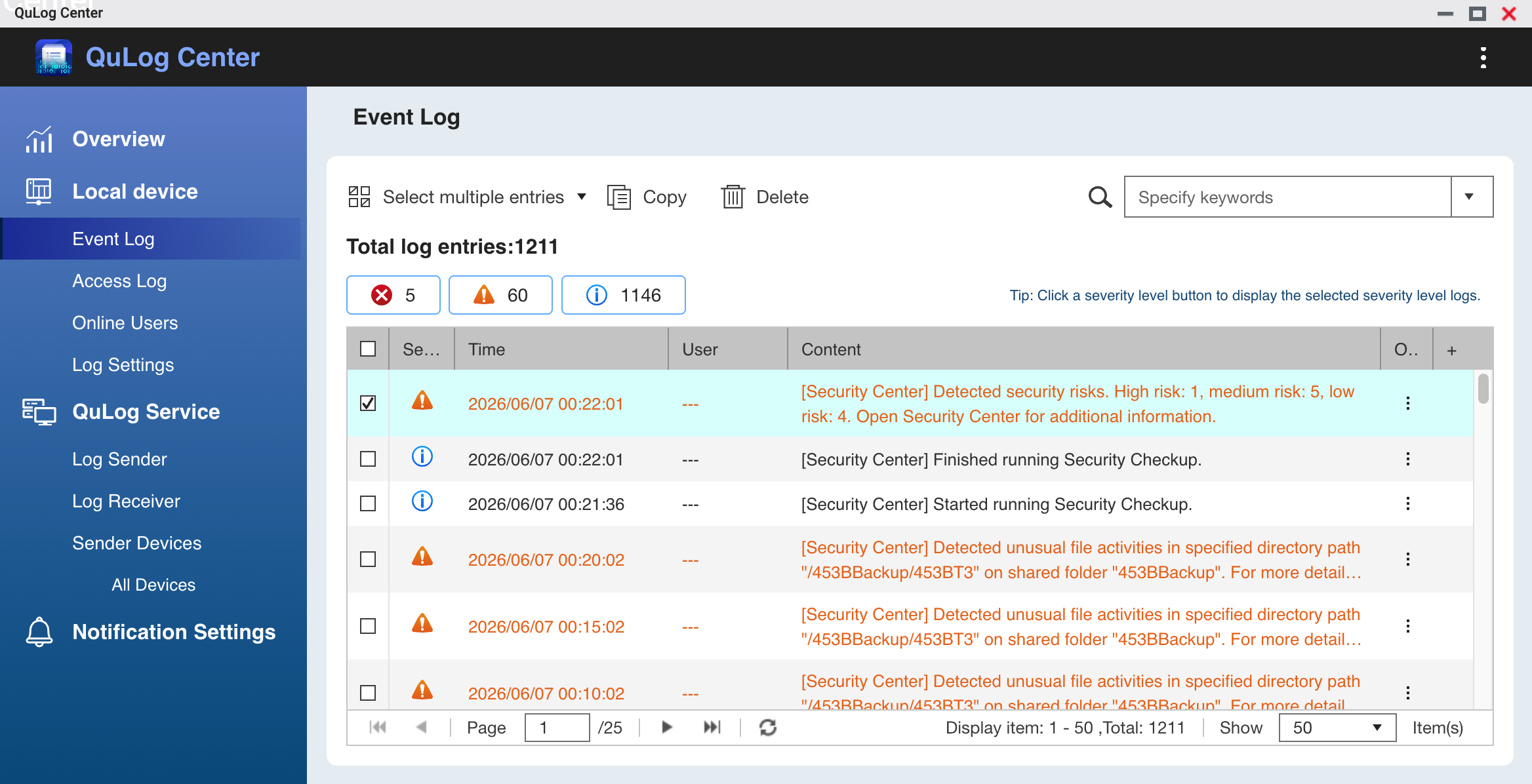
First, a quick clarification that may change how you approach this: Security Checkup itself does not generate “unusual file activity” alerts. A Checkup run only produces three kinds of log entries — Started running Security Checkup, Finished running Security Checkup, and a Detected security risks summary. The “Detected unusual file activities in specified directory path…” warnings you’re seeing are produced by a separate mechanism and just happen to fall close in time to the Checkup run, which can make them look related.
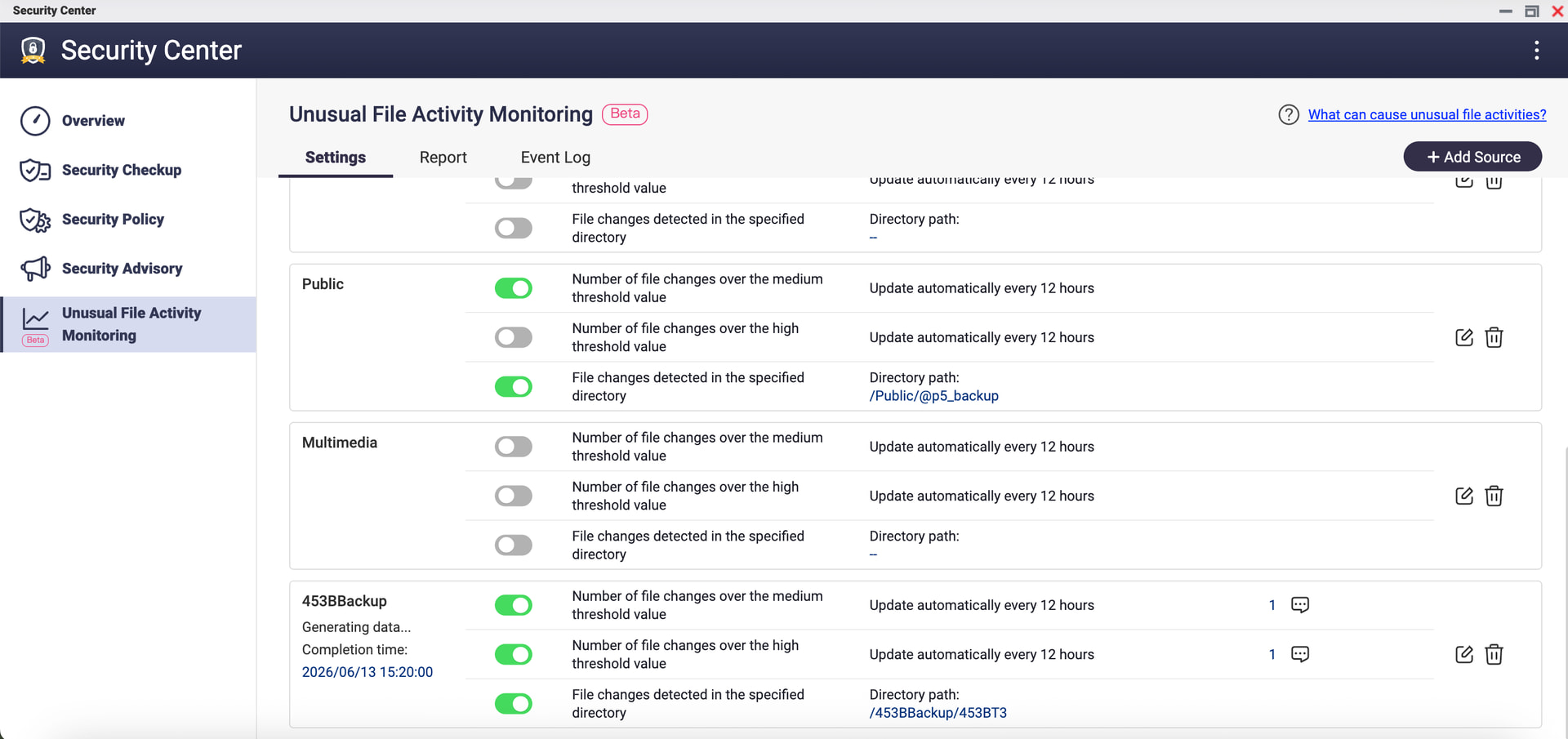
It helps to know that Unusual File Activity Monitoring works through two independent trigger types per shared folder:
- Threshold-based alerts (medium / high) — the system spends 7 days learning a normal-activity baseline, then alerts only when file-change volume exceeds the learned threshold. These have tunable knobs.
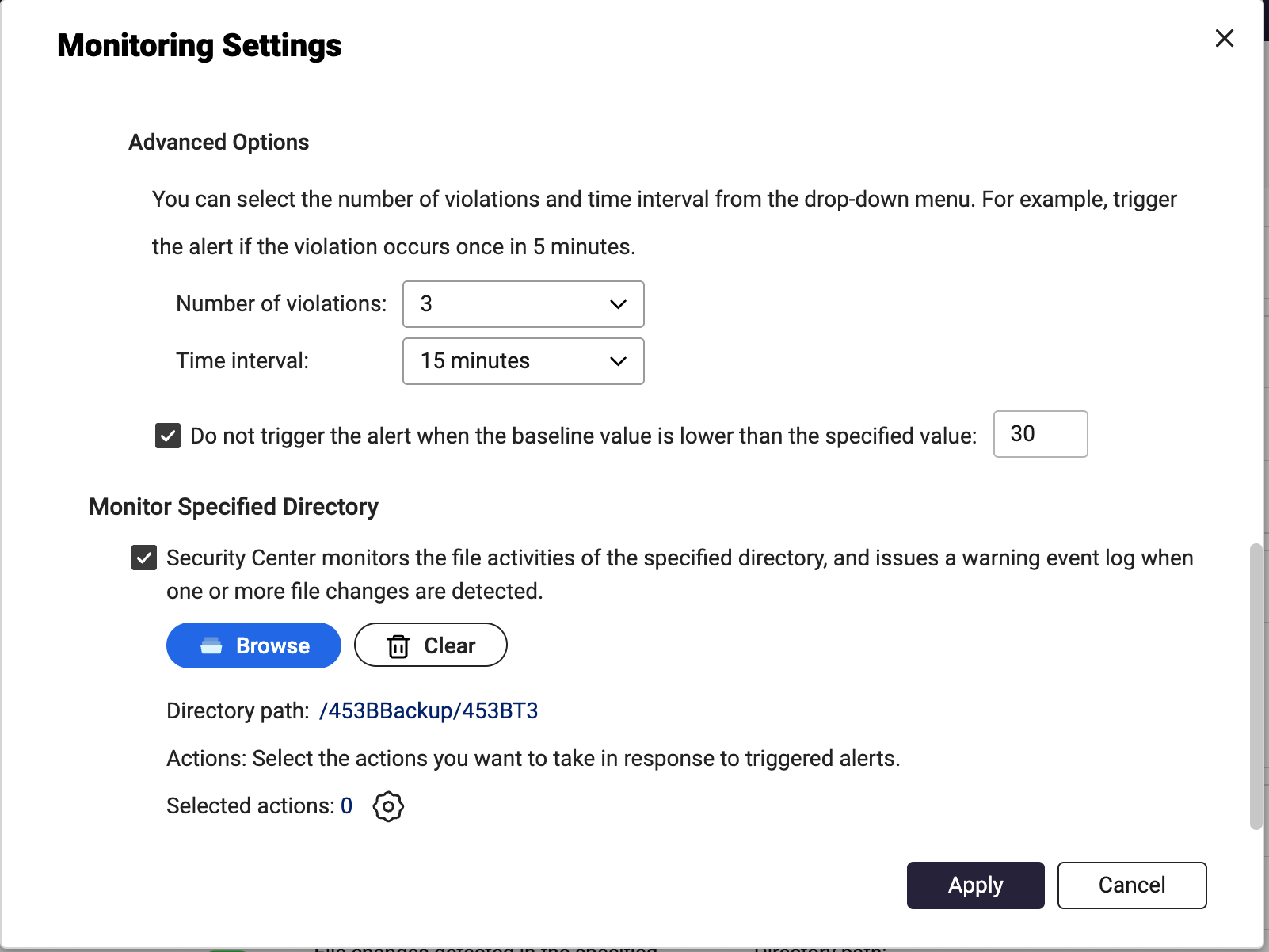
- Specified-directory monitoring — when you point it at a directory, it issues a warning log whenever one or more file changes are detected there. There’s no volume threshold here; any write to that path will log an alert by design.
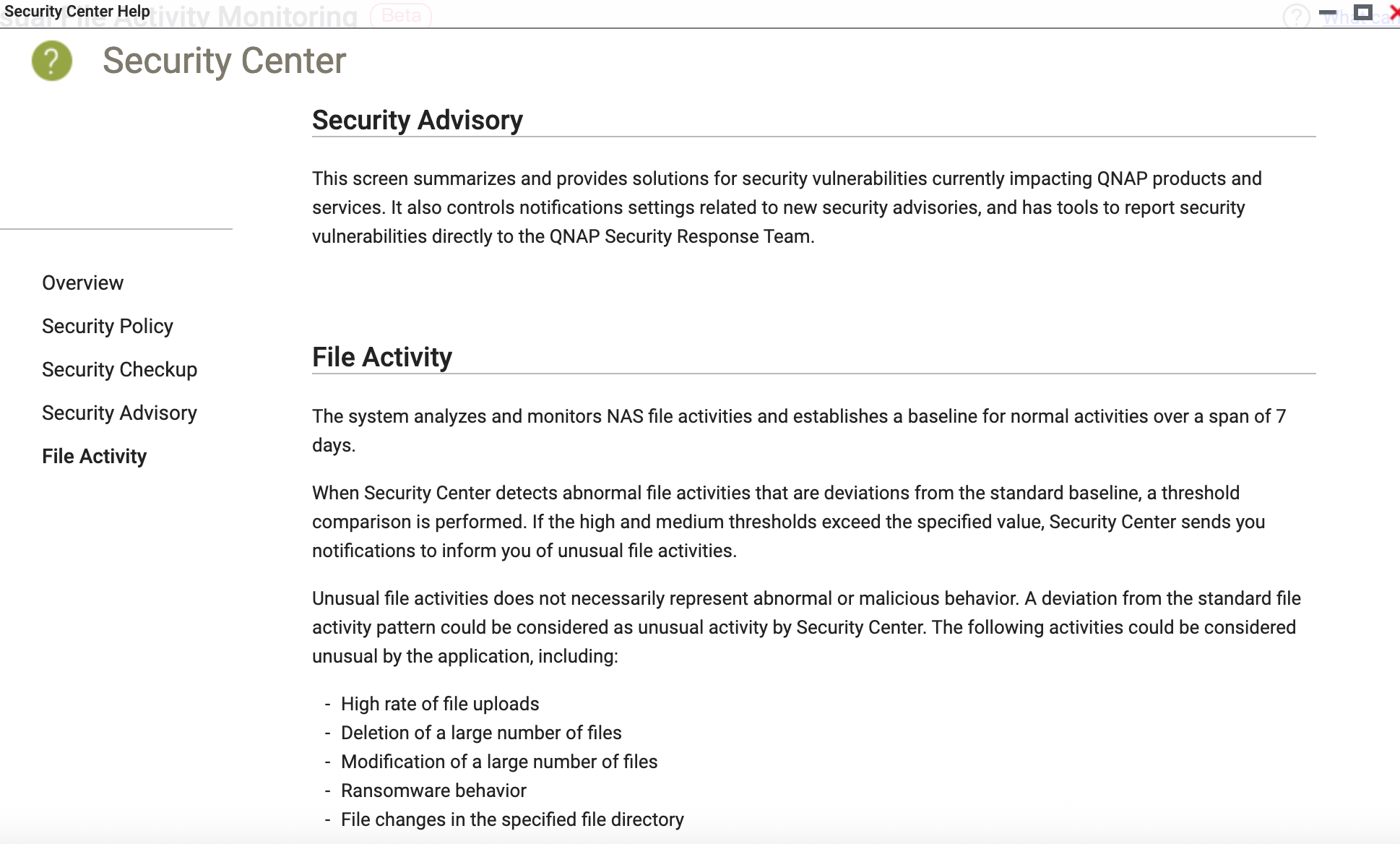
Based on the wording of your alerts (“…in specified directory path…”), they’re almost certainly coming from #2 — so adjusting threshold values (as suggested earlier in the thread) won’t quiet them. This is also expected behavior rather than a fault: as our Help notes, unusual activity doesn’t necessarily mean malicious — a routine backup, sync, or your own writes into a monitored folder can legitimately trigger it.
A few ways to get the signal-to-noise where you want it, depending on which trigger is firing:
- If it’s specified-directory monitoring: open Security Center → Unusual File Activity Monitoring → Settings, find the source folder, and either turn off “File changes detected in the specified directory” for that path, or point it at a directory that is genuinely sensitive and low-churn (rather than a backup/working folder that’s written to constantly).
- If it’s threshold-based: use Advanced Options to require multiple violations within a time window (e.g. 3 violations in 15 minutes) and set the baseline floor (“Do not trigger when the baseline value is lower than…”) so low-volume noise is ignored.
- Worth knowing for later: each trigger can also run an automated action (take a snapshot, set the folder to read-only, etc.). That’s the real payoff of leaving this on for a sensitive folder — it’s not just logging, it’s a ransomware-style auto-response. So before switching it off entirely, it may be worth retargeting it at a folder where that protection is meaningful.
To help us pin down exactly which trigger is firing and tune this with you, could you share a few screenshots?
- The full text of one of the “unusual file activities” event log entries (the complete Content field, not truncated).
- The Settings page of Unusual File Activity Monitoring, showing the source folder and which of the three conditions are toggled on.
- The Monitoring Settings dialog for that source (Advanced Options + Monitor Specified Directory section).
With those we can tell you precisely which setting to adjust to keep the protection you want without the extra noise.
Thanks again for testing this — it’s exactly the kind of real-world usage that helps us shape the feature before it leaves Beta.