First, I apologize for my english, 53 years old and french, it’s not easy !
So, I recently bought a QMiroPlus-201W and tried to install it. I think I was good while the NAS was directly connected to my PC. My problems came when I tried to put the NAS on my home network.
I don’t know if it’s a problem with the cables or something else with my internet box but Qfinder is not able to see the NAS
What kind of information should I give the community to get some help with this problem ?
It is very possible that the NAS and your LAN are on different sub-nets. I would connect it directly to your PC once again. Then assign a static IP to the NAS that is in your LAN IP address range and not in your router’s DHCP pool. Then try putting the NAS back on your network.
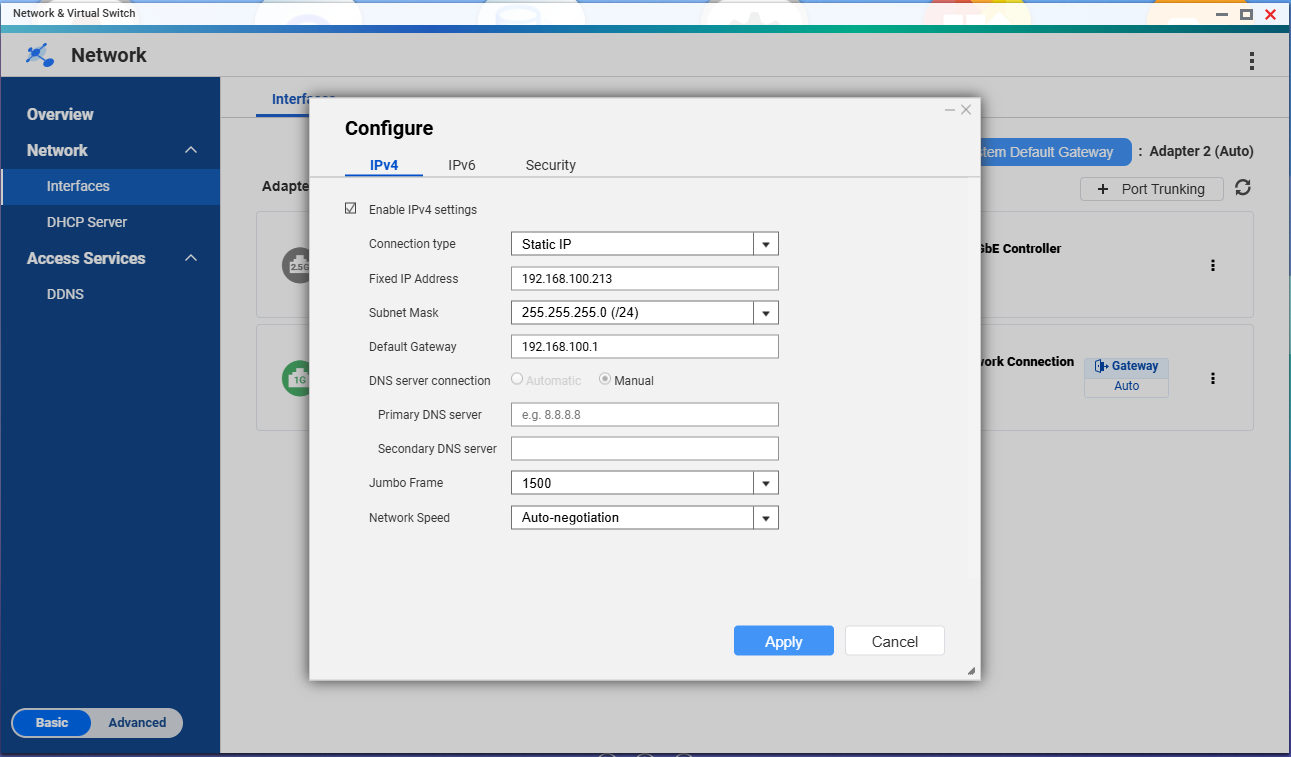
Thanks for your help. Is it here wher I should put a static IP ? I’m fine with 192.168.100.213 but I don’t know if the others parameters are ok…
Is there something else to do on this windows, especially with the IPv6 tab ?
So as this is a router and a NAS, it’s a little different from other NAS only devices.
You have the correct spot for entering the static IP. But you need to make sure that this is the LAN address and not the WAN address.
I see you have a gateway specified of 192.168.100.1. Please tell me what that device is. Is that your internet box? Does your internet box act as a router as well or is it just a modem? There’s a big difference between the two. If the internet box is a router as well, you’ll be utilizing two routers in your network (the internet box and the QNAP). I’m guessing your internet box is a router. So this brings up a question:
1.) Do you want to use the QNAP box as a router?
2.) Or do you just want to use the WiFi part of it to serve as your WiFi access point and also to use for NAS storage?
Please let me know the answers to these and then we can move to the next steps.
This QNAP make both NAS & Router (with the adress 192.168.100.1).
I can each my internet box with this IP : 192.168.1.1 and I think this box is also a router.
No, I didn’t want to use the QNAP box as a router
I just want to put the QNAP on the network and access to my movies/series from my computer with its RJ45 socket. WiFi will be a later step to acces to the same multimedia files with my smartphone, tablet, notebook…
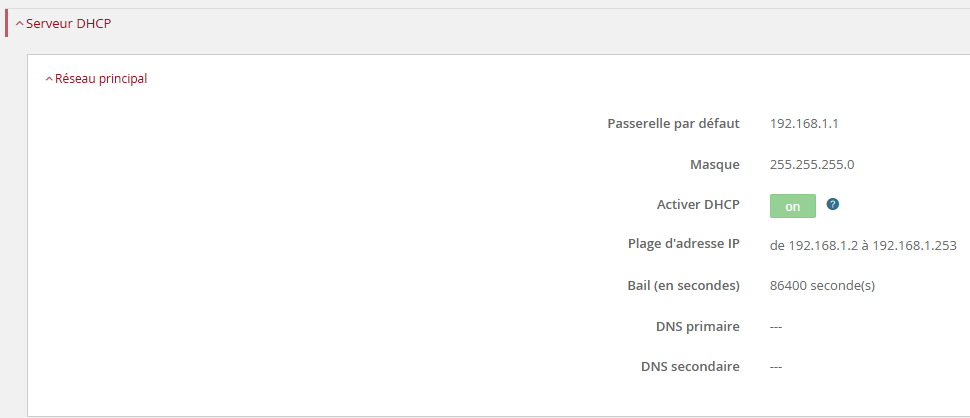
First of all, you need to make sure that whatever address you add for your QNAP is outside of the DHCP address pool used by your router (your internet box). Check your router’s settings for what addresses it uses for DHCP and pick one that is in the same subnet (ie: 192.168.1.0) but outside the range of addresses.
Using 192.168.100.1 is for the QNAP won’t work as it is outside the address space of the 192.168.1.0 network when using it’s typical 255.255.255.0 subnet mask.
If you need help, send us a screen shot of your router’s DHCP server settings.
Once you select an address, your QNAP device has a HOST port and several LAN ports. You won’t use the WAN port in your case. I think you should set this to be the IP address on the HOST port. I looked in the user guide for your unit and I don’t see any further details on what the host port is for other than just it being identified. But use that. This should connect your unit to the network and make it just like any other NAS.
I should have been more precise.
The QNAP can’t be reached with 192.168.1.254… while it’s still connect directly to my PC. Perhaps it’s now time to put it on the network ?
Because those addresses are reserved for the “DHCP Pool.” This is a set of addresses that the router hands out to devices on the network. When a device is set to use DHCP it makes a request of the network for an address. The DHCP server (your router) sends back an address to use from its pool of addresses. If you set a static route that is in that pool, the router does not know you did this and may give your address out to some other device. When you have two devices with the same IP address on the network, bad things can happen.
Connect the QNAP to your switch now. It likely won’t work when connected directly to your PC.
It’s not a fixed IP, the 192.168.1.254 is fixed fort the 1Gb port. Is that a problem ?
There’s another problem. Through the File Explorer in Win11, I though I will see the QNAP in the Network section but it doesn’t appear whereas I can reach it with its IP Adress.
I also have a numeric recorder, a Samsung BD-H8500 connected to the network, and I want to see the QNAP to watch the movies on our TV. But like on the PC, the QNAP is not visible
Perhaps something to do with my internet router ?
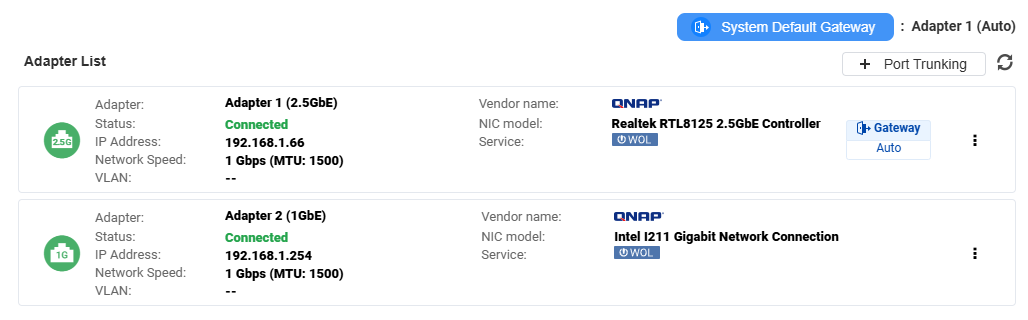
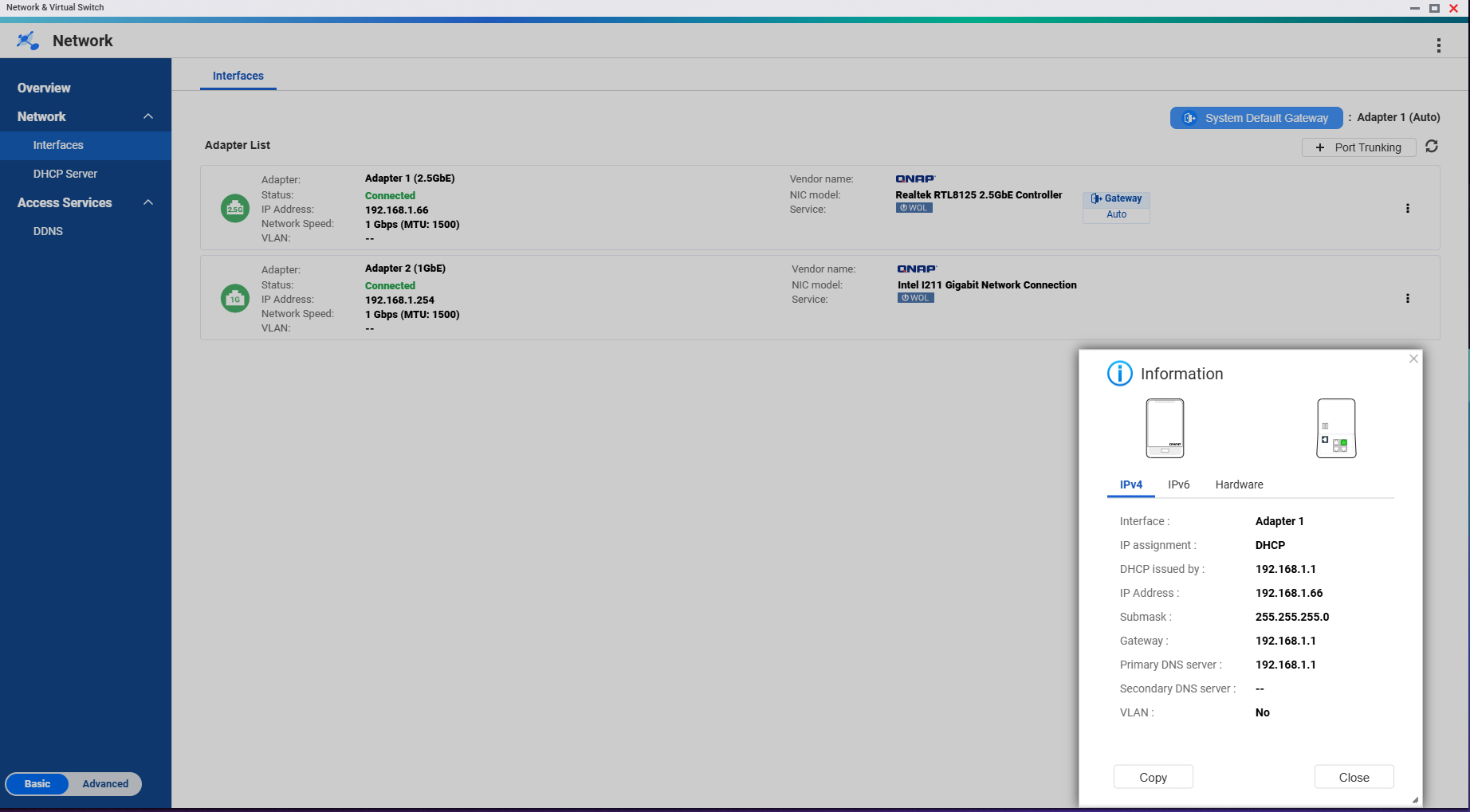
OK. It looks like you have two network adapters connect from the NAS to your network. It looks like you set up adapter 2 to have your fixed IP address. Both of your network connections are 1 Gbps so it doesn’t matter which physical connection you use. If you want to use the host port then disconnect adapter 2 and modify the settings for adapter 1 to be the 192.168.1.254. Or just disconnect the host port and use adapter 2. It doesn’t really matter.
Then your devices should start seeing the NAS and all.
There are two adaptaters on this QNAP but I only have one cable, from the host port (2.5 gb) to my switch
By the way, with only this cable, the QNAP show a red ligth, meaning he has no internet access
Oh that’s really strange. We would have to look at your Network and Virtual Switch settings to see how the system is configured. I would try moving from the host port then to one of the LAN ports. See what you get then.
You may want to open a ticket with QNAP to help further. I don’t know the purpose of the Host port on your NAS and when I looked in the users manual there was no documentation on it. See if you can get things set up with using one of the LAN ports.
If you want, you can post pictures of your setup in Network and Virtual Switch. I may be able to discern something from that…
With the cable moved to on of the LAN ports, I can’t reach the 192.168.1.254 in File Explorer
Back to the HOST port, I can reach the 192.168.1.66 in file Explorer but it doesn’t appear automaticaly in the Network section
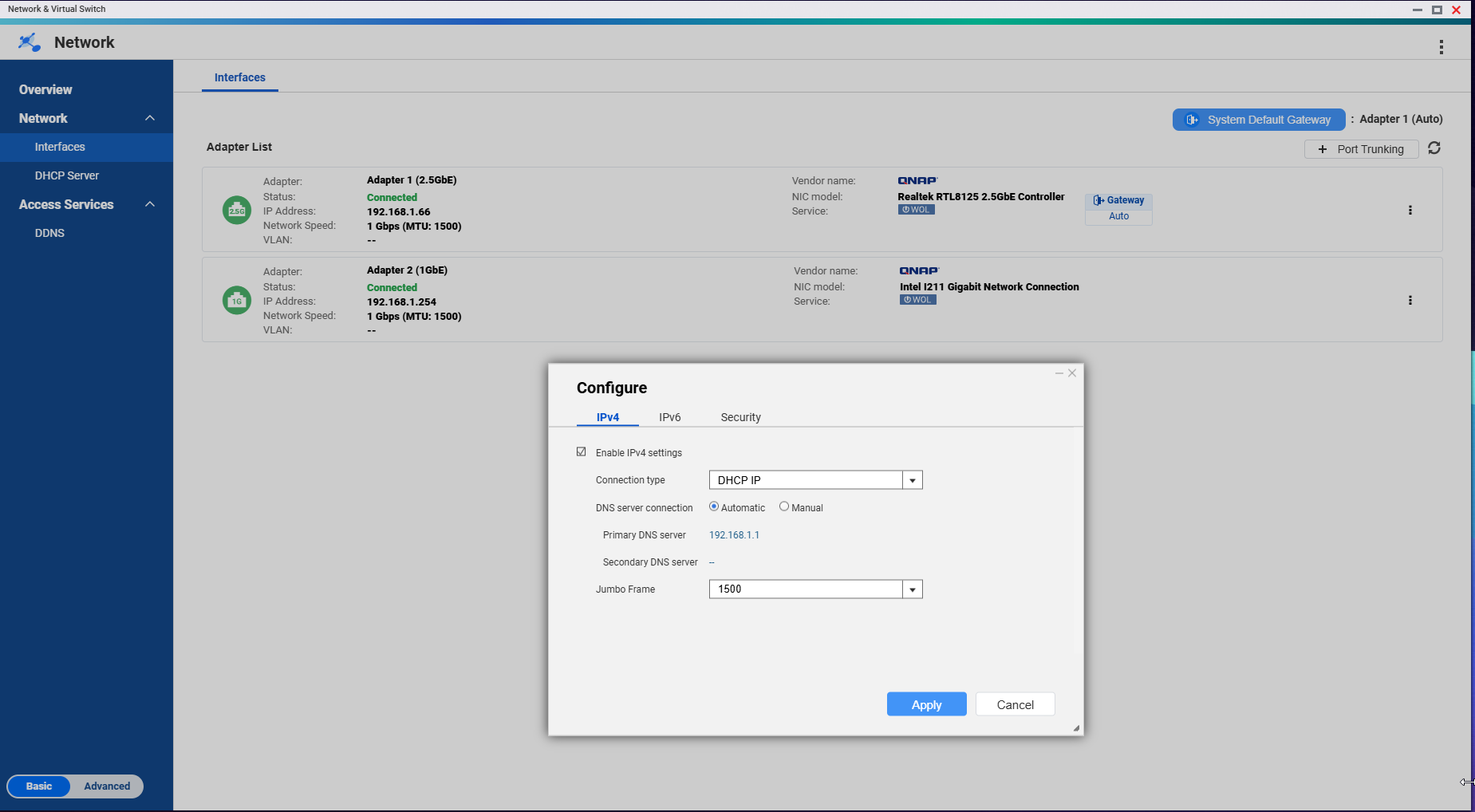
Her as the parameters in the Network and Virtual Switch
So here’s what you do. Remove the static IP from Adapter 1. Set that to DHCP. For Adapter 2, set that to a static IP and assign the 192.168.1.254 address.
I quickly checked the manual and youtube.
I can’t immediately see a way of killing off the router half. The manual makes it look like you have to setup QuRouter before it even give you QTS.
If you setup QuRouter, go back to it and change the mode to Access Point.
And then see if you can disable the WiFi. (or if it has better WiFi use it )
The default router mode makes it seem like QTS interface options don’t stick.
Manual also doesn’t tell me anything about what the Host port really is.
I want to say Host is for the NAS, and the router has Wan, lan1-3.
Set everything DHCP in QTS and try to put QuRouter into AP mode.
It should not matter what RJ45 port you use after that.





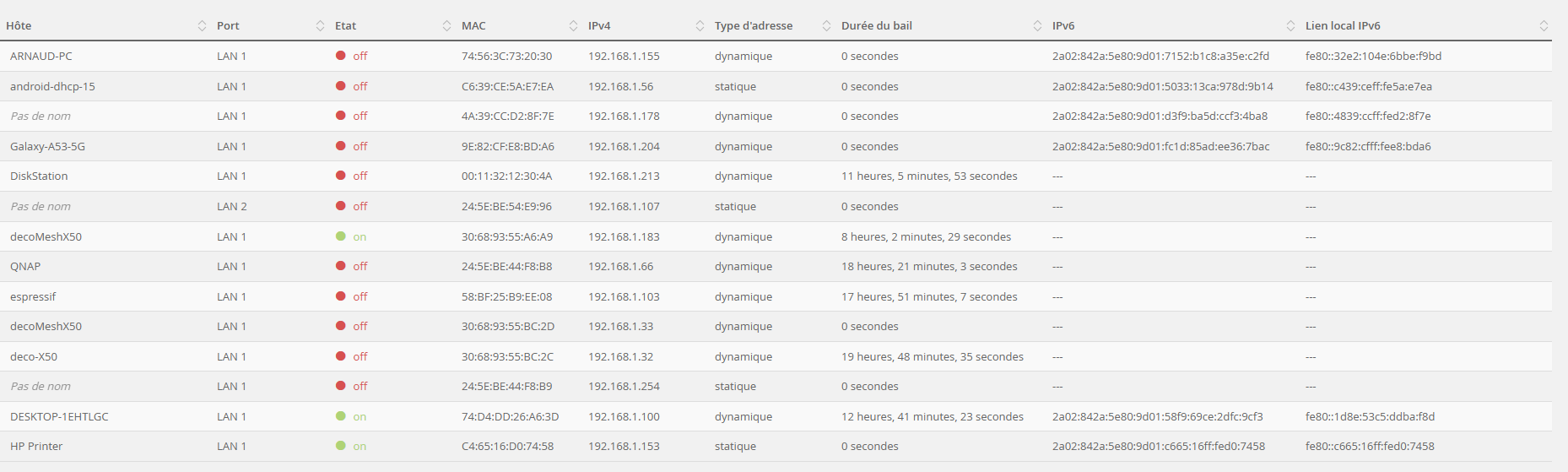
 )
)