Would a restore factory defaults and format be beneficial,do I lose any data or is it retained and I just create new shares.
If I reinitialise with the hard drives removed be an option, and then install them in the correct order. Would the system see the config when it boots up.. I also have a back up .bin file if needed
Is the “sluggishness” simply due to the utilization of cache SSDs or QNAP’s implementation?
I just integrated a Spare drive to my RAID 5 (from 5 HDD 14TB WD RED Plus to 6 HDD) and the migration / reclaiming took about 34 hours!
The transfer speeds were 50-60 Mb/s in average, whichI found were quite slow, compared to my NAS to NAS back-up transfer speed… does the SSD cache slow this process down?
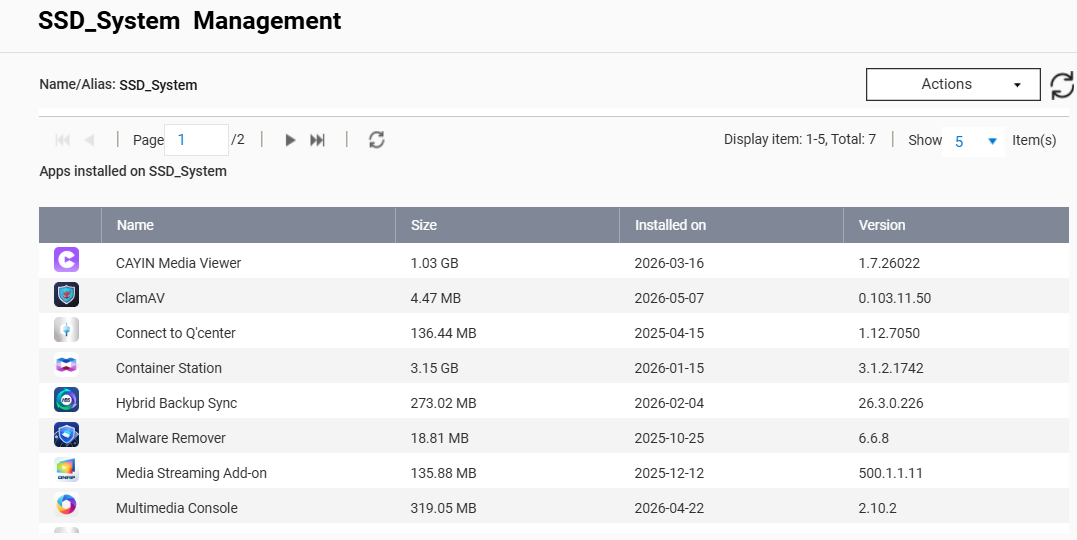
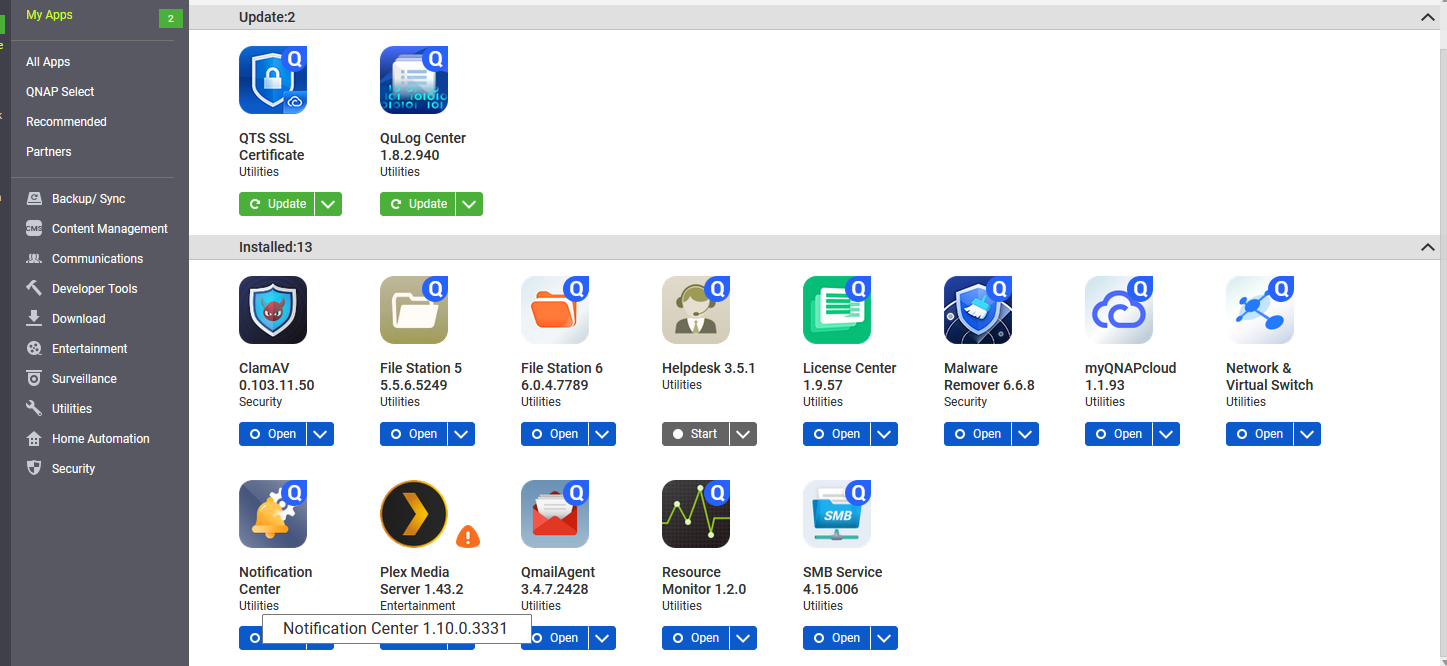
Please open a support ticket so our Support Team can assist you with further analysis. Also, could you let us know which applications you currently have installed? Thanks!
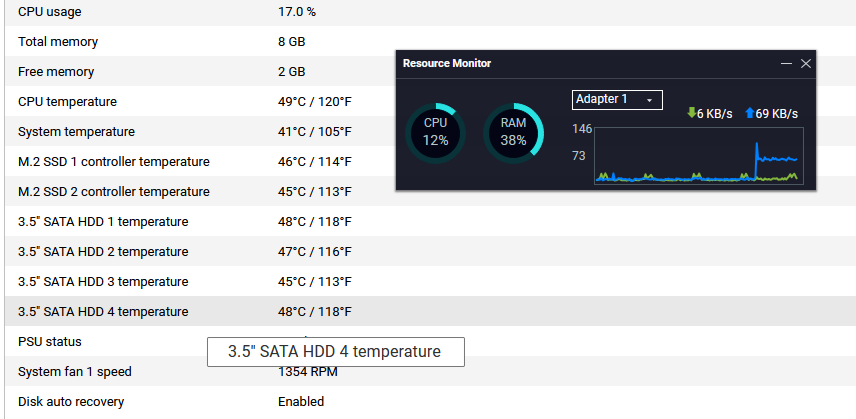
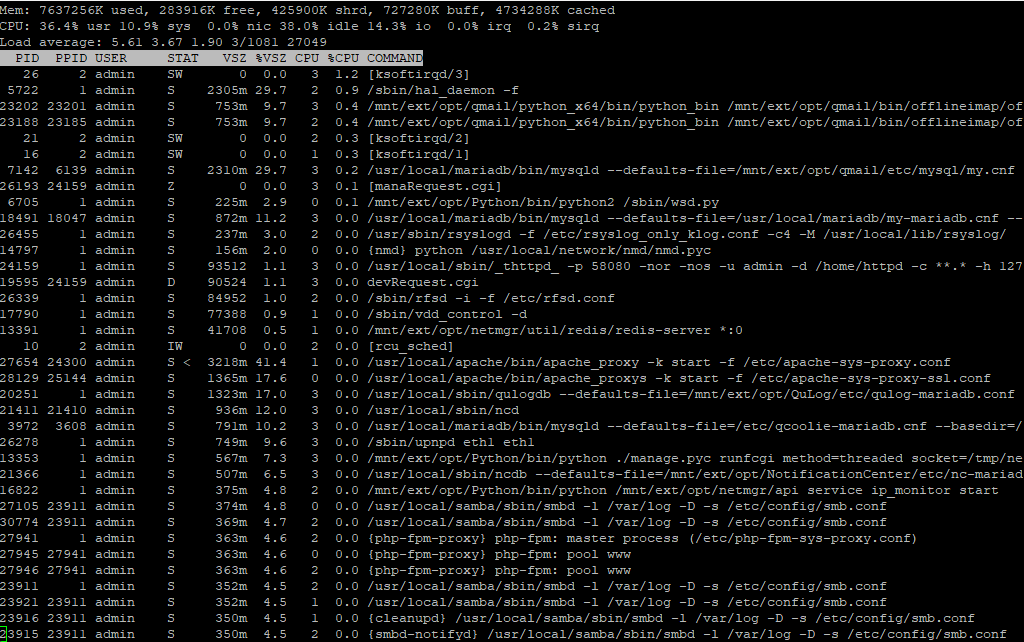
I would highly recommend that you open an SSH shell and run the command “top”. This will show you your CPU load and processes.
The important thing to look at is not CPU usage percentage but CPU load. The load average value:
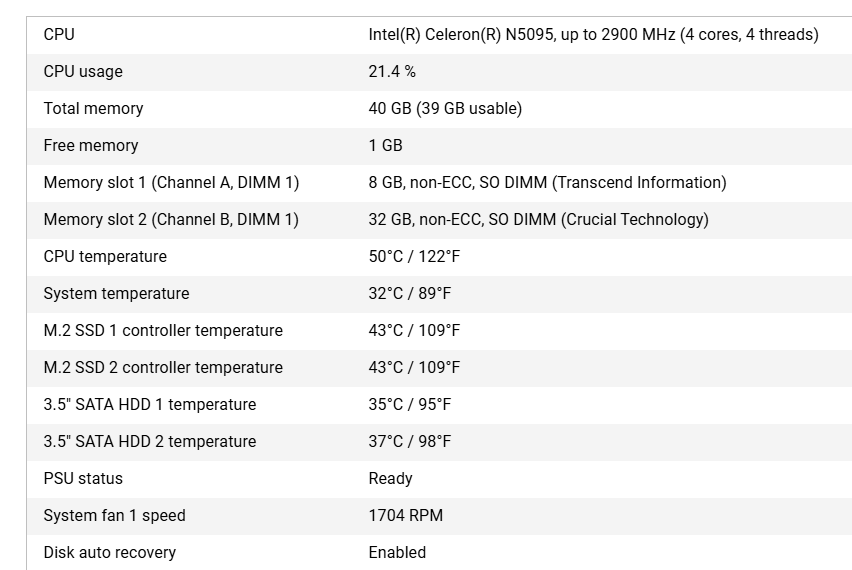
Load average is basically the number of threads in queue for the system. You have a quad core CPU with 4 threads. That means you can be running 4 threads at the same time. So if your load value shows anything much higher than 4, your system will be running VERY slow - especially if it is up at 20 or 30.
Things that can slow you down:
Qsirch when indexing
Multimedia Add-on when indexing
QuMagie when indexing
Raid rebuilds
Pool scrubbing
Anything that is indexing or messing with the file system will drive the load number higher. You should be able to identify the processes.
QNAP will have you star to shut down different processes to see which one is affecting you. What I would do is shut down everything from the App Center. Turn off everything you can. Then restart your NAS. Then when the NAS comes back up, turn your apps back on.
Just restarting doesn’t always work. Sometimes apps get some zombie threads that don’t get killed properly and they hang around and take up resources. Shutting the apps down kills all those threads. Rebooting with out shutting down brings your apps backup in the state they were before you rebooted - zombie threads and all.
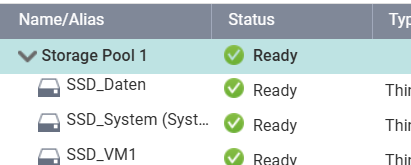
personally I wouldn’t use the M2 SSD’s as cache. It would have been better to set these two as the system drive (ie OS and apps) then just use your HDD as storage. if the OS/Apps are on a fast m2 drives then your gui is faster.
I would definitely turn of cache and see what its like. Also are you using http or https for your console. what settings are you using in your System Administration?